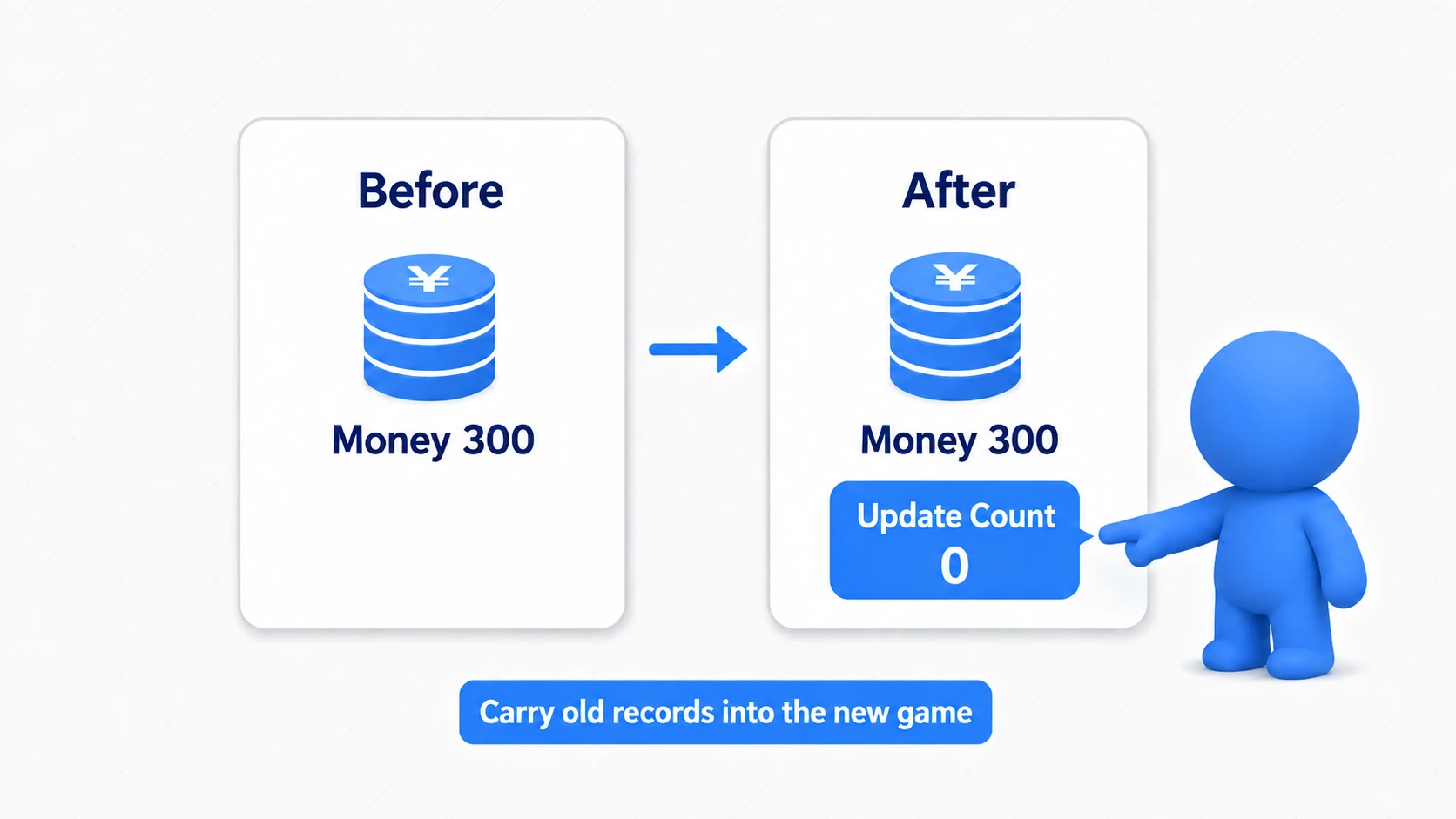
You grow your gold to 300, stop Play, and next time you are back at 0. To keep playing after closing the game, you have to leave the running values in a file.
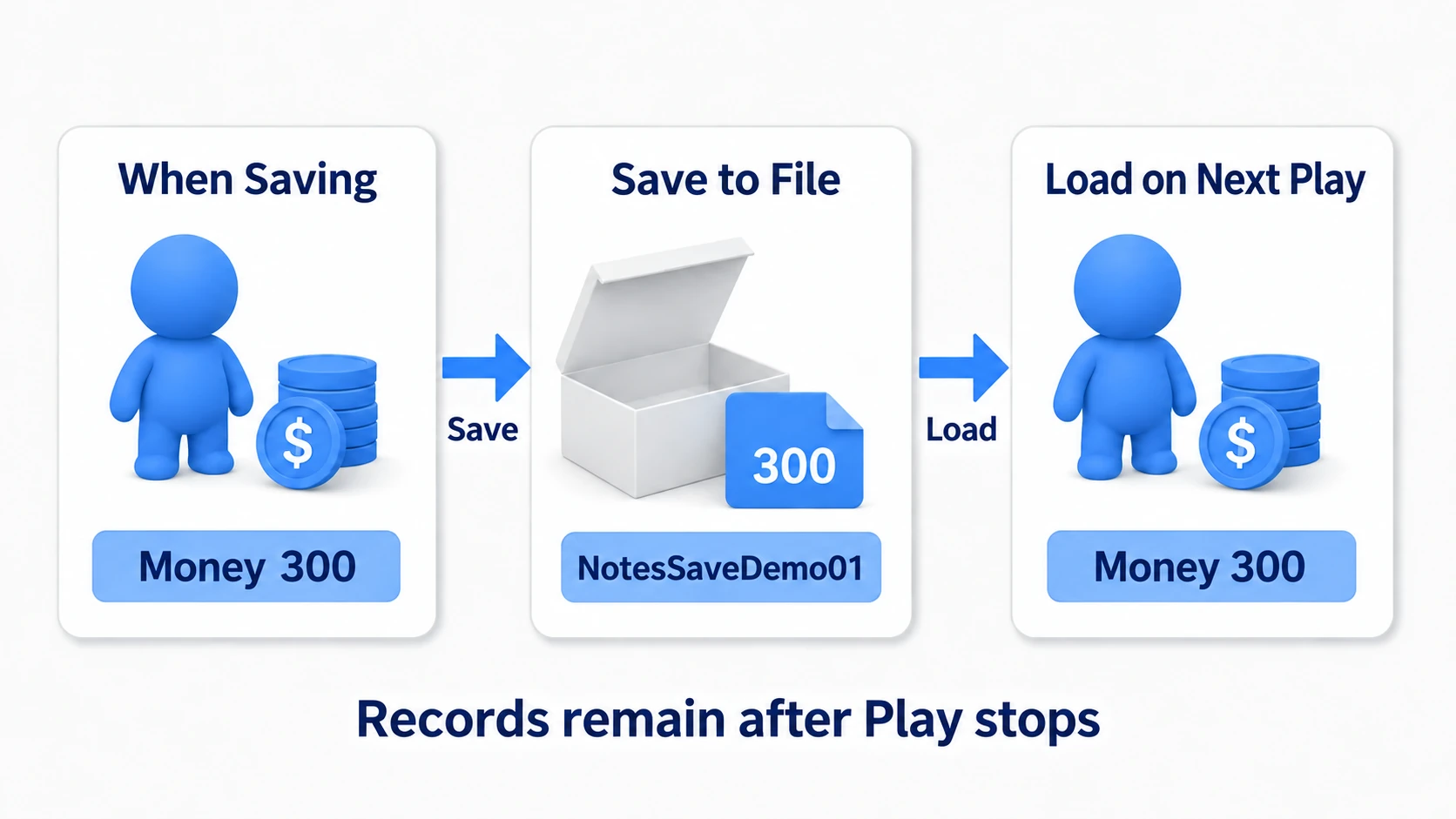
That is what Save Game is for. Copy the values you want to keep into a "carry box", save it, and next time take them out of the box and put them back in the game. Putting values into the box and writing to a file are separate steps.
Let's build that round trip with a single value: gold. Save 300, change it to 900, and loading returns it to 300. We then confirm that even after stopping and restarting Play, the saved 300 comes back.
What You'll Learn
- Creating a Save Game type and the object that holds the values
- Saving the current gold and confirming whether it succeeded
- Putting loaded values back into the game, and handling the unreadable case
- Restarting Play to confirm the value survived in the file
This is for people who have created Blueprint variables and nodes. The hands-on is a single-player local save using a test Actor and key input.
How it works: game value, save box, file
Gold appears in three places here.
| Place | Its name here | Role |
|---|---|---|
| The in-game value | The Actor's Gold | The gold you are playing with now |
| The save box | BP_DemoSave's SavedGold | Where the value to save is copied |
| The save file | The NotesSaveDemo01 slot | Keeps the value after you stop Play |
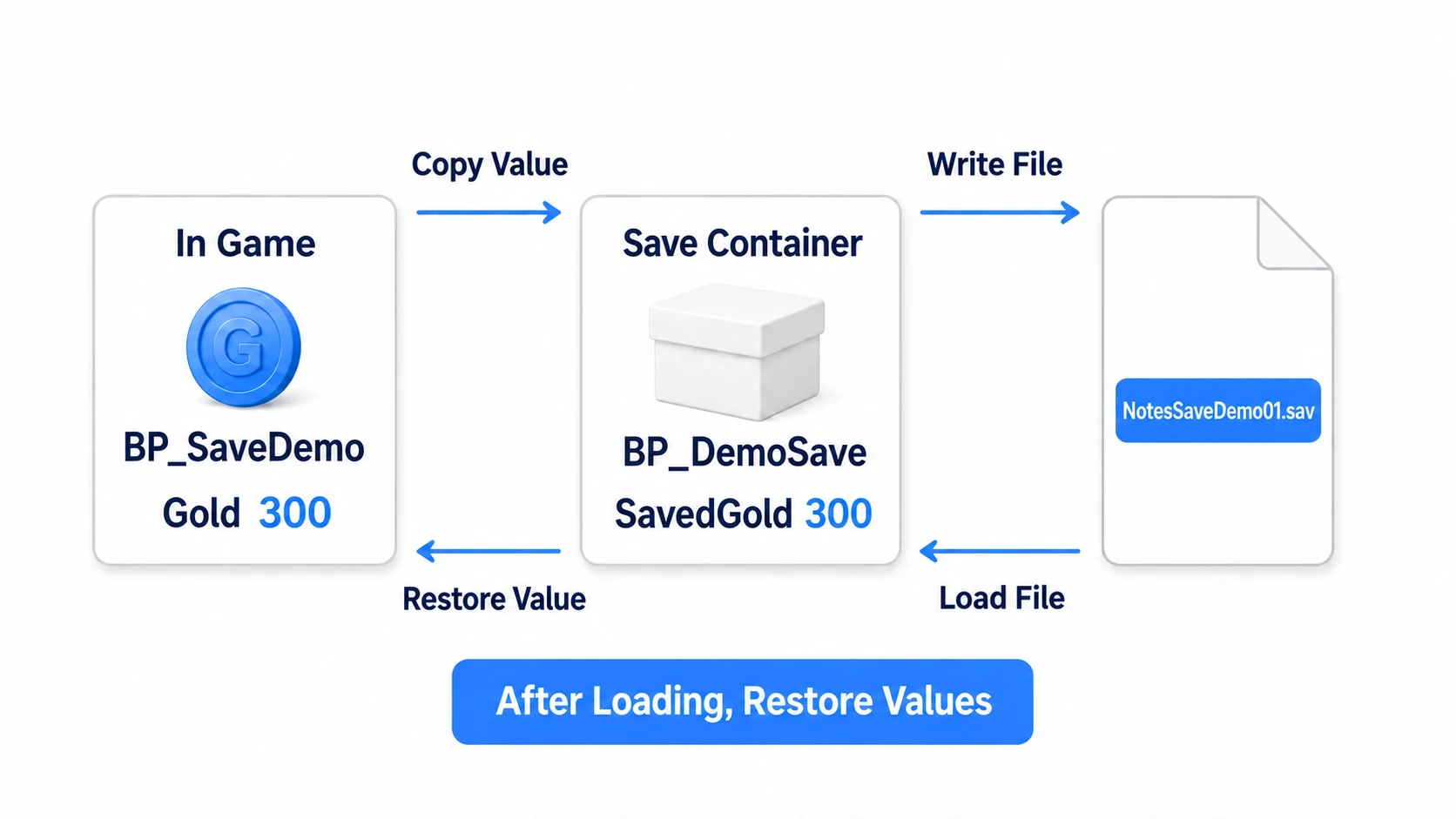
A slot is the name that distinguishes save destinations. This article uses NotesSaveDemo01 . Saving to the same name again updates that slot's contents. Use a different name and you keep a separate record.
Creating the Save Game box does not yet make a file. And reading a file does not change the Actor's Gold. The key point is that you wire the value copying yourself, both when saving and when reading back . Official saving and loading documentation
Preparation: change and display the gold
1. Create the save type BP_DemoSave
Right-click in the Content Browser and choose "Blueprint Class". Open "All Classes" in the parent class picker, search for SaveGame , and select it. Name it BP_DemoSave .
In other engines : a Save Game is "an object gathering the values you save". In Unity that is your own JSON or binary saving; in Godot it is
FileAccessorResourceSaver.PlayerPrefsandConfigFileare for small settings like volume.
Once open, add one variable, compile, and save.
| Variable name | Type | Default |
|---|---|---|
| SavedGold | Integer | 0 |
Here we create a type that defines what gets saved. From this type we create the box that actually holds values, at save time. You never place BP_DemoSave in a level.
2. Create the test Actor, BP_SaveDemo
Create a Blueprint with Actor as its parent and name it BP_SaveDemo . Add these three variables.
| Variable name | Type | Default | Purpose |
|---|---|---|---|
| Gold | Integer | 0 | The current gold |
| SaveRef | Object Reference to BP_DemoSave | None | Points at the box created for saving |
| SlotName | String | NotesSaveDemo01 | The shared slot name for saving and loading |
A reference is what you use to name a created object later. SaveRef holds "use this box I just made", not a copy of the box itself. The default None means it points at no box yet. Choose Object Reference for the type, not Class Reference.
In "Class Defaults", set Auto Receive Input to "Player 0". That lets this Actor receive the first player's key input. Compile, save, and place exactly one BP_SaveDemo in the level. No visual component is needed.
3. Create ShowGold to display the gold
In BP_SaveDemo's event graph, choose "Add Custom Event" and name it ShowGold . It is the "display the current gold" work that other logic calls.
First drag the Gold variable into the graph and choose "Get". Add a Format Text that inserts values into a sentence and enter this in "Format".
Gold: {Gold}
Connect Gold's Get to the added "Gold" input. Colored wires in the diagrams pass values and white wires advance execution. Get and Format Text only read and assemble values, so no white exec wire connects to them.
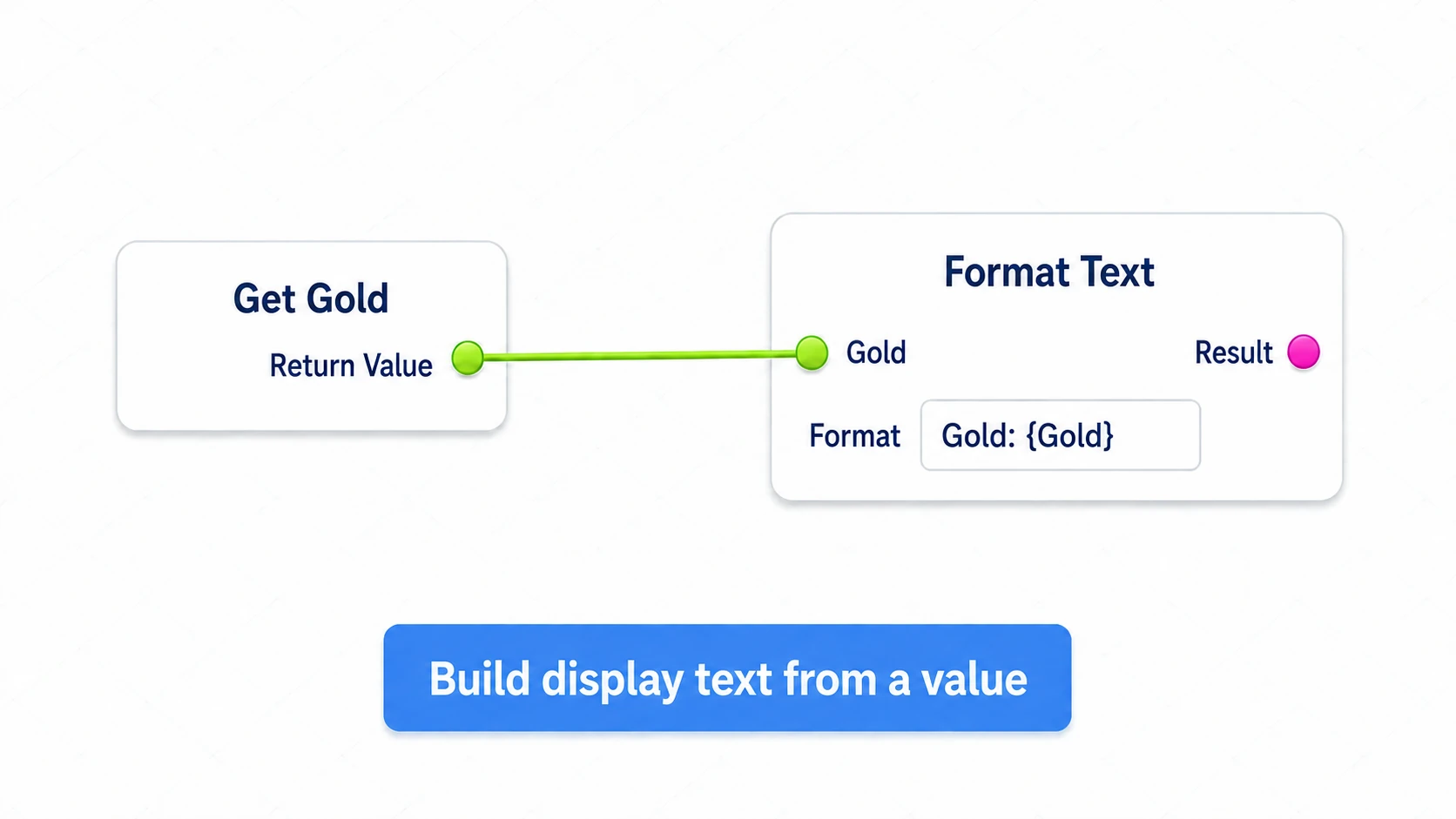
Next place Print Text and connect ShowGold's white exec output to it. Pass Format Text's "Result" to Print Text's "In Text".
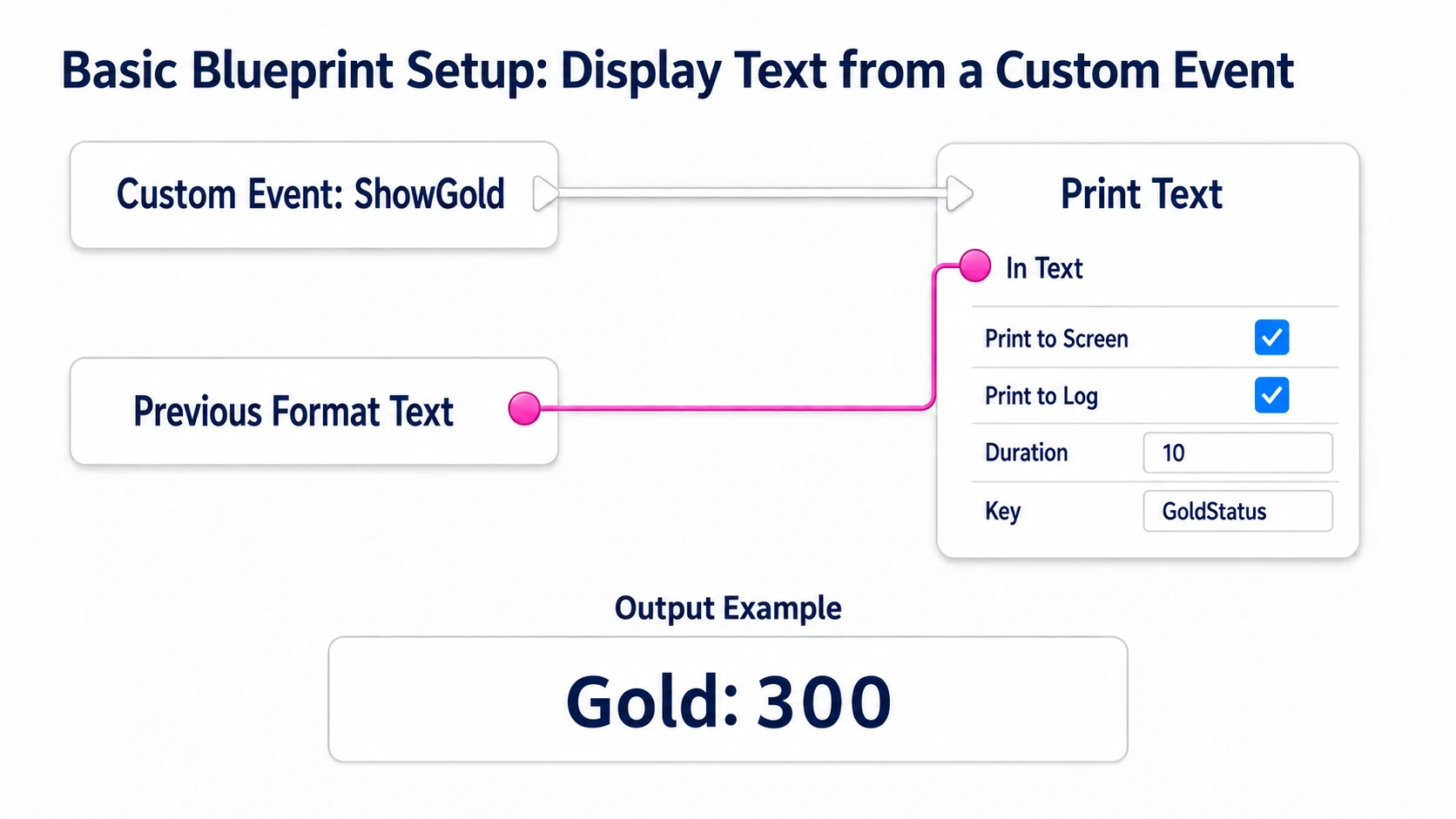
Open Print Text's detail pins and enable "Print to Screen" and "Print to Log", set "Duration" to 10, and set "Key" to GoldStatus . That prints to screen and log, holding for 10 seconds on screen. Using the same Key replaces the previous gold display with the new value. That is a display name, separate from the save slot.
Also call ShowGold from Event BeginPlay so the starting value displays. Right-click in the graph, search for ShowGold , and place the call node.
4. Prepare two test values
Place events for the number keys 1 and 4 . Choose the top-row number keys, not the numpad.
Connect 1 's "Pressed" to Set Gold with a value of 300, then call ShowGold. Wire 4 the same way with 900. We use two fixed values here so we can compare save and load results.
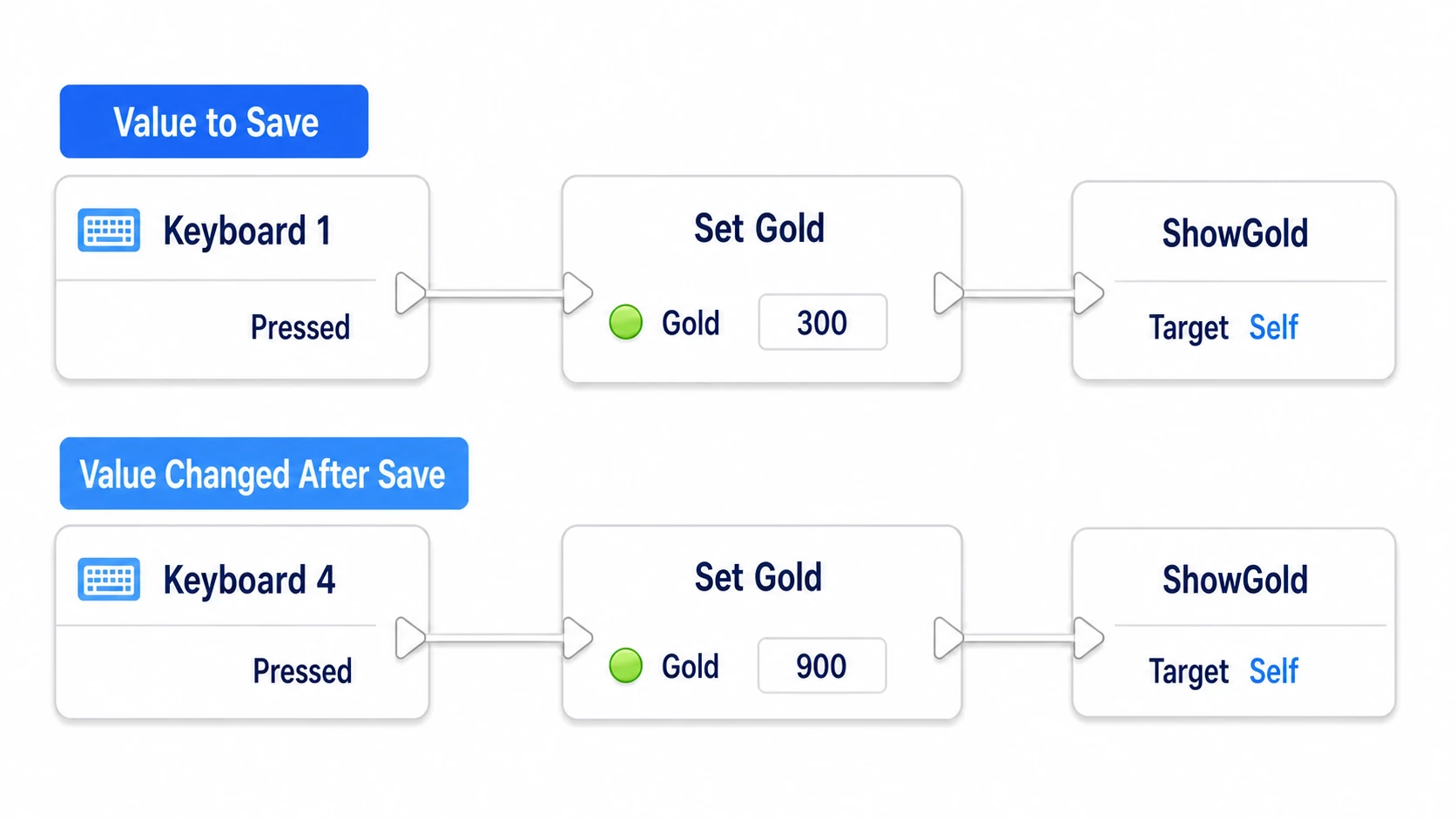
Compile and Play, then click the game window. If it starts at Gold: 0 , shows 300 with 1 , and 900 with 4 , preparation is done. Nothing is saved to a file yet, so restarting Play returns it to 0.
Save: put the current value in the box and write it out
1. Create the save box
Add a number key 2 event in BP_SaveDemo. Connect "Pressed" to Create Save Game Object and set "Save Game Class" to BP_DemoSave .
Pass "Return Value" to Set SaveRef 's value and connect the white exec wire too. Now SaveRef names the box you created.
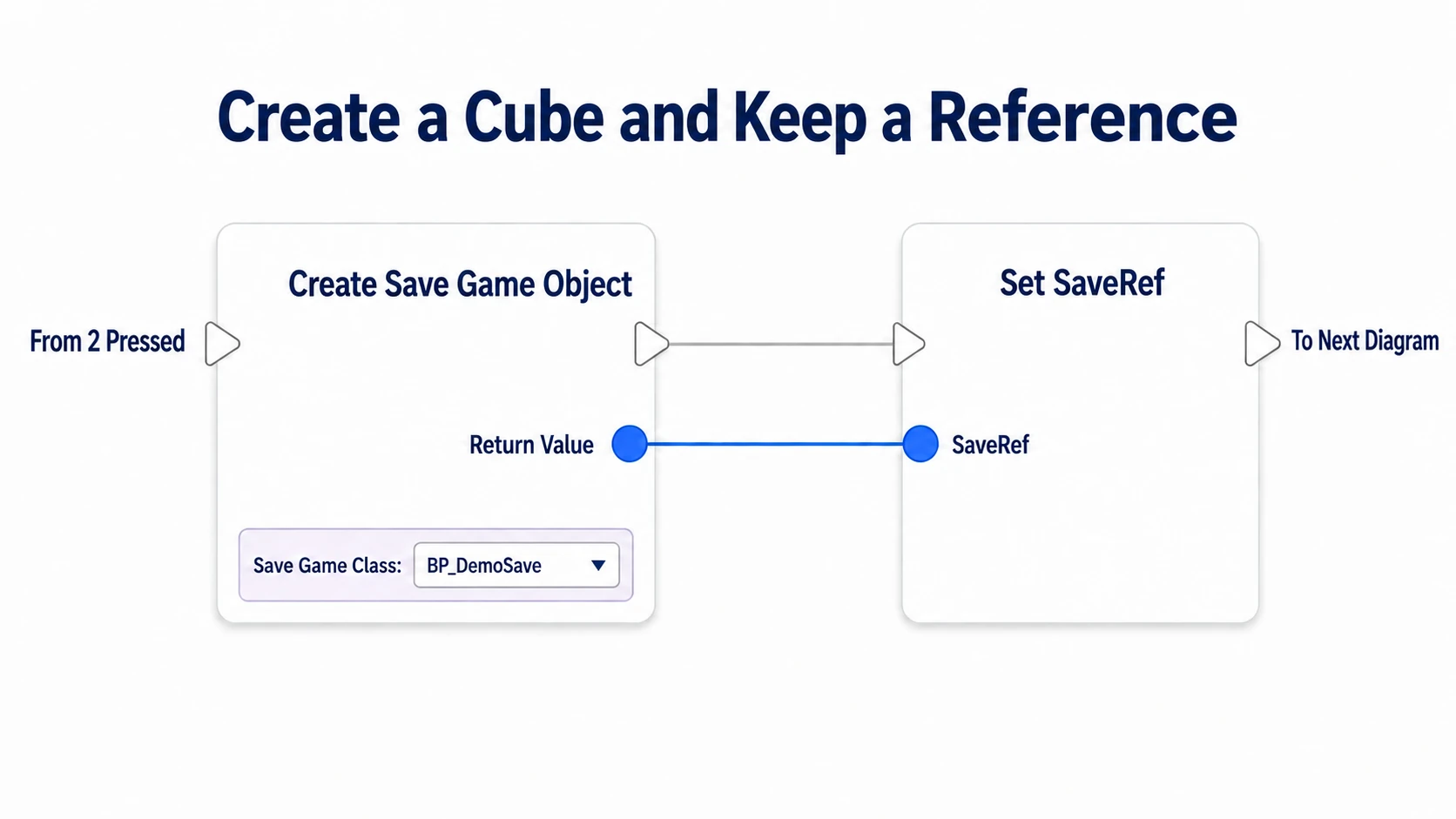
That "Return Value" is the output returning the box the node created. No save file exists yet. Create Save Game Object API
2. Copy Gold into SavedGold
Drag from SaveRef's Get and create Set Saved Gold . Connect SaveRef to "Target" and Gold's Get to the "Saved Gold" value. The white exec wire comes from the previous step's Set SaveRef.
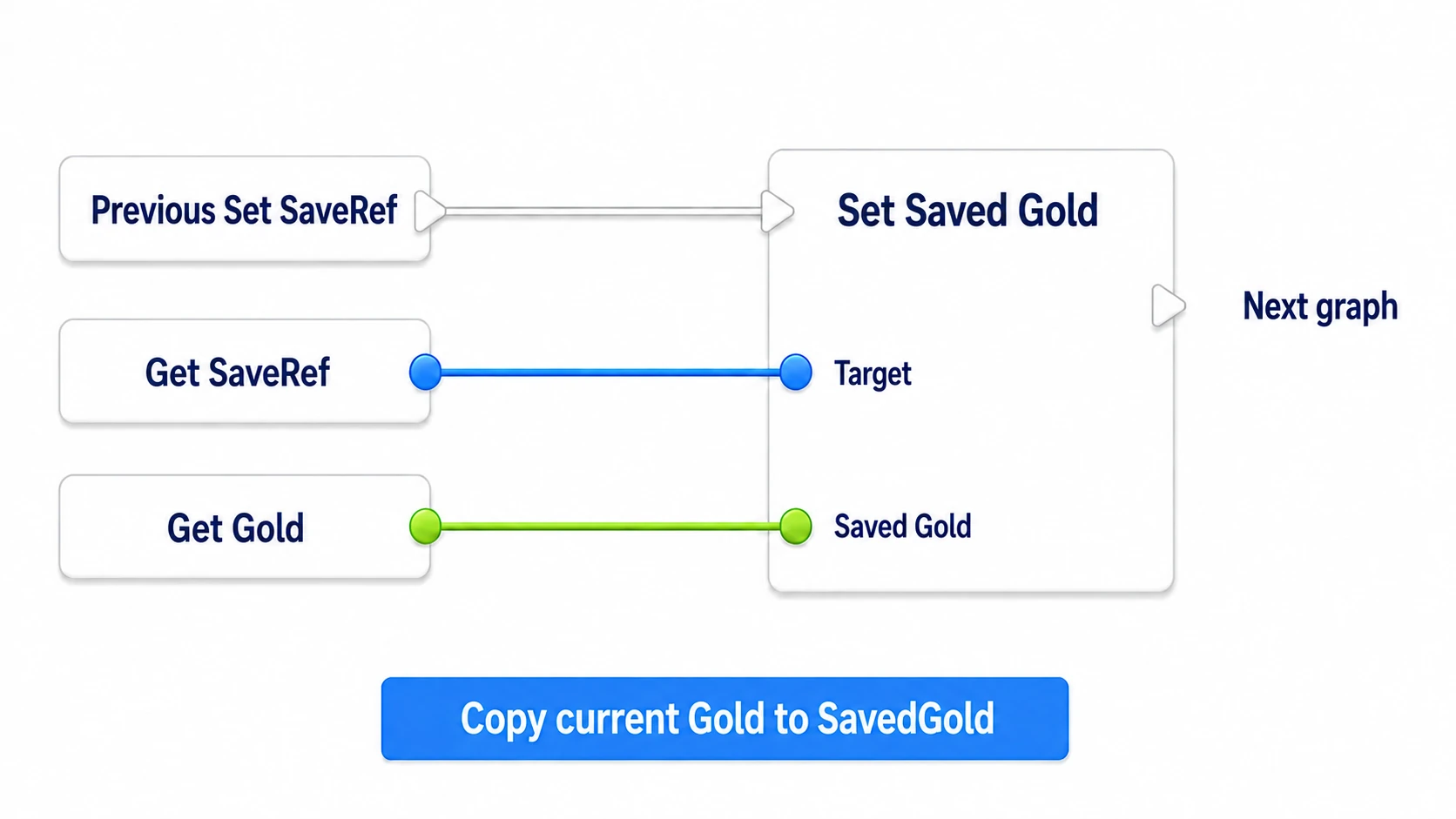
Gold is on the game side and SavedGold is inside the save box. With Gold at 300, the box gets 300 too. Confirm this connection so you do not save a box still holding its default 0.
3. Write it to the slot
Connect Save Game to Slot after Set Saved Gold.
| Input | Setting / connection |
|---|---|
| Save Game Object | SaveRef's Get |
| Slot Name | SlotName's Get |
| User Index | 0 |
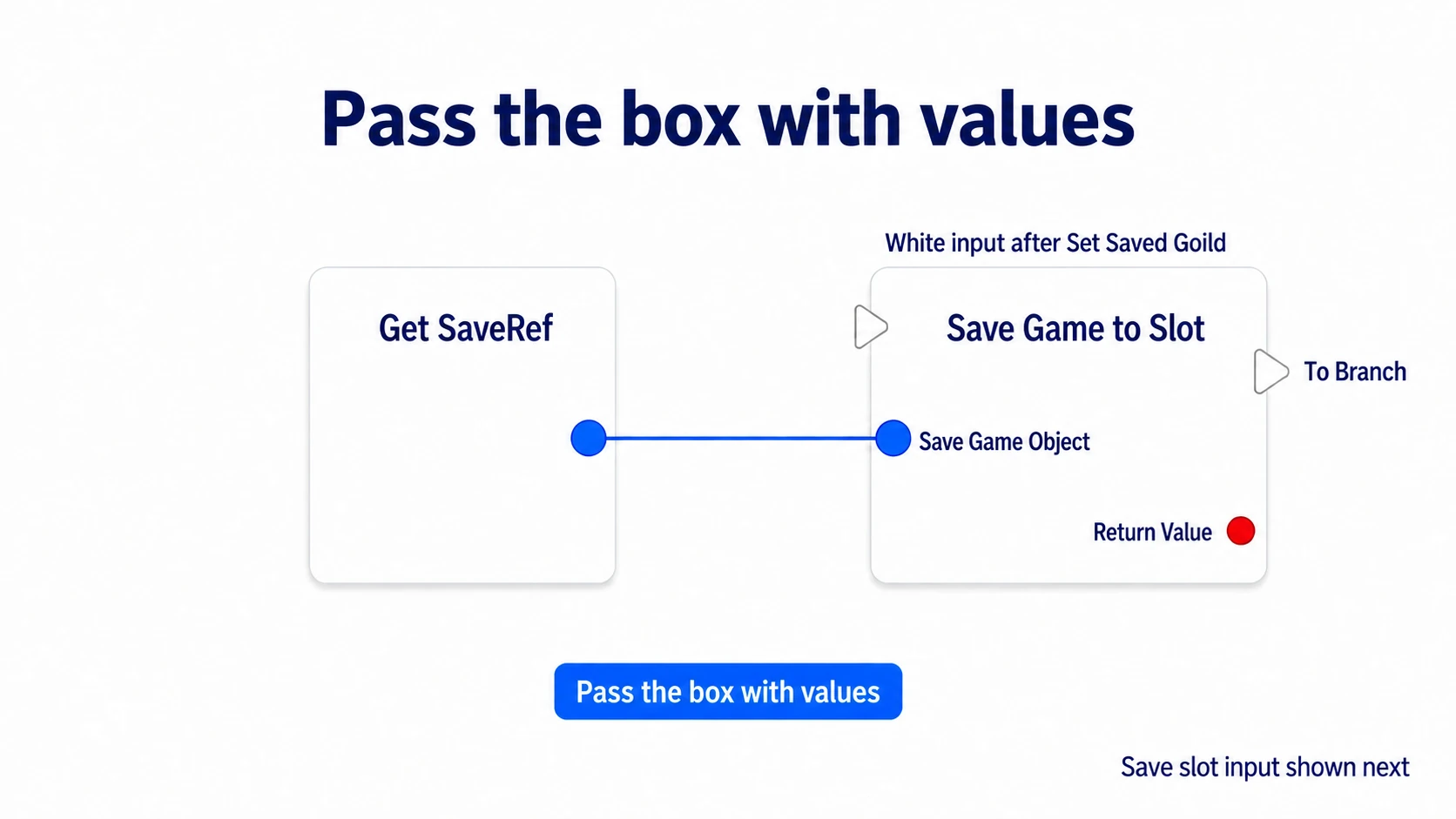
Wire the two destination inputs as follows. The diagrams split the same Save Game to Slot's inputs, so do not create a second save node.
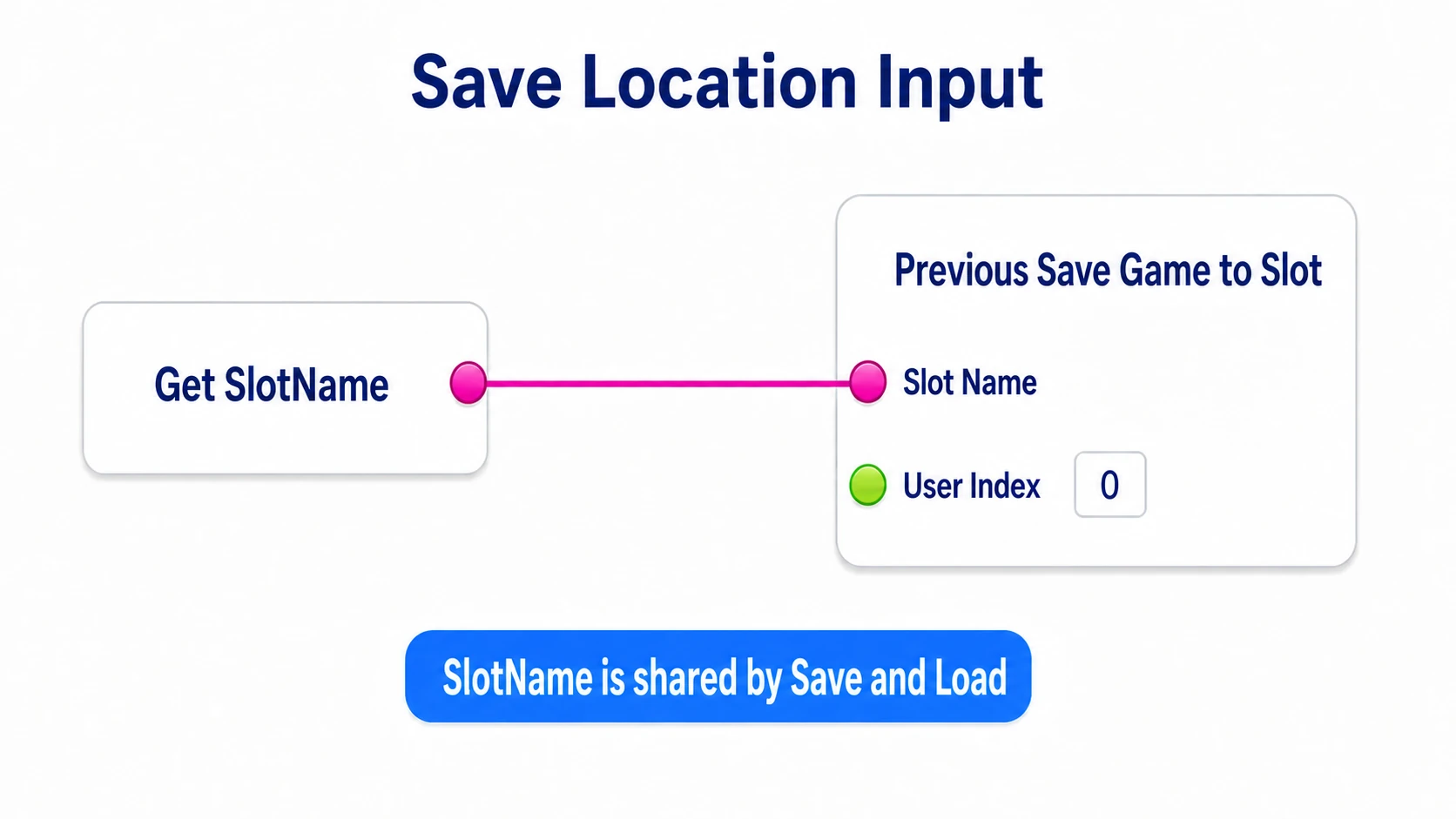
User Index is the number distinguishing which user is saving. For this single-player experiment, keep 0 for both saving and loading.
Finally, connect Save Game to Slot's white output to a Branch and pass "Return Value" to the Branch's "Condition". What comes back here is not the box but whether the write succeeded .
Print Text Saved. on the True side and Save failed. on the False side. Enable screen and log output on both, set Duration to 10, and leave Key as None.
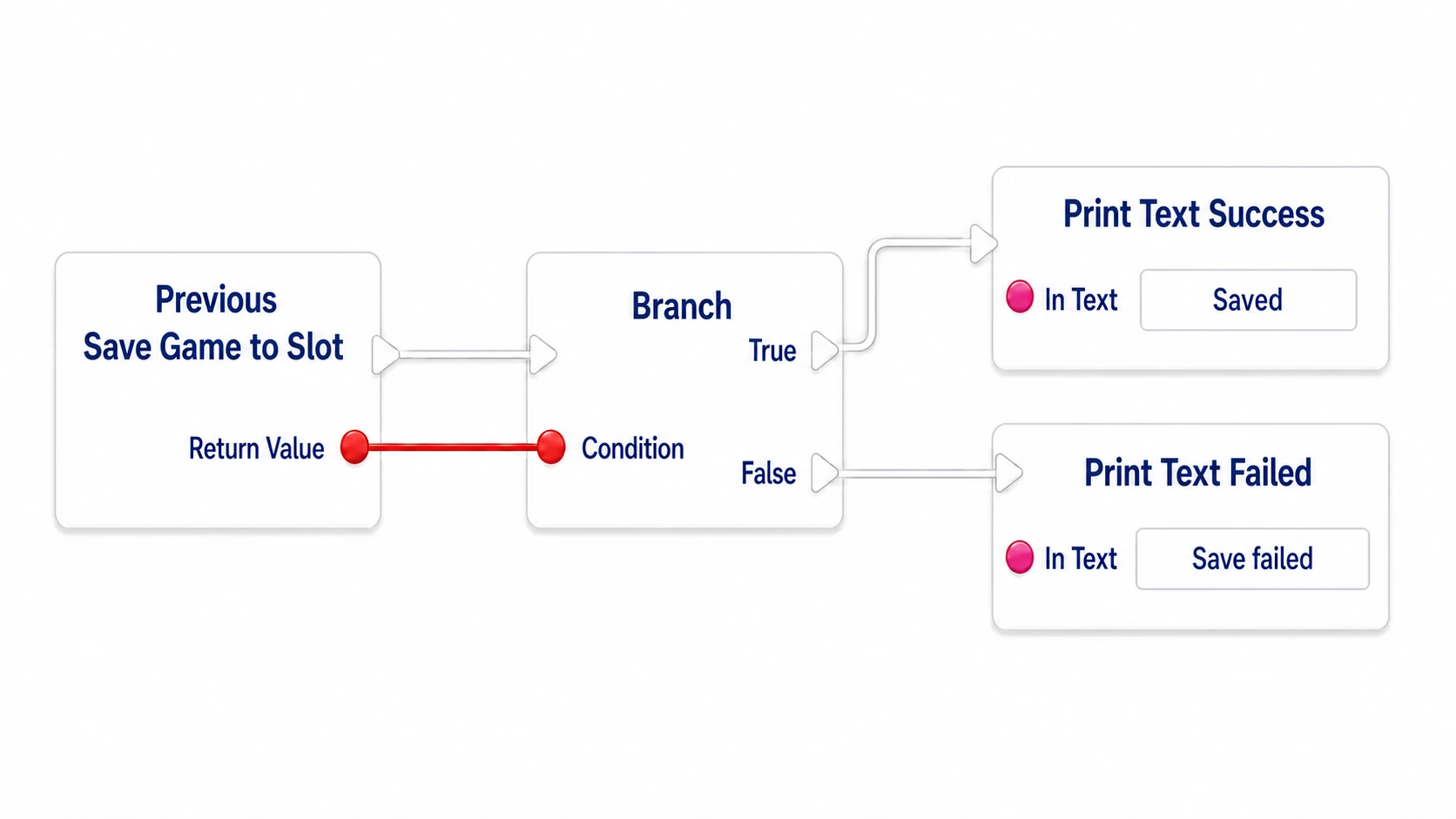
Save Game to Slot finishes writing before continuing. With a single integer, this form is fine for seeing the mechanism. The asynchronous version for autosaving large data mid-game is mentioned in the bonus. Save Game to Slot API
Load: put the value you read back in the game
1. Read the same slot
Connect number key 3 's "Pressed" to Load Game from Slot . Pass the same SlotName Get to "Slot Name" and set "User Index" to 0.
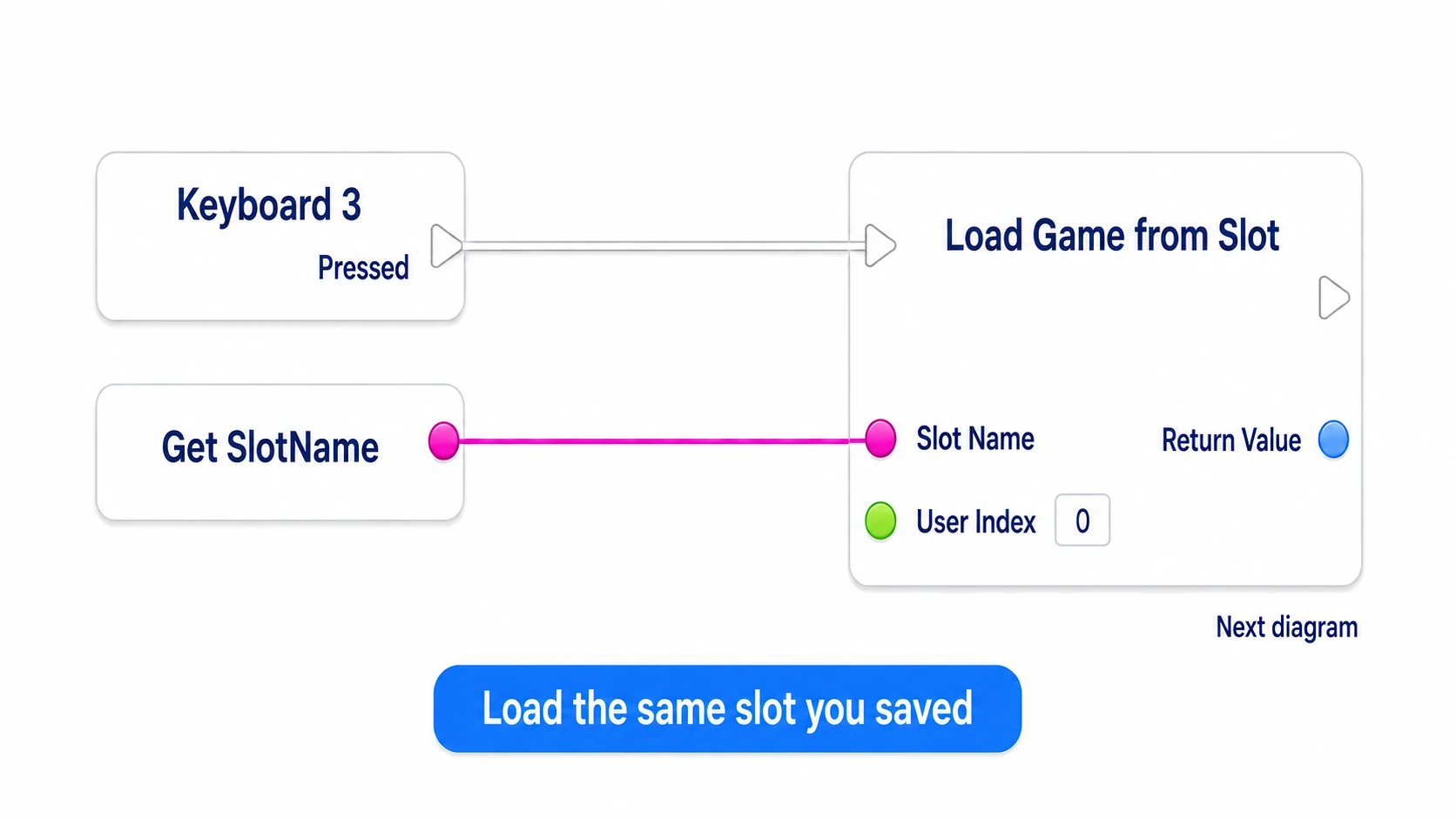
If the save and load destinations differ, you will not get the record you expect. Using the same SlotName variable for both prevents that mismatch.
2. Read the contents as BP_DemoSave
Drag from Load Game from Slot's "Return Value" and create Cast To BP_DemoSave . Pass Return Value to "Object" and connect the white exec wire too.
A Cast confirms what you received can be handled as a BP_DemoSave. The load returns the common Save Game type, so going through this lets you read the SavedGold we added. It is not a process that forcibly converts data of another type.
Connect Print Text to "Cast Failed" and display No save, or it could not be read. Enable screen and log output, Duration 10, Key None.
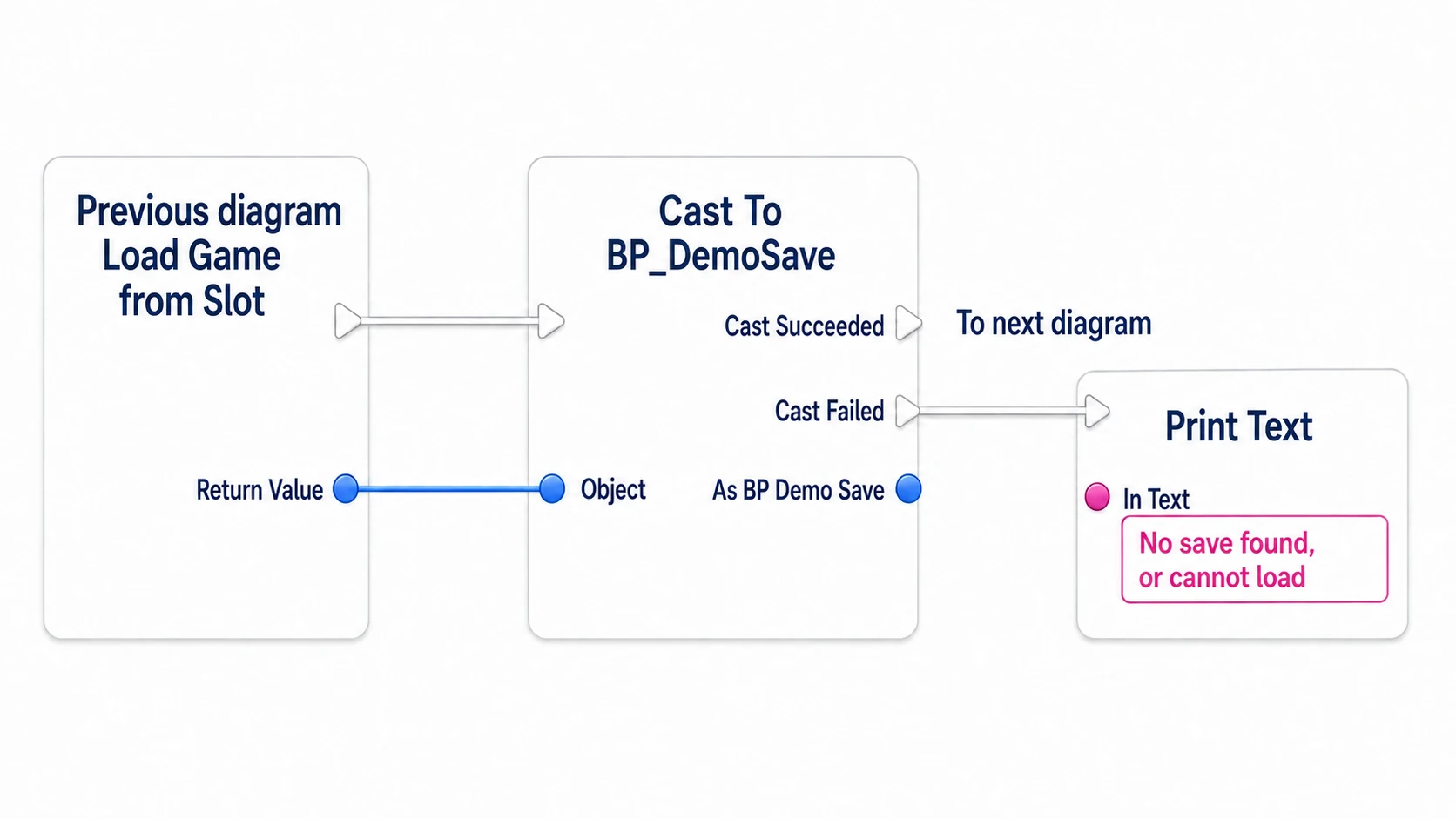
On a first run with no save, or on a read failure, Load Game from Slot returns None. That also goes down the Cast's failure side, and Gold is left unchanged. Restore the in-game value only when the file could be read. Load Game from Slot API
3. Put SavedGold back into Gold
Create Get Saved Gold from the Cast's "As BP Demo Save" and connect its output to Set Gold 's value. The white exec wire runs from the Cast's success side to Set Gold and then to ShowGold.
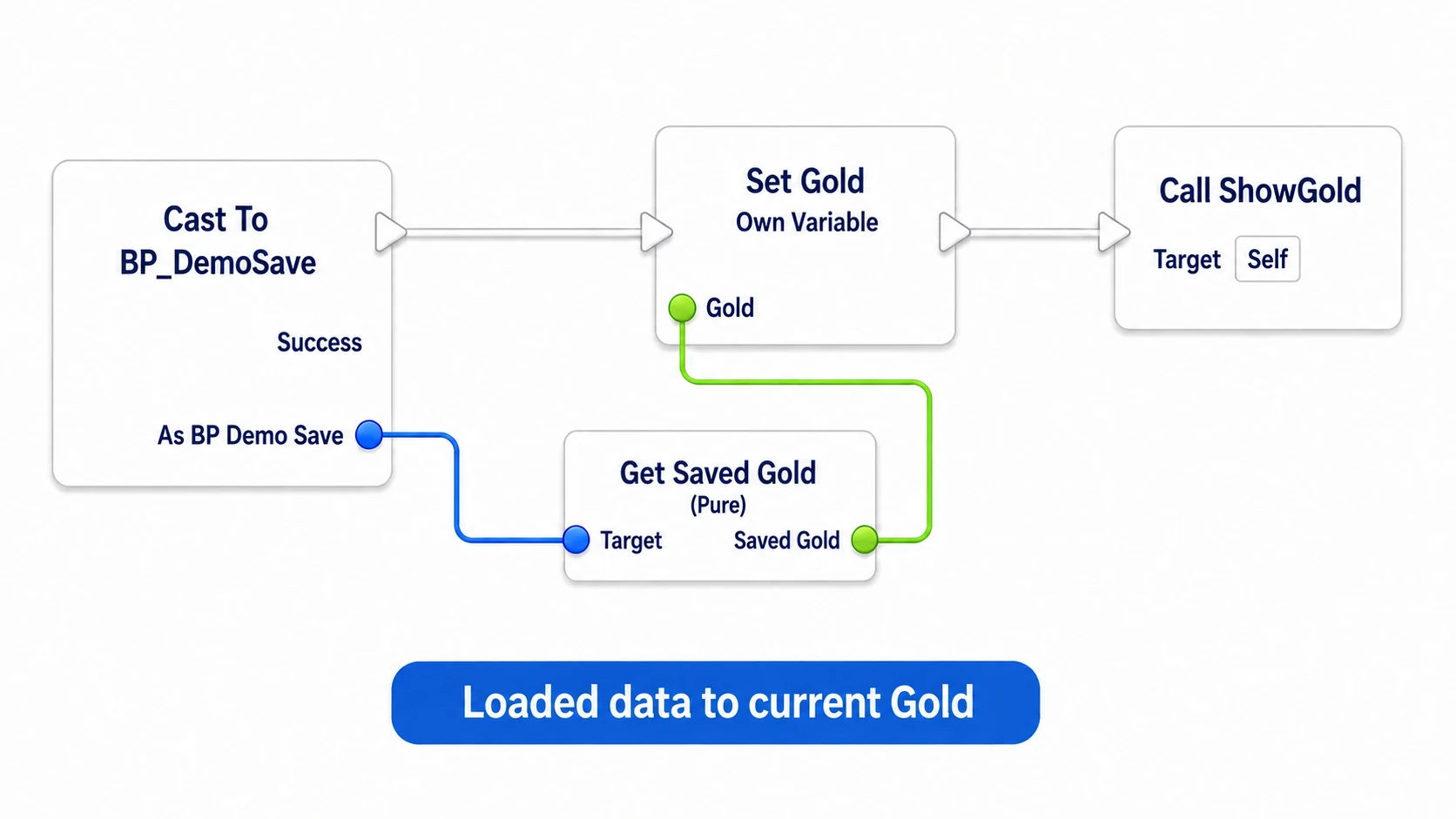
The Cast in this diagram is the same node you placed in the previous step. We take the value from the box that just came back from loading , not from the pre-save SaveRef.
Only once this is wired does the on-screen gold return to the saved value. A successful load node does not change the Actor's variable by itself.
Confirm: change the value and restart Play
Compile and save, then confirm in this order. Click the game window before pressing keys.
| Action | Expected result |
|---|---|
| Press 1 | Gold becomes 300 |
| Press 2 | "Saved." appears |
| Press 4 | Gold becomes 900 |
| Press 3 | It returns to the saved 300 |
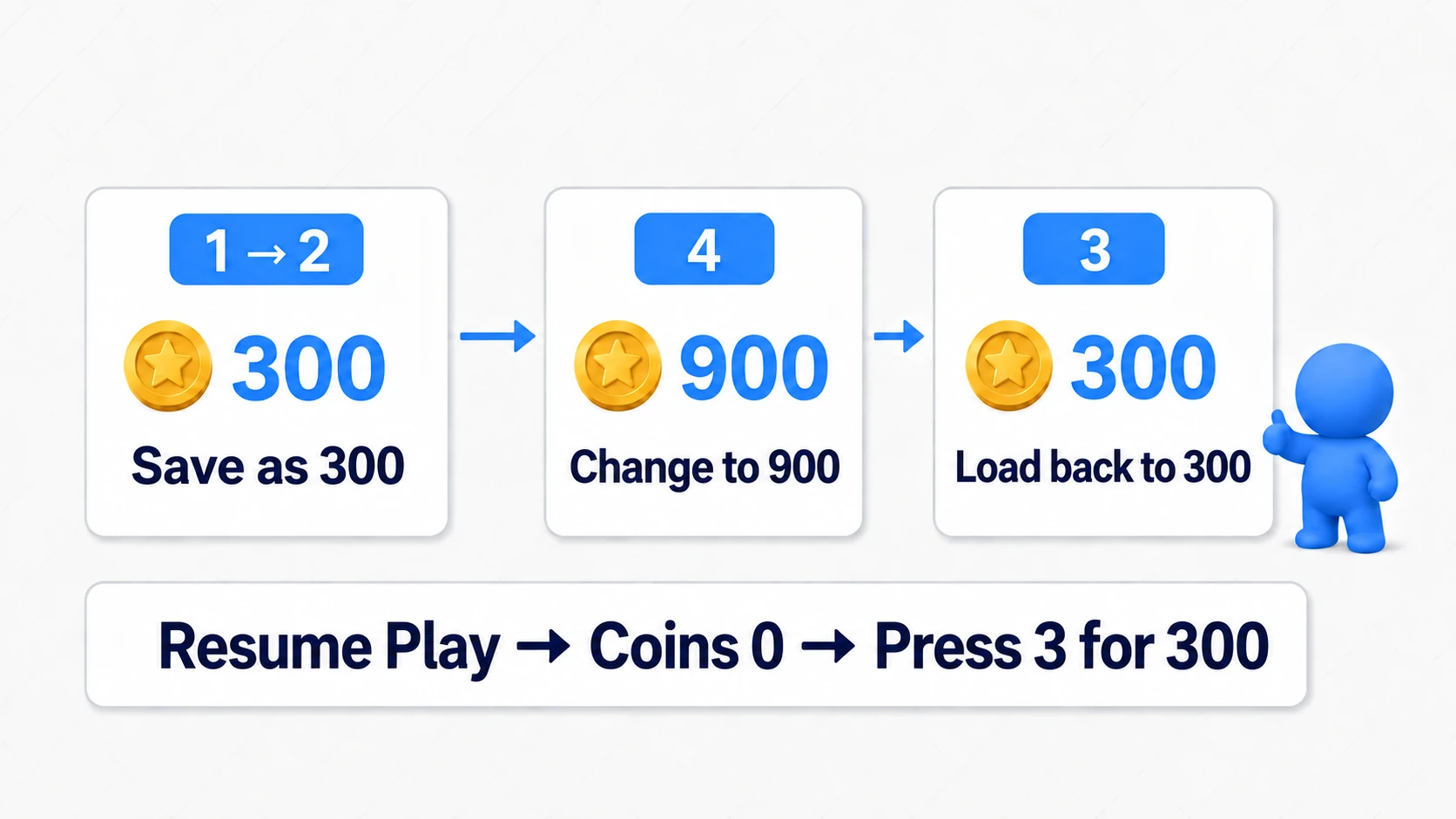
After changing to 900, press 3 without pressing 2 . Saving again there would update the slot's contents to 900 as well.
Next, stop Play and Play again. It starts at 0, and pressing 3 returning it to 300 means success . The Actor was rebuilt and SaveRef is back to None. The value still coming back confirms it survived in the file.
Also try the no-save case
Stop Play and change BP_SaveDemo's SlotName default to an unused name such as NotesSaveDemoEmpty . Compile, Play, and press 3 before pressing 2 to save.
If No save, or it could not be read. appears and Gold stays 0, that is expected. Set SlotName back to NotesSaveDemo01 afterwards. This lets you test the first-launch state without deleting save files.
| When it does not work | Where to check |
|---|---|
| Pressing 1 or 4 changes nothing | Whether one Actor is placed, Auto Receive Input = Player 0, whether the game window has focus |
| It saves but loads back as 0 | Set Saved Gold's Target = SaveRef, value = Gold, and the exec wire before the write |
| The unreadable message appears | Matching SlotName and User Index, the save success message, whether the Cast targets BP_DemoSave |
| It stays at 900 after loading | Cast success side → Set Gold, Get Saved Gold's value, the ShowGold call |
| The record resets to 0 when I restart Play | Whether save logic is wired to BeginPlay and overwrites with the default |
Bonus: expanding to your own game
Save the values you need to resume
Once the gold round trip works, HP, position, and inventory follow the same thinking. Beyond adding variables to the Save Game, add both the copy at save time and the restore after load .
| What you want to resume | Example values to save | What to do after loading |
|---|---|---|
| The player's HP | Current HP | Put it back into the player's variable |
| The resume point | A checkpoint ID or position | Return the player to the matching place |
| Inventory | Item IDs and counts | Look up the type from the ID and restore counts |
Saving a reference to an Actor does not respawn that Actor and restore its HP and inventory wholesale. A reference says "which one"; the values you save say "what state it is in".
For a weapon, save the WeaponID representing "which kind" and the Durability representing "how much use is left". After loading, prepare the weapon matching the ID and restore the saved durability.
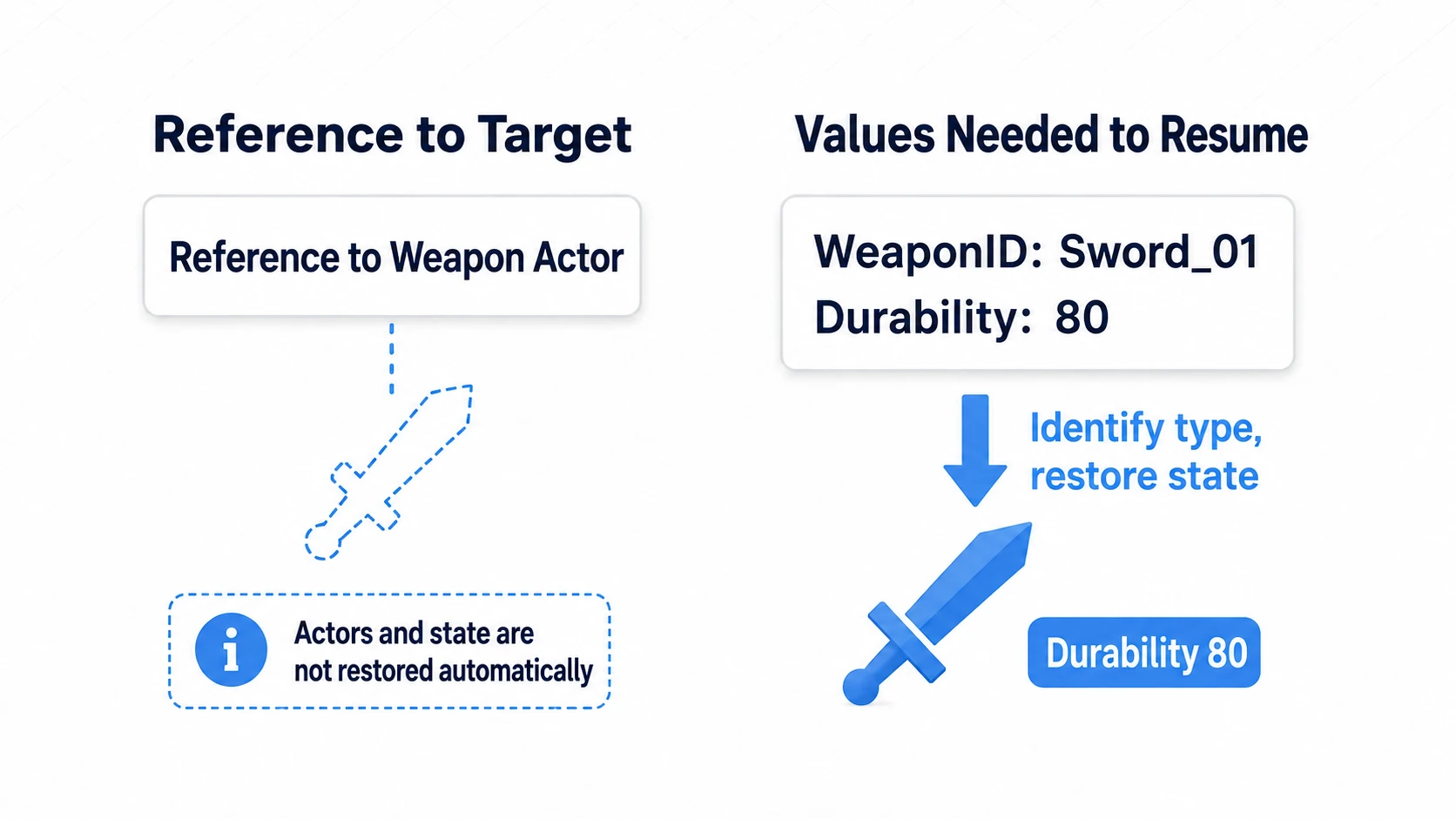
To look up an item type from its ID, use Data Table or Data Asset settings. Save the type settings and the player's counts separately.
When restoring position, you also need to settle things like velocity while moving. Checkpoints and respawn covers where and when to return.
Showing a "Continue" option
Does Save Game Exist checks whether a given slot exists. Use it to decide whether to show or enable a "Continue" button.
A file existing and reading correctly are still different things, though. Keep the failure-side logic in the actual load, as we did here. Does Save Game Exist API
Consider the async version for mid-game autosaves
Asynchronous means the game keeps running while the disk write happens. Async Save Game to Slot is the node for that.
When using it, pass "Success" to a Branch after "Completed" and show a save-complete message only on success. Completed means "the operation finished" and fires on failure too. Make the next save or load to the same slot wait until this one finishes. Async save API
Work on the game side, such as gathering the data to save, remains, so going async does not remove all the cost. Get the small save here working first, then switch as your save contents and timing require.
Where saves live, and adding fields later
On a development PC, a .sav file normally appears in the project's Saved/SaveGames/ . For our example that is NotesSaveDemo01.sav . Packaged games and other platforms use different locations.
If a game update changes what you save, you also need a plan for reading old records. Adding a version number does not solve it automatically, so check the migration thinking in save data versioning.
If you do not need values after the game closes and only want them across levels, Game Instance works too. Choose where values live based on how long you need them.
Summary
- Creating a SaveGame object does not by itself leave anything in a file
- Always confirm whether saving and loading succeeded
- Decide what to use when the read fails
The question to ask before saving is "will this be needed on the next launch?" If it is only for this play session, GameInstance is enough.
Compatibility after adding fields is covered in save data migration.