You made a button. Pressing it does nothing.
You reread the code, fix likely-looking spots, and test. An hour later it's still broken. The actual cause was not the code but the button having no Collider.
Is the interaction not arriving at all, or is it stopping after arriving? Settling that first halves the search space. This article covers how to settle it.
What You'll Learn
- The order of isolation from an entrance log
- How to read the Console, and what's easy to miss
- When to use ClientSim, Build & Test, and the real client
- Why the log doesn't appear
Start from having tried methods and custom events.
Look at the entrance before reading the body
Faced with code that doesn't work, you want to reread its contents. Do something else first.
Put one log line at the top of the method.
public override void Interact()
{
    Debug.Log("[DoorButton] pressed");   // The entrance log
    // ...
}
Press Play and try it. Whether this log appears splits the world in two.
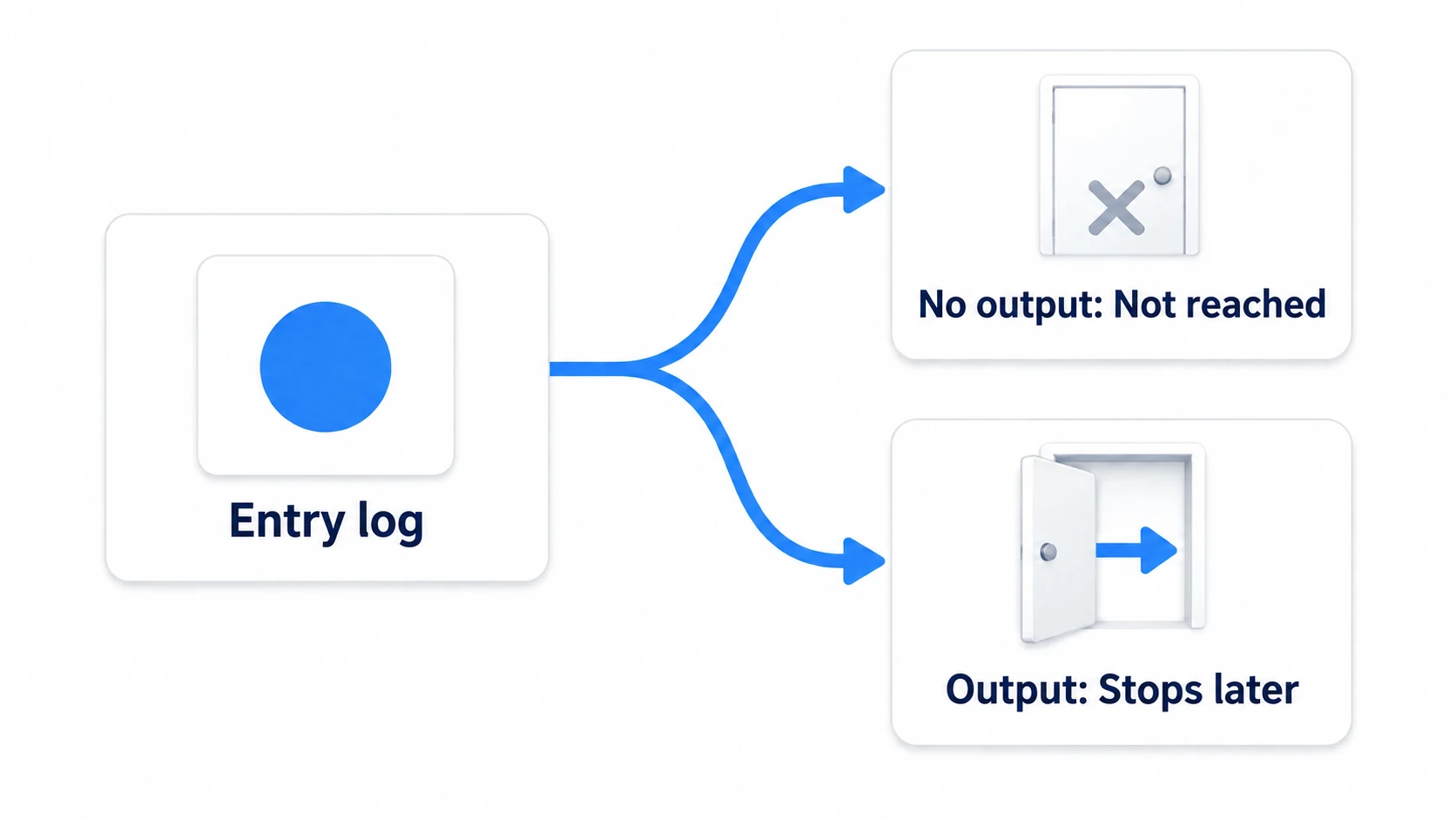
| Result | Meaning | Where to look |
|---|---|---|
| Doesn't appear | The interaction isn't arriving | Collider, Udon Behaviour assignment, whether the object is enabled |
| Appears | The interaction is arriving | Reference assignments, if conditions, synchronization |
When it doesn't appear, don't read a single line of the code's body. It isn't being called, so no amount of reading finds the cause.
That isolation is the biggest single step in debugging. From there you repeat the same thing a little further along.
Two things to watch in the Console window (Window → General → Console).
- Are there red errors before you press Play? Without a successful compile, the pre-fix script is what's running
- Collapse on merges identical logs. Turn it off when you want to see how many times something was pressed
Three testing grounds for different questions
There are three places to check. Not in order of advanced versus beginner, but chosen by what you want to confirm.
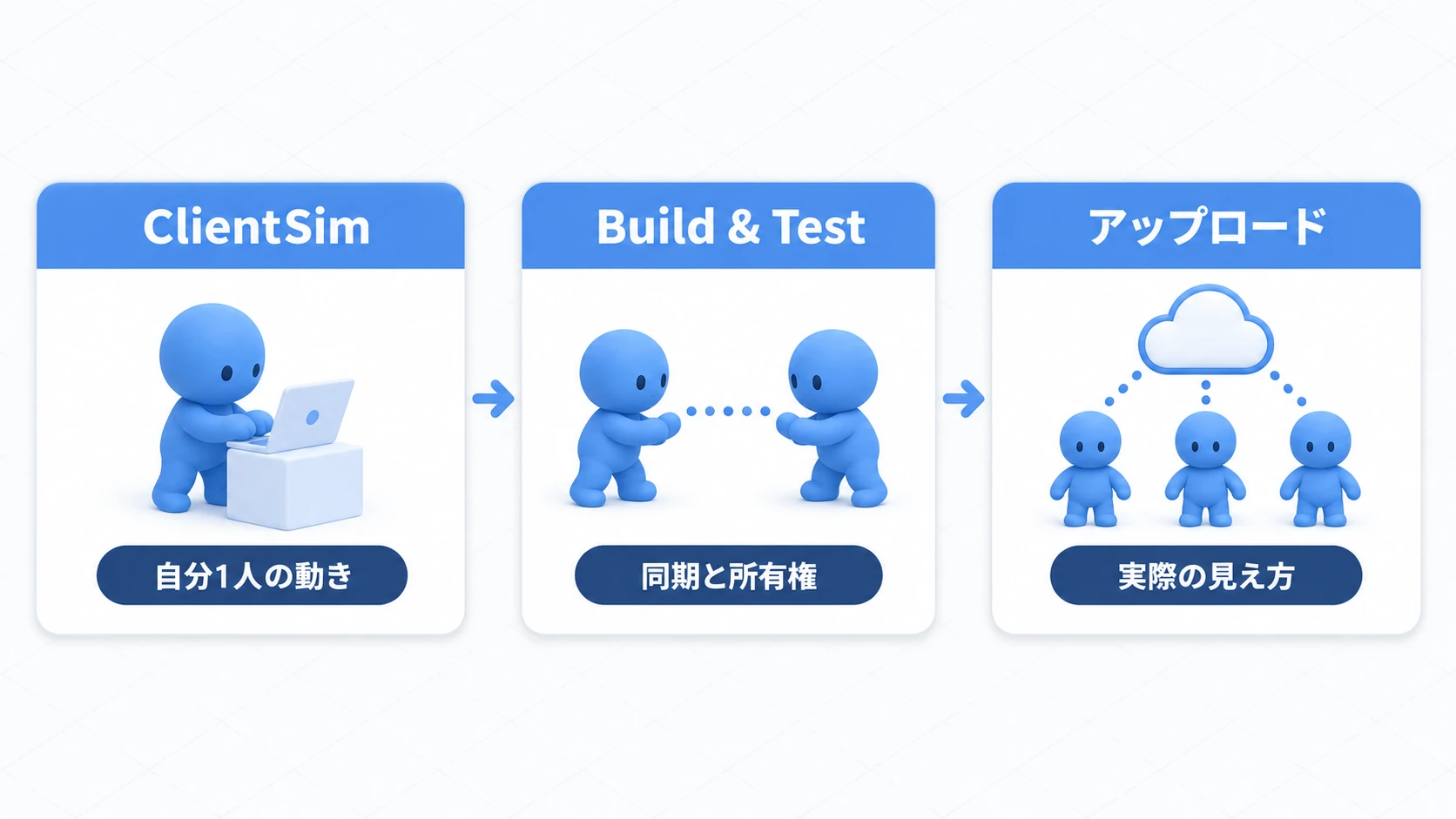
| Place | What it confirms | What it can't |
|---|---|---|
| ClientSim (Unity Play) | Whether it reached the entrance, missing references, if branches, display toggles | Synchronization, VR hands, device performance |
| Build & Test (multiple clients) | Synchronization, ownership, late joiners, how it actually feels | Per-device performance, connection latency |
| Uploading and entering | How it actually looks, load times, interaction with other people's avatars | Reading logs on the spot |
ClientSim is the only place where the Console and Debug.Log live on the same screen. So you fix things here first.
Even when it looks like a synchronization problem, check your own solo behavior in ClientSim first. If it doesn't work on your own screen, it isn't a synchronization problem.
Hands-On: Fix a dead button in three passes
Build a button deliberately broken in three places and find each in turn. In real production, these three account for most causes.
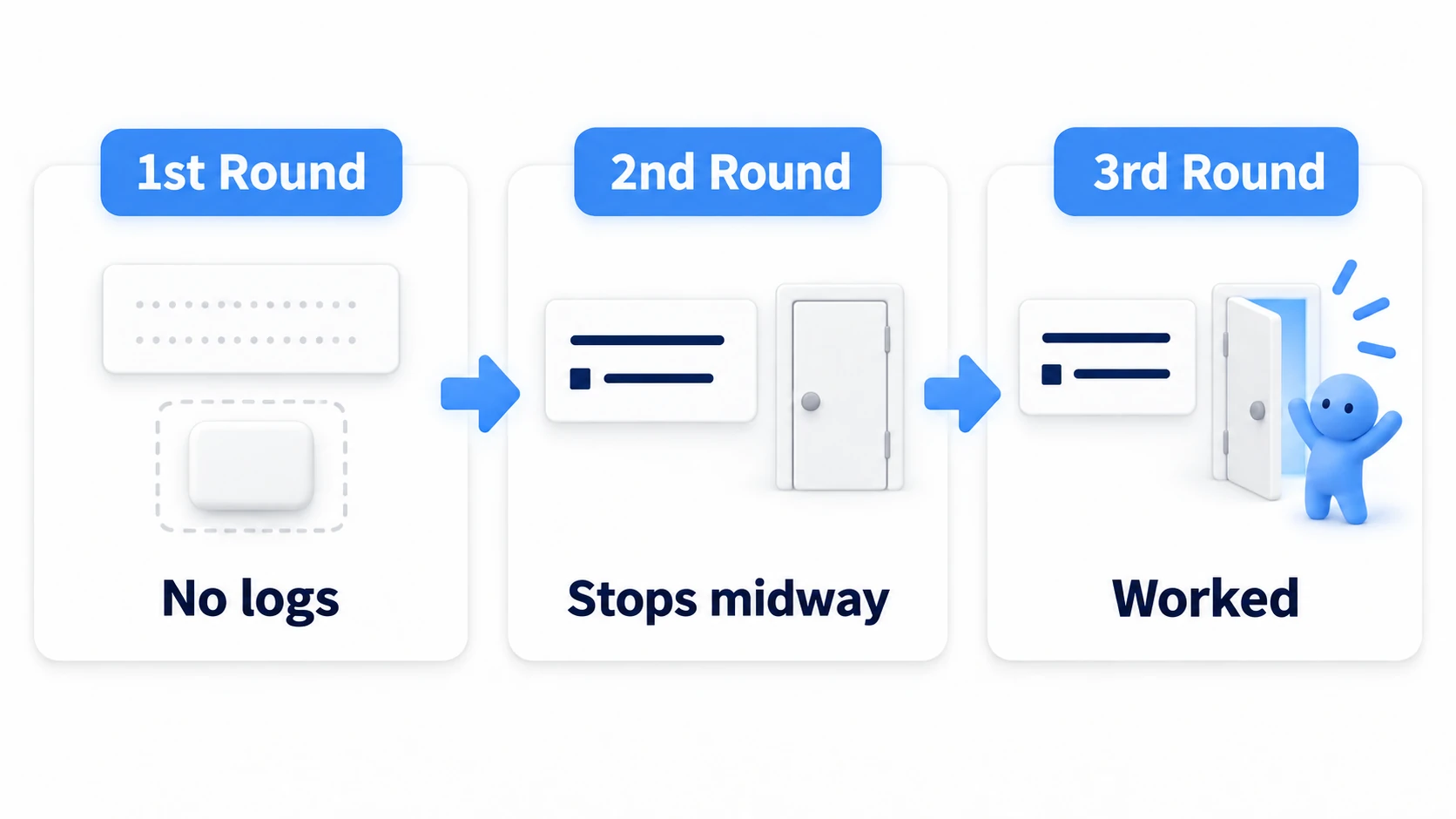
1. Build the deliberately broken button
In a scene with a floor, prepare the same door as driving a door with Animator and Udon — DoorPivot with an Animator and a Bool parameter IsOpen.
Create DoorButton with "Create Empty" near the door. An empty object, not a Cube. That's the first plant.
Create DebugDoorButton in Assets/Scripts.
using UdonSharp;
using UnityEngine;

[UdonBehaviourSyncMode(BehaviourSyncMode.None)]
public class DebugDoorButton : UdonSharpBehaviour
{
    [SerializeField] private Animator doorAnimator;
    [SerializeField] private bool locked = true;   // The second plant

    private bool isOpen;

    public override void Interact()
    {
        Debug.Log("[DoorButton] pressed");

        if (locked)
        {
            Debug.Log("[DoorButton] it's locked");
            return;
        }

        Debug.Log("[DoorButton] animator present: " + (doorAnimator != null));

        isOpen = !isOpen;
        doorAnimator.SetBool("IsOpen", isOpen);
    }
}
Add a Udon Behaviour to DoorButton and set this script. Leave Door Animator empty. That's the third plant.
2. Pass one: the entrance log doesn't appear
Press Play and approach where DoorButton should be.
No interaction prompt appears at all. Nothing in the Console either.
The entrance log doesn't appear. Three things to look at.
| What to check | In this case |
|---|---|
| Is there a Collider | There isn't |
| Is the Udon Behaviour on the right object | It is |
| Is the object enabled | It is |
Add "Add Component → Box Collider" to DoorButton and set Size to (0.4, 0.4, 0.4).
Play again and now you can press it, and [DoorButton] pressed appears. The interaction is arriving.
Empty objects have no Collider. Building from a Cube brings one along. That's usually the cause of "it can't be pressed."
3. Pass two: the entrance appears but it goes no further
Pressing logs, and the door doesn't move. Read the Console carefully.
[DoorButton] pressed
[DoorButton] it's locked
The second line is the answer. It's stopping at an if you wrote yourself.
Uncheck Locked in the Inspector. Now it proceeds.
When reading logs, look at the last line. How far it got is written right there.
4. Pass three: it gets through and still doesn't move
Press again and you get this.
[DoorButton] pressed
[DoorButton] animator present: False
False. The reference isn't assigned.
Drag DoorPivot into Door Animator in the Inspector.
Press it and the door opens.
| Pass | Symptom | Cause |
|---|---|---|
| 1 | No log | No Collider |
| 2 | Stops partway | An if you wrote |
| 3 | Reaches the end and does nothing | A reference at None |
Those three explain most causes of a dead button. Work through them in order and one of them always catches.
5. Clean up the logs
Once it's fixed, delete or reduce the logs. Leaving them all fills the Console and makes it unreadable next time you're stuck.
Keep only the places that could error.
if (doorAnimator == null)
{
    Debug.LogWarning("[DoorButton] Door Animator is not set");
    return;
}
Debug.LogWarning shows with a yellow icon, so it doesn't get buried in ordinary logs. Putting them where future-you will get stuck pays off next time.
When the log doesn't appear
- Nothing in the Console → Check for red errors before pressing Play. The compile isn't passing
- The same log appears only once → The Console's Collapse is on. Turn it off
- You can't press it → There's no Collider, or Is Trigger is on. Interaction needs an ordinary Collider
- You can't press it unless you're close → Interaction has a distance limit. Get closer
- Adding Pickup made it unpressable → Grabbing takes priority. Keep pressable and grabbable objects separate
- A UI button doesn't respond → That's not Interact. Look at the Canvas's On Click setup and VRC Ui Shape
- It only fails in the built world → Now is when you suspect synchronization and ownership
Bonus: Good to Know Up Front
- Logs inside VRChat persist to a file: You can't see the Console, and the client writes logs out. On Windows they're in the VRChat folder under AppData's LocalLow, as text. Problems that only happen after upload get investigated there
- Tag your logs: Naming them like
[DoorButton]lets you filter in the Console's search field. It earns its keep as your mechanisms multiply - Print values too: Beyond "it got here," adding something like
"count=" + countsaves you a round trip - Fix one at a time: Fixing three places at once leaves you unsure which one worked. Fix one, test, move on
- Displaying in-world is an option too: Putting state into a TextMeshPro makes it visible inside VRChat. That's handy for confirming synchronization
Summary
The order of fixing is always the same.
- Put one log line at the top of the method
- If it doesn't appear, the interaction isn't arriving. Don't read the body
- If it does, check references, conditions, and synchronization in turn
- Choose where to check by what you want to know
The question to ask when you're stuck is: "Is the entrance log appearing?" Answer that and the search space is already halved.
When you meet C# Udon can't write, go to what C# Udon supports. To search by symptom, go to troubleshooting by symptom.