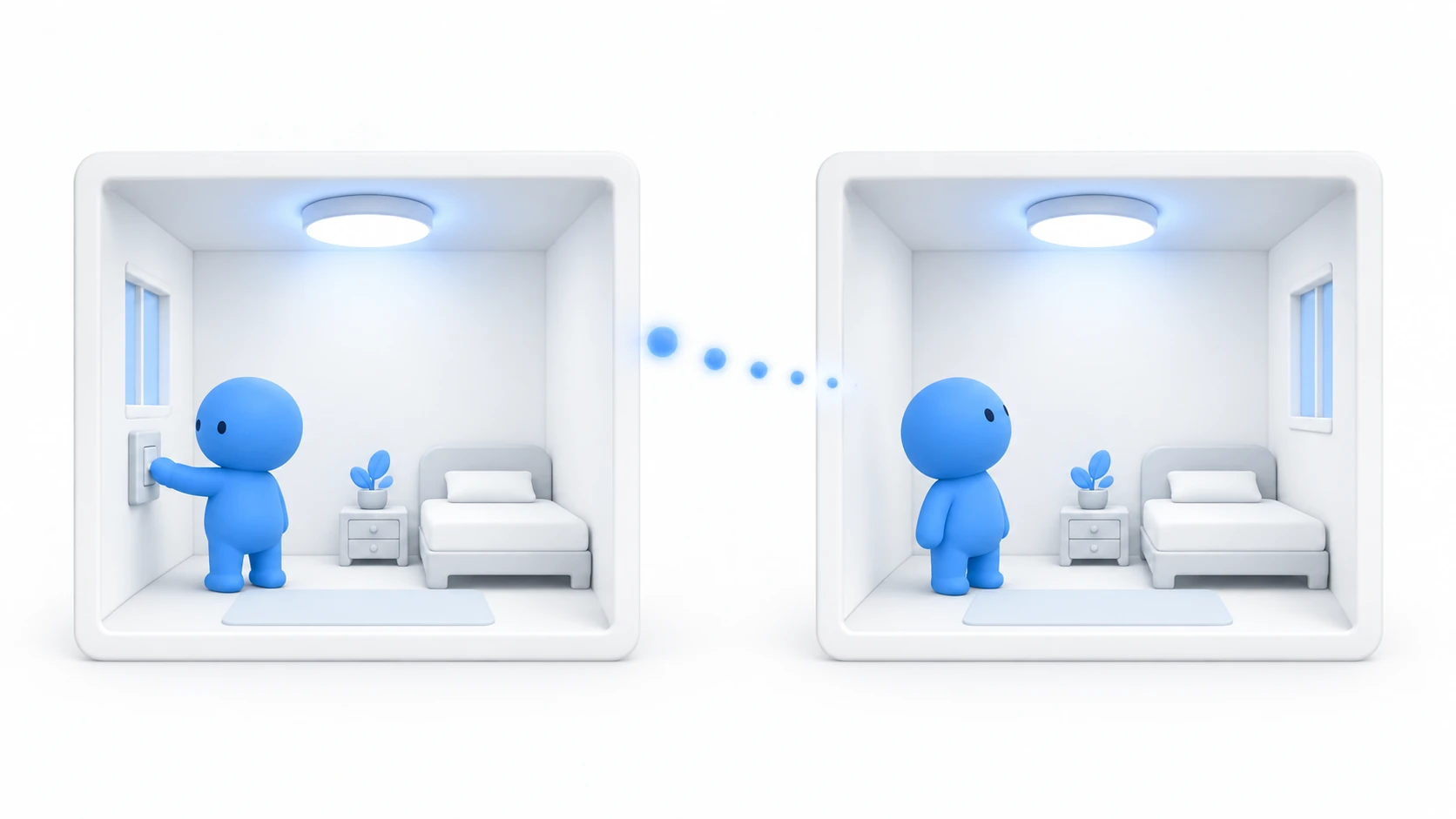
The light came on for you and the person next to you is still in the dark. It's the problem you always meet right after building a local switch.
Even in the same instance, each PC actually runs the world separately. Changing Light.enabled on your machine doesn't reach anyone else.
This article builds a mechanism that sends one value — "is the light on" — to everyone, so each screen lights up.
What You'll Learn
- When to use "state that persists" versus "one-off cues"
- That ownership means "who can write the value right now"
- The logic that requests sending, and the logic that receives and applies
- How to test with two people, and how to check late joiners
Start from being able to create scripts, from your first UdonSharp.
State is a blackboard, cues are shouts
There are broadly two ways to tell everyone something in VRChat. Their roles differ clearly.
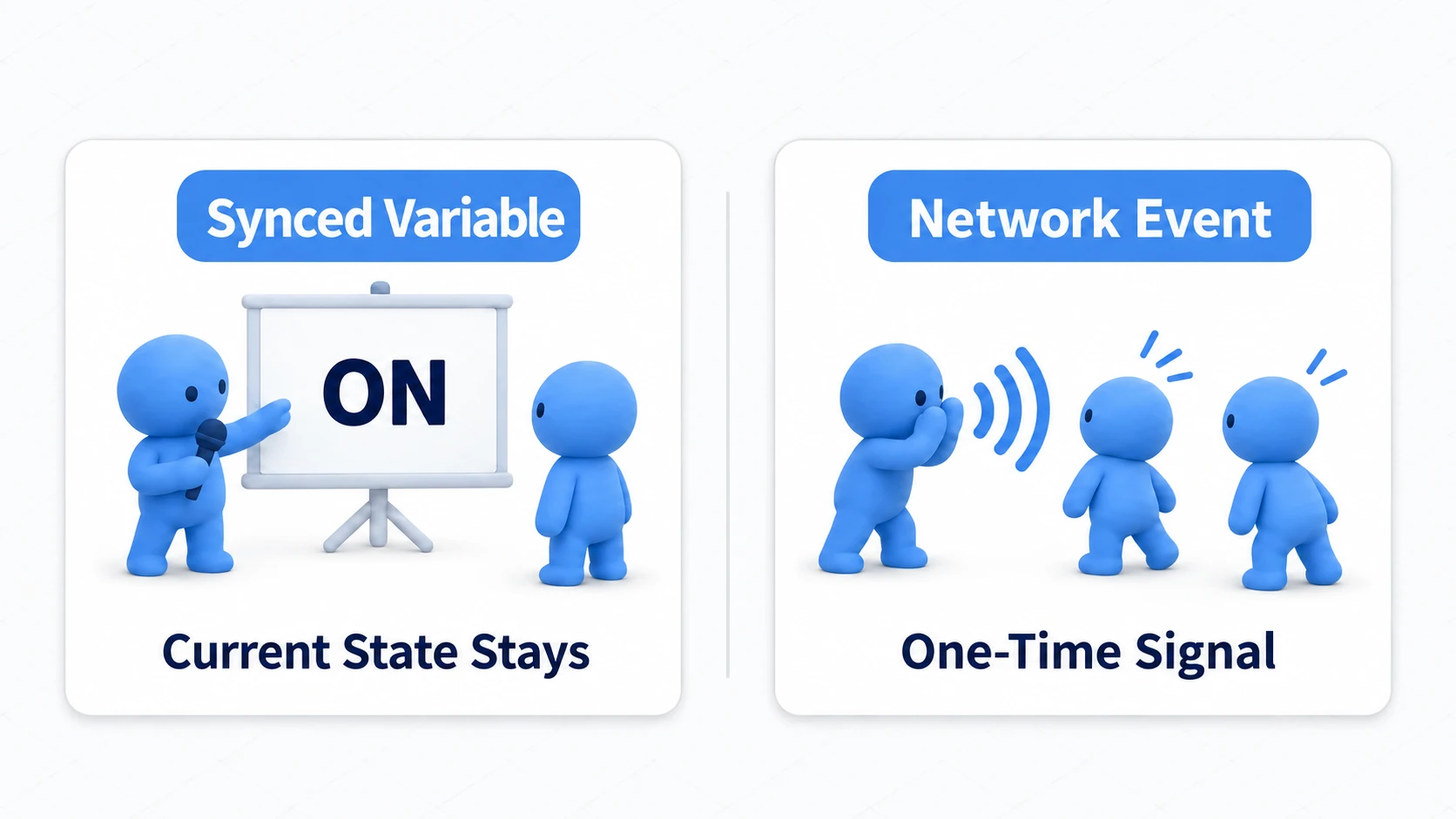
A synced variable is the room's blackboard. Write the current state on it and everyone can read it. Someone arriving later sees the current state by looking at the board.
A Network Event is a shout in the moment. "Fire the fireworks now." "Play the sound effect now." A voice doesn't linger, so it doesn't reach anyone arriving later.
That's the whole distinction.
| What you want to convey | What to use | Why |
|---|---|---|
| Whether the light is on | Synced variable | Late joiners need to know the current state |
| Whether the door is open | Synced variable | Same |
| A short sound effect right now | Network Event | No need to replay past sounds |
| A game's score | Synced variable | Someone joining midway should see the current score |
The light in this article is the blackboard kind.
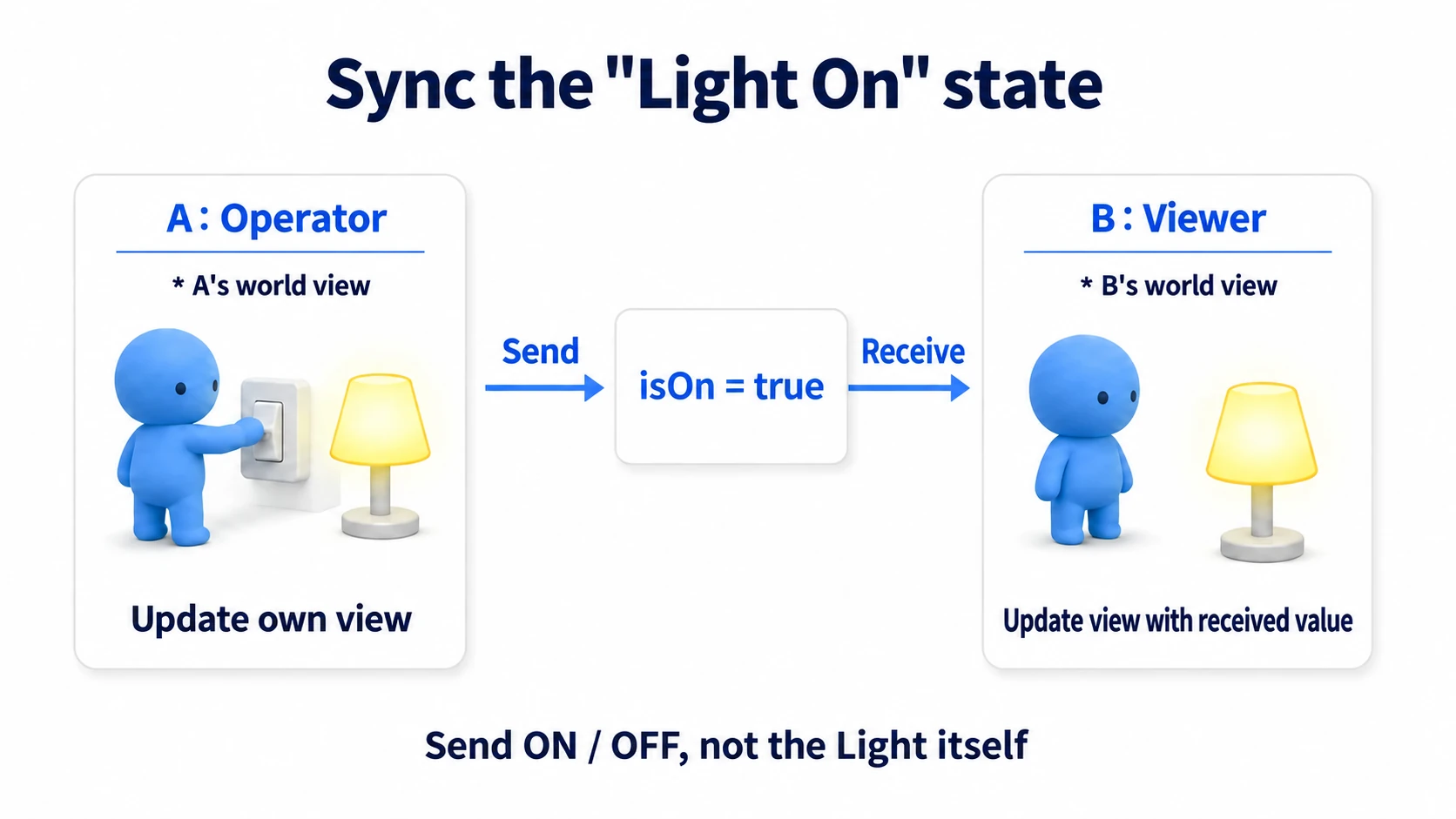
One more thing to know first: you synchronize a value, not the light itself. What gets sent is just a boolean called isOn; turning the light on based on that value is each PC's own job.
Only the person holding the microphone can write
Not everyone can write on the blackboard. Only whoever holds ownership (Owner) can.
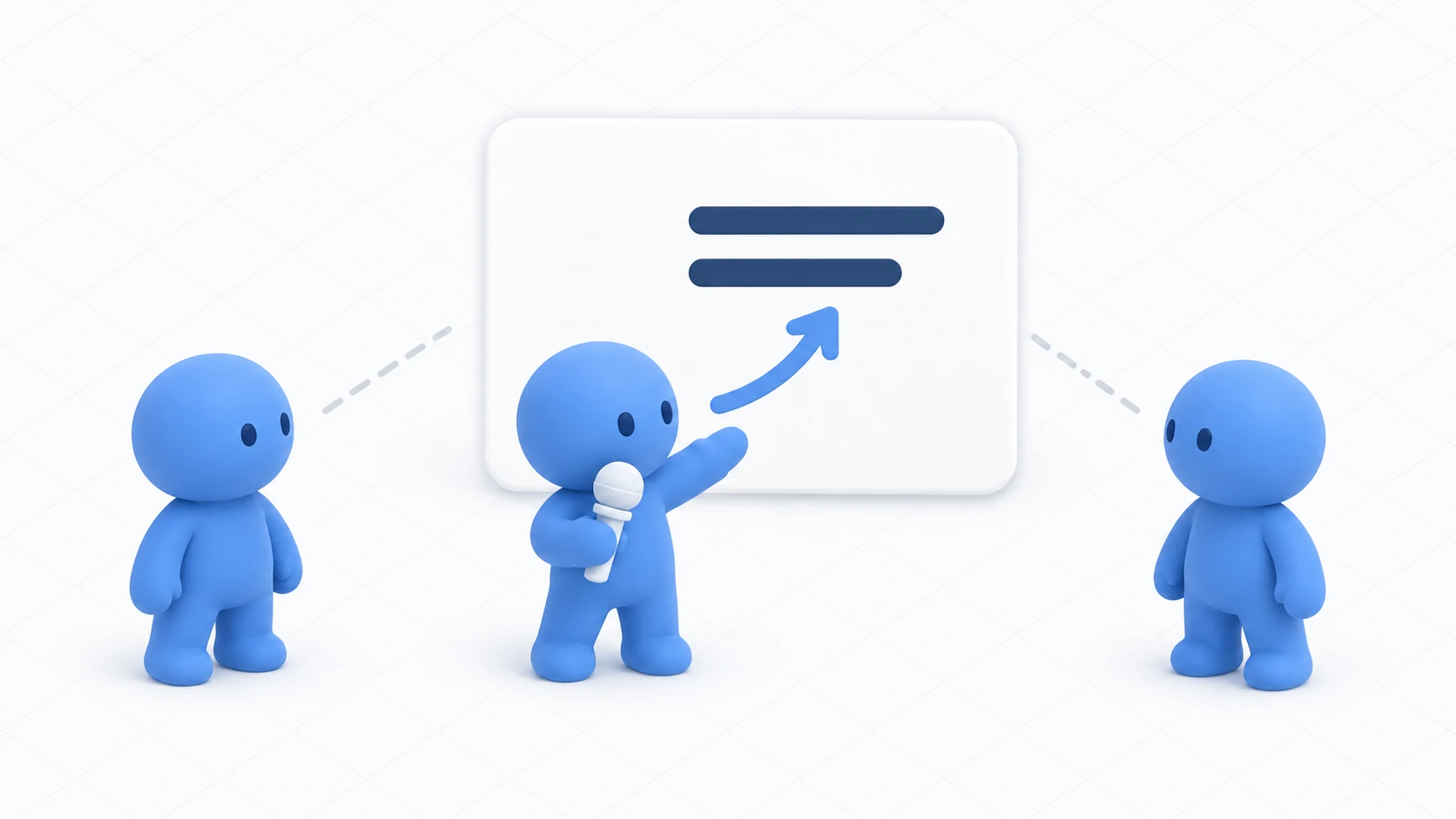
Karaoke makes it easy to picture.
- Only the person currently holding the microphone can change the song (the Owner)
- Everyone else can see the song on screen but can't change it
- Someone who wants to sing takes the microphone first, then presses the button
In code, the order looks like this.
1. Take the microphone   → Networking.SetOwner(me, this object)
2. Write on the board    → isOn = !isOn
3. Ask for it to be sent → RequestSerialization()
The word Master comes up here too, and it's something else. Master is the whole instance's host — the karaoke venue's manager. Being the manager and currently holding the microphone are different things.
Since the Master is often the Owner at first, it's easy to conclude "the Master can synchronize." That's coincidence, not mechanism. Write it so the presser takes the microphone and it works whoever presses.
Hands-On: Build lighting that switches for everyone
Build a switch that toggles the light on everyone's screen. Late joiners see the state as it stands.
1. Place the switch and the light
Place two things in a walkable scene. To make the change easier to see, lower the Directional Light's Intensity to around 0.2.
| Name | How to make it, and settings |
|---|---|
SharedSwitch | Cube. Position (0, 1, 1), Scale (0.4, 0.4, 0.4) |
RoomLight | Light → Point Light. Position (0, 2, 1), Range 5, Intensity 2, Mode "Realtime" |
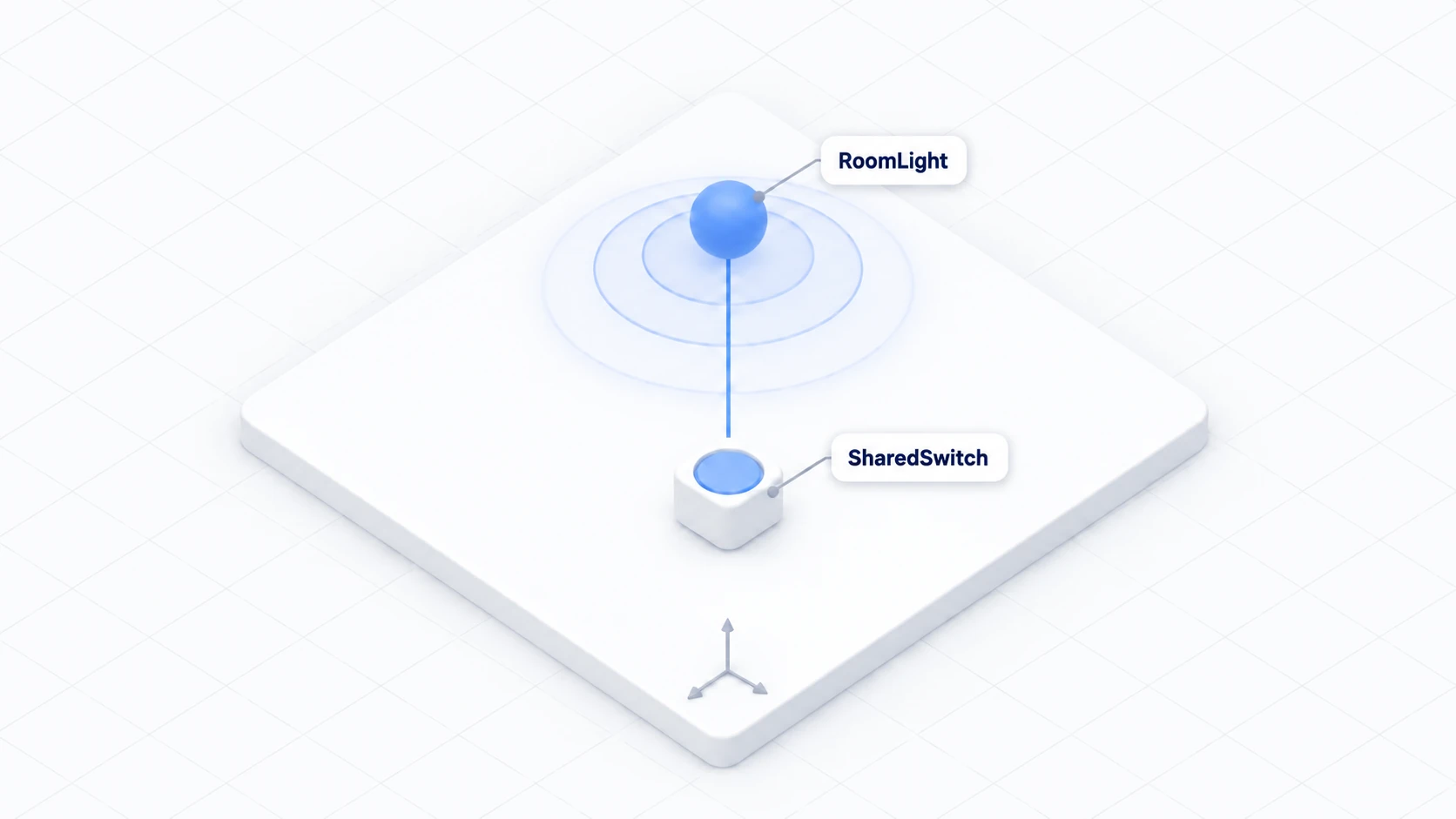
Make sure the light's Mode is Realtime. Baked leaves the burnt-in light behind, so toggling at runtime doesn't change the look.
Don't parent the two. Keep them as separate objects.
2. Write the code
In Assets/Scripts, choose "Create → U# Script" and name it SharedLightSwitch.
using UdonSharp;
using UnityEngine;
using VRC.SDKBase;

[UdonBehaviourSyncMode(BehaviourSyncMode.Manual)]  // Send only when it changes
public class SharedLightSwitch : UdonSharpBehaviour
{
    [SerializeField] private Light targetLight;

    [UdonSynced] private bool isOn;  // The "blackboard." The value shared by everyone

    private void Start()
    {
        if (targetLight == null)
        {
            Debug.LogWarning("[SharedLightSwitch] Target Light is not set.");
        }
        ApplyState();  // Apply the local value to the visuals first
    }

    public override void Interact()
    {
        if (!Utilities.IsValid(Networking.LocalPlayer)) return;

        // 1. Take the microphone
        if (!Networking.IsOwner(gameObject))
        {
            Networking.SetOwner(Networking.LocalPlayer, gameObject);
        }
        if (!Networking.IsOwner(gameObject)) return;

        // 2. Write on the board
        isOn = !isOn;
        ApplyState();

        // 3. Ask for it to be sent
        RequestSerialization();
    }

    // Called when a value arrives (not called on the person who pressed)
    public override void OnDeserialization()
    {
        ApplyState();
    }

    // Just applies the value to the visuals. Same result however often it's called
    private void ApplyState()
    {
        if (targetLight != null)
        {
            targetLight.enabled = isOn;
        }
    }
}
Three important points.
[UdonBehaviourSyncMode(BehaviourSyncMode.Manual)] is attached. Manual means "send only when it changes," which suits state that changes occasionally, like switches and doors.
ApplyState() stands on its own. It's called from three places: startup, on press, and on receive. It only "reads the value and lines up the visuals," so calling it repeatedly changes nothing. Putting a flip like isOn = !isOn in there would make it toggle on every receive.
OnDeserialization() isn't called on the person who pressed. That's why the pressing side calls ApplyState() explicitly. Forget it and you get the odd state of "only my screen doesn't change."
3. Assign and save
Add a Udon Behaviour to SharedSwitch and set Program Source to SharedLightSwitch.
| Field | What to set |
|---|---|
| Target Light | RoomLight from the Hierarchy |
| Interaction Text | Toggle lighting |
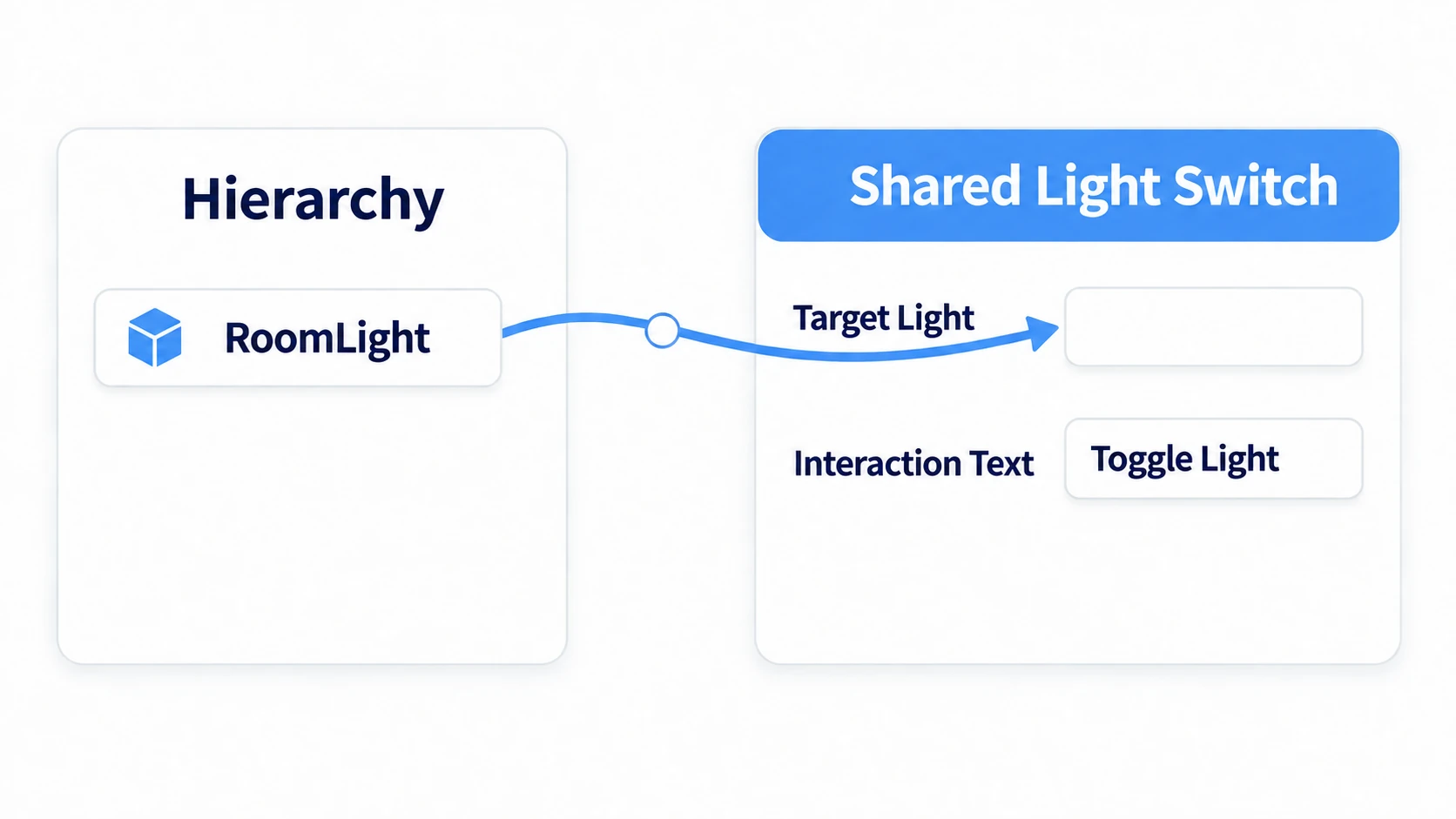
The Sync Method field is either hidden or set to Manual, because the attribute in code specifies it.
4. Check solo first
Press Play in ClientSim and press the switch. The light toggling on your screen means you've written it correctly so far.
But that doesn't mean it's synchronized. The second person visible in ClientSim isn't a real player, so neither sending nor receiving matches production. Synchronization gets checked with the next steps.
Test with two people and a late joiner
Launch two copies of actual VRChat to check.
- Open Builder in the SDK's Control Panel
- Set Number of Clients to
2 - Enable Force Non-VR (when checking on desktop)
- Press Build & Test
Two VRChat instances launch and two people enter the same instance. Call one A and the other B, and check in order.
| Order | Action | Expected result |
|---|---|---|
| 1 | A and B enter | Both start with the light off |
| 2 | A alone presses once | A lights up, and B lights up shortly after |
| 3 | B alone presses once | B takes ownership and both go dark |
| 4 | A turns it on, then B re-enters | B enters with the light on, without having pressed |
The fourth is the late-joiner check. Because you're using a synced variable, the latest value reaches whoever arrives later. A doesn't have to press again.
Two cautions while checking. Watching only the sending screen tells you nothing about synchronization. Keep the screen you operate and the screen you watch separate. And closing every client before rebuilding resets to the initial state, which isn't a late-joiner check. Leave one running and re-enter with the other.
The order synchronization breaks in
Synchronization breaks in stages, from the top down. Find where you're stuck.
- Your own screen doesn't change either → This isn't synchronization yet, it's a local problem. Check that Interact is firing, that Target Light is assigned, and that the light is Realtime
- Only you change; it doesn't reach others → Check for the
Manualattribute, that you callRequestSerialization(), and that you're actually in the same instance - It works for others but not the presser → You wrote the applying logic only in
OnDeserialization(). CallApplyState()on the pressing side too - It works for people present, but late joiners are dark → Check that you're not conveying it with Network Events alone. State that persists is held in a synced variable
- The other person pressing reverts it → Check whether several scripts are writing to the same light
[UdonSynced] alone doesn't send anything. Put a value in the marked box, then ask for it to be sent. Remember it as two stages.
Bonus: Good to Know Up Front
- Only values can be synced:
bool, numbers, strings, colors, and coordinates can be sent, but scene references like GameObjects and Transforms can't. "Which object" comes from what's in each person's own scene - Continuous is for positions:
Continuoussends the owner's values periodically, suiting positions of things in constant motion. Switches, which change only at a moment, use Manual - Don't put VRC Object Sync on everything: It's a component that keeps sending position, so it suits thrown props but not switches or chairs. Choose by what you want shared
- There's no guarantee for simultaneous presses: Two people pressing at nearly the same time can both write the same value. For lighting, converging is enough, but when losing an update matters — incrementing a score, say — consider a design that asks the owner to process it in one place
- It's fine when the Owner leaves: VRChat assigns a new owner automatically. Just don't build anything that depends on who gets chosen
Summary
Synchronization sorts out once you split three roles.
- State that persists is a synced variable (the blackboard); one-off cues are Network Events (shouts)
- Only whoever currently holds ownership can write on the board. The presser takes ownership first
- Add
[UdonSynced], put in the value, and ask for sending withRequestSerialization() - Gather the visual application into
ApplyState()and call it from three places: startup, press, and receive
The question to ask while building is: "Should someone arriving later see this?" Yes means a synced variable; no means an event.
Next we look at ownership in more detail. In understanding ownership, watch how the operating player switches. To convey a momentary effect, go to network events.