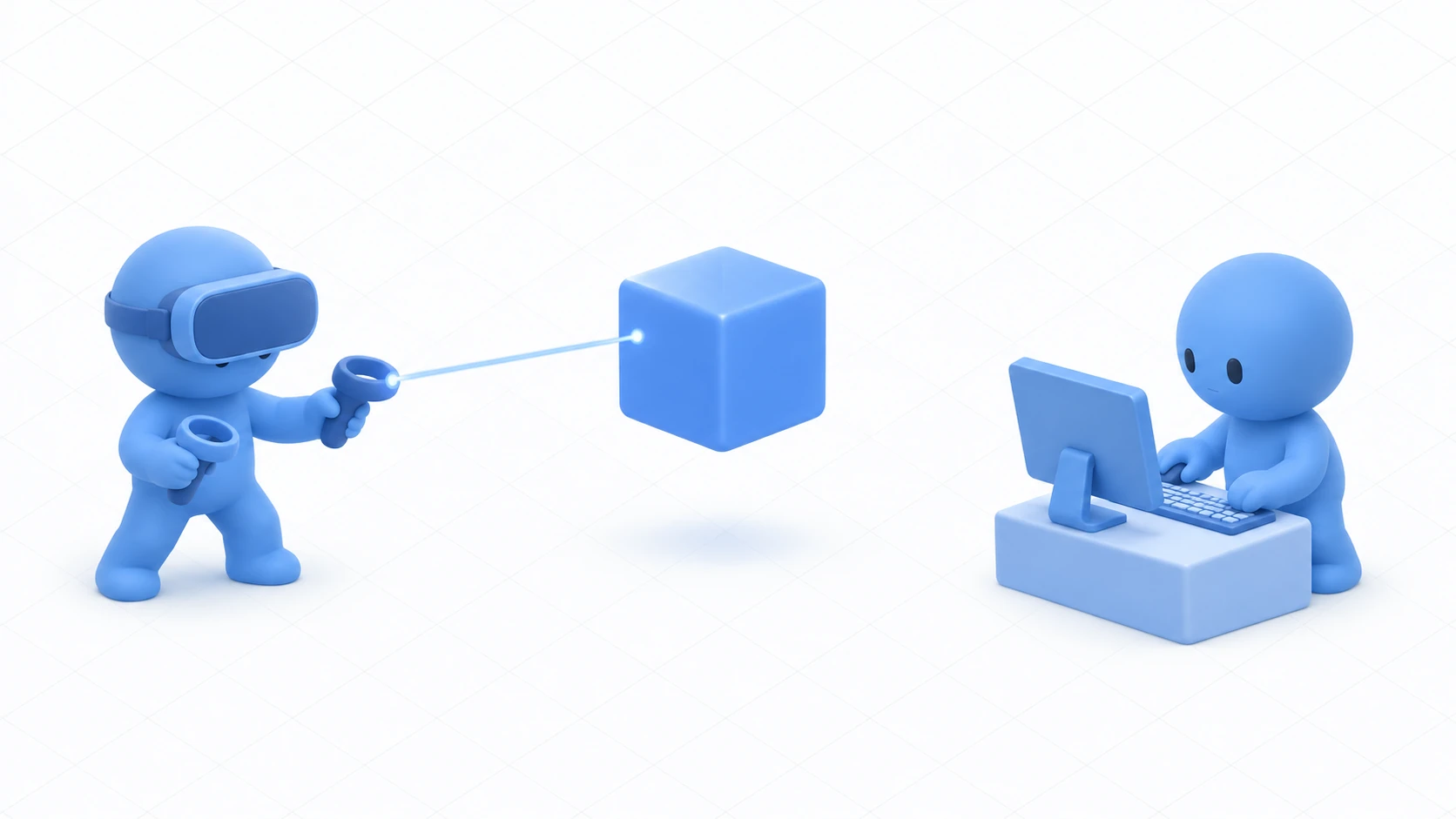
Udon code doesn't run top to bottom in the order you wrote it. It waits.
When something happens, only the part responsible for it runs. That "something" is called an event. Write without understanding this and you'll hit "the logic is right and it never runs."
This article builds a rotating display and a stop button to see when Start, Update, and Interact each run.
What You'll Learn
- How the timing of Start, Update, and Interact differs
- Why you multiply by
Time.deltaTime- Where Update belongs and where to avoid it
- Where you must not rely on execution order
Start from having tried your first UdonSharp.
The three events differ in how often they run
These three come first. Sorting them by how many times they run makes them easy to remember.
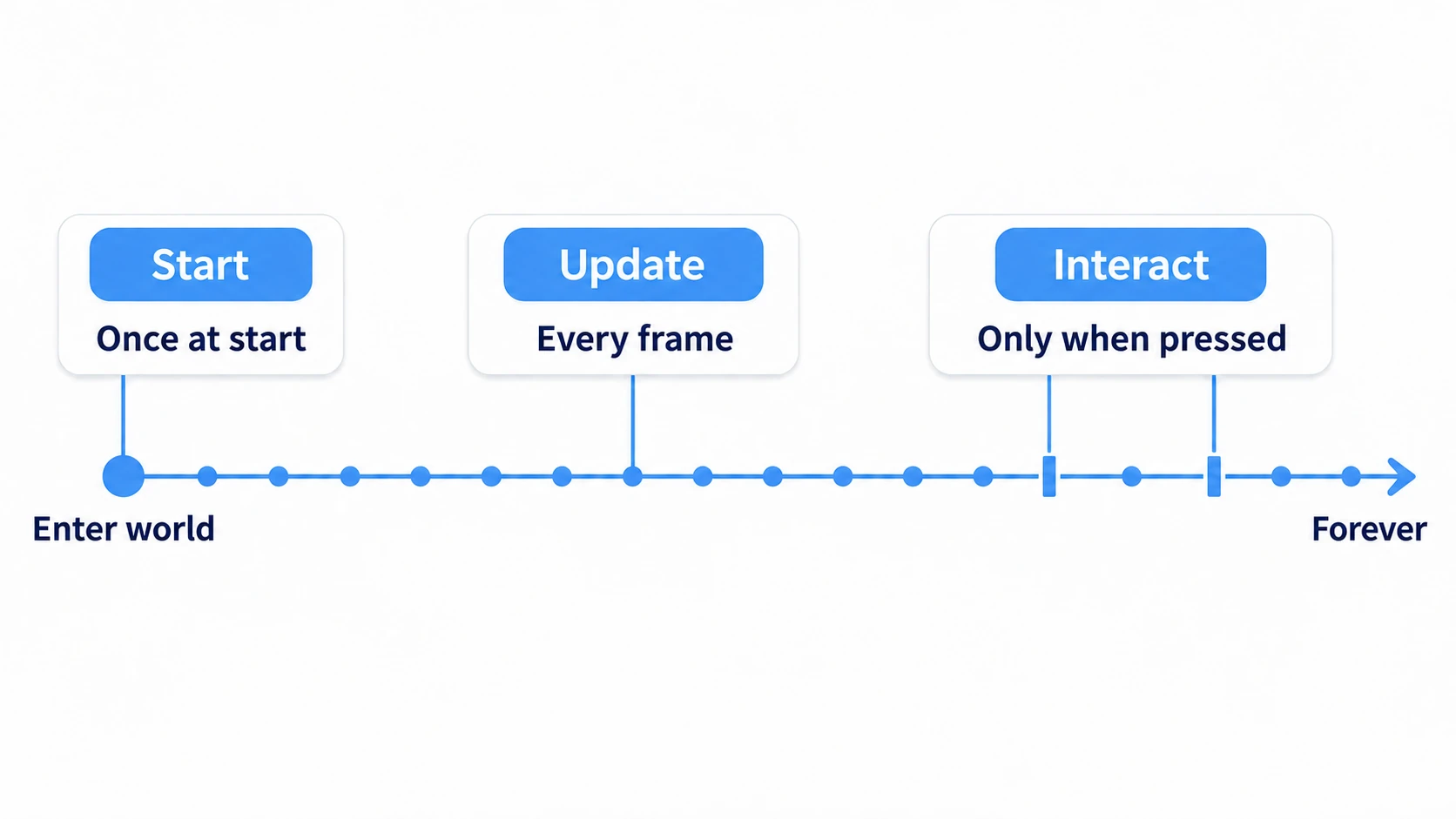
- Start runs once when you enter the world. It's where you line up the initial state
- Update runs every frame. At 90fps, 90 times a second
- Interact runs only when that object is used
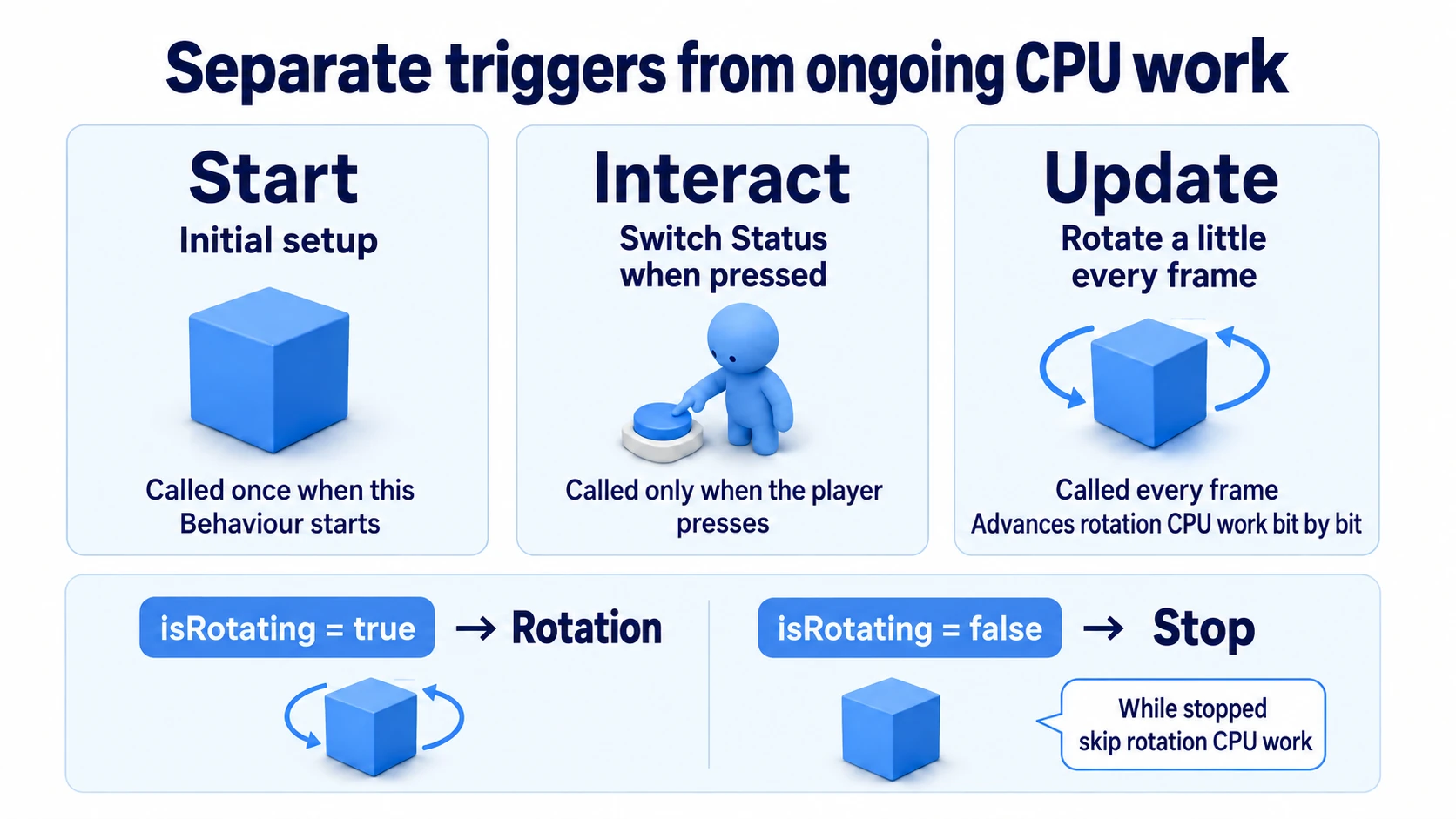
These three cover most gimmicks. "Things that should keep moving every frame" go in Update, "things that change only on press" go in Interact, and "things to line up at the start" go in Start.
What you decide before writing isn't syntax but "at what moment do I want this to run." Settle that and where to write it settles too.
Hands-On: Stop a spinning display with a button
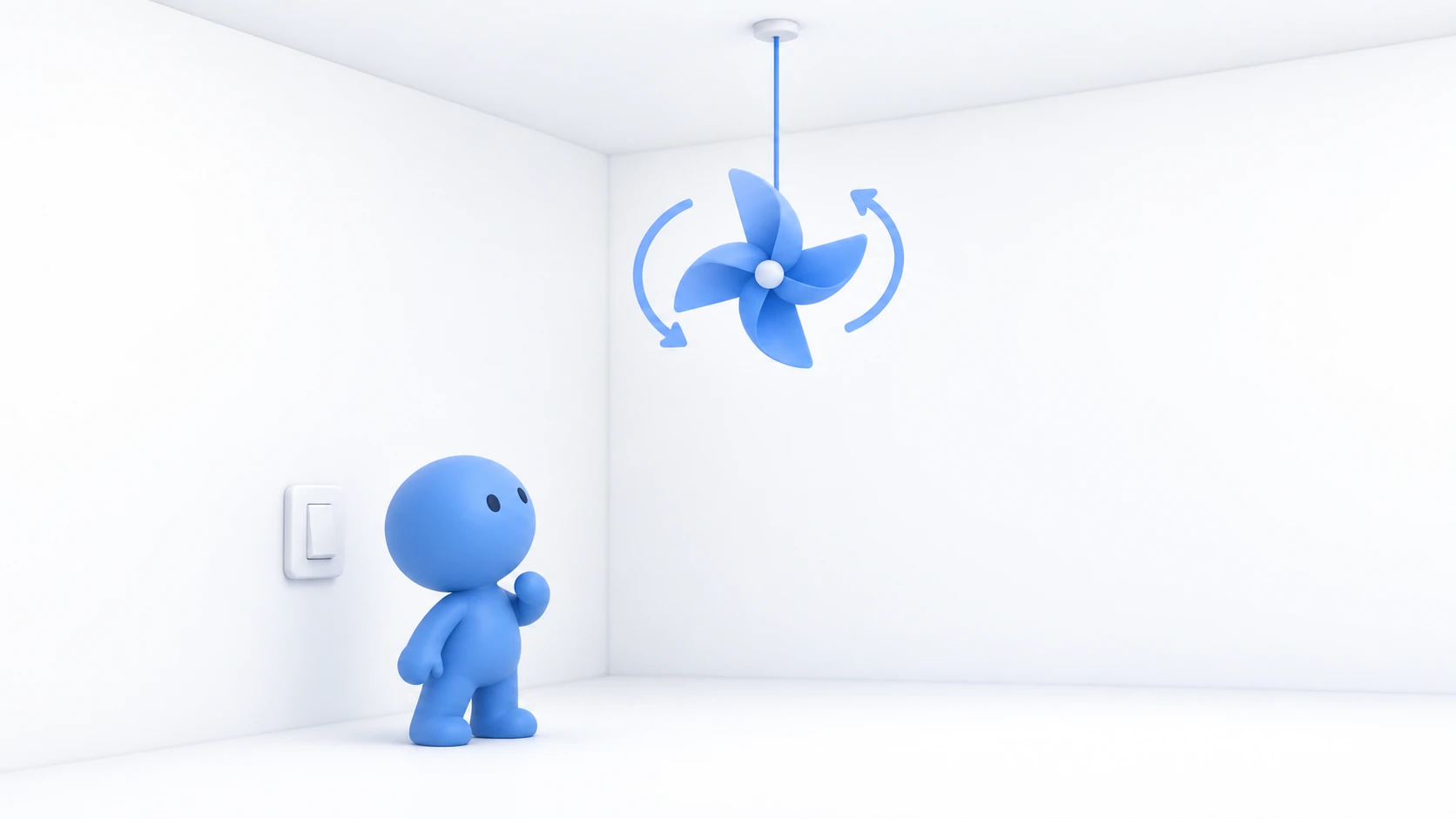
A display hanging from the ceiling turns slowly, and a button stops it. Press again and it starts turning.
When you're done, the Console shows Start exactly once, Interact logs pile up on each press, and the display keeps turning. One-time logic and every-frame logic coexisting in the same scene becomes visible.
1. Place the display and the button
Place two things in a scene with a floor.
| Name | How to make it, and settings |
|---|---|
SpinDisplay | Cube. Position (0, 1.5, 2), Scale (1, 0.1, 0.3) |
SpinButton | Cube. Position (0, 1, 1), Scale (0.4, 0.4, 0.4) |
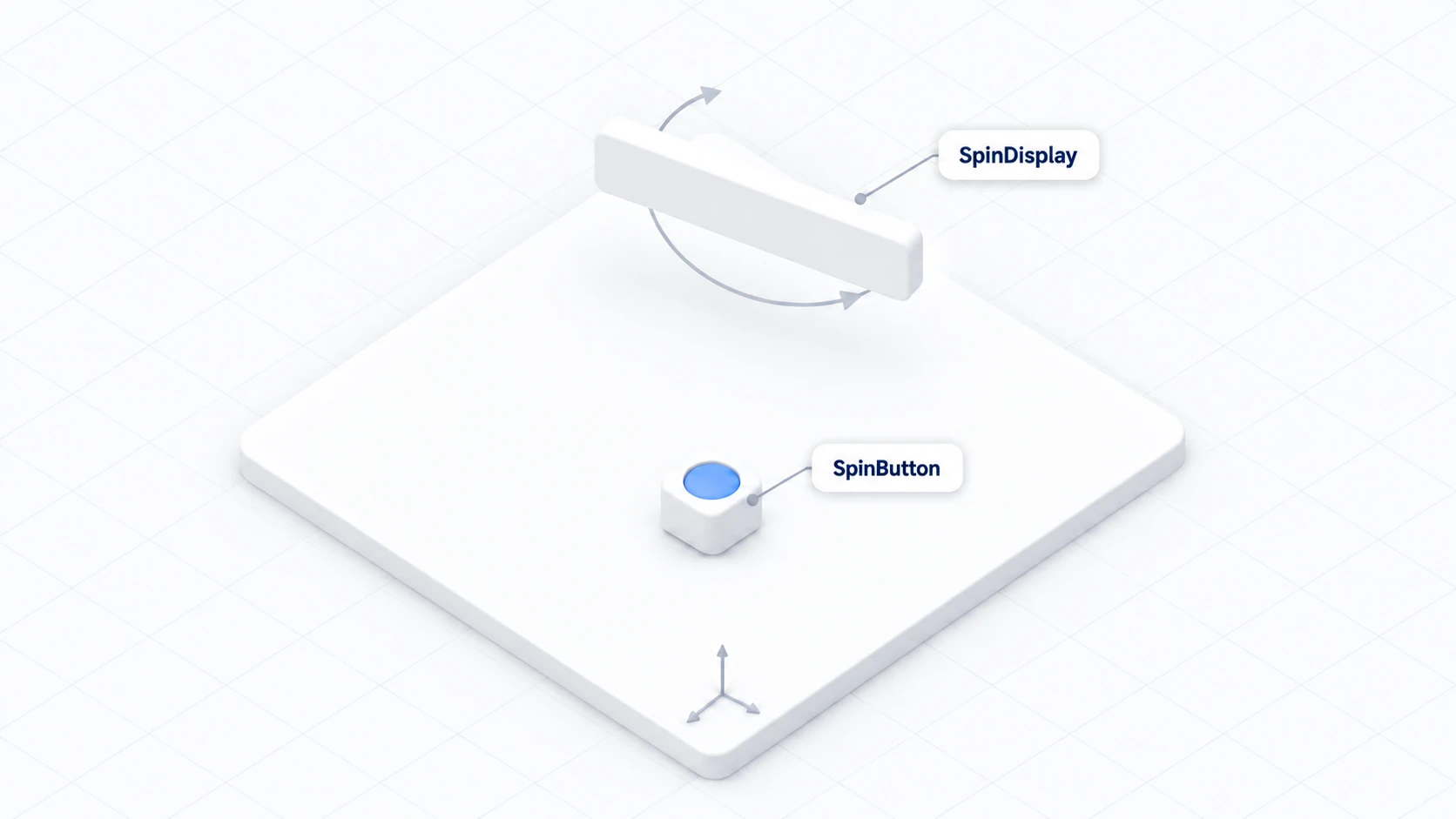
Making SpinDisplay a flat board makes the rotation easy to see. Put the button toward the front, at a comfortable height to press.
2. Write the code
In Assets/Scripts, choose "Create → U# Script" and name it RotationSwitch.
using UdonSharp;
using UnityEngine;

[UdonBehaviourSyncMode(BehaviourSyncMode.None)]
public class RotationSwitch : UdonSharpBehaviour
{
    [SerializeField] private Transform display;             // What to rotate
    [SerializeField] private float degreesPerSecond = 45f;  // Degrees to turn per second

    private bool isRotating = true;
    private bool ready;

    // Once, on entry
    private void Start()
    {
        ready = display != null;
        if (!ready)
        {
            Debug.LogWarning("[RotationSwitch] Display is not set.");
            return;
        }
        Debug.Log("[RotationSwitch] Start");
    }

    // Only on press
    public override void Interact()
    {
        if (!ready) return;
        isRotating = !isRotating;
        Debug.Log("[RotationSwitch] rotating=" + isRotating);
    }

    // Every frame
    private void Update()
    {
        if (!ready || !isRotating) return;
        display.Rotate(0f, degreesPerSecond * Time.deltaTime, 0f, Space.Self);
    }
}
Look at what's inside Update(). It multiplies by Time.deltaTime.
That's "the seconds elapsed since the previous frame." Without it, the object turns 45 degrees per frame, which is 5400 degrees a second on a 120fps PC and 1350 on a 30fps one. The same world, spinning at different speeds for different people.
Multiplying by Time.deltaTime makes it mean "45 degrees per second," giving the same speed on any PC. Always multiply when moving something inside Update.
There's also an if (!isRotating) return; at the top of Update(). That's how you avoid calculating rotation while it's stopped.
3. Assign it and run
Add a Udon Behaviour to SpinButton and set Program Source to RotationSwitch.
| Field | What to set |
|---|---|
| Display | SpinDisplay from the Hierarchy |
| Degrees Per Second | 45 |
| Interaction Text | Toggle rotation |
Press Play and check.
| Timing | What you should see |
|---|---|
| The moment you Play | Start appears in the Console exactly once. The display starts turning |
| Press the button | Console shows rotating=False. The display stops |
| Press again | rotating=True. It starts turning again |
| Just watch | The Console stops growing while the display keeps turning |
That last row is the point of this article. Update is running even when no logs appear. Every-frame logic keeps going where you can't see it.
4. Remove deltaTime and compare
Temporarily remove Time.deltaTime, making it display.Rotate(0f, degreesPerSecond, 0f, Space.Self);.
It spins furiously. Of course it does — that's 45 degrees per frame. Put it back once you've seen it.
Seeing this difference once means deltaTime never confuses you when it appears in other articles.
Use Update only when you've decided to
Update is convenient, and in VRChat you use it carefully. The reason is that the same logic runs on everyone's PC.
In VR that's 90 times a second. With it written on 20 objects, that's 1800 times a second. And with 10 people in the world, that's 1800 times a second on each of 10 PCs.
So the judgment goes like this.
- Where Update fits: An ornament that turns continuously, something floating up and down, logic that tracks a position every frame
- Where it doesn't: Something that changes once when pressed, something that's fine once every few seconds, something that only watches for a condition
Logic like "check something once a second" doesn't need to check every frame in Update. Run it on press, or use a mechanism that calls it after a delay (covered in delayed events).
The measure is: "Does this genuinely need to run every frame?" If no, don't use Update.
Don't rely on execution order
There's one more pitfall that's easy to fall into.
The order in which multiple scripts' Start methods run is not defined. Reading B's value in A's Start may find that B's Start hasn't run yet.
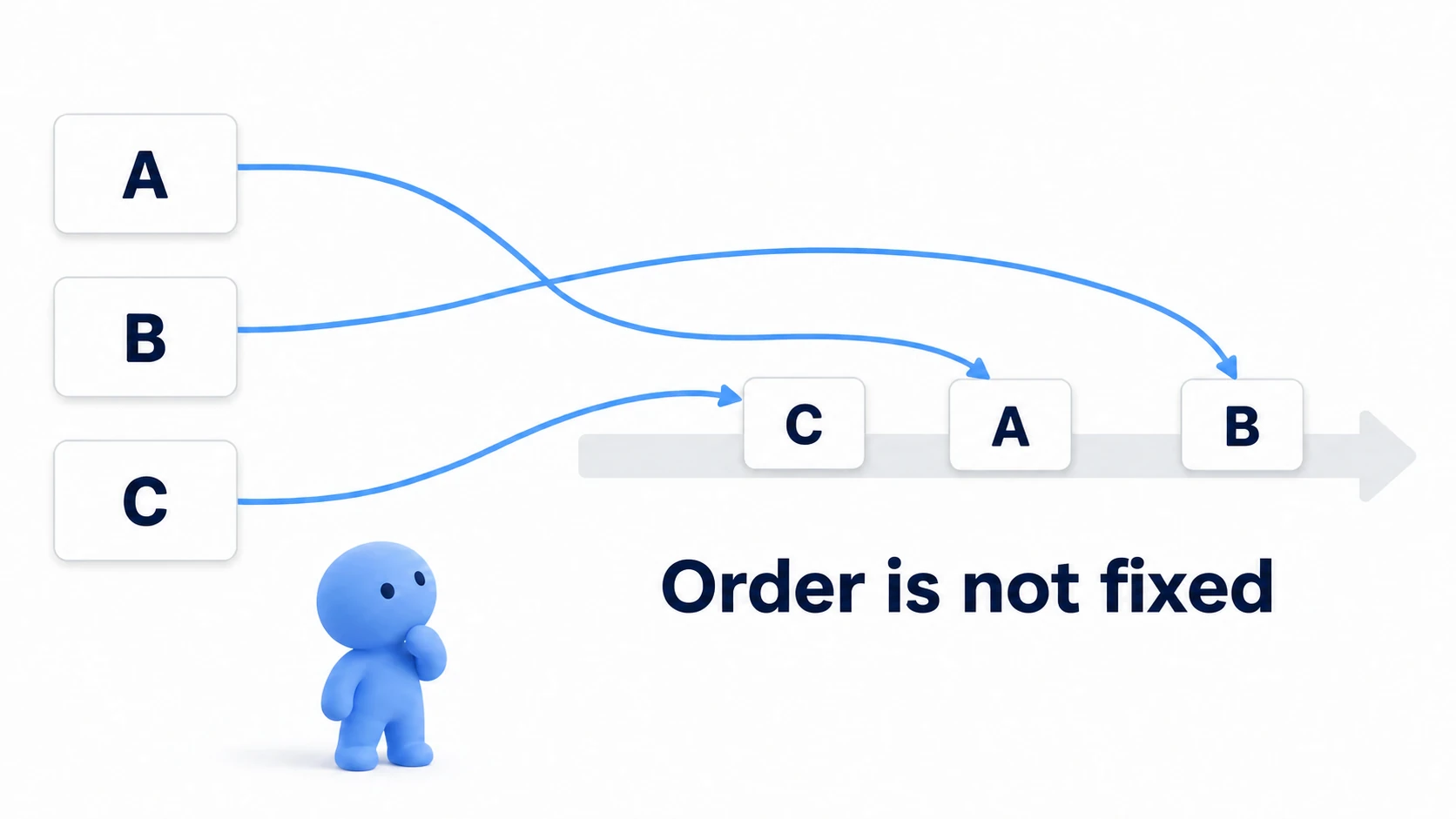
The response is simple.
- Write only initialization that's self-contained in Start
- If you need another object's value, read it when you need it rather than in Start
For the same reason, be careful with OnEnable and OnDisable. Disabling a GameObject calls OnDisable and stops that object's Update. Re-enabling calls OnEnable, but Start doesn't fire a second time.
Disabling the button itself to "hide it and save performance" leaves you unable to press it and unable to undo. What you disable is the thing being operated, not the button doing the operating.
Bonus: Good to Know Up Front
Space.SelfversusSpace.World: They change the rotation's frame of reference.Selfis the object's own orientation,Worldis world coordinates. Results differ for a tilted object, so suspect this when something doesn't turn the way you expected- FixedUpdate is for physics: It's an event called at fixed intervals, for logic aligned with the physics engine. Unnecessary for moving visuals
- Don't use Awake: The
Awakeused in ordinary Unity isn't used in UdonSharp. Put initialization inStart - There's a way to call things after a delay: "Do something in 3 seconds" is lighter and more readable with a delayed event than counting seconds in Update
- There are ways to measure cost: You can measure the actual load later. Covered in optimizing Udon and networking
Summary
Events are the triggers that start logic.
- Start runs once on entry, Update every frame, Interact only on press
- Multiply by
Time.deltaTimewhen moving something inside Update - Update runs on everyone's PC. Think about whether every frame is genuinely needed
- The order of multiple scripts' Start methods is undefined. Don't read others' values in Start
The question to ask when you're unsure where to write something is: "When do I want this to run?" Once, every frame, or on press. Settle that and where to write it settles too.
Next is splitting logic out and reusing it. In methods and custom events, let's operate the same light from two buttons. To line up several reactions from one state, toggling with a button is the practical route.