Attaching an UdonSharp script puts settings fields in the Inspector. Fields where you type numbers, and fields where you drag scene objects. They look similar, and they're completely different things.
Once you can think of them separately, you can change settings without rewriting code. Leave it vague and you'll hit "the code is right but it doesn't work" over and over.
This article gets across the difference between value and reference, and makes a light's brightness switchable from the Inspector.

What You'll Learn
- The difference between "value" and "reference"
- Which wins: the initial value in code, or the value in the Inspector
- Why to use
[SerializeField] private- How to spot a reference stuck at
None
Start from a scene with a floor, having tried your first UdonSharp.
A value is a note; a reference is a pointing finger
There are two kinds of variable. This distinction pays off repeatedly from here on.
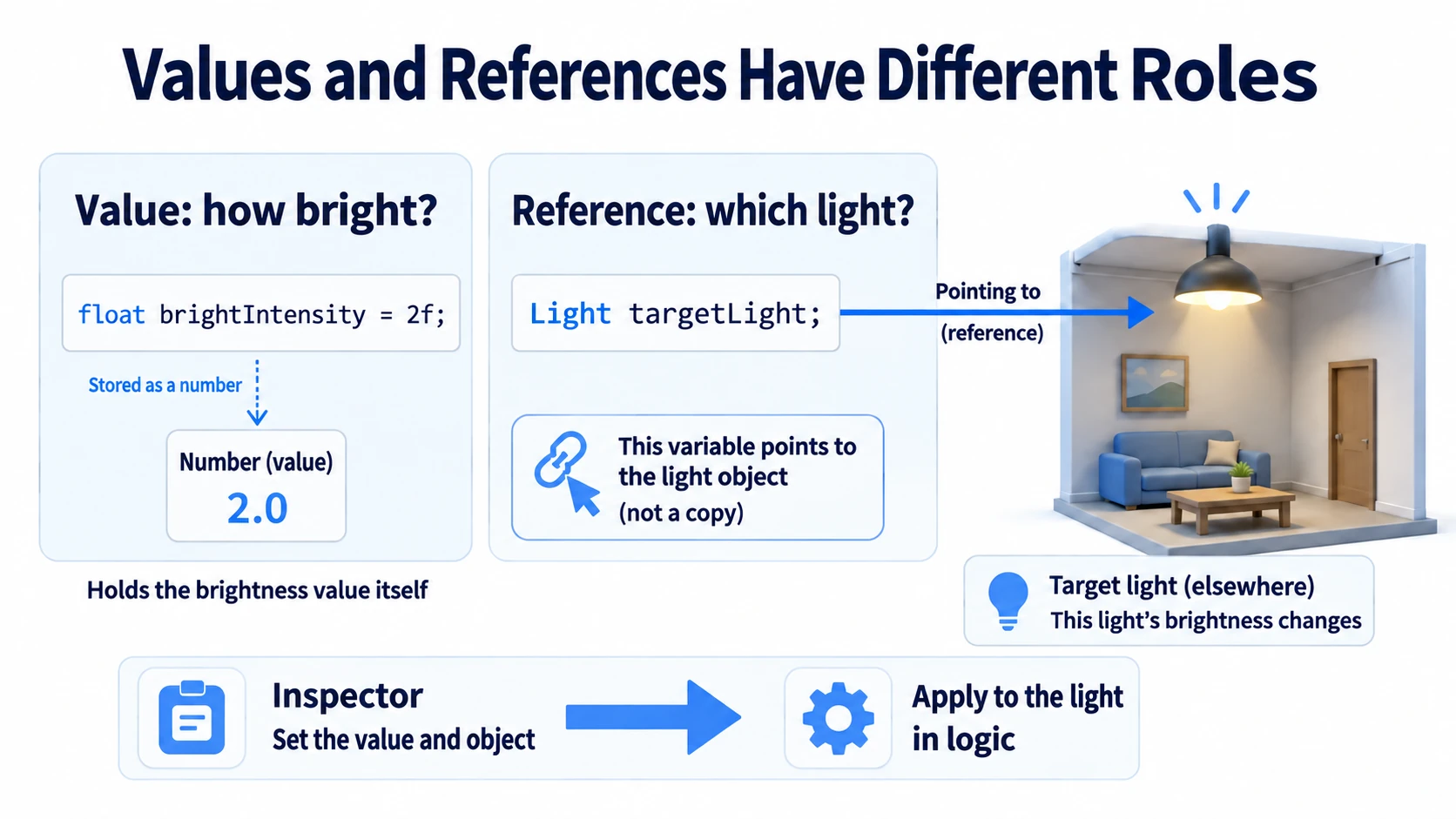
A value is a note written in your own notebook. "Brightness 2.0," "it's on," "the color is orange." It holds the number or the yes/no directly. Rewriting the note changes nothing about the light in the world yet.
A reference is a finger pointing at "that lamp." Touch the real thing at the end of the finger and the world's appearance changes. If the finger points at nobody, no amount of numbers in the notebook does anything.
Cast into VRChat terms:
The switch's script holds "a brightness number." But the number alone doesn't brighten the room. Only once the Inspector decides which light it points at does pressing change the lighting.
There's another important property. Several switches can point at the same light. If the entrance switch and the emergency-exit switch both point at the same ceiling light, either one lights the same real object. That's because they share the real thing rather than copying a value.
Here are the types used in this article.
| Type | Kind | Used here for |
|---|---|---|
int | Value | Press count |
float | Value | Light brightness |
bool | Value | Whether it's in the bright state |
string | Value | A name for the log |
Color | Value | Light color |
Light | Reference | The light itself |
Hands-On: Toggle a light's brightness
Each press moves the room's light between dim (0.2) and bright (2). The numbers stay changeable from the Inspector rather than the code.
1. Place a button and a light
Place two things in a scene with a floor.
| Name | How to make it, and settings |
|---|---|
VariableButton | Cube. Position (0, 1, 1), Scale (0.4, 0.4, 0.4) |
VariableLamp | Light → Point Light. Position (0, 2, 1), Range 5, Mode "Realtime" |
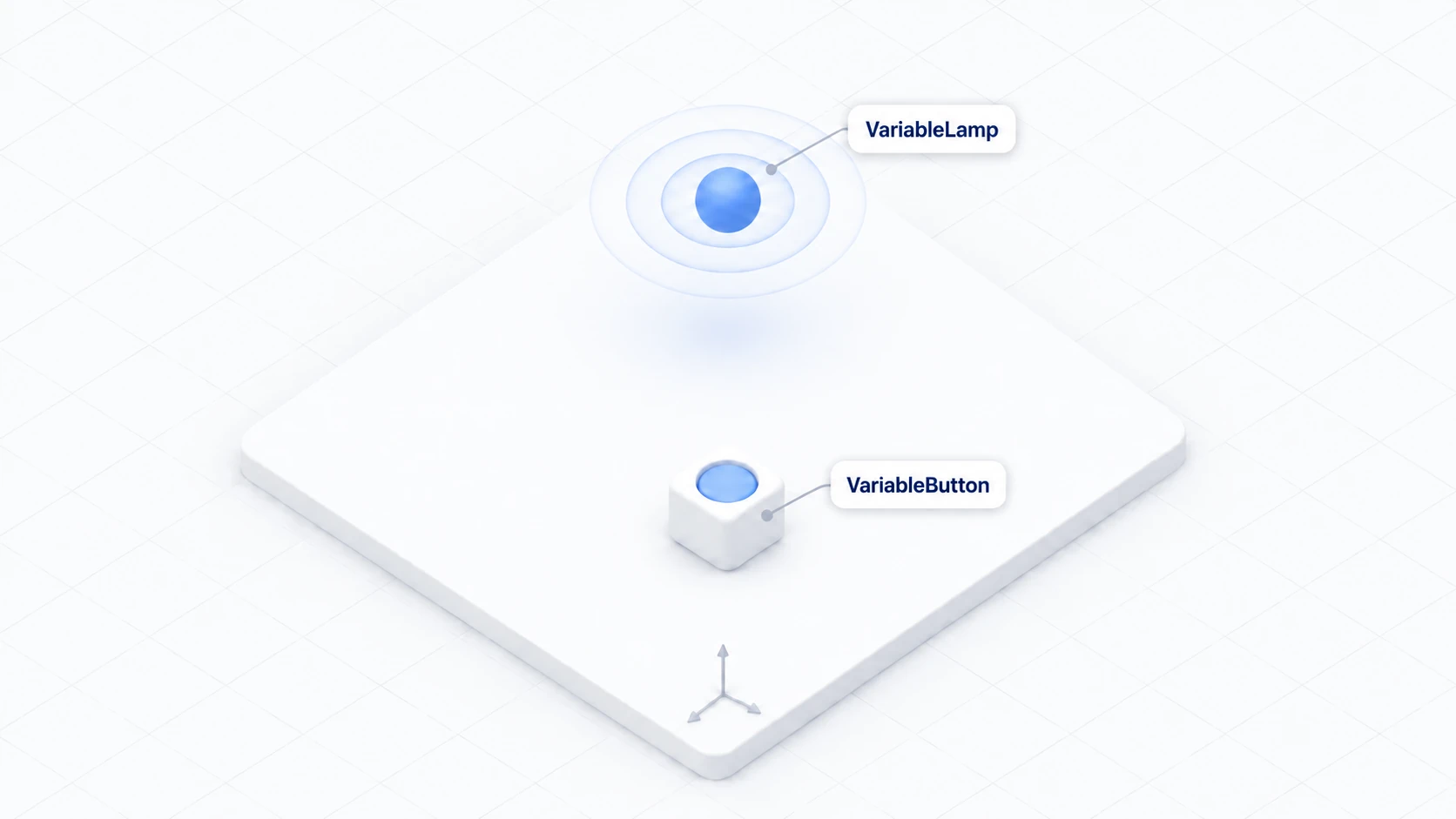
Set the light's Mode to Realtime. Baked wouldn't change appearance when brightness changes at runtime (covered in lighting and baking).
To make the difference easier to see, temporarily disabling the scene's Directional Light helps.
2. Write a script that holds settings
In Assets/Scripts, choose "Create → U# Script" and name it VariableLightSwitch.
using UdonSharp;
using UnityEngine;

[UdonBehaviourSyncMode(BehaviourSyncMode.None)]
public class VariableLightSwitch : UdonSharpBehaviour
{
    [SerializeField] private Light targetLight;        // Reference: which light to operate
    [SerializeField] private float dimIntensity = 0.2f; // Value: brightness when dim
    [SerializeField] private float brightIntensity = 2f; // Value: brightness when bright
    [SerializeField] private Color lightColor = Color.white;
    [SerializeField] private string logLabel = "VariableLight";

    private bool isBright;   // Whether it's currently bright
    private int pressCount;  // How many times it's been pressed

    private void Start()
    {
        if (targetLight == null)
        {
            Debug.LogWarning("[VariableLight] Target Light is not set.");
            return;
        }
        ApplyLight();
    }

    public override void Interact()
    {
        if (targetLight == null) return;

        isBright = !isBright;
        pressCount++;
        ApplyLight();
        Debug.Log("[" + logLabel + "] count=" + pressCount + " bright=" + isBright);
    }

    // Push "the current state" onto the actual light
    private void ApplyLight()
    {
        targetLight.color = lightColor;
        targetLight.intensity = isBright ? brightIntensity : dimIntensity;
    }
}
The five fields marked [SerializeField] appear in the Inspector. isBright and pressCount don't, since they're only used internally at runtime.
There's a reason for [SerializeField] private. public also puts things in the Inspector, but public additionally declares "other scripts may touch this variable." When you only want a world setting, [SerializeField] private is safer because nothing outside can rewrite it.
ApplyLight() groups the logic that pushes state onto the light. Since both Start() and Interact() call it, keeping it in one place prevents the accident of fixing only one of them.
3. Assign references and values
Add a Udon Behaviour to VariableButton and set Program Source to VariableLightSwitch. The settings fields appear.
| Field | What to set |
|---|---|
| Target Light | VariableLamp from the Hierarchy |
| Dim Intensity | 0.2 |
| Bright Intensity | 2 |
| Light Color | White |
| Log Label | VariableLight |
| Interaction Text | Change brightness |
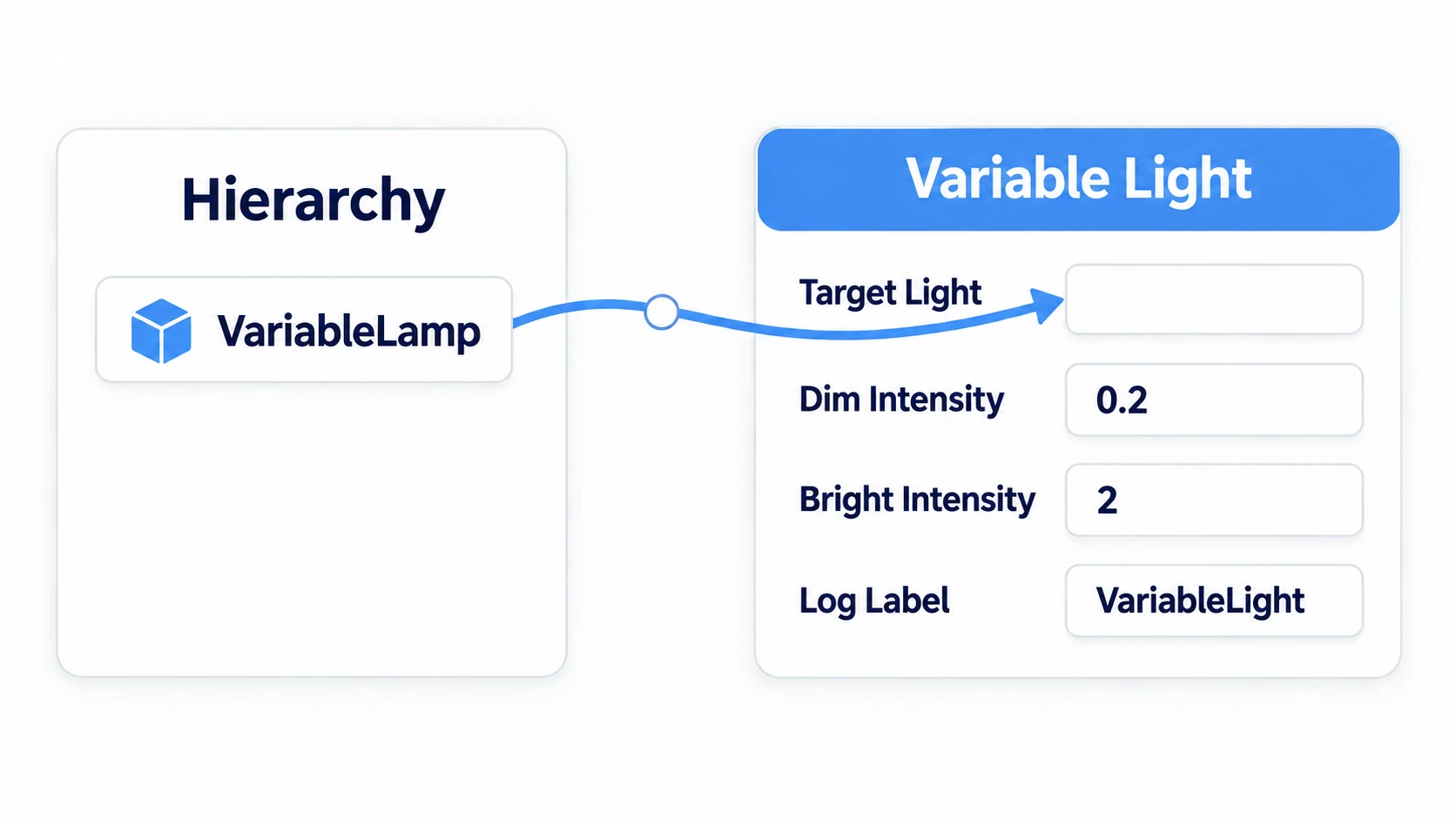
Only Target Light is a reference. You drag the actual light from the scene into it, not a number.
Take a moment to see the failure deliberately. Leave Target Light at None and press Play: the Console says "Target Light is not set," and pressing does nothing. That's the true form of "the code is right but it doesn't work."
Once you've seen it, drag VariableLamp in.
4. Run it and confirm
Press Play, click the Game view, and press VariableButton.
| Action | Expected result |
|---|---|
| Right after start | The light's Intensity is 0.2. The room is dim |
| Press once | It becomes 2 and brightens. Console shows count=1 bright=True |
| Press twice | It returns to 0.2. Console shows count=2 bright=False |
Selecting VariableLamp in the Inspector during Play shows the Intensity number actually switching. You get a feel for code writing into a value.
5. Change it without touching code
Here's the main payoff. Stop Play and set Bright Intensity to 5 in the Inspector.
Without altering a single character of code, the brightness on press changes. The settings live in the Inspector, not in the code.
Set Light Color to orange and the lamp's color changes too. Attach the same script to a button in another room, point it at a different light, and you get switches with different brightness per room.
Editing the code doesn't change the Inspector value
Let's get ahead of a phenomenon almost everyone hits once.
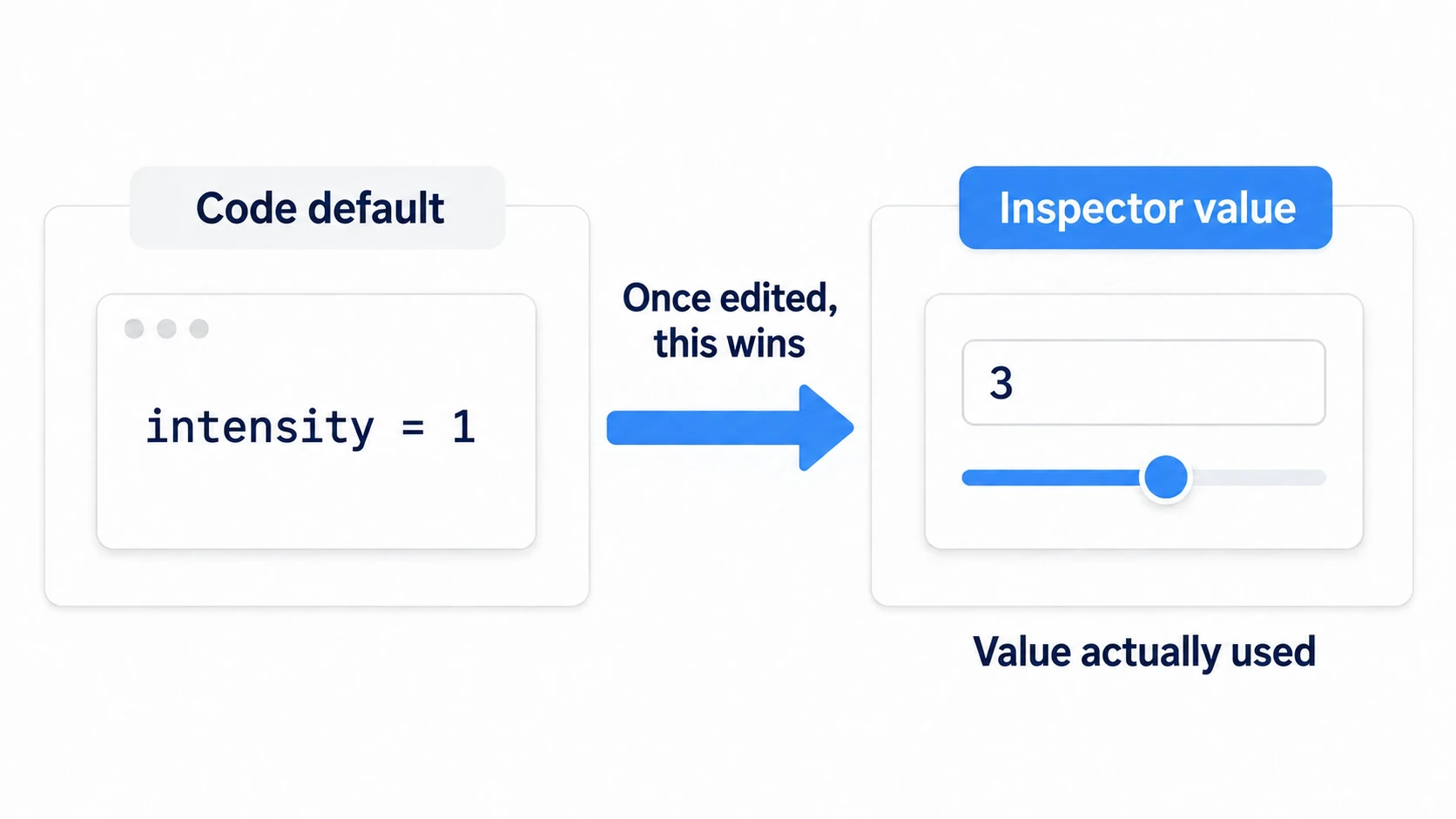
It goes like this.
- You write
brightIntensity = 2fin code and attach it to a button 2appears in the Inspector. You try8and it feels right- Days later you decide on
3, edit the code to3f, and save - Play still shows
8. The code changed and nothing did
Here's why. Once a variable is attached to an object, the value saved in the Inspector becomes the real one. The number in code is close to "the initial value the first time it was attached," and changing it later doesn't overwrite what's already saved.
Three ways to fix it:
- Edit the Inspector field directly (safest)
- Right-click the component name in the Inspector and choose Reset (careful: it returns every setting on that component to its initial value)
- Remove and re-attach the script (references get cleared too, so not recommended for beginners)
The first is enough day to day. Touch the Inspector when you want to change a setting — memorizing that is the fastest route.
Common Pitfalls
- A "not set" warning appears at startup → Target Light is
None. Drag the light in - The press log appears but the room doesn't change → It's pointing at the wrong light, or the light's Mode is Baked. Set it to Realtime
- Code edits don't take effect → The Inspector value wins. See the section above
- Changed a setting during Play and it reverted on stop → Changes during Play aren't saved. Stop first, then enter them
Bonus: Good to Know Up Front
- References share the real thing: If two buttons point at the same light, either one changes the same light. To change only one, point at a different light or split the script
- UdonSynced is a different story:
[SerializeField]is a marker for the Inspector and tells other players nothing. Reaching everyone needs a separate mechanism,[UdonSynced]. Covered in networking basics - There are markers for tidying the Inspector too: As variables pile up, you can add headings, descriptions, and slider ranges. See tidying the Inspector with attributes
- Some C# forms don't work in UdonSharp: Properties and generics from ordinary C# sometimes don't compile as-is. Starting within what variables and
ifcover is the reliable path - Build the habit of early null checks: One line of
if (targetLight == null) return;turns a forgotten reference into a warning instead of an error
Summary
Variables come in two kinds: ones that hold, and ones that point.
- A value is a note in your notebook; a reference is a finger pointing at the real thing
- With a reference at
None, nothing happens even with correct code - Use
[SerializeField] privatewhen you only want it in the Inspector - The initial value in code applies only at first attachment. The real value afterwards lives in the Inspector
The question to ask when you're unsure is: "Is this a number, or is it pointing at a real thing?" Separating those speeds up isolating why something doesn't work.
Next, operate the same light from multiple buttons. Head to methods and custom events for splitting and reusing logic. To learn when logic runs, events and execution order comes first.