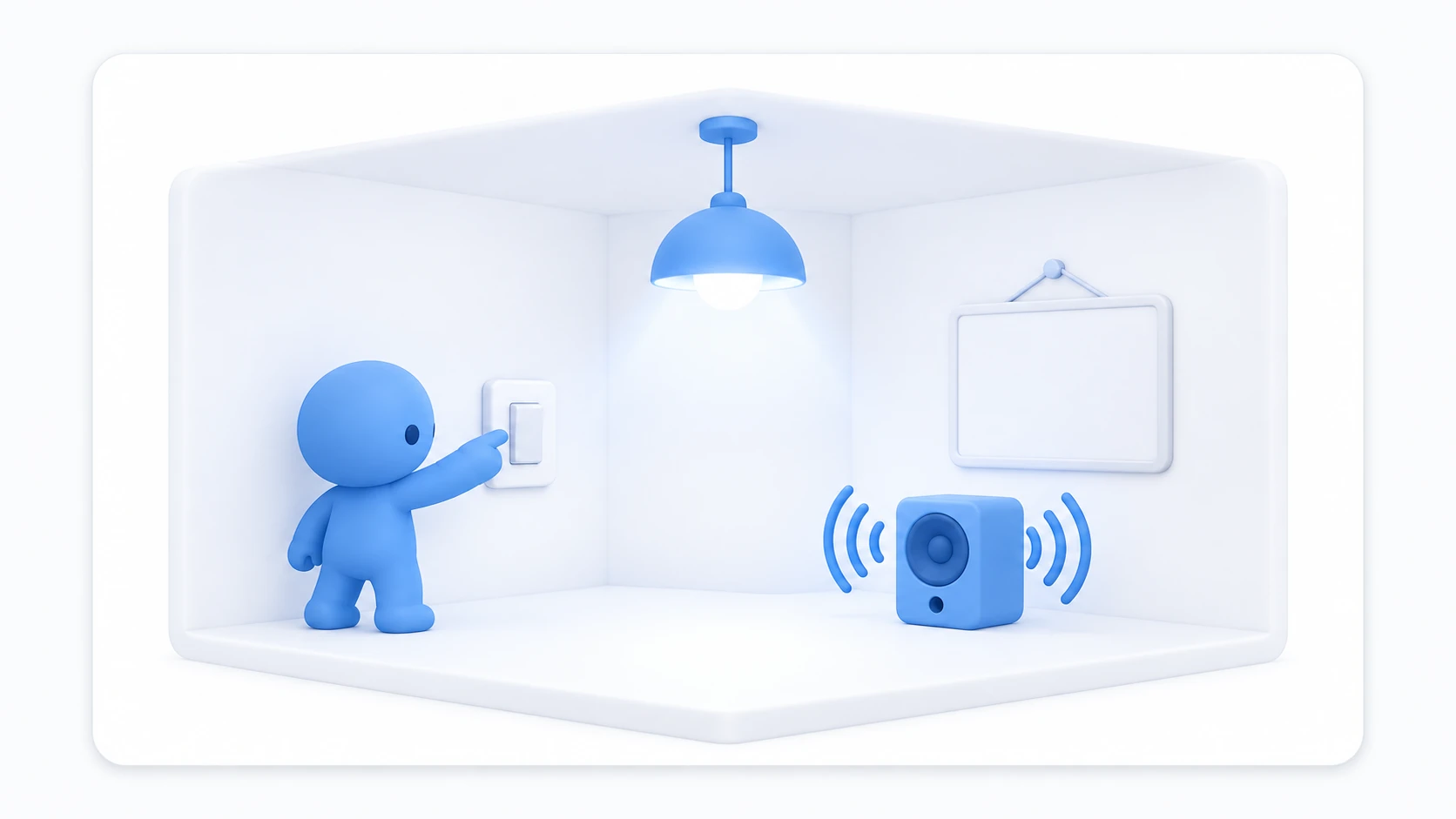
You want "press a switch and the mood changes" in your world. The lights go down, the BGM stops, a closed sign appears.
Write the three separately and they drift apart immediately. The light goes out while the sound plays on. Press again and only the sign is left behind. Something is stranded every time.
This article covers switching three reactions together from a single state.
What You'll Learn
- Writing it as "one state, several reactions"
- Why you align the appearance at startup
- How to avoid deleting the button itself
- When to use
Light.enabledversusSetActive
Start from having tried variables and references.
One state, three reactions
The cause of drift is always the same. Each reaction ends up holding its own state.
The light remembers whether it's on, the sound remembers whether it's playing, the sign remembers whether it's showing. Three separate memories fall out of agreement somewhere.
The solution is simple. Remember only one thing.
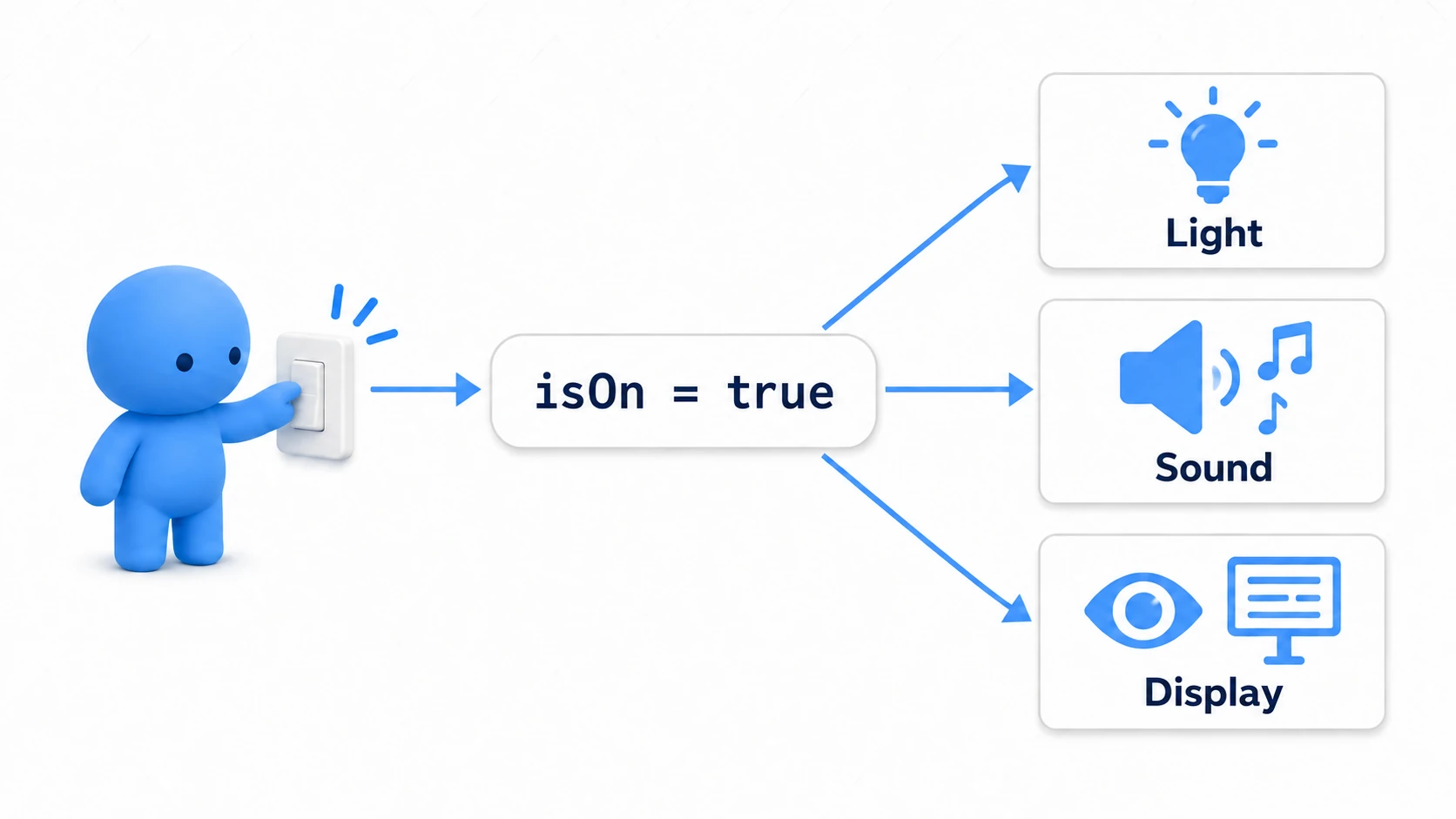
Hold one boolean called isOn and build all three appearances from it. On press, flip isOn and build the three again.
Then the result is the same however many times it's called, from wherever. It's logic that only "renders the current state into appearance."
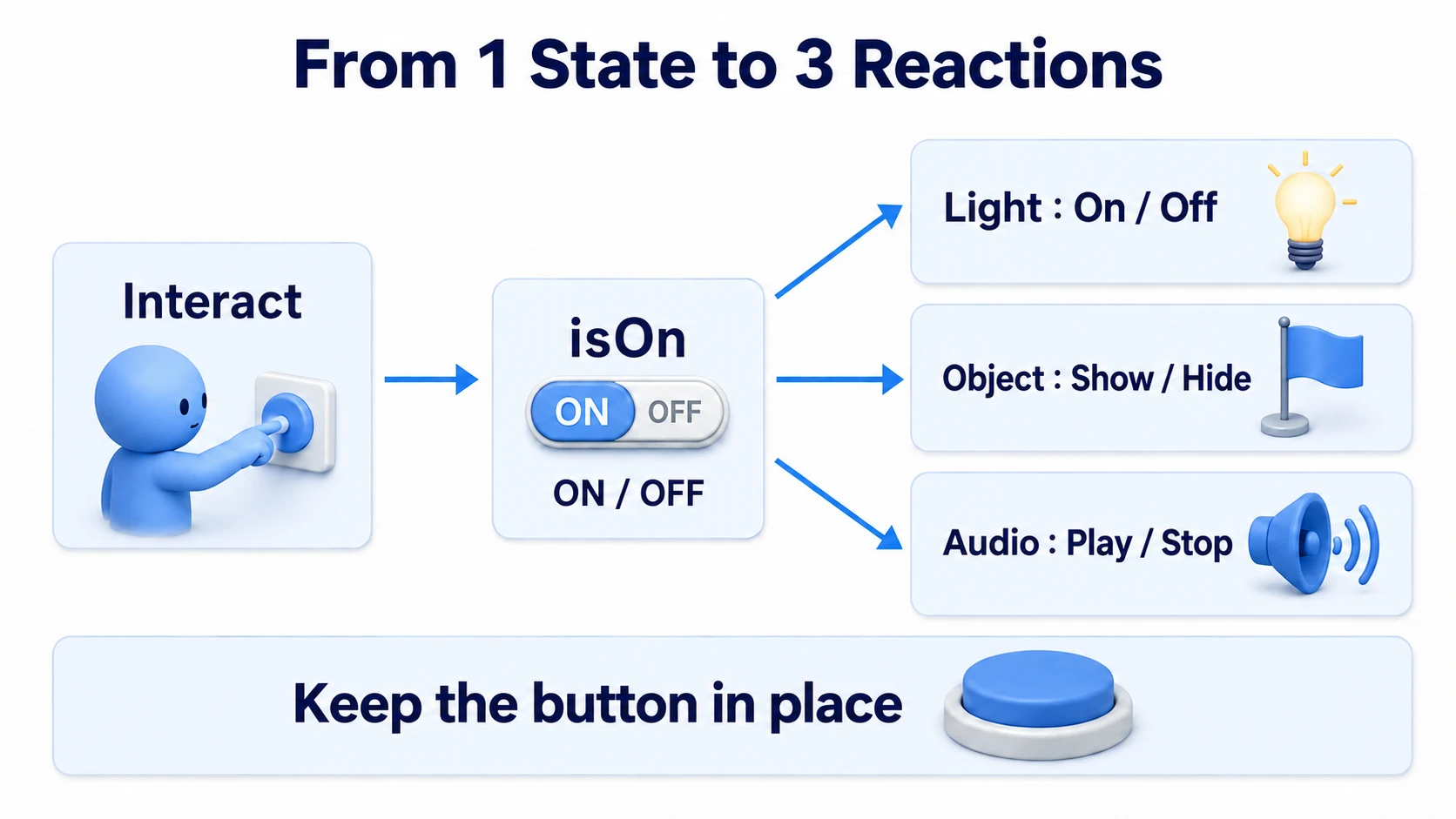
This shape comes up repeatedly from here. When you add synchronization, and when you tell a late joiner the current state, the foundation is the same.
Hands-On: Switch light, sound, and signage together
One press turns on the light, starts the BGM, and shows the sign on the wall. Press again and all three go off together.
1. Place the button and three targets
Place four things in a scene with a floor.
| Name | How to make it, and settings |
|---|---|
RoomButton | Cube. Position (0, 1, 1), Scale (0.4, 0.4, 0.4) |
RoomLight | Light → Point Light. Position (0, 2.5, 0), Range 6, Intensity 2, Mode "Realtime" |
RoomSign | Cube. Position (0, 1.8, 2.8), Scale (1.2, 0.5, 0.05) |
RoomAudio | Create Empty with an Audio Source added. Position (0, 1, 0) |
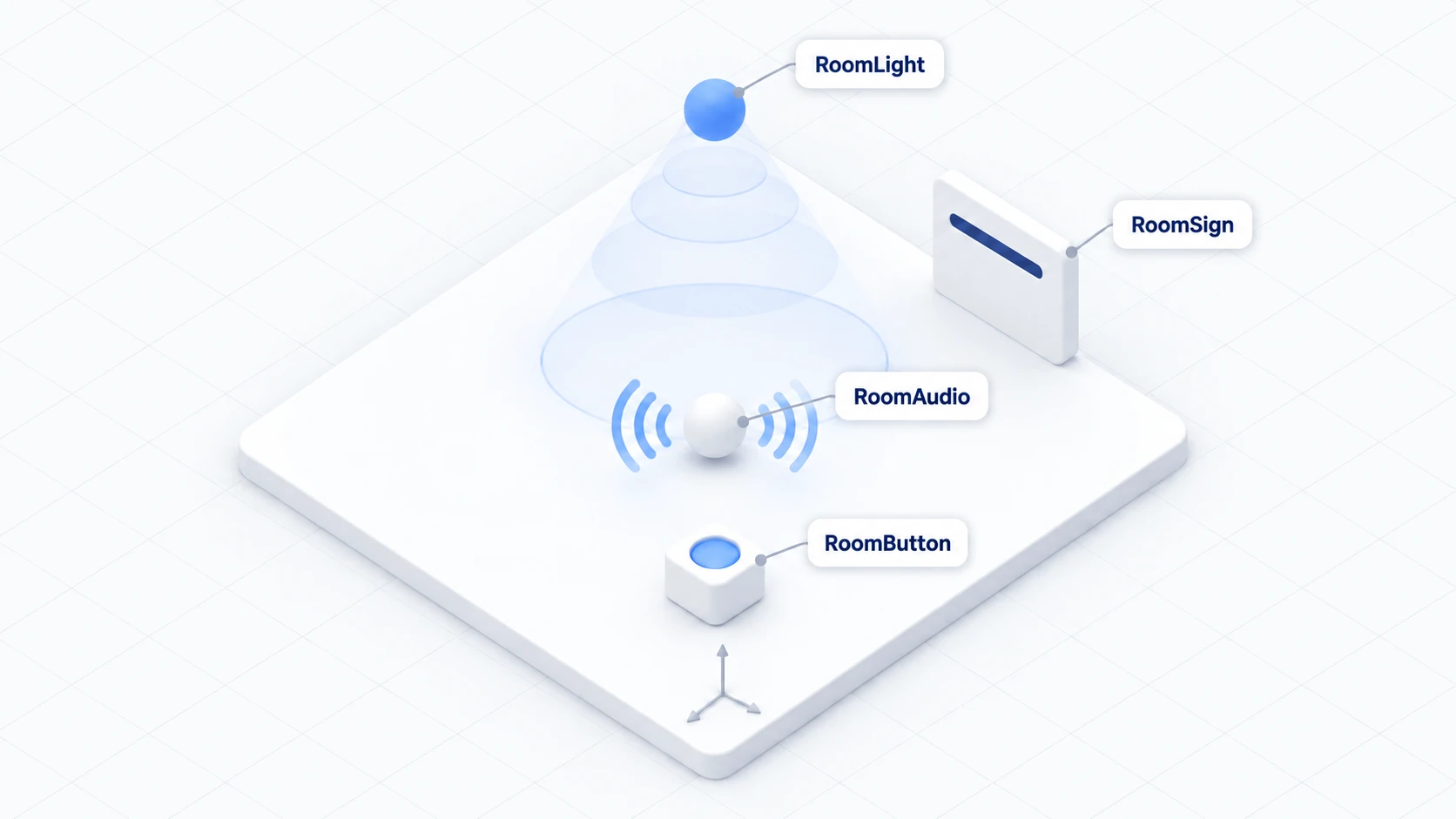
Put a short looping sound in RoomAudio's Audio Source. Make sure Play On Awake is off. Left on, it starts playing the moment someone enters the world, which defeats the button. Turn Loop on.
Set the light's Mode to Realtime. Baked would leave the burnt-in light behind when you switch it off at runtime.
2. Write the code
In Assets/Scripts, choose "Create → U# Script" and name it LocalRoomToggle.
using UdonSharp;
using UnityEngine;

[UdonBehaviourSyncMode(BehaviourSyncMode.None)]
public class LocalRoomToggle : UdonSharpBehaviour
{
    [SerializeField] private Light targetLight;      // The lighting
    [SerializeField] private GameObject targetVisual; // The sign to show
    [SerializeField] private AudioSource targetAudio; // The BGM
    [SerializeField] private bool startOn;            // Whether to start on

    private bool isOn;   // The only thing we remember
    private bool ready;

    private void Start()
    {
        ready = targetLight != null && targetVisual != null && targetAudio != null;
        if (!ready)
        {
            Debug.LogWarning("[LocalRoomToggle] Set all three targets.");
            return;
        }

        // Hiding the button itself or its parent makes it unpressable
        if (targetVisual == gameObject || transform.IsChildOf(targetVisual.transform))
        {
            ready = false;
            Debug.LogWarning("[LocalRoomToggle] Don't set the button itself or its parent as the visual.");
            return;
        }

        isOn = startOn;
        ApplyState();   // Align the appearance with the state at startup
    }

    public override void Interact()
    {
        if (!ready) return;
        isOn = !isOn;
        ApplyState();
        Debug.Log("[LocalRoomToggle] isOn=" + isOn);
    }

    // Look at the state and build the three appearances. Same result however often it's called
    private void ApplyState()
    {
        targetLight.enabled = isOn;
        targetVisual.SetActive(isOn);

        if (isOn)
        {
            if (!targetAudio.isPlaying) targetAudio.Play();
        }
        else
        {
            targetAudio.Stop();
        }
    }
}
Three things to note.
ApplyState() gathers the reactions. It contains no "toggle" logic. It only looks at the current isOn and builds the matching appearance. That's why the same function can be called at startup and on press.
Sound is played after checking isPlaying. Calling Play() while it's already playing restarts it from the top. For looping BGM, that sounds like a cut.
It checks that the button itself isn't the target. Putting the button into targetVisual makes it disappear the moment you press it, never to be pressed again. With this check, a configuration mistake gets a reason in the Console.
3. Assign the references
Add a Udon Behaviour to RoomButton and set Program Source to LocalRoomToggle.
| Field | What to set |
|---|---|
| Target Light | RoomLight from the Hierarchy |
| Target Visual | RoomSign from the Hierarchy |
| Target Audio | RoomAudio from the Hierarchy |
| Start On | Off (start from the off state) |
| Interaction Text | Toggle room settings |
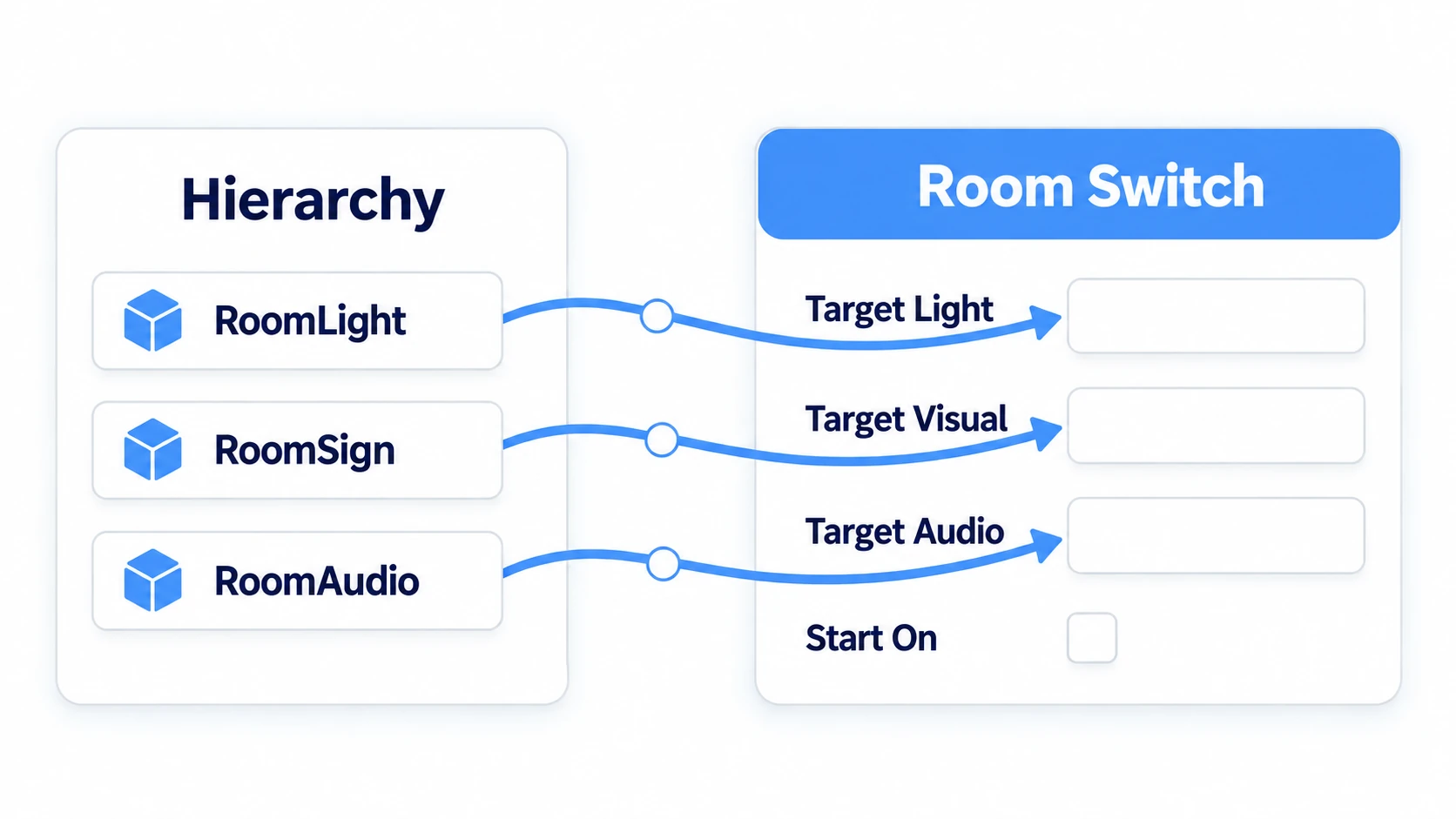
Start On decides the state at startup. Turn it on and people enter a room that's already lit with BGM playing.
4. Run it and confirm
Press Play and press RoomButton.
| Timing | Expected result |
|---|---|
| Right after Play | The light is off, the sign is hidden, and no sound plays |
| Press once | All three go on together. Console shows isOn=True |
| Press again | All three go off together. isOn=False |
| Press repeatedly | All three switch in lockstep every time |

This shows an earlier version of the example. In this article, sound and signage switch alongside the lighting.
Turn Start On on and Play again. All three are on from the moment you enter, because Start() calls ApplyState(). Without that one line, you get mismatches — the light turned off in the Inspector while the sign is showing.
Choosing what to switch
Light.enabled and GameObject.SetActive() look similar and differ in scope.
| Method | What stops | Where it fits |
|---|---|---|
Light.enabled = false | The light's emission only | Turn off the lighting, keep the lamp's model visible |
GameObject.SetActive(false) | The whole object and its children | Hide the sign or model entirely |
An object set to SetActive(false) has its Udon stopped too. Update doesn't run and nothing outside can call into it. So a hidden object can't bring itself back.
That's the true form of "I pressed the button and now I can't press it." Keep what you hide separate from the button doing the operating.
The same pattern works in plenty of situations.
- A cafe or izakaya world: Open and closed. Switch lighting, in-store BGM, and the sign together
- A gallery: An artwork's spotlight, ambient sound, and the caption panel
- A horror world: A cabin's lamp. Switch on to see the note on the desk, off to return to darkness
- A stage: Drop the house lights, bring up the stage lighting, sound effects, and the curtain
The example is one room, one switch, three reactions, but swapping the targets gives you any of these.
Common Pitfalls
- Nothing happens on press → Check whether an
isOn=log appears in the Console. If not, it isn't reaching Interact - Only one of them doesn't change → That reference is
None, or points at the wrong target. Check the startup warning too - The sound restarts from the top on each press → You skipped the
isPlayingcheck - It's out of sync from the moment you enter → Check that
Start()callsApplyState() - You pressed it and can't press it any more → The button itself or its parent is set as the visual target
Bonus: Good to Know Up Front
- This is local logic: Only the presser's screen changes. Lining everyone up requires the mechanism in networking basics
- One-time logic takes a different shape: "A lever that never goes back once pulled" can't be built by flipping
isOn. Remember whether it was pressed separately - Delayed effects take a different shape too: "Sound two seconds after it lights" can't be expressed by one state. Use delayed events
- Don't apply it every frame in Update: Writing
targetLight.enabled = isOn;insideUpdate()works, but it repeats the same work every frame for nothing. Apply only when it changes - 3D positional sound needs VRC Spatial Audio Source: An Audio Source alone is fine if the volume should be the same anywhere in the room, but add it when you want the sound to grow as you approach. Covered in BGM and spatial audio
Summary
Lining up several reactions takes one pattern.
- Remember one state. Build the reactions from that state
- Group the applying logic into a function and call it both at startup and on interaction
Light.enabledis just the light;SetActiveis the whole object- A hidden object's Udon stops. Don't hide the button itself
The question to ask while building is: "What state decides this appearance?" Once the answer is a single value, adding reactions never causes drift.
Next, operate the same target from multiple buttons. Go to methods and custom events, or survey the kinds of interaction in receiving player input. To make this switch reach everyone, go to networking basics.