Sitting in a cafe chair to talk, watching the view from a bench. VRChat worlds often have places to sit and pass time. Station is what you use to build those chairs.
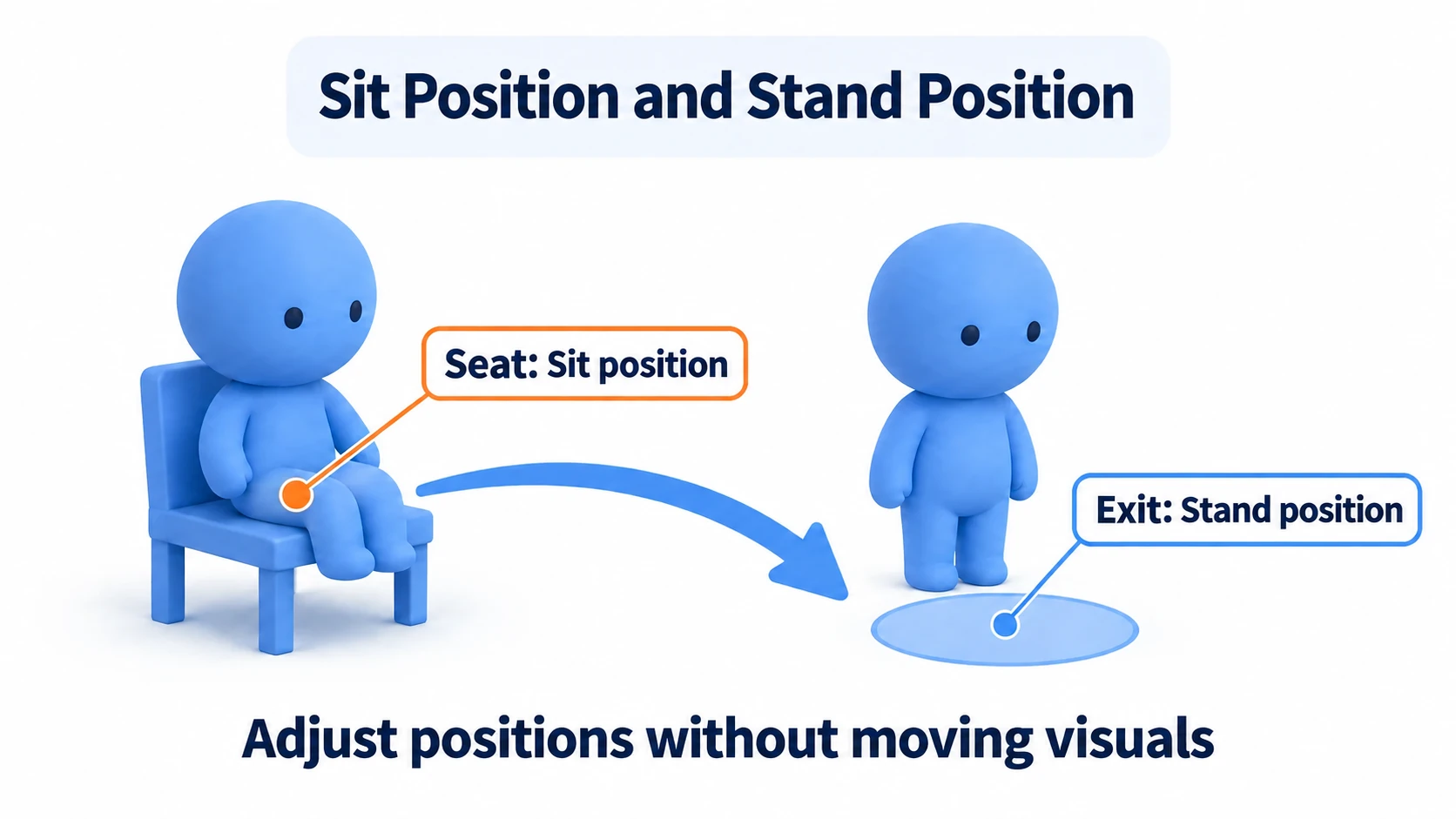
This article grasps how Stations work, then places one of the SDK's chairs. Beyond sitting, we'll adjust where you come out when you stand. Everything here works without writing code.
What You'll Learn
- That the visual model and the sitting mechanism are separate
- The steps from placing the SDK's chair to sitting in it
- Adjusting sitting and standing positions separately with Seat and Exit
- Tips for placing chairs beside a table
A Station defines "where you sit"
Place a 3D chair model and a chair shape appears in the world. But that appearance alone doesn't let players sit. You also need a position for "sit here" and a mechanism that seats them on interaction.
VRC Station is the component for specifying where a player sits and where they end up after standing. It's configured separately from the chair's visuals, so you can align the sitting position to the seat, and make people stand up somewhere clear of a table.
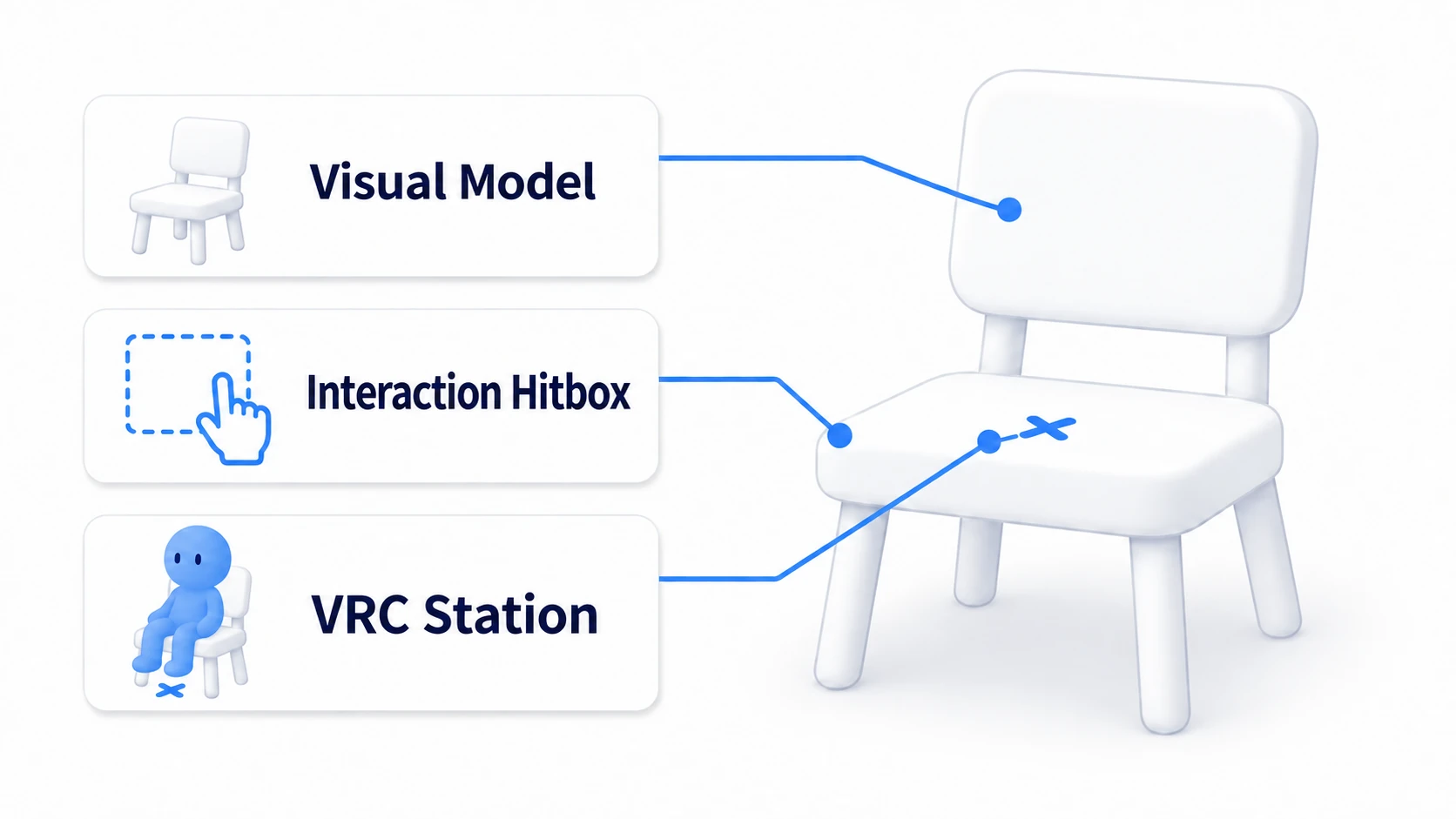
VRCChair3, included in the SDK, is a sample chair combining the following.
- The chair model: what's displayed in the world.
- Interaction collision and Udon logic: accepts the "use" action on the chair and seats the player.
- VRC Station: defines the position while seated and the position on exit.
Something assembled and saved like this is called a Prefab in Unity. With VRCChair3, placing it brings the sitting mechanism along. Let's try the basic motion with this sample first.
Hands-On: Place the SDK's chair and sit down
Here we place one chair on a walkable floor, using a Unity project with the Worlds SDK. If you haven't set up the environment yet, setting up with ALCOM or VCC covers the installation.
1. Prepare a floor and a spawn point
Create a Built-in basic scene with "File → New Scene" and save it into Assets as ChairPractice.unity. Delete the Main Camera in the Hierarchy (the list of things in the scene) and keep the Directional Light. The player's camera is provided later by ClientSim.
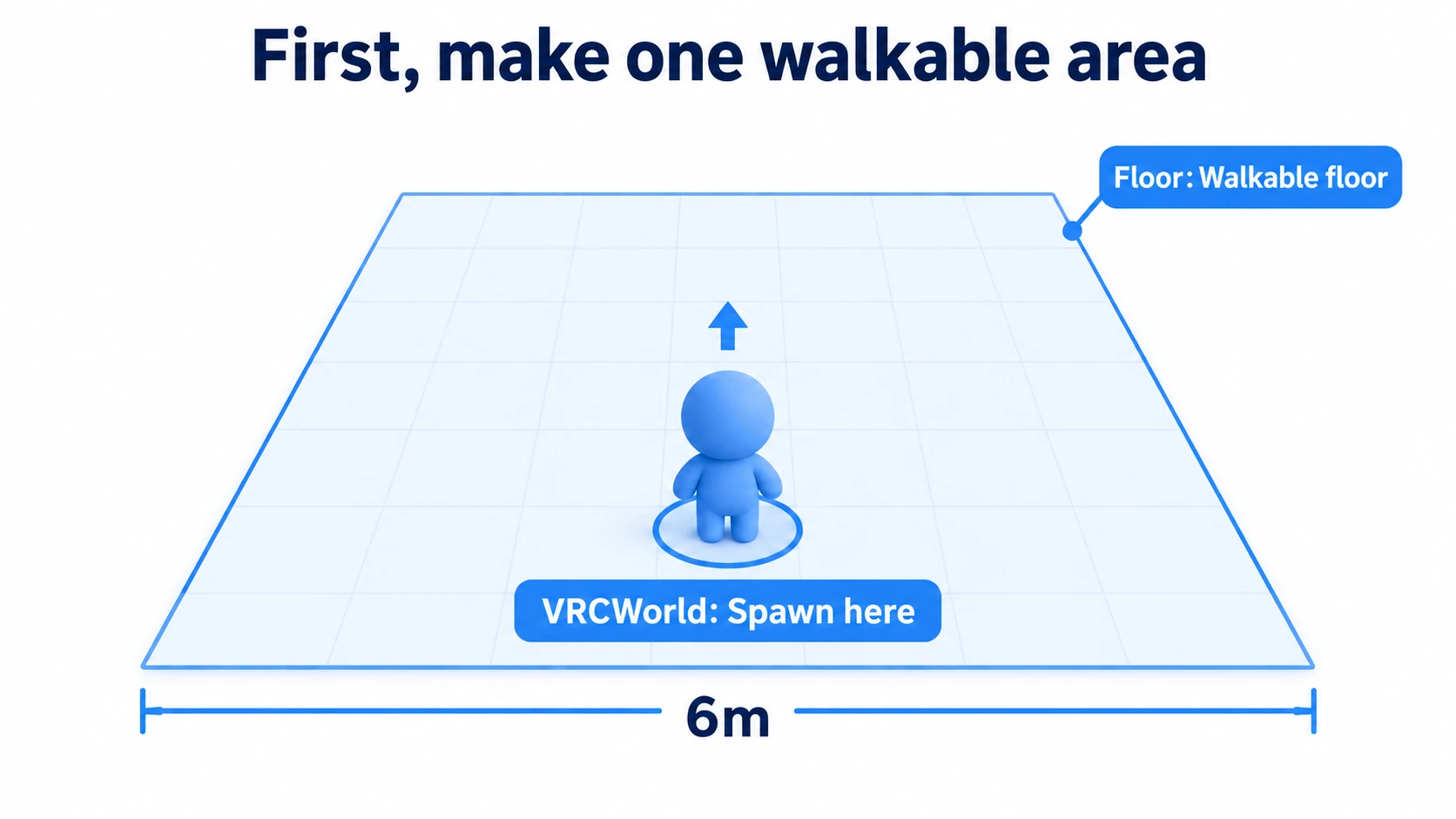
Right-click empty space in the Hierarchy, make a box with "3D Object → Cube," and name it Floor. In the Inspector's "Transform" (the settings for what you selected), set the position and size as follows. Values are in X, Y, Z order.
| Field | Value |
|---|---|
| Position | (0, -0.1, 0) |
| Rotation | (0, 0, 0) |
| Scale | (6, 0.2, 6) |
That gives a 6m-square floor whose top surface sits at 0. The "Box Collider" that comes with the Cube is the collision that stands the player on the floor. Leave it at its defaults.
Next, open the following folder in Project (the asset list).
Packages → VRChat SDK - Worlds → Samples
  → UdonExampleScene → Prefabs
Drag VRCWorld from inside it into empty space in the Hierarchy. That's the Prefab that configures things like the world's spawn point. Set Position to (0, 0.1, -2) and Rotation to (0, 0, 0), and with the default settings on a fresh addition, players spawn there.
In the same VRCWorld's "VRC Scene Descriptor," set Respawn Height to -5. Falling off the floor and dropping below that height returns you to the spawn point.
2. Place the SDK's chair
In that same "Prefabs" folder, open the "VRCChair" folder and drag VRCChair3 into empty space in the Hierarchy. Select the chair in the Hierarchy and set its Transform as follows.
| Field | Value |
|---|---|
| Position | (0, 0.75, 1) |
| Rotation | (0, 0, 0) |
| Scale | (1, 1, 1) |
The 0.75 height is a placement suited to this SDK chair. Pressing F in the Scene view centers the selected chair on screen. This puts the chair toward the back of the floor, approachable on foot from the front.
3. Walk over and sit down
Save the scene and press the Play button at the top of Unity. ClientSim, included in the SDK, is a feature for trying VRChat movement and object interaction inside Unity. We'll use it to check the sitting motion.
Click the Game view and approach the chair with W, A, S, D. Aim with the mouse and left-click when the "Use" prompt appears. That's Interact, the action for using what's in front of you. In VRCChair3, that triggers the logic that seats you on the Station.
Once seated, press a movement key to stand. Coming out in front of the chair and being able to walk again confirms the basic motion. If Use doesn't appear, get a little closer and try aiming near the backrest.
Adjusting where you sit and where you stand
Pull a chair up to a cafe table and someone standing can end up overlapping the table. Besides moving the whole chair, there's a way to adjust only where they stand.
Stop Play and open the triangle to the left of VRCChair3 in the Hierarchy. The children Seat and Exit are the markers specifying positions. Select the parent VRCChair3 and the Inspector's "VRC Station" shows which markers are used.
| VRC Station field | Marker assigned | Role |
|---|---|---|
| Station Enter Player Location | Seat | The reference position while sitting |
| Station Exit Player Location | Exit | The position right after standing |
To raise the sitting position, move Seat; to shift where they stand, move Exit. To move the whole chair, move the parent VRCChair3 and both markers come along.
Shifting Exit sideways
Select Exit and change the Transform's Position X from 0 to 0.5. Leave Y and Z alone. A child's Position is relative to its parent, so this shifts it 0.5m sideways relative to the chair.
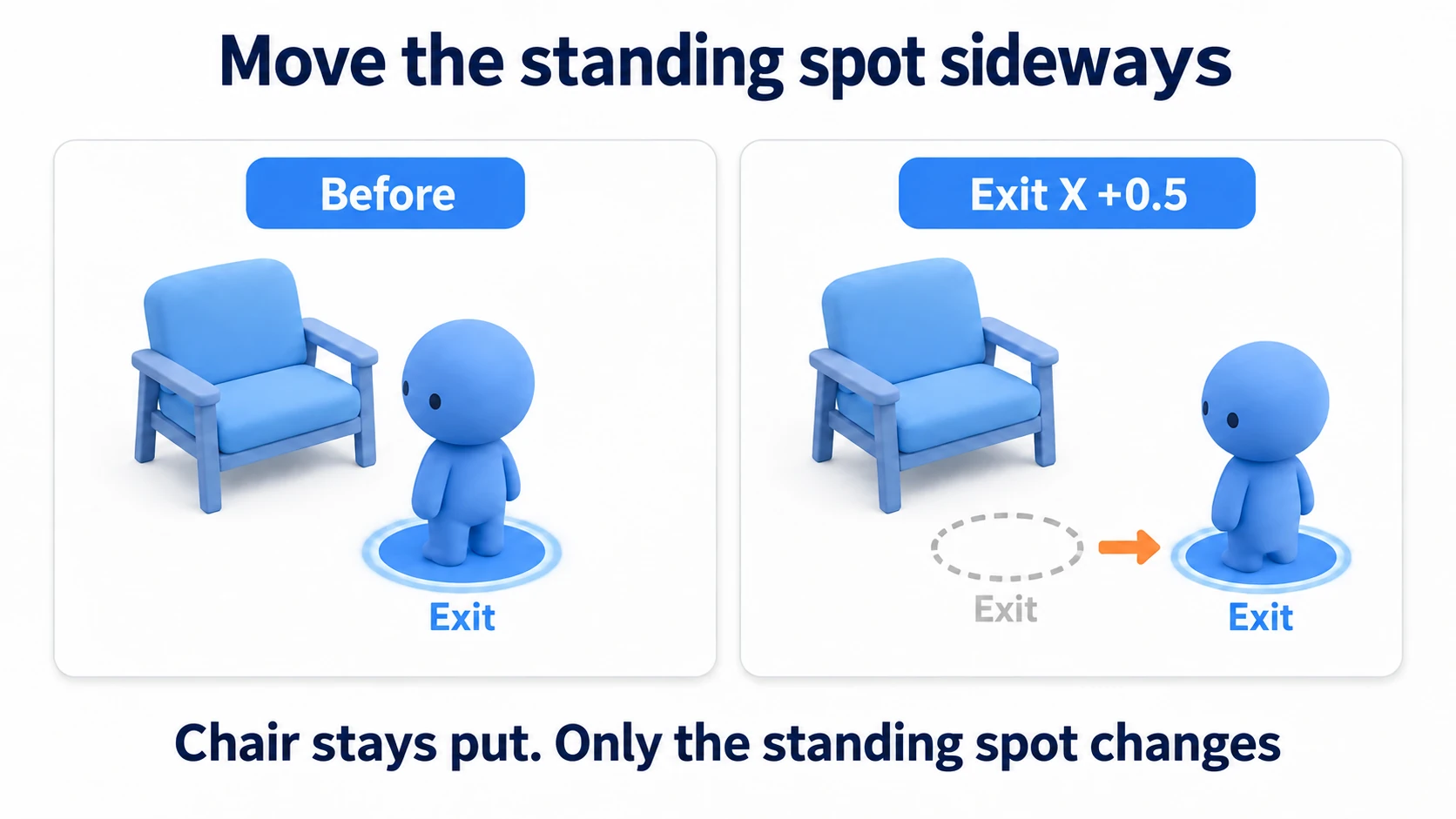
Play again, sit down, and stand with a movement key. The chair is in the same place, and the position right after standing shifts slightly to the side. If there's open space beside the table, placing Exit there makes it easier to walk away after standing.
Make adjustments with Play stopped, and save the scene. Values changed during Play revert when you stop. And since sitting posture varies by avatar, check the seating in actual VRChat when using it in your own world.
Bonus: Good to Know Up Front
- Sitting posture varies by avatar: The same chair puts feet and eye level in different places for avatars of different heights. Don't chase an exact match — looking roughly seated is enough
- Check what's reachable while seated: If you put buttons or panels in front of a seat, test whether they're reachable from a seated eye level. Reachable height differs between standing and sitting
- You can attach it to your own models: Add a VRC Station to a chair model you made yourself, place Seat and Exit, and it becomes sittable the same way
- Sitting orientation affects conversation: Whether two chairs face each other or sit side by side changes how people spend time there. Covered in the path from entrance to seat
- Vehicles use the same mechanism: When you want people to move while seated, a Station is the foundation. The moving part is built separately
Summary
A VRChat chair is a visual model combined with a sitting mechanism.
- Placing a chair model alone doesn't let people sit. You need a Station
- The SDK's VRCChair3 brings the sitting mechanism when you place it
Seatis the sitting position,Exitis the position right after standing. Adjustable separately- You can shift only where people stand, without moving the chair
The question to ask after placing one is: "Can I sit, stand, and walk straight away?" Not getting wedged between a table and a wall means it passes.
To think about seat placement, go to the path from entrance to seat. To add pressable buttons, go to toggling with a button.