You go to create a new Unity project, and you freeze at the template picker. "2D" and "3D" make sense, but what are "URP" and "HDRP"? Which one do I pick? — it's the very first fork in the road for a Unity beginner, thrown at you right on the opening screen.
This is your choice of render pipeline — the "system" that draws 3D/2D objects to the screen. How lighting, shadows, and post-processing are handled is decided here, and because switching later takes real effort, learning the differences and choosing up front is the cheapest path. This article sorts out the three types and how to choose.
What You'll Learn
- The characteristics and differences of the three pipelines — Built-in / URP / HDRP
- Comparison tables for platform support, features, and performance
- Guidelines for choosing without second-guessing (bottom line: when in doubt, choose URP)
- Migration steps and caveats for moving from Built-in to URP
- Practical: diagnosing which one to pick for your own project
Tested with: Unity 6 (6000.x)
The Three Render Pipelines
Unity offers three render pipelines.
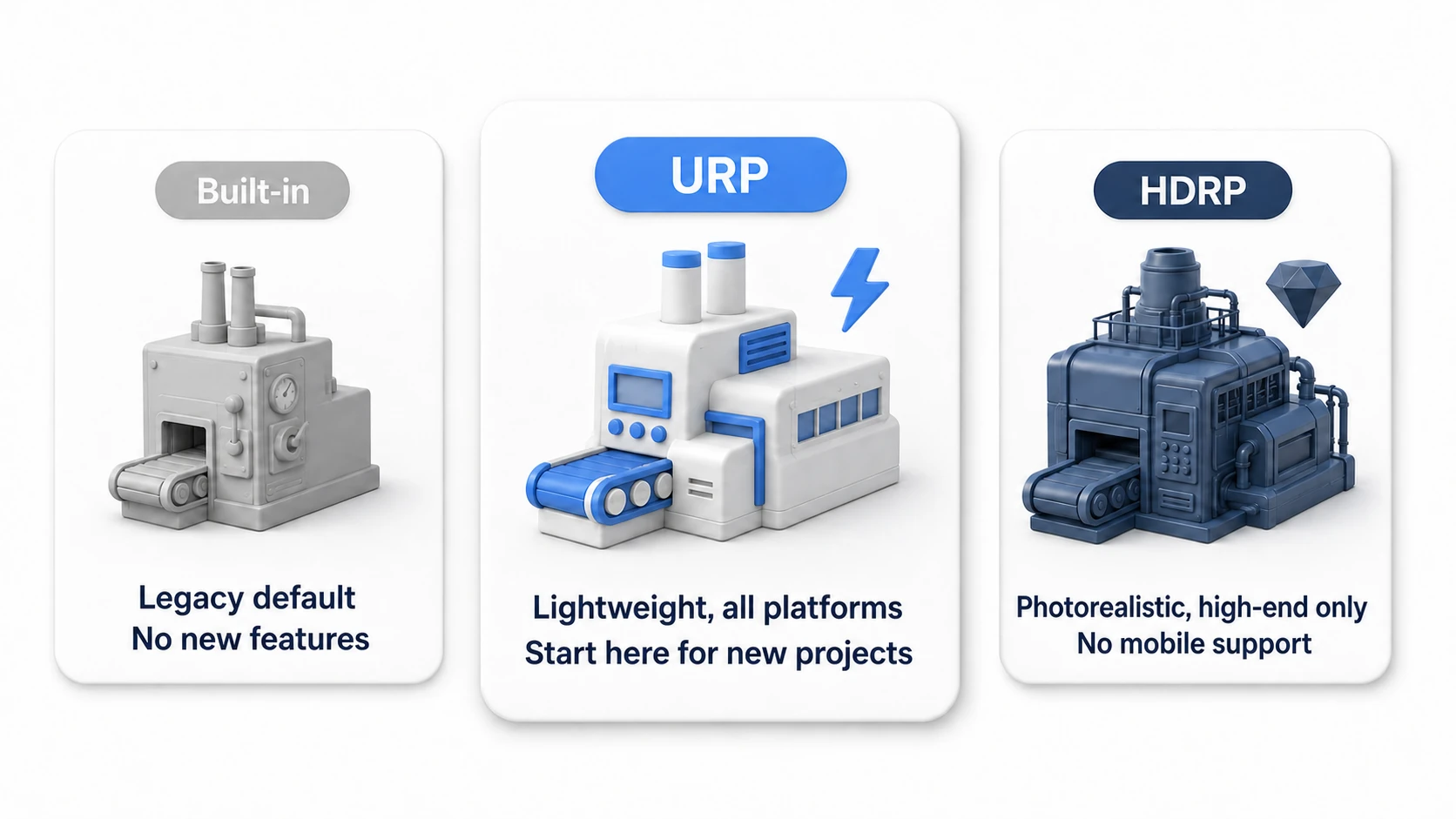
| Pipeline | Characteristics | Typical Use Cases |
|---|---|---|
| Built-in | Legacy default, simple | Legacy projects, game jams |
| URP | Lightweight and optimized, broad support | Mobile, VR, new projects in general |
| HDRP | High-end, photorealistic rendering | AAA titles, architectural visualization |
Custom SRP: Unity also lets you build your own render pipeline (Scriptable Render Pipeline), but that's an advanced topic and is not covered in this article.
Comparison Tables
Visual Quality and Performance
| Category | Built-in | URP | HDRP |
|---|---|---|---|
| Visual quality | ○ | ○ | ◎ (best) |
| Performance | ○ | ◎ (lightest) | △ (heavy) |
| New feature support | × | ○ | ○ |
This relationship boils down to a single diagram: a trade-off between "lightness" and "visual quality."
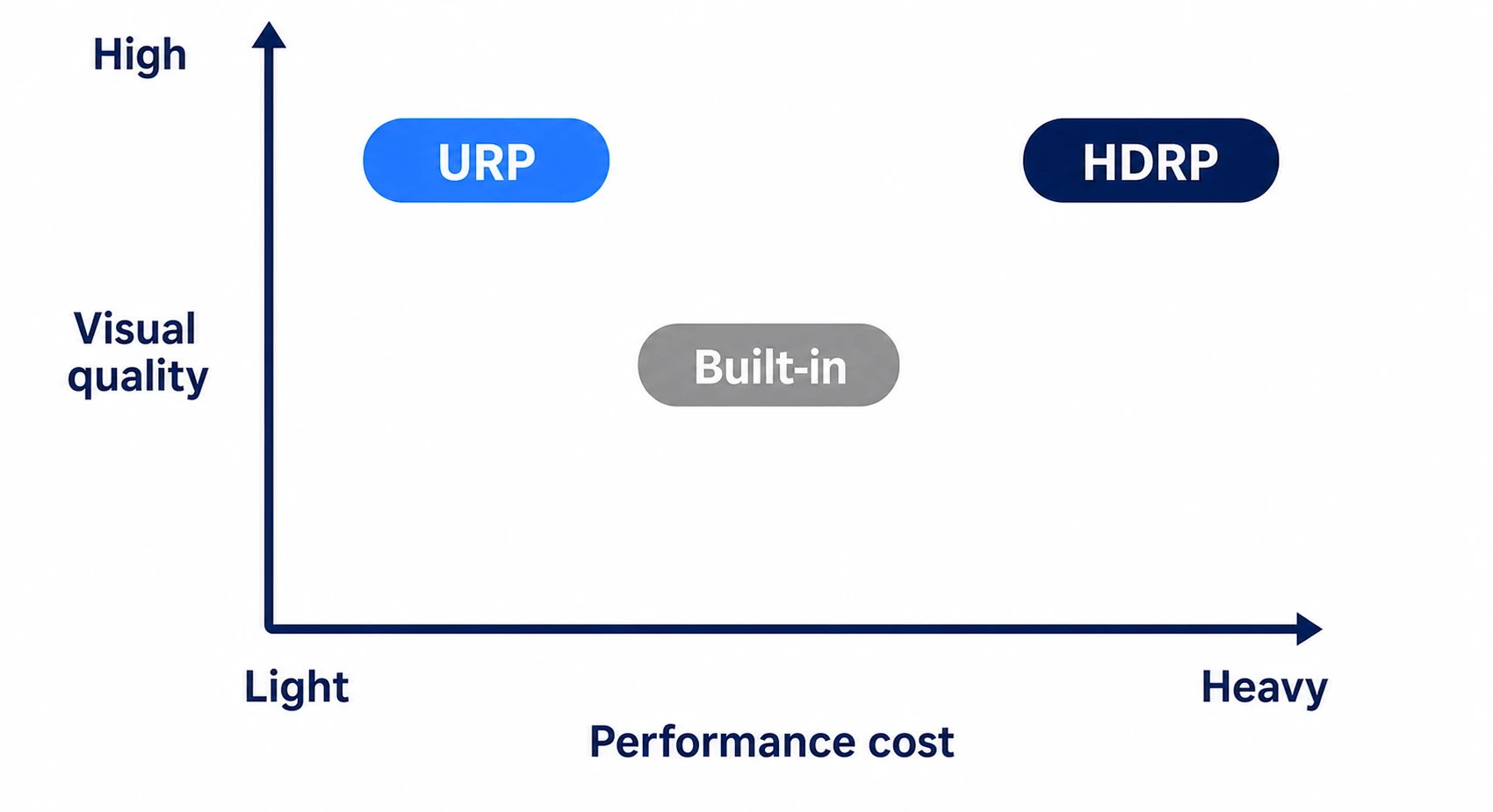
URP is the first pick for new projects because it "balances lightness and quality well," while HDRP is "top quality but heavy," so it suits only specific use cases — this positioning is the foundation of how to choose.
Platform Support
| Platform | Built-in | URP | HDRP |
|---|---|---|---|
| Windows/Mac/Linux | ○ | ○ | ○ |
| iOS/Android | ○ | ○ | × |
| Switch | ○ | ○ | × |
| WebGL | ○ | ○ | × |
| PlayStation/Xbox | ○ | ○ | ○ |
| VR (desktop) | ○ | ○ | ○ |
| VR (mobile) | ○ | ○ | × |
Note: HDRP supports Nintendo Switch 2 from Unity 6.5. The Switch in the table means the original Switch.
Built-in Render Pipeline
Characteristics
Unity's traditional default render pipeline.
- Simple and easy to use
- Works without having to think about anything complicated
- High compatibility with older assets
- A long, proven track record
- No new features are planned (deprecated in Unity 6.5 and scheduled for removal in Unity 7)
Pros
- No setup required
- Low learning curve
- Older assets work as-is
- Abundant documentation and community resources
- Easy to troubleshoot
Cons
- Rendering is not optimized (high batch counts)
- No access to newer features like VFX Graph and 2D lighting (Shader Graph works from Unity 2021.2 onward via the Built-In target, with both Lit and Unlit—though some nodes are limited)
- Lower performance compared to URP
Best Suited For
- Game jams and prototypes (when you want to skip setup)
- Projects that depend on older assets
- Maintaining legacy projects
Universal Render Pipeline (URP)
Characteristics
A newer render pipeline developed as the successor to Built-in (formerly known as LWRP).
- Supports virtually every platform
- Lightweight, optimized rendering
- Access to newer features like Shader Graph and VFX Graph
- Supports 2D lighting
- Set to become Unity's standard going forward (in Unity 7, URP is planned to be the only pipeline)
2D vs 3D templates: If you're making a 2D game with URP, choose the "Universal 2D" template ("2D (URP)" in older versions of the Hub) when creating your project. It comes with the 2D Renderer preconfigured, so 2D lighting works out of the box.
Pros
- Easy to tune rendering to stay light across a wide range of devices
- Scales from mobile all the way to high-end PCs
- Access to new features
- Covers most Built-in features (though Surface Shaders are not supported)
- Continues to receive new features
- Customizable (add rendering passes in C#)
Forward vs Forward+ Rendering Paths
| Path | Light Count Limit | Supported Versions |
|---|---|---|
| Forward | Up to 4 real-time lights | Unity 2019 and later |
| Forward+ | Greatly relaxed (supports hundreds) | Unity 2022.2 and later |
Forward+: Useful for scenes with many lights. You can switch via "Rendering Path" in the URP Renderer Data.
Cons
- Migrating from Built-in takes effort
- Some older assets may have compatibility issues
- Requires setup
- Surface Shaders are not supported — custom shaders may need to be rewritten
Best Suited For
- Mobile games
- VR games
- 2D games
- Performance-critical projects
- Projects targeting a wide range of platforms
- New projects in general
High Definition Render Pipeline (HDRP)
Characteristics
A render pipeline specialized for high-end graphics.
- AAA-quality photorealistic rendering
- Physically based rendering (PBR)
- Physically based lighting (Physical Light Units)
- Physical camera (uses the same units as real-world cameras)
- Advanced material capabilities
- Volumetric rendering and ray tracing support
Pros
- The highest-quality graphics
- Photorealistic rendering
- Uses real-world units (physically based)
- Ray tracing
Cons
- High processing cost
- Scheduled to be deprecated in Unity 7 (as part of the move to a single pipeline, URP)
- Requires a high-end PC or console
- Not supported on mobile, Switch, or WebGL
- Complex setup and a steep learning curve
- Requires an understanding of physical principles
Best Suited For
- Games that need AAA-quality photorealistic 3D visuals
- Games targeting high-end PCs
- Architectural visualization
- Film and video production
How to Choose
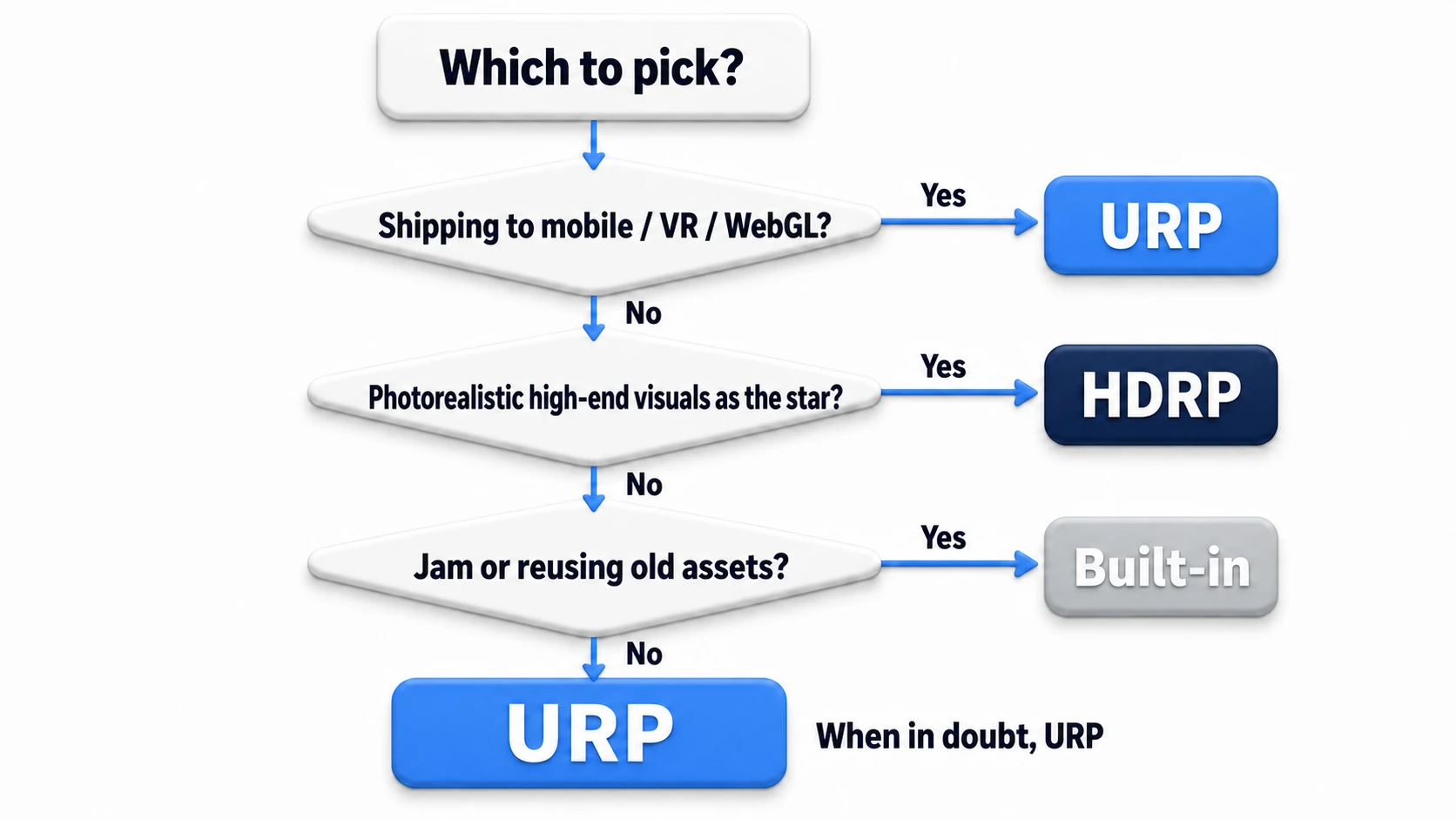
Choose URP if...
- You're making a mobile game
- You're making a VR game
- Performance matters
- You want to target a wide range of platforms
- You want to use new features
- You're unsure — when in doubt, choose URP
Choose HDRP if...
HDRP is scheduled to be deprecated in Unity 7, so for a project you'll keep growing for years, first check how far URP can take your visuals.
- You need AAA-quality photorealistic visuals
- You're targeting high-end PCs or consoles exclusively
- You're doing architectural visualization
- You're doing film or video production
Choose Built-in if...
Built-in is deprecated and scheduled for removal in Unity 7. Start new projects with URP, and limit Built-in to these cases.
- You're doing a game jam or prototype (and want to skip setup)
- You need to use older assets
- You're maintaining a legacy project
Feature Comparison
Shaders
| Feature | Built-in | URP | HDRP |
|---|---|---|---|
| Shader Graph | ○ (2021.2+) | ○ | ○ |
| Surface Shader | ○ | × | × |
Built-in's Shader Graph support: From Unity 2021.2 (Shader Graph 12) onward, the Built-in RP has its own Built-In target, and you can create both Lit and Unlit Shader Graphs. The claim "Built-in supports Unlit only" refers to older Shader Graph versions—don't be misled. That said, new features land in the URP/HDRP targets first, and some nodes and settings don't work on the Built-In target (this table reflects Unity 6 / 6000.0).
Other Features
| Feature | Built-in | URP | HDRP |
|---|---|---|---|
| VFX Graph | × | ○ | ○ |
| 2D Lighting | × | ○ | × |
| Volumetric Fog | × | × | ○ |
| Ray Tracing | × | × | ○ |
| Decals | × | ○ | ○ |
Migration
Migrating from Built-in to URP
Using the Render Pipeline Converter
- Open
Window > Rendering > Render Pipeline Converter - Choose "Built-in Render Pipeline to URP" from the dropdown at the top
- Check the conversion items:
- Material Upgrade: Converts materials to URP-compatible versions
- Animation Clip Converter: Converts animation clips
- Read-only Material Converter: Converts materials inside packages
- Click Initialize Converters
- Review the conversion targets and click Convert Assets
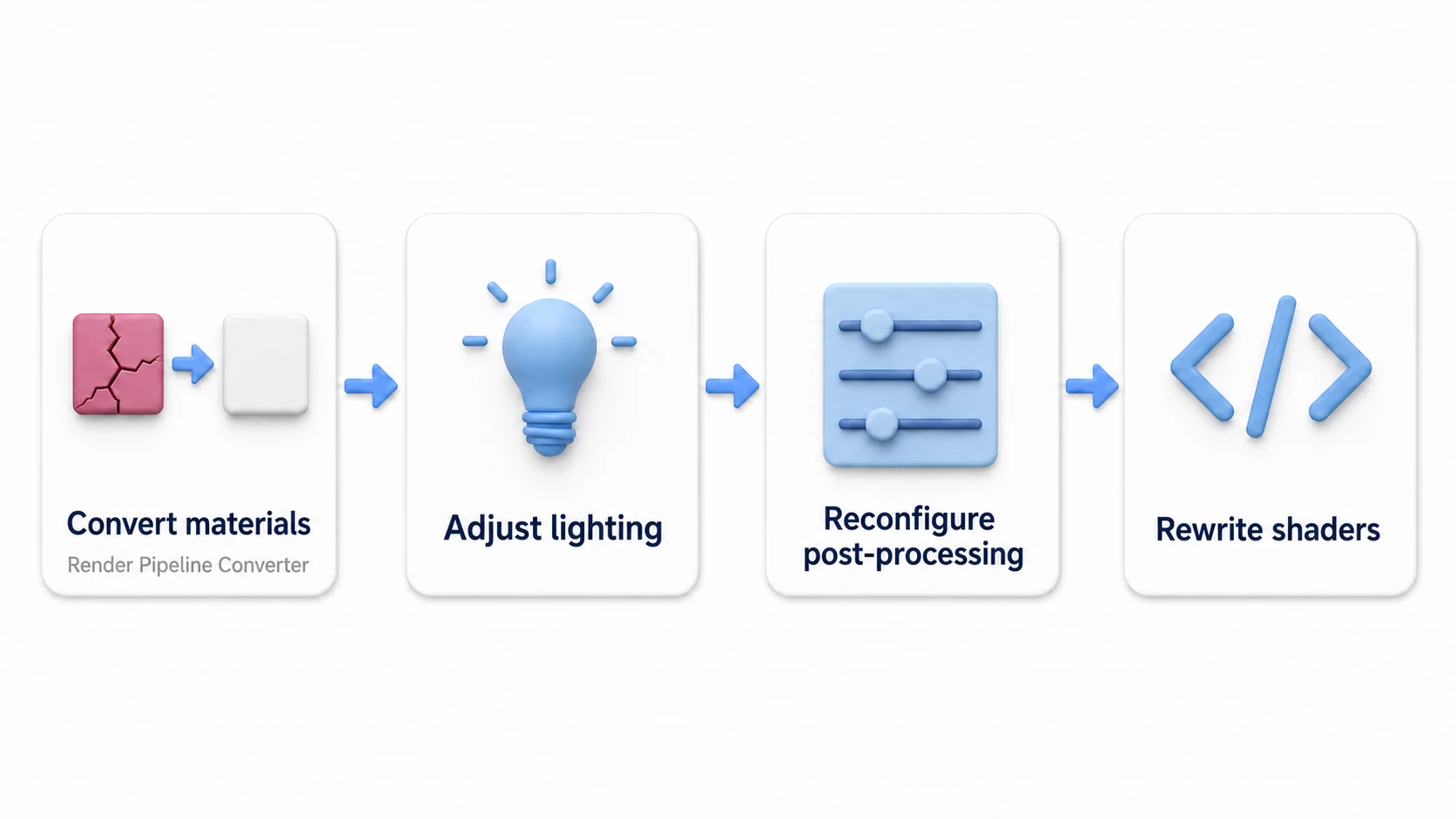
Post-Migration Adjustments
- Convert materials (Render Pipeline Converter)
- Adjust lighting (brightness can change)
- Reconfigure post-processing (switch to URP's Volume-based post-processing)
- Rewrite custom shaders (if necessary)
Migration Caveats
- Some assets are not compatible
- Custom shaders need to be rewritten
- Lighting may look different
- Performance needs to be re-measured
Weigh the project's size against the time remaining before you decide. If you're on a large project with a deadline approaching, it's usually safer not to migrate.
Unity 6 (2025) changes: In Unity 6, Render Graph is enabled by default in URP. That said, existing Renderer Features still work through Compatibility Mode. During the transition, it's recommended to rely on Compatibility Mode and migrate to Render Graph incrementally.
Practical: Diagnosing Your Own Project
Rather than staring at comparison tables, applying them to a real project idea is the faster route. Let's diagnose some common project profiles.
| Your Project | Diagnosis | Reason |
|---|---|---|
| Casual mobile puzzle | URP (2D template) | Mobile is a must, plus 2D lighting is available |
| VR action for Quest | URP | Mobile VR isn't supported on HDRP. Lightness is everything |
| Photorealistic horror for Steam | HDRP | When photorealism is the star and it's PC-only, it hits its stride |
| 48-hour game jam | URP (or Built-in if unsure) | No setup needed if you stay on the template. Built-in if reusing old assets |
| 3D adventure for simultaneous Switch/PC release | URP | The moment you need Switch support, HDRP is out |
| Architectural visualization | HDRP | Physically based lighting and photorealism are the requirements themselves |
The trick to diagnosing is to work backward from your "weakest output target." If mobile, Switch, or WebGL is even one of your targets, HDRP drops off the list right there. HDRP only stays a candidate when you can firmly say "PC-only, with photorealism as the star."
There are two key points: "narrow it down by supported platforms first," and "when in doubt, choose URP." Start with URP and you can ship to both mobile and PC, and you get all the current features like Shader Graph and post-processing.
Bonus: Good to Know for Later
- How to check after creating a project: Check "Default Render Pipeline" in "Project Settings > Graphics" ("Scriptable Render Pipeline Settings" in Unity 2022 and earlier) and "Render Pipeline Asset" in "Project Settings > Quality." If Quality has one, it takes priority; if both are empty, you're on Built-in. Look here whenever you're not sure which one you're currently running.
- Asset Store compatibility labels: Always check the supported pipelines before buying an asset. "Built-in only" shader and effect assets show up as magenta (pink) under URP.
- Magenta = a sign of an unsupported shader: If an object in your scene turns bright pink, it means its material isn't compatible with the current pipeline. Try converting it with the Render Pipeline Converter.
- What to read next: If you chose URP, head to Introduction to Post-Processing for Bloom and Color Grading, or Introduction to Shader Graph if you want to build shaders.
Summary
Unity offers three render pipelines.
| Pipeline | In a Nutshell |
|---|---|
| Built-in | The legacy default — simple, but no new features |
| URP | Lightweight and optimized, runs on virtually every platform |
| HDRP | High-end, photorealistic, heavy processing cost |
For new projects, URP is the safe choice in most cases. When in doubt, choose URP.
If you need photorealistic visuals and target high-end hardware exclusively, go with HDRP; for game jams or prototypes where you want to skip setup, Built-in remains an option. What's the weakest output target for your next project? Work backward from there and the answer should already be clear.
Further Learning