
Overview
When playing games, many players want to customize their keyboard or gamepad button layouts (key bindings) to suit their preferences. Godot provides a powerful feature called "InputMap" that makes managing these key bindings remarkably simple and efficient.
A common challenge developers face is the complexity of key binding management. If you scatter code like if Input.is_key_pressed(KEY_W): throughout your scripts, changing keys later becomes a difficult task.
This article explains InputMap from basic usage to advanced techniques.
What is InputMap? A System for Abstracting Input
InputMap serves as an intermediary layer connecting physical keys and buttons (the W key, mouse left-click, gamepad A button, etc.) to specific in-game actions ("move forward," "attack," "jump," etc.).
In your code, instead of directly referencing physical keys, you call the defined action names. This provides the following benefits:
- Flexibility: Players can freely remap keys in-game. Your code requires zero changes.
- Maintainability: Requests like "I want to change the attack key from Space to Enter" are completed by modifying just one InputMap setting.
- Multi-Device Support: Different input devices like keyboard, mouse, and gamepad can easily be assigned to the same action.
Basic Setup (Godot Editor)
Let's start by learning the basic steps to configure InputMap in the Godot editor.
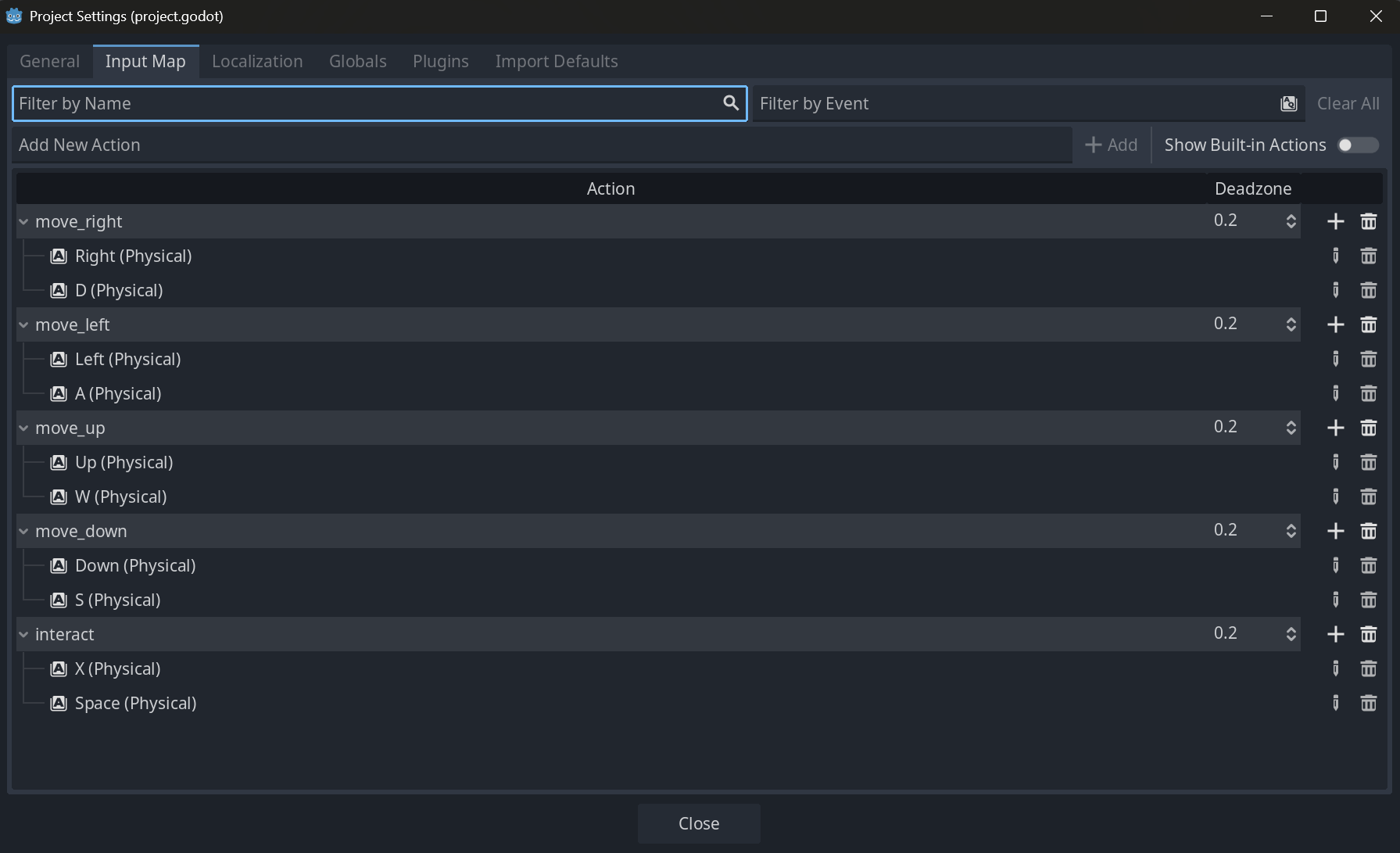
- Open Project Settings: Select "Project" → "Project Settings" from the menu bar.
- Navigate to InputMap Tab: Select "InputMap" from the tabs at the top.
-
Add an Action: Enter a new action name (e.g.,
player_attack) in the "Action" field at the top and click the "Add" button. Give it a clear name that describes what the action does. -
Assign Events (Keys): Click the "+" icon to the right of the added action and select "Key," "Mouse Button," etc. from the menu that appears. When the dialog appears, simply press the physical key you want to assign to complete registration. For example, you can assign both mouse left-click and the keyboard
Xkey toplayer_attack.
Basic Script Usage
Actions configured in InputMap are easily accessible through the global singleton Input.
# Player.gd

const SPEED = 300.0

func _process(delta):
    # --- Single-shot action input ---
    # Call jump when "player_jump" action is pressed
    if Input.is_action_just_pressed("player_jump"):
        jump()

    # --- Continuous action input ---
    # Cast magic while "player_attack" action is held
    if Input.is_action_pressed("player_attack"):
        cast_magic()

    # --- Analog input (direction) ---
    # Get horizontal input from "move_left" and "move_right" (-1.0 to 1.0)
    var direction = Input.get_axis("move_left", "move_right")
    velocity.x = direction * SPEED
The beauty of this code is that no specific key names appear anywhere. Even when players change key settings, this script requires no modifications.
Practical Applications
Once you've mastered the basics, let's look at more practical and advanced usage.
1. Implementing 8-Directional Movement (get_vector)
By combining four actions for up, down, left, and right, you can easily implement 2D 8-directional movement. Use get_vector instead of calling get_axis twice.
# Set up move_left, move_right, move_up, move_down in InputMap

func _physics_process(delta):
    # Get 2D vector from four actions
    var input_vector = Input.get_vector("move_left", "move_right", "move_up", "move_down")

    # Move along the vector
    velocity = input_vector * SPEED
    move_and_slide()
get_vector automatically normalizes the vector (sets length to 1), preventing the issue of diagonal movement being too fast.
2. Implementing Dynamic Key Configuration
The ability for players to change key settings in-game is now virtually essential. Using the InputMap singleton, this is achievable.
# KeyConfigScreen.gd

# Flag to manage whether waiting for key input
var waiting_for_input: bool = false
var target_action: String = ""

# Handler for UI button to change key assignment for a specific action (e.g., player_jump)
func _on_change_jump_key_button_pressed():
    waiting_for_input = true
    target_action = "player_jump"
    # Inform the player we're waiting for new key input
    print("Press a new key for jump...")

# Callback to receive key input
func _input(event: InputEvent):
    # Do nothing if not waiting for input
    if not waiting_for_input:
        return

    # Check if it's keyboard input and was just pressed
    if event is InputEventKey and event.is_pressed():
        # Clear all existing assignments first
        InputMap.action_erase_events(target_action)
        # Add new key event
        InputMap.action_add_event(target_action, event)
        print("Changed jump key to %s." % OS.get_keycode_string(event.keycode))

        # Exit waiting state and consume this event
        waiting_for_input = false
        get_viewport().set_input_as_handled()
This pattern uses the flag variable waiting_for_input to manage the input waiting state. The _input() function is called by Godot whenever an input event occurs, allowing you to wait for the next key input after a button press. Calling set_input_as_handled() prevents this input event from propagating to other nodes.
3. Saving and Loading Settings
Changed key settings should persist even after the game closes. Using the ConfigFile class, you can easily save and restore InputMap state to a file.
# ConfigManager.gd

const SAVE_PATH = "user://keyconfig.cfg"

# Save key configuration to file
func save_key_config():
    var config = ConfigFile.new()
    # Loop through all InputMap actions
    for action in InputMap.get_actions():
        # Save all events associated with the action
        config.set_value(action, "events", InputMap.action_get_events(action))
    config.save(SAVE_PATH)

# Load key configuration from file
func load_key_config():
    var config = ConfigFile.new()
    # Do nothing if save file doesn't exist
    if config.load(SAVE_PATH) != OK:
        return

    # Clear existing InputMap
    InputMap.load_from_project_settings() # Reset to project defaults

    for action in config.get_sections():
        var events = config.get_value(action, "events")
        # Clear existing events before adding new ones
        InputMap.action_erase_events(action)
        for event in events:
            InputMap.action_add_event(action, event)
Common Mistakes and Best Practices
To use InputMap effectively, there are several considerations and recommended patterns.
| Common Mistake | Best Practice |
|---|---|
Hardcoding action names as stringsInput.is_action_pressed("player_jump") | Manage action names with constants or EnumsInput.is_action_pressed(PlayerActions.JUMP)This prevents typos and enables code completion. |
Checking physical key codes in scriptsif event.is_action_pressed(KEY_SPACE): | Always handle input through InputMap actions Avoid direct physical key references as it negates InputMap's benefits. |
Calling get_axis every frame in _processFine for simple processing, but readability decreases as input handling becomes complex. | Utilize _unhandled_inputIdeal for processing input not absorbed by GUI. Writing gameplay input here clearly separates it from UI operations. |
| Splitting actions by device Separating into jump_keyboard and jump_gamepad. | Combine semantically identical actions into one Assign both keyboard keys and gamepad buttons to a single jump action. |
Performance and Comparison with Alternative Patterns
InputMap is very lightweight with virtually no performance impact. Checks through the Input singleton are highly optimized at the C++ level.
If you directly check physical keys without using InputMap, the following problems occur:
- Lack of Flexibility: Changing a key requires modifying all reference points in the code.
- Reduced Readability: It becomes unclear from reading the code whether
KEY_Ameans "move left" or "confirm." - Extensibility Issues: When supporting gamepads or other devices,
ifstatements multiply and nest, leading to complex code.
The distinction between _input() and _unhandled_input() is also important. _input() propagates input events to all nodes including GUI elements, while _unhandled_input() is only called when GUI elements haven't processed the event. Processing gameplay-specific input like character movement in _unhandled_input() prevents issues like the character moving when pressing UI buttons.
Summary
InputMap is more than just a key assignment feature. It's a design philosophy for organizing your game's entire input handling and improving flexibility and maintainability. While it may feel like extra work at first, properly designing InputMap in the early stages of your project is the best investment in your future self.
Make it a habit to avoid hardcoding and insert an abstraction layer called actions. Your game will be accepted by more players, and long-term development will become much more comfortable. Start by naming your layers in Project Settings.