When you first animate a 2D character in Godot, AnimatedSprite2D is your natural starting point. Register a few images, write play("walk"), and the character is already walking. Then you try to add some game feel and you get stuck: you want a hitbox that exists only during the swing, and a slash sound that lands exactly on that frame.
That is the fork in the road between AnimatedSprite2D and AnimationPlayer. This article does not ask which one is more powerful. It sorts them along a single axis: are you animating just "the picture," or several things at once?
What You'll Learn
- Where
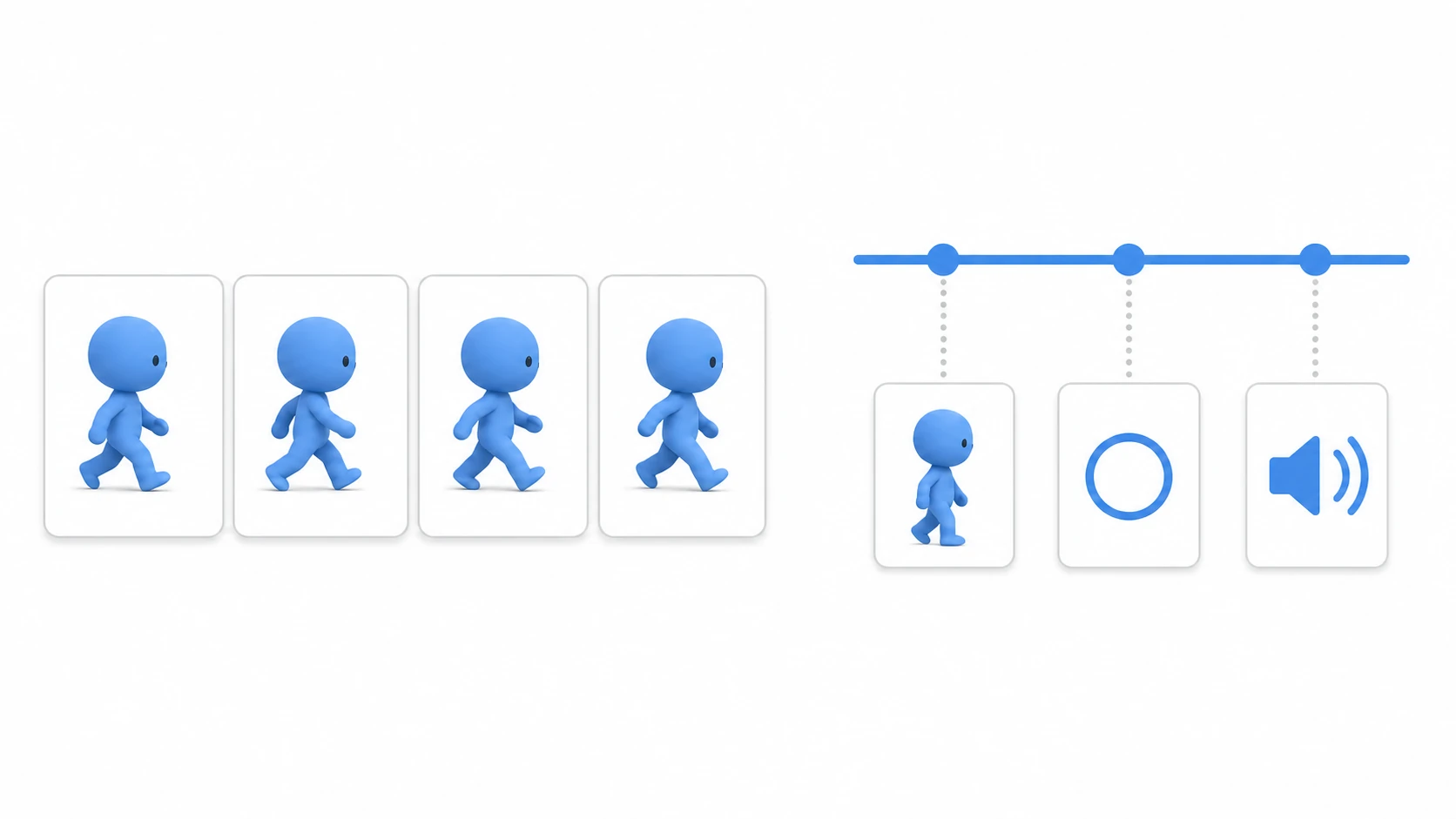
AnimatedSprite2Dshines: flipbook-style playback of images in order- Where
AnimationPlayershines: aligning hitboxes, sound, color, and UI on one timeline- The switching point , explained through an attack animation
- How to split responsibilities when using both, plus a hands-on "walk and slash" build
Tested with: Godot 4.7
- The Short Answer: Are You Animating "The Picture" or "Several Things"?
- AnimatedSprite2D: A Flipbook That Shows Images in Order
- AnimationPlayer: Aligning Multiple Changes on One Timeline
- The Boundary, Seen Through an Attack Animation
- Using Both: Never Drive the Same Visuals Twice
- Hands-On: Building "Walk and Slash" for a Side-Scrolling Action Game
- Bonus: Good to Know for Later
- Summary
The Short Answer: Are You Animating "The Picture" or "Several Things"?
Before the details, here is each node in one line.
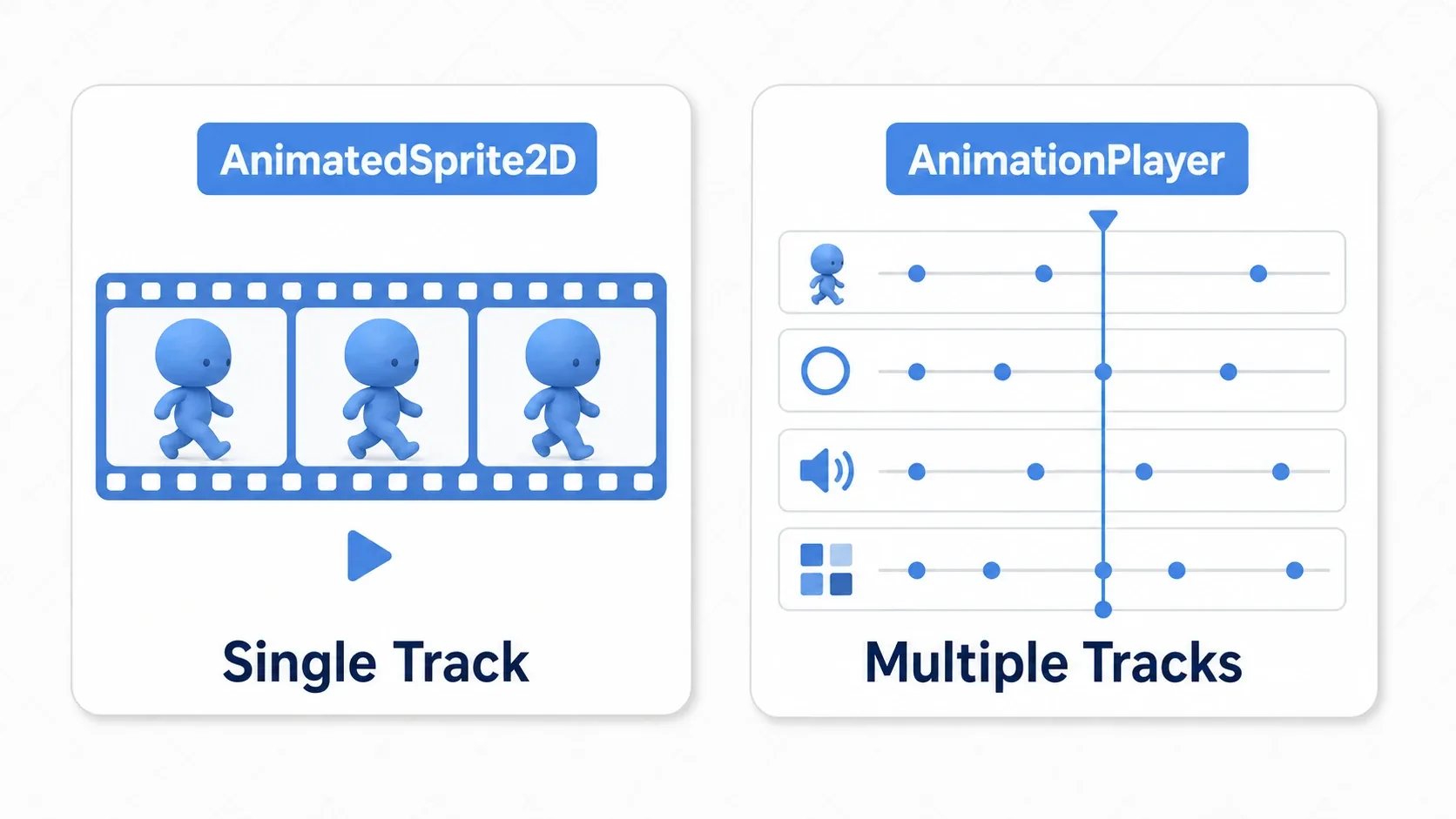
AnimatedSprite2Dis a node that plays back a single sequence of images (one track) . Its job is to swap the visible frames for walking, idling, jumping, and so on.AnimationPlayeris a node that lines up multiple tracks on one timeline and drives them together . Images, yes, but also position, rotation, color, hitboxes, sound effects, and UI, all at the same moment.
A track here is a lane dedicated to "what gets animated." AnimatedSprite2D has exactly one lane: frame swapping. AnimationPlayer stacks as many lanes as you like and fires them all at the same playback position. That difference is the foundation of everything below.
For a rough decision, this table is a good guide.
| What you want to do | Better node | Why |
|---|---|---|
| Swap the look of idle, walk, and jump | AnimatedSprite2D | Just build a SpriteFrames resource and call play() |
| Enable a hitbox for a brief moment during an attack | AnimationPlayer | Visuals and hitbox timing line up on one timeline |
| Add damage flashes or fades | AnimationPlayer | Color properties like modulate can be animated over time |
| Show buttons or menus with a reusable flourish | AnimationPlayer | UI position, opacity, and sound can all be controlled together |
| Transition smoothly between complex movement states | AnimationTree | Built for transitioning and blending multiple animations |
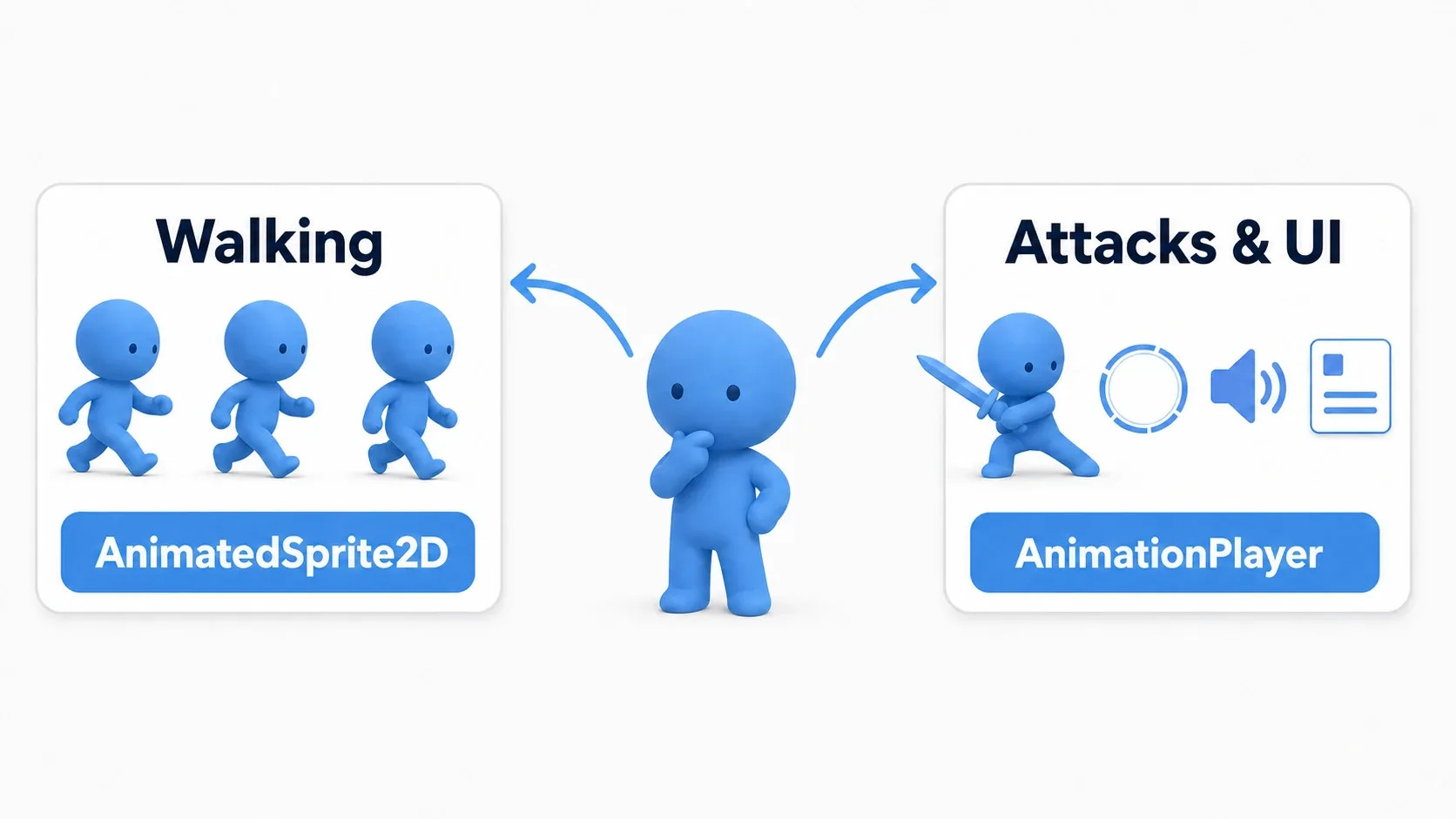
The important part is that this is not about "graduating" from AnimatedSprite2D to AnimationPlayer. Simple walking is easier to read with AnimatedSprite2D, while attacks and UI polish are safer with AnimationPlayer. Split by role. A quick rule of thumb: just moving around means the former, attacks or UI polish mean the latter.
AnimatedSprite2D: A Flipbook That Shows Images in Order
AnimatedSprite2D plays image frames registered in a SpriteFrames resource, like a flipbook. Character idle, walk, and jump animations, plus simple effects, are all very quick to build here, because they are animations that work fine as "show the images in order."
A typical scene setup is just this.
- Player (CharacterBody2D)
  - AnimatedSprite2D
  - CollisionShape2D
If all you do is switch animation names based on movement state, the code stays short.
extends CharacterBody2D

const SPEED := 160.0
const JUMP_VELOCITY := -360.0

@onready var sprite: AnimatedSprite2D = $AnimatedSprite2D

func _physics_process(delta: float) -> void:
    if not is_on_floor():
        # Fall with gravity while in the air
        velocity += get_gravity() * delta

    var direction := Input.get_axis("move_left", "move_right")

    if direction != 0.0:
        velocity.x = direction * SPEED
        sprite.flip_h = direction < 0.0
    else:
        velocity.x = move_toward(velocity.x, 0.0, SPEED)

    if Input.is_action_just_pressed("jump") and is_on_floor():
        velocity.y = JUMP_VELOCITY

    # Reflect the current state in the visuals only
    if not is_on_floor():
        sprite.play("jump")
    elif direction != 0.0:
        sprite.play("walk")
    else:
        sprite.play("idle")

    move_and_slide()
The star of this code is the movement logic. Animation is a supporting role that only reflects the current state visually. At this level of simplicity, AnimatedSprite2D reads much more directly than pulling in an AnimationPlayer.
That said, if you find yourself doing any of the following with AnimatedSprite2D alone, it is a sign to rethink the design.
- Managing "enable the hitbox only on the third attack frame" with timing math in code
- Trying to line up sound effects, screen shake, flashes, and hitbox toggles with separate
Timernodes - Watching animation flags slowly pile up inside
_physics_process()
Once you move past "swap the images" and into making several things happen at the same instant , it is AnimationPlayer time.
AnimationPlayer: Aligning Multiple Changes on One Timeline
AnimationPlayer places keyframes (points that say "this value at this time") on a timeline and plays back node properties and method calls. Inside a single attack animation, for example, you can handle all of these at once:
- Swap
Sprite2D'sframeto show the sword swing - Toggle
CollisionShape2D'sdisabledto enable the hitbox - Call
AudioStreamPlayer2D.play()to fire the slash sound - Shake
Camera2Dslightly to add impact - Change
modulateto flash white for the instant of the hit
Putting each of those on its own track and firing them together at the same playback position is what AnimationPlayer is good at.
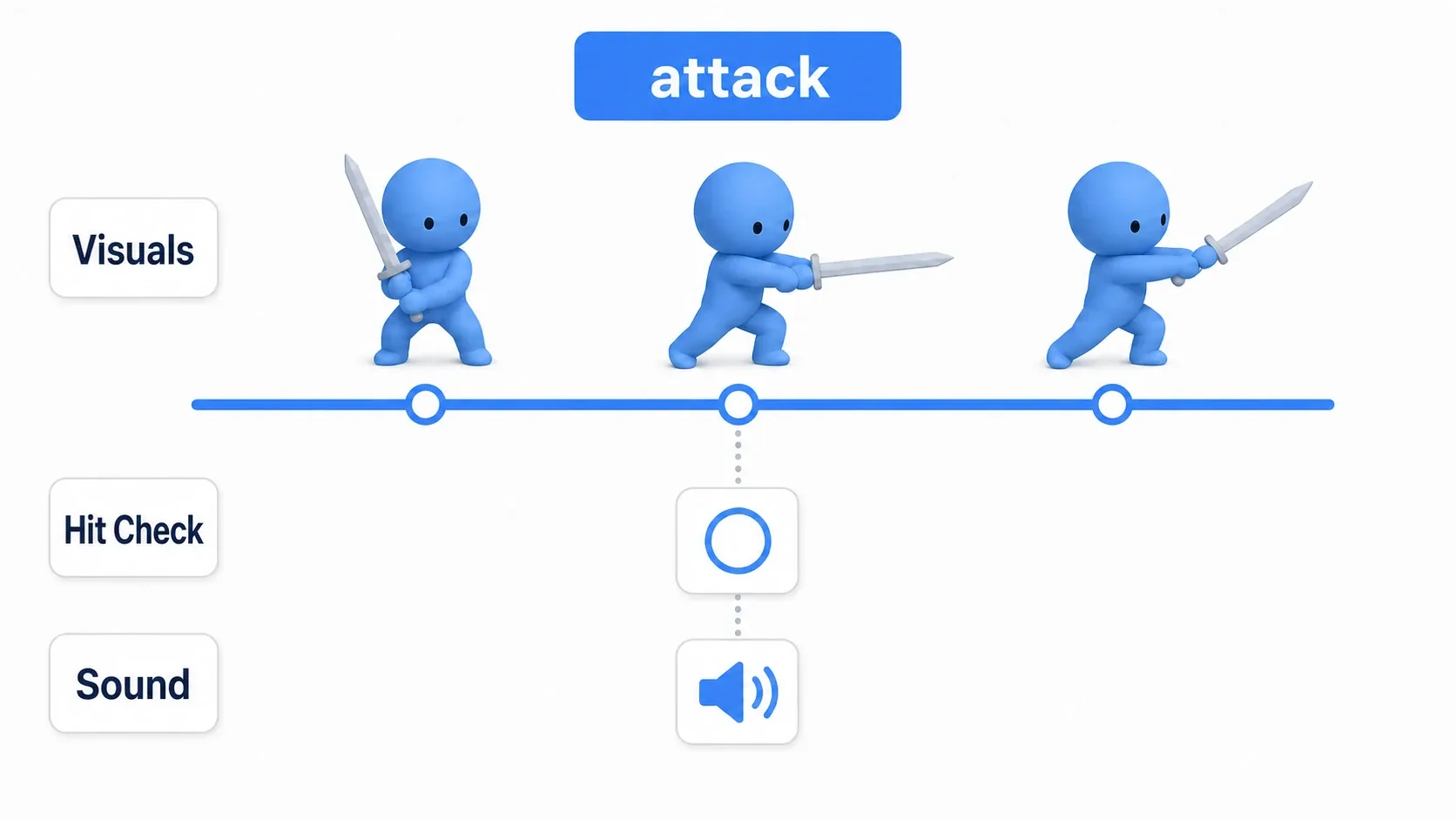
The key benefit is that you move responsibility for timing out of code and into the timeline . Instead of counting "hitbox on 0.2 seconds after the attack starts, off at 0.35 seconds" in a script, you place keys while watching the animation. That is far easier to tune.
A scene setup might look like this.
- Player (CharacterBody2D)
  - Sprite2D
  - CollisionShape2D
  - AnimationPlayer
  - AttackArea (Area2D)
    - AttackCollision (CollisionShape2D)
  - AttackSound (AudioStreamPlayer2D)
The script only needs to handle "start the animation."
extends CharacterBody2D

@onready var animation_player: AnimationPlayer = $AnimationPlayer

func _unhandled_input(event: InputEvent) -> void:
    if event.is_action_pressed("attack"):
        animation_player.play("attack")
On the attack animation timeline, you place keys like this.
| Timing | Target | What happens |
|---|---|---|
| Start | Sprite2D.frame | Switch to the wind-up frame |
| Moment of impact | AttackCollision.disabled | Set to false to enable the hitbox |
| Moment of impact | AttackSound.play() | Fire the slash sound from a method call track |
| End of swing | AttackCollision.disabled | Set back to true to remove the hitbox |
A method call track is a dedicated lane for "call this function at this exact time." It lets you put instant events like playing a sound or spawning an effect on the same timeline as the visuals. With this setup, if you later decide to delay the hit moment by two frames, you drag a key instead of editing code.
The Boundary, Seen Through an Attack Animation
Where exactly do you move from AnimatedSprite2D to AnimationPlayer? An attack makes that boundary very clear. Think of it in three stages.
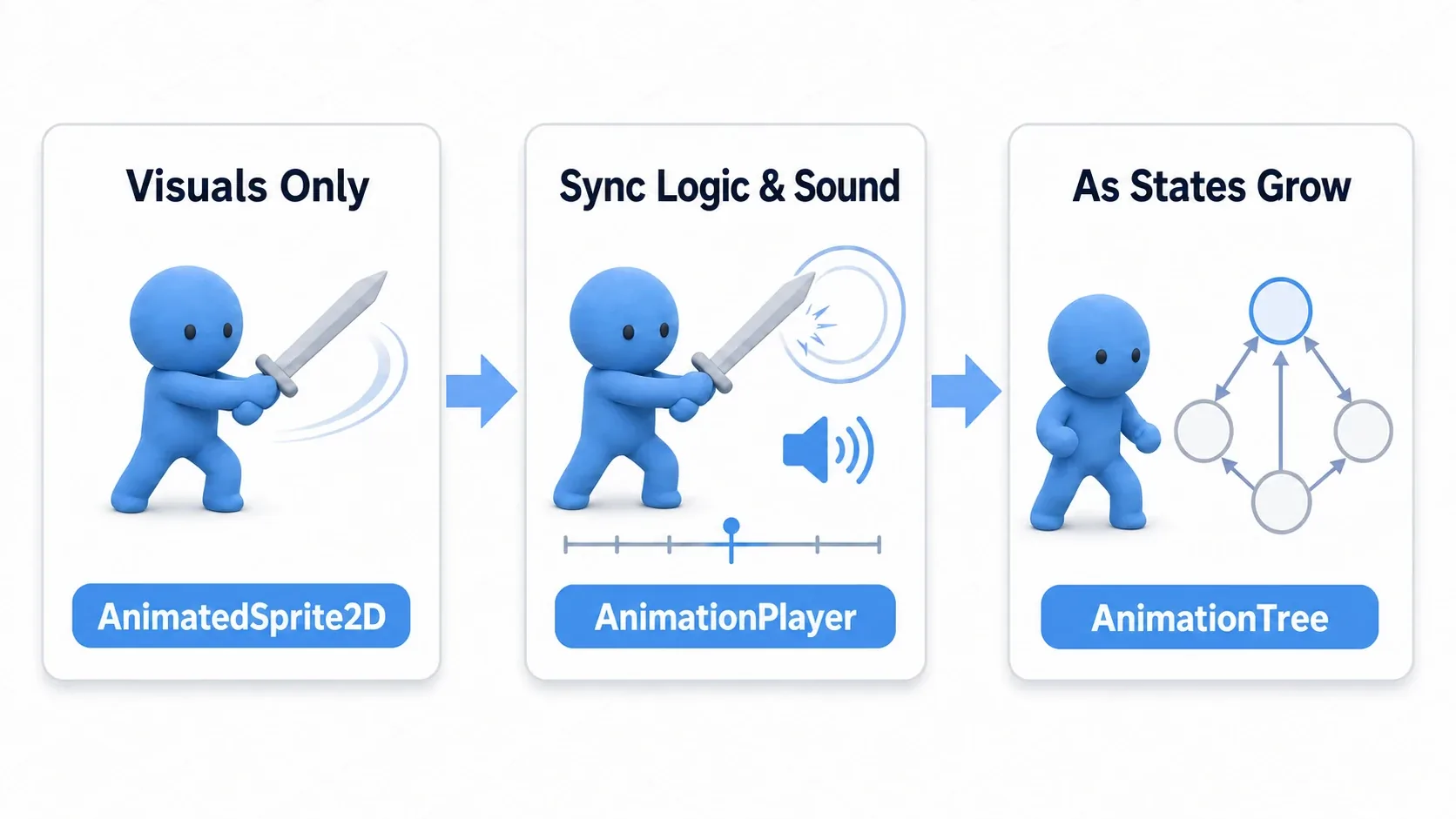
Stage 1: Visuals Only, So AnimatedSprite2D Is Enough
Press the attack button and play a few attack frames. Enemy contact is handled by a separate, always-active Area2D. For a prototype, this is enough to keep moving.
@onready var sprite: AnimatedSprite2D = $AnimatedSprite2D

func _unhandled_input(event: InputEvent) -> void:
    if event.is_action_pressed("attack"):
        sprite.play("attack")
The problem is that "which instant of the attack is actually active" stays vague. The enemy can get hit while you are only raising the sword, or the hitbox lingers after the swing ends. Those are exactly the bugs that ruin game feel.
Stage 2: Syncing Hitboxes and Sound Means AnimationPlayer
To make an attack feel real, you need not just the visuals but a defined window when it connects. The flow goes like this.
- No hitbox during the wind-up
- Enable the hitbox only when the sword is out front
- Play the slash sound at that same instant
- Remove the hitbox once the swing finishes
- Return to a movable state after the animation ends
Bundling that sequence onto an AnimationPlayer timeline is far easier than managing it with timing math. Attack feel changes dramatically over a few frames, so being able to tune it visually in the editor is genuinely valuable.
Stage 3: More States Means AnimationTree Territory
Idle, walk, run, jump, fall, land, attack, hurt, dodge, wall grab. Once the states pile up and you want natural connections between them, calling play() on a bare AnimationPlayer starts to hurt.
At that point, look into AnimationTree state machines and blending. This article's job is to make sure you understand the difference between "simple frame playback" and "timeline sync" in your bones before you go there.
Using Both: Never Drive the Same Visuals Twice
In real projects, it is common to use AnimatedSprite2D and AnimationPlayer together. For example, play everyday idle, walk, and jump with AnimatedSprite2D, and use AnimationPlayer to sync hitboxes and sound only during attacks.
There is a trap here, though. If both drive the same target at once, they conflict.
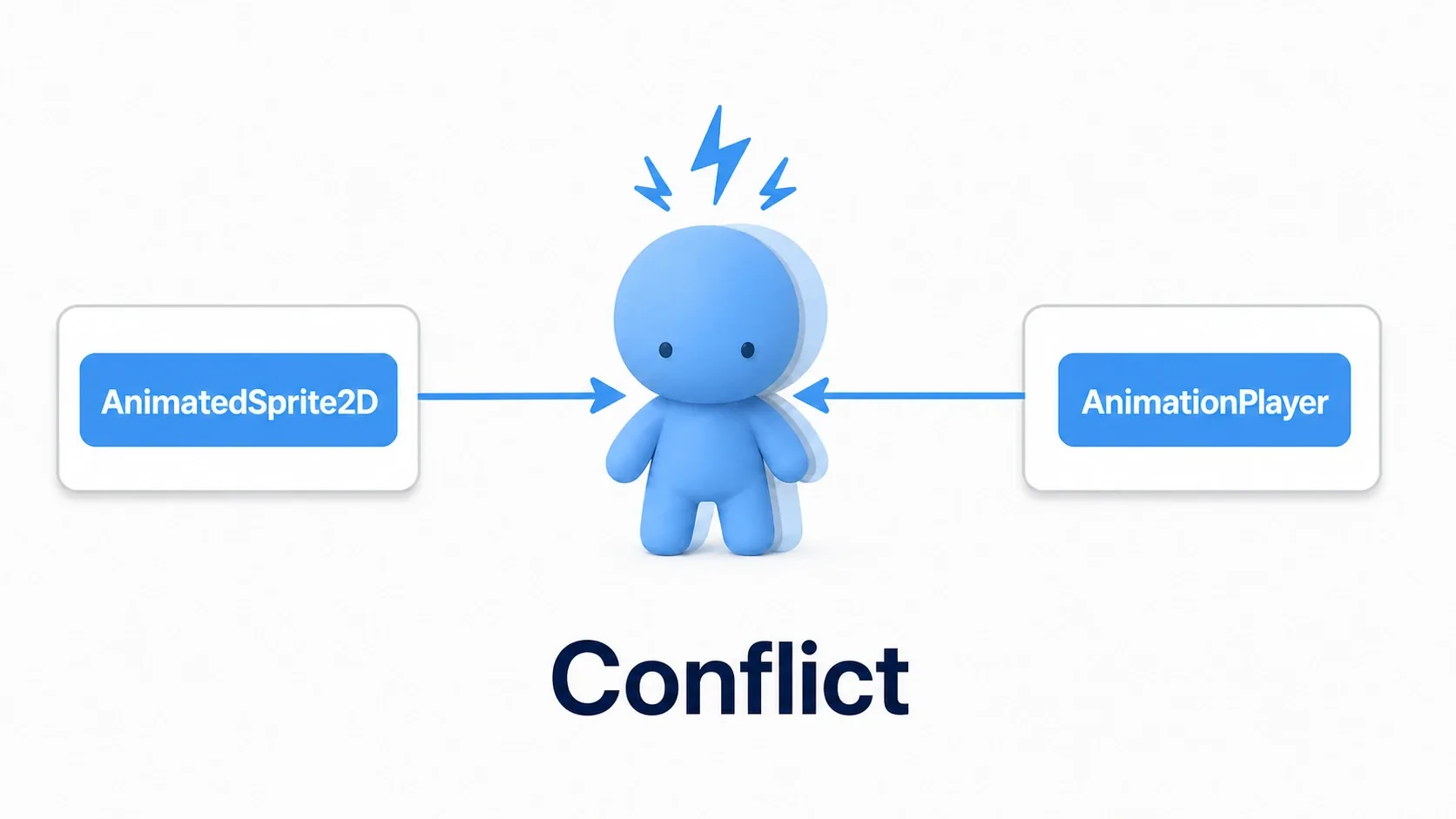
Here is what you want to avoid:
- Calling
AnimatedSprite2D.play("walk")every frame - Meanwhile,
AnimationPlayeris keying the same sprite'sframe - The movement code snapping back to
idleorwalkwhile the attack animation is still playing
The result is flickering visuals, or attacks that get cut off instantly. The fix is to assign responsibilities clearly.
| Rule | What it means |
|---|---|
| Pick one owner for the visuals | Frame swapping goes to either AnimatedSprite2D or AnimationPlayer, never both |
| Keep an "attacking" flag | While attacking, stop the movement code from calling play("walk") or play("idle") |
| Push hitboxes and sound to AnimationPlayer | Anything that needs timing tuning belongs on the timeline |
| Decide where you return afterward | Use the animation_finished signal to go back to the normal state |
Let's take that split of "one owner for the visuals, timing to AnimationPlayer" and build it into an actual player in the next section.
Hands-On: Building "Walk and Slash" for a Side-Scrolling Action Game
The hero of a Metroidvania, a brawler in a belt-scroller, a melee attack in a top-down ARPG. Different genres, same skeleton: walk normally, slash when a button is pressed. Let's build everything so far into a single player character.
Here is the division of labor. AnimatedSprite2D owns the look of normal movement (idle, walk, jump), and AnimationPlayer owns the attack visuals, hitbox, and slash sound. AnimationPlayer takes control only while attacking, then hands it back to the movement code.
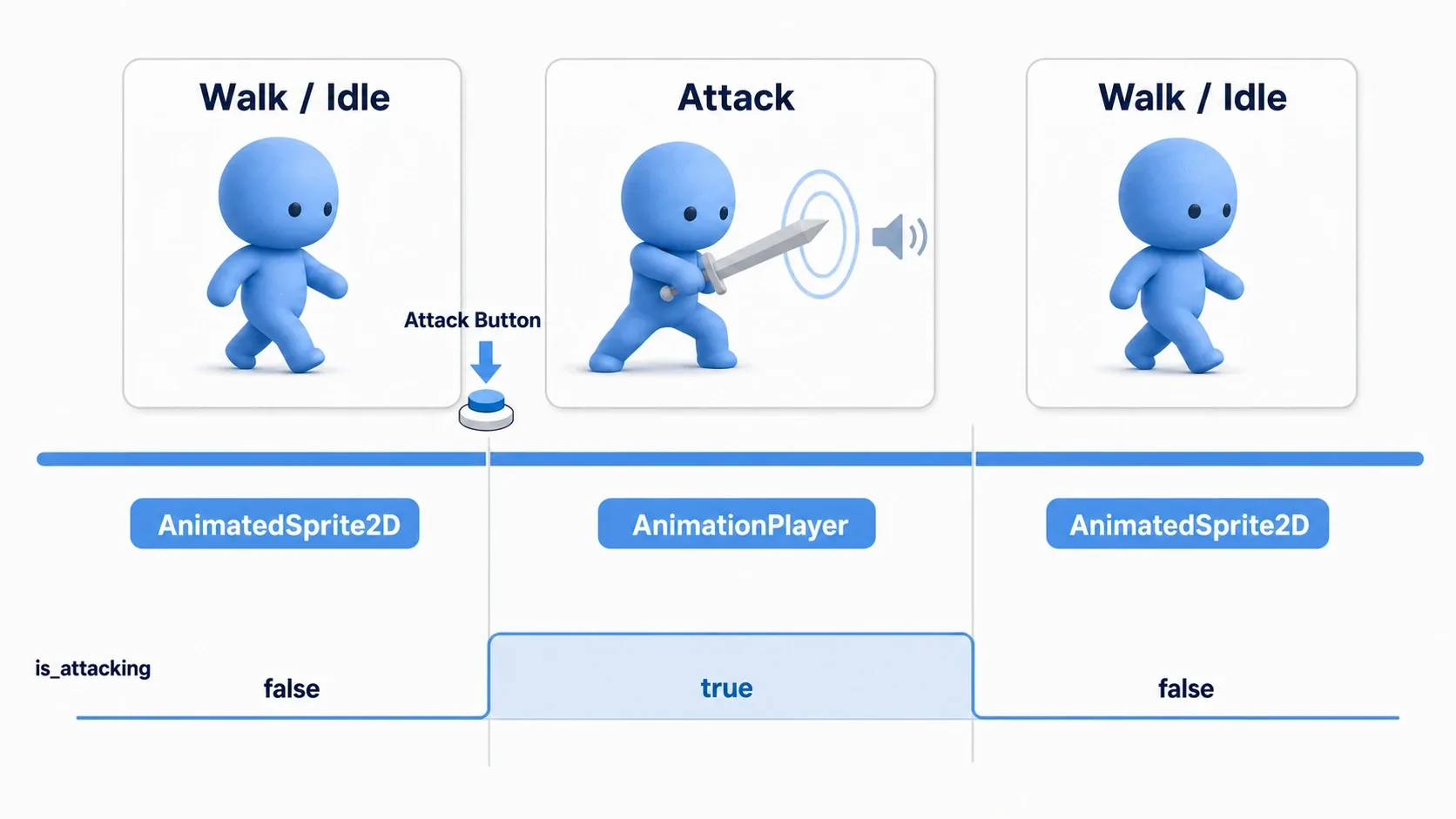
The node setup keeps the movement sprite and the attack rig separate.
- Player (CharacterBody2D)
  - AnimatedSprite2D        # Idle, walk, jump visuals
  - CollisionShape2D        # Body collision
  - AnimationPlayer         # Syncs attack visuals, hitbox, and sound
  - AttackArea (Area2D)     # Attack hitbox
    - AttackCollision (CollisionShape2D)
  - AttackSound (AudioStreamPlayer2D)
AttackCollision.disabled on AttackArea and AttackSound.play() are turned on for just the instant the sword connects, from the attack animation's timeline in AnimationPlayer (exactly as in the table above). The attack's frames play by putting a key at 0 seconds on a method call track in the same timeline that calls play("attack") on AnimatedSprite2D (the frame stepping stays with AnimatedSprite2D, and AnimationPlayer owns the timing). The player script sticks to movement plus directing the start and end of the attack.
extends CharacterBody2D

const SPEED := 160.0
const JUMP_VELOCITY := -360.0

@onready var sprite: AnimatedSprite2D = $AnimatedSprite2D
@onready var animation_player: AnimationPlayer = $AnimationPlayer

var is_attacking := false

func _ready() -> void:
    animation_player.animation_finished.connect(_on_animation_finished)

func _physics_process(delta: float) -> void:
    if not is_on_floor():
        # Fall with gravity while in the air
        velocity += get_gravity() * delta

    # --- Movement ---
    var direction := Input.get_axis("move_left", "move_right")
    if direction != 0.0:
        velocity.x = direction * SPEED
        if not is_attacking:
            sprite.flip_h = direction < 0.0   # Lock facing while attacking
    else:
        velocity.x = move_toward(velocity.x, 0.0, SPEED)

    if Input.is_action_just_pressed("jump") and is_on_floor():
        velocity.y = JUMP_VELOCITY

    update_look(direction)
    move_and_slide()

func _unhandled_input(event: InputEvent) -> void:
    # Attack starts: hand control over to AnimationPlayer
    if event.is_action_pressed("attack") and not is_attacking:
        is_attacking = true
        animation_player.play("attack")

func update_look(direction: float) -> void:
    # While attacking, AnimationPlayer owns the visuals, so don't touch them here
    if is_attacking:
        return
    if not is_on_floor():
        sprite.play("jump")
    elif direction != 0.0:
        sprite.play("walk")
    else:
        sprite.play("idle")

func _on_animation_finished(anim_name: StringName) -> void:
    # Attack ends: hand control back to movement
    if anim_name == "attack":
        is_attacking = false
Run it and here is what happens. While walking, AnimatedSprite2D plays walk, idle, and jump. The moment you press attack, is_attacking goes up and AnimationPlayer plays attack. AttackArea is active only for the instant of the slash, with the sound firing at the same time. When the swing ends and animation_finished arrives, is_attacking goes back down and the movement visuals resume.
There are two points to take away.
- Keep the handoff in a single flag :
is_attackingis the one and only source of truth for which node currently owns the visuals. No matter how many hitbox and sound tracks you add, keeping that traffic control in place prevents the conflict from the previous section. - Whether you can move while attacking is a game feel decision : the example above still allows left and right movement during an attack. If you want the character to plant their feet, just set
velocity.xto 0 whileis_attackingis true. If instead you want the attack to lunge forward, setvelocity.xto a fixed speed in the facing direction whileis_attackingis true (animatingpositionin theattackanimation skipsmove_and_slide(), so the character goes through walls).
Once you start wanting different attacks in the air and on the ground, or a light-to-heavy combo, that is your cue to move on to AnimationTree state machines.
Bonus: Good to Know for Later
You don't need all of these right now, but knowing they exist makes the next step smoother.
- Smooth state transitions belong to
AnimationTree: once you want walk, run, and jump to blend into each other rather than snap, you are in AnimationTree and state machine territory. - One-off dynamic effects belong to
Tween: short effects whose values are decided on the spot, like scaling a button up and back or floating a damage number away, are quicker to write with Tween. A handy rule: reusable, repeated effects go toAnimationPlayer, throwaway interpolation goes toTween. Area2Dcatches the attack hits :AnimationPlayeronly decides when the hitbox is active. The thing that actually detects enemies is Area2D trigger detection. The two are used as a pair.- Don't decide performance by assumption :
AnimatedSprite2Dis lightweight, butAnimationPlayeralmost never becomes a bottleneck for a handful of characters or UI polish either. Choose based on what you need to sync, not on what feels lighter, and if large enemy counts or mobile targets worry you, measure with Godot's profiler. - New to setting keys : how to register keys on the AnimationPlayer timeline is covered in AnimationPlayer Basics.
Summary
AnimatedSprite2D and AnimationPlayer are not better or worse than each other. They have different roles .
- Just showing images in order:
AnimatedSprite2D - Aligning hitboxes, sound, color, and UI on one timeline:
AnimationPlayer - Complex state transitions and blending:
AnimationTree - One-off dynamic interpolation:
Tween
When in doubt, one question settles it.
"Am I animating just the picture, or do I need several things to happen at the same instant?"