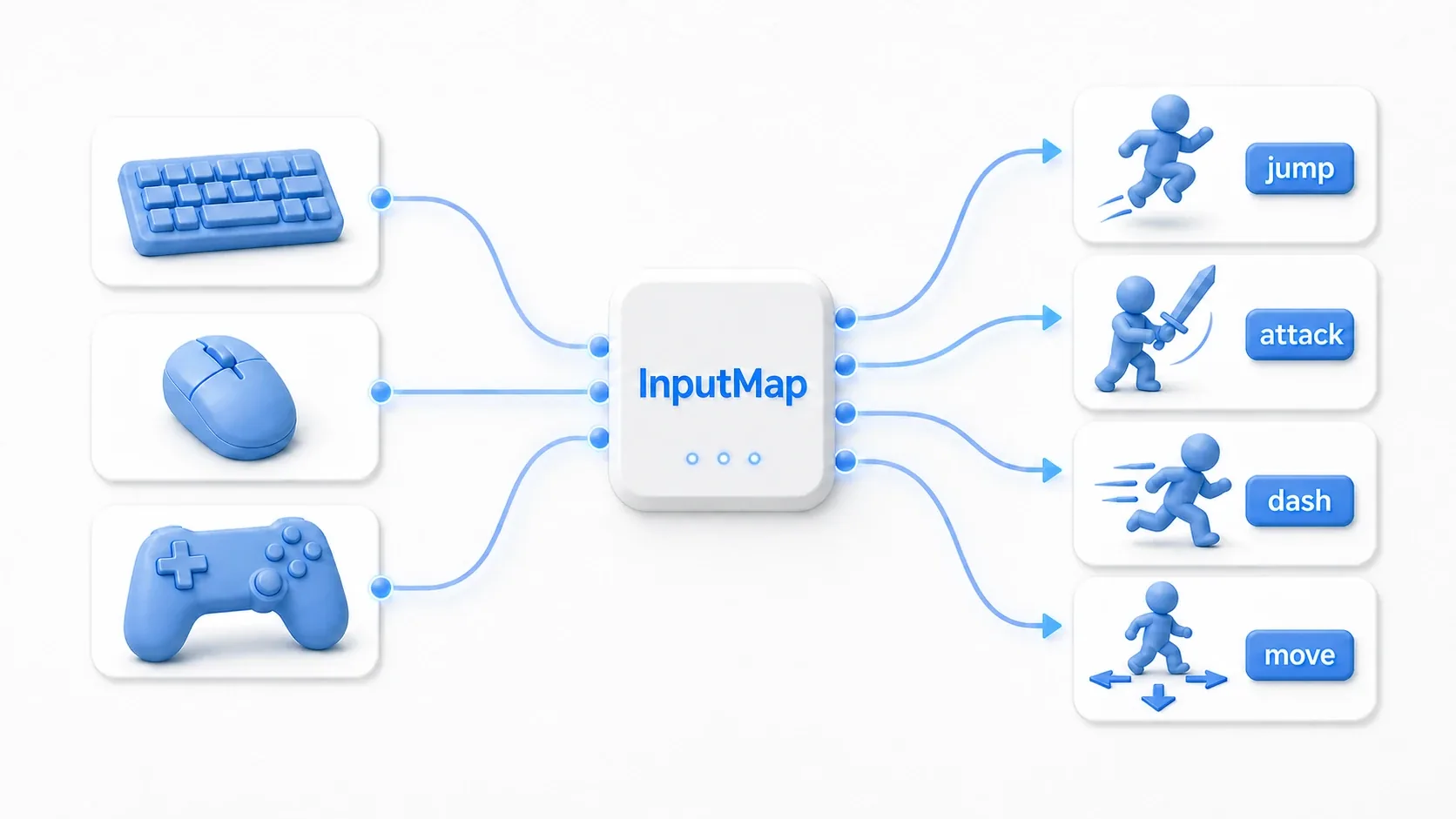
Press a button and jump. Run right only while a key is held. Fire a charge attack the moment you release.
All three are "checking input", but the timing they need is different. Mixing them up leads to a character that jumps again after landing simply because you held the button, menus that skip several entries because you held confirm, and charge attacks that fire the instant you press.
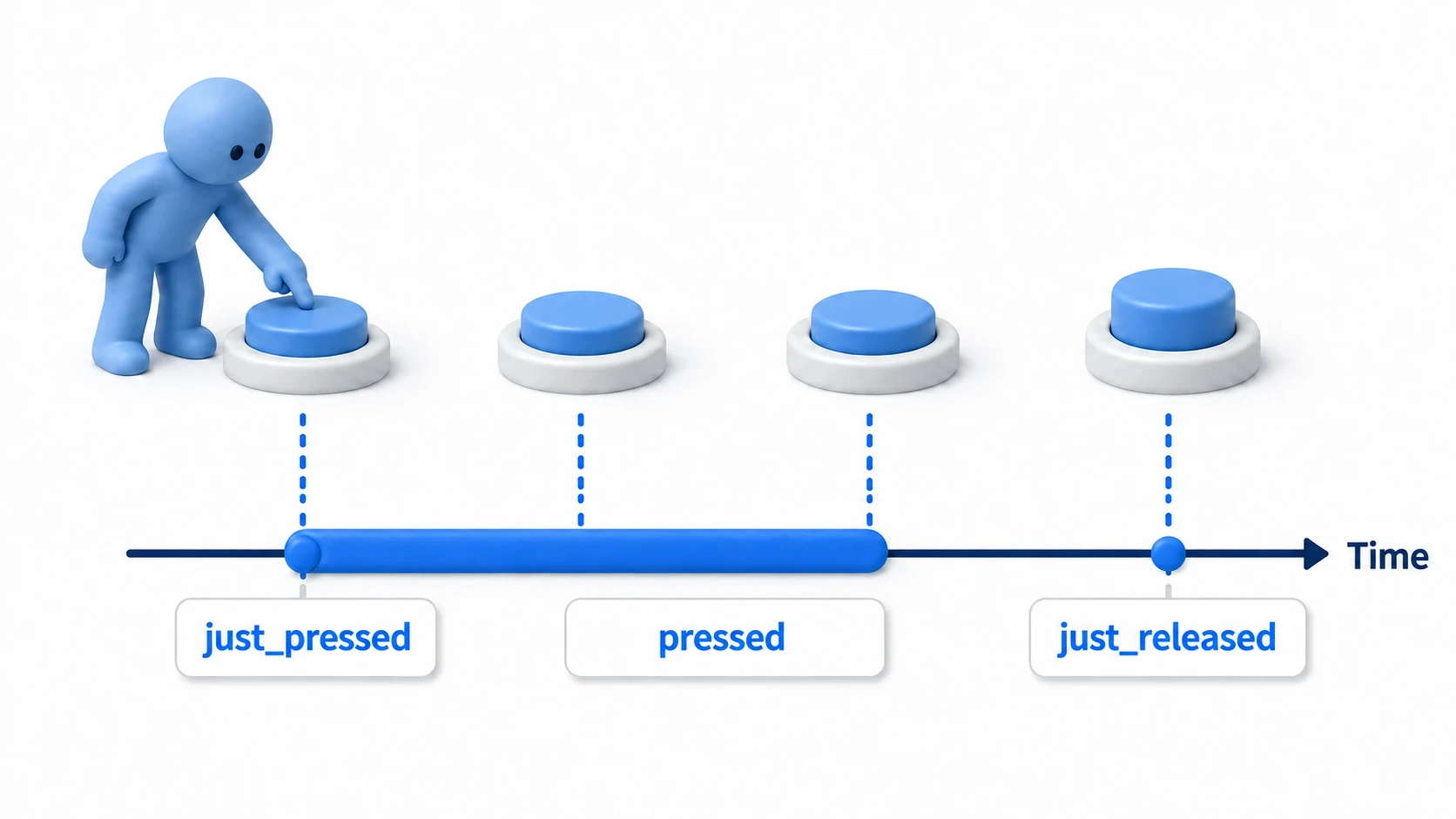
This article sorts out the three input checks you'll use most in Godot, tied to real implementation examples.
What You'll Learn
- The difference between
is_action_pressed(),is_action_just_pressed(), andis_action_just_released()- How to choose between them for movement, jumping, variable jumps, and charge attacks
- When to use
_physics_process()versus_unhandled_input()- Common input mistakes and how to avoid them
Tested with: Godot 4.7
Understanding the Three Input Checks on a Timeline
Godot's Input.is_action_*() family checks input state using action names registered in the InputMap.
| Method | When it's true | Where to use it |
|---|---|---|
Input.is_action_just_pressed("jump") | Only on the frame it's pressed | Jumping, starting an attack, confirming, opening a menu |
Input.is_action_pressed("move_right") | The whole time it's held | Movement, holding, charging, autofire |
Input.is_action_just_released("jump") | Only on the frame it's released | Variable jumps, releasing a charge, ending a drag |
The mnemonic is simple.
- just_pressed: once, on press
- pressed: continuously, while held
- just_released: once, on release
On the very first moment of a press, just_pressed and pressed are both true.
Starting a jump, for instance, only needs "the moment of the press". Running the jump logic the whole time the button is held makes the character bounce again the instant it lands.
Left/right movement, on the other hand, needs velocity applied the whole time the key is held. Using just_pressed for movement means the character only responds on the very first frame and never moves the way you expect.
Use Action Names from the InputMap First
Handle input through InputMap action names rather than key names wherever you can.
# Avoid: the key is hardcoded
Input.is_key_pressed(KEY_SPACE)

# Better: check the InputMap's jump action
Input.is_action_just_pressed("jump")
Using names like "jump", "move_left", and "attack" makes it far easier to add keyboard, gamepad, and remapping support later.
You set these up under "Project Settings" then "Input Map". That connects to the InputMap management article next, so for now just take away one rule: don't write key codes directly in your scripts.
Example 1: Movement and Jumping
In platformers and top-down action games, your choice of input check directly becomes how the game feels.
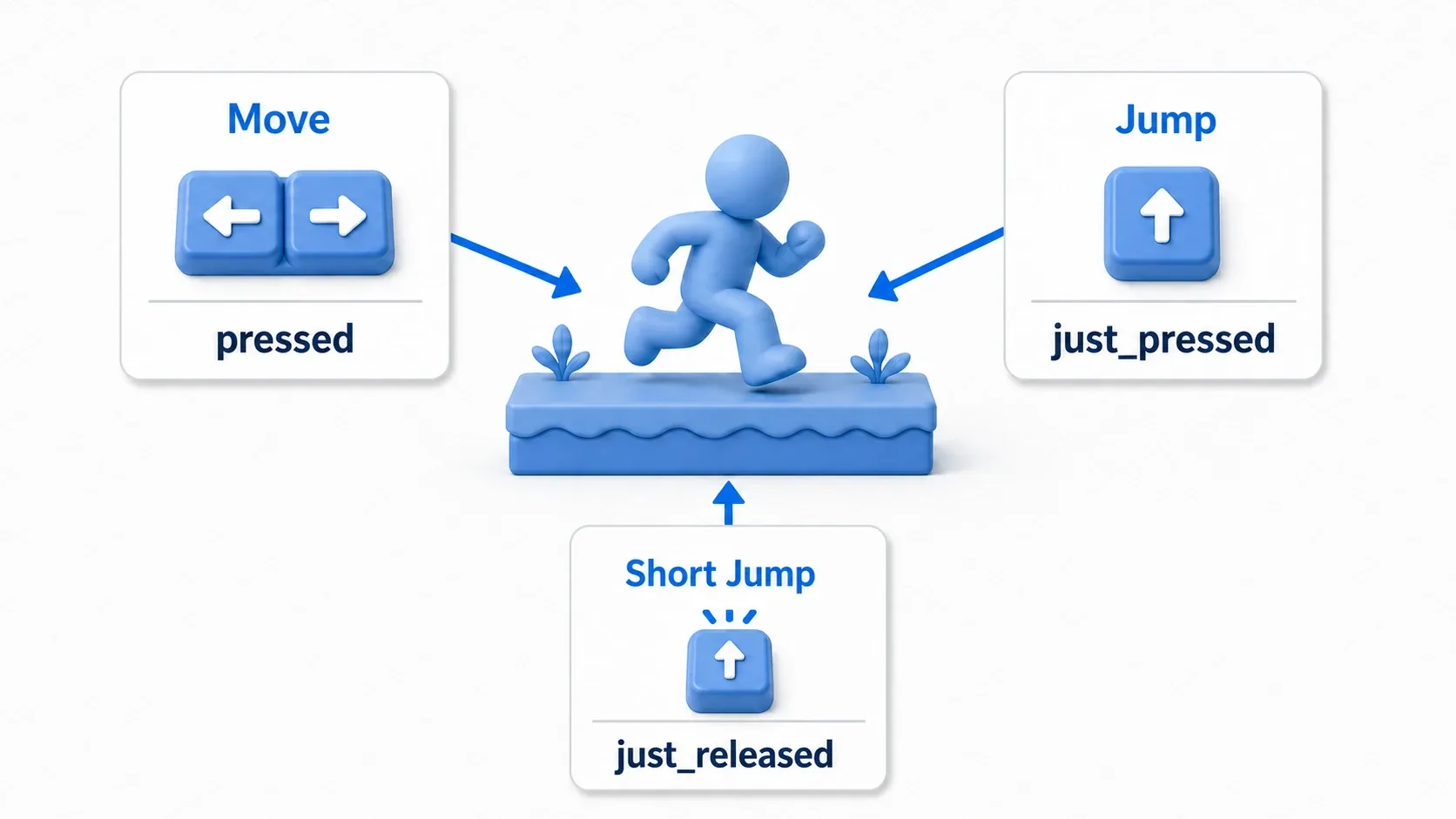
Horizontal movement is needed the whole time a key is held, so use Input.get_axis(). Jumping only happens on the press, so use is_action_just_pressed().
extends CharacterBody2D

const SPEED := 260.0
const JUMP_VELOCITY := -420.0

var gravity: float = ProjectSettings.get_setting("physics/2d/default_gravity")

func _physics_process(delta: float) -> void:
    if not is_on_floor():
        velocity.y += gravity * delta

    # Start the jump once, on the frame it's pressed
    if Input.is_action_just_pressed("jump") and is_on_floor():
        velocity.y = JUMP_VELOCITY

    # Read direction continuously while keys are held
    var direction := Input.get_axis("move_left", "move_right")
    if direction != 0.0:
        velocity.x = direction * SPEED
    else:
        velocity.x = move_toward(velocity.x, 0.0, SPEED)

    move_and_slide()
Input.get_axis("move_left", "move_right") returns -1 for left, 1 for right, and 0 when nothing is held, which is exactly what continuous input like movement wants.
If you used is_action_pressed("jump") here, holding the button would tend to trigger another jump the instant the character lands. Some games deliberately want "hold to bunny-hop", but for a normal jump start, just_pressed is the default.
Example 2: Variable Jump Height
A variable jump means a short tap gives a low hop and a long hold gives a high jump. Most 2D action games use it.
The idea goes like this.
- Start the jump on the press
- If the button is released while still rising, weaken the upward velocity
- If it stays held, the jump reaches its full height
extends CharacterBody2D

const SPEED := 260.0
const JUMP_VELOCITY := -420.0
const SHORT_JUMP_MULTIPLIER := 0.45

var gravity: float = ProjectSettings.get_setting("physics/2d/default_gravity")

func _physics_process(delta: float) -> void:
    if not is_on_floor():
        velocity.y += gravity * delta

    if Input.is_action_just_pressed("jump") and is_on_floor():
        # Start with a normal jump
        velocity.y = JUMP_VELOCITY

    if Input.is_action_just_released("jump") and velocity.y < 0.0:
        # Released while rising, so cut the upward velocity for a shorter hop
        velocity.y *= SHORT_JUMP_MULTIPLIER

    var direction := Input.get_axis("move_left", "move_right")
    velocity.x = direction * SPEED

    move_and_slide()
The velocity.y < 0.0 condition is there because up is negative in Godot's 2D coordinates. Releasing the jump button while already falling doesn't need shortening, since you're no longer rising.
This implementation looks tiny, but it has a huge effect on feel. It's what lets players tap for a short hop before a ledge, or a light hop to dodge an enemy.
Example 3: Charge Attacks
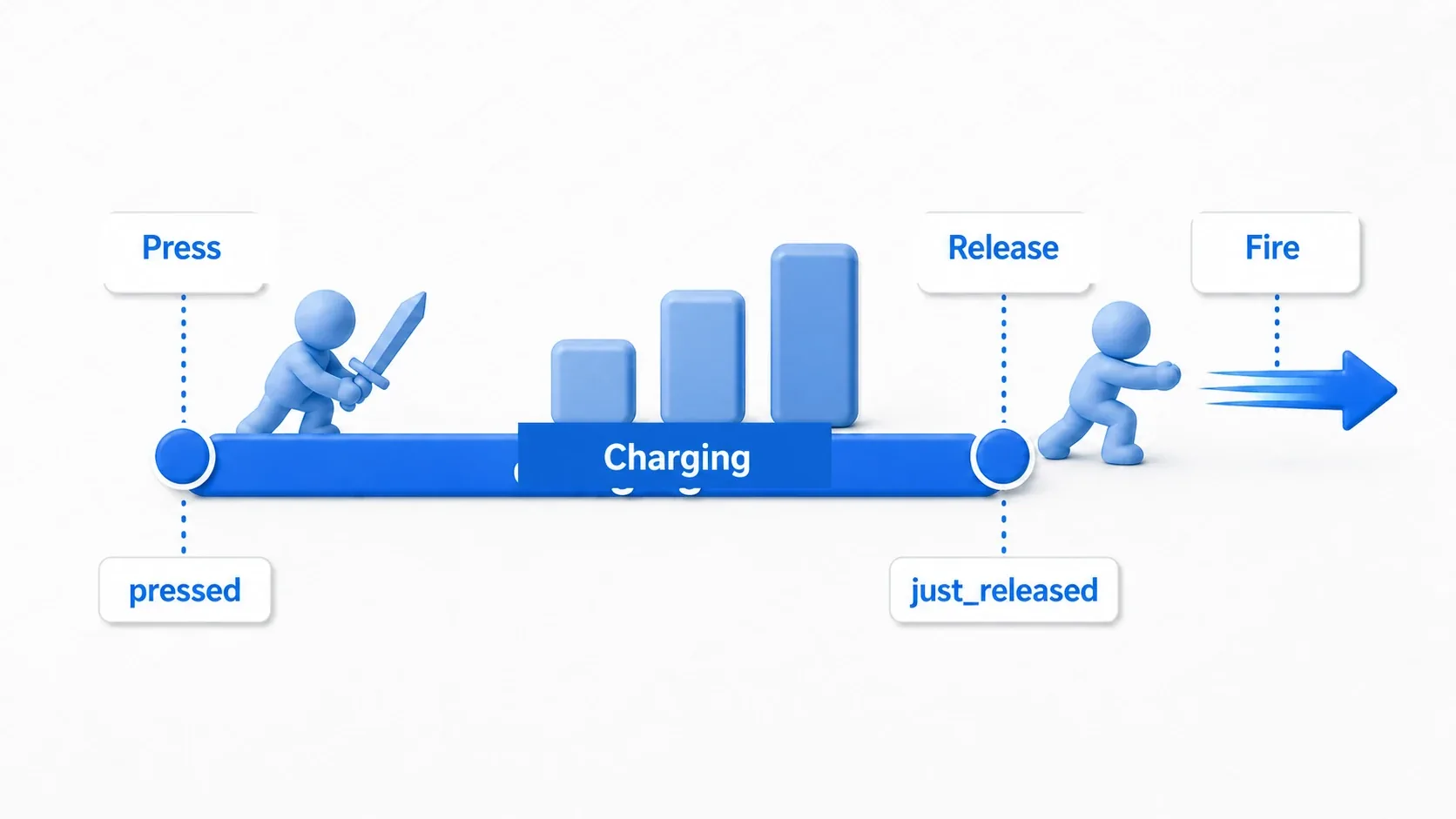
Charge attacks show off all three checks very clearly.
- On press: start charging
- While held: increase charge time
- On release: fire the attack
extends Node2D

const MAX_CHARGE_TIME := 2.0

var is_charging := false
var charge_time := 0.0

func _process(delta: float) -> void:
    if Input.is_action_just_pressed("charge_attack"):
        # Reset the charge state on the frame it's pressed
        is_charging = true
        charge_time = 0.0

    if is_charging and Input.is_action_pressed("charge_attack"):
        # Build the charge only while the button is held
        charge_time = min(charge_time + delta, MAX_CHARGE_TIME)
        update_charge_effect(charge_time / MAX_CHARGE_TIME)

    if is_charging and Input.is_action_just_released("charge_attack"):
        # Fire using the accumulated charge the moment it's released
        var power := charge_time / MAX_CHARGE_TIME
        fire_charge_shot(power)

        is_charging = false
        charge_time = 0.0
        update_charge_effect(0.0)

func update_charge_effect(rate: float) -> void:
    # In a real game, change color, scale, particle amount, and so on
    scale = Vector2.ONE * lerp(1.0, 1.4, rate)

func fire_charge_shot(power: float) -> void:
    print("fire power: %.2f" % power)
The classic mistake with charge attacks is trying to handle both the start and the firing with is_action_pressed() alone. You end up firing every frame the button is held, or resetting the charge time every frame.
Splitting input state into "start", "continue", and "end" makes both the code and the game's behavior easier to follow.
Polling vs. Event-Driven Input
Everything so far, Input.is_action_*(), is polling. Every frame you ask "what is this input doing right now?"
Godot also has event-driven input handling through _input(event) and _unhandled_input(event). That approach processes the InputEvent that Godot hands you when input occurs.
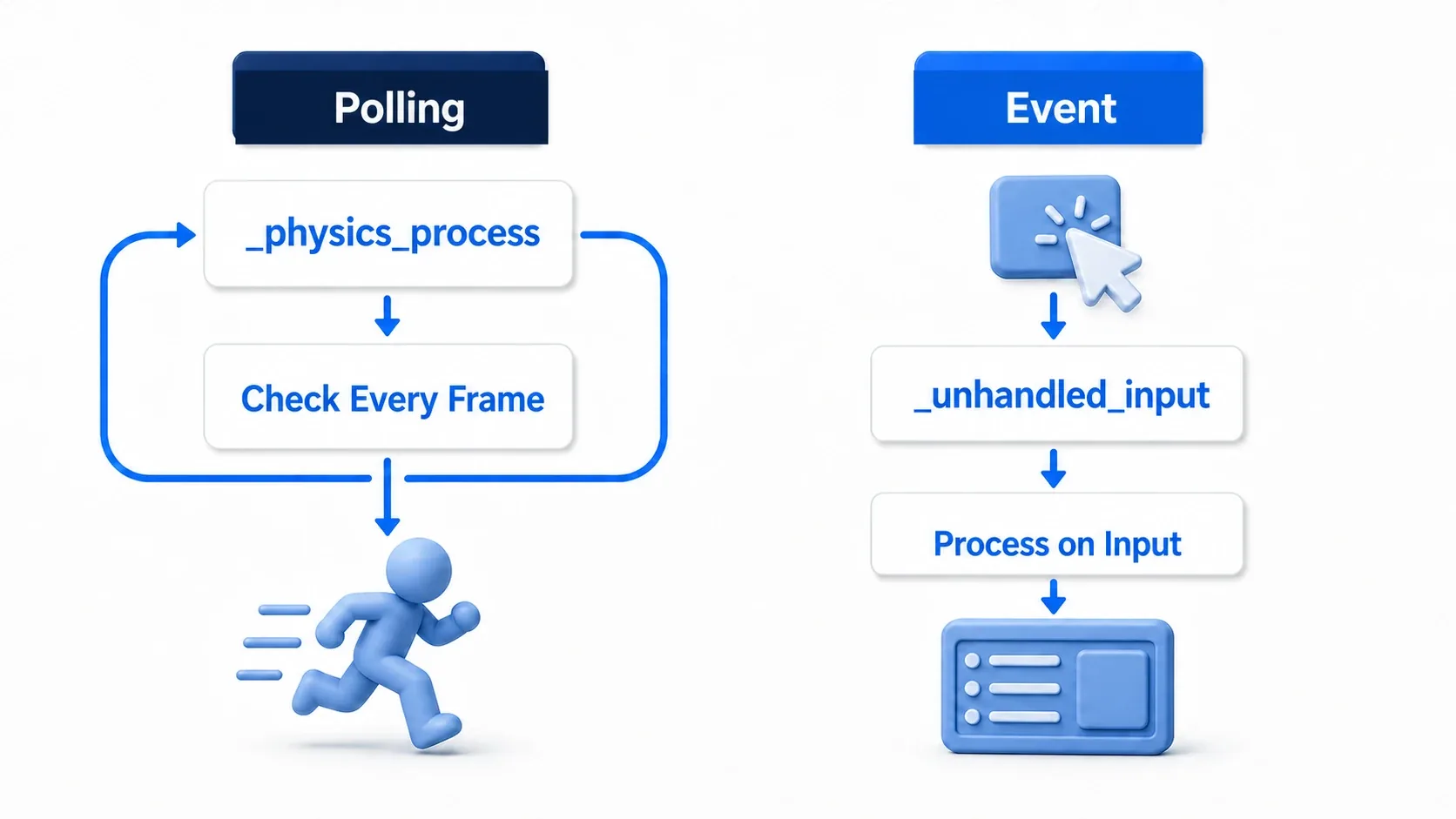
| Approach | Suits | Examples |
|---|---|---|
Input.is_action_*() | Logic that reads state every frame | Movement, jumping, charging, aiming |
_unhandled_input(event) | Logic that only matters the moment input arrives | Pausing, menus, clicks outside UI |
A pause menu, for instance, doesn't need continuous state polling the way movement does. Receiving it as an input event is more natural.
func _unhandled_input(event: InputEvent) -> void:
    if event.is_action_pressed("pause"):
        # Pick up only pause input that the UI didn't already handle
        get_tree().paused = not get_tree().paused
Set Mode under Node > Process in the Inspector to Always on the node with this script. With the default Inherit, this node pauses too, so pressing the key again can't unpause the game (see Controlling Pause Behavior with Process Mode for details).
_unhandled_input() receives only input that hasn't already been consumed, after Control-based UI has had its turn. That makes it handy for game-wide cancel and pause. How to receive mouse clicks and drags here is covered in Mouse Input Basics.
For logic that uses a "still held" state every frame, though, like character movement, polling in _physics_process() is clearer.
Common Pitfalls
Using pressed for Confirm and Racing Through Menus
A UI "confirm" is fundamentally a single input. Using is_action_pressed("ui_accept") runs the confirm logic the whole time the button is held.
# Keep UI confirmation on the press only
if Input.is_action_just_pressed("ui_accept"):
    confirm_selected_item()
If you do want hold-to-scroll-fast, pressed is an option, but add a timer that controls the repeat interval so it doesn't run away.
Putting Physics Movement in _process and Getting Jitter
Logic that uses CharacterBody2D's velocity and move_and_slide() belongs in _physics_process(), so it runs in step with the physics update.
Logic unrelated to physics, like UI display, charge effects, or menu switching, is fine in _process().
Using just_pressed for Movement and Only Moving for an Instant
For anything that should respond the whole time a key is held, like horizontal movement or aiming, just_pressed only fires once at the start.
Deciding "one-shot or continuous?" up front keeps you out of trouble.
| Action | Check |
|---|---|
| Starting a jump | just_pressed |
| Horizontal movement | pressed / get_axis |
| While charging | pressed |
| Firing a charge | just_released |
| UI confirm | just_pressed |
| Ending a drag | just_released |
Bonus: Good to Know Beforehand
Input Buffering and Coyote Time Come Later
To polish the feel further, games use input buffering to briefly remember a jump input, and coyote time to allow a jump for a moment after leaving a ledge.
Neither replaces just_pressed, though. The order is: catch the press correctly with just_pressed, then store that input for a few frames.
Keyboards Have Limits on Simultaneous Keys
On some keyboards, pressing several keys at once causes some inputs to be dropped. That's not a bug in your code; it can be a hardware limitation.
If your action game needs diagonal movement, jumping, and attacking at the same time, it's worth supporting gamepads and revisiting your key layout.
Name Actions After What They Mean in the Game
Name actions after their in-game meaning, like "jump", "attack", and "dash", rather than physical key names like "space" or "left_click". That makes swapping the input method out later much easier.
Summary
is_action_just_pressed()fires only on the press. Use it for jumping, starting attacks, and UI confirmationis_action_pressed()stays true while held. Use it for movement, holds, and chargingis_action_just_released()fires only on release. Use it for variable jumps, releasing charges, and ending drags- Put physics movement in
_physics_process(); consider_unhandled_input()for menus and pausing - Handle input through InputMap action names instead of writing key codes everywhere
Input handling is unglamorous, but it decides how a game feels to play. Simply separating "on press", "while held", and "on release" makes the intent behind your controls much easier to read.
Further Reading