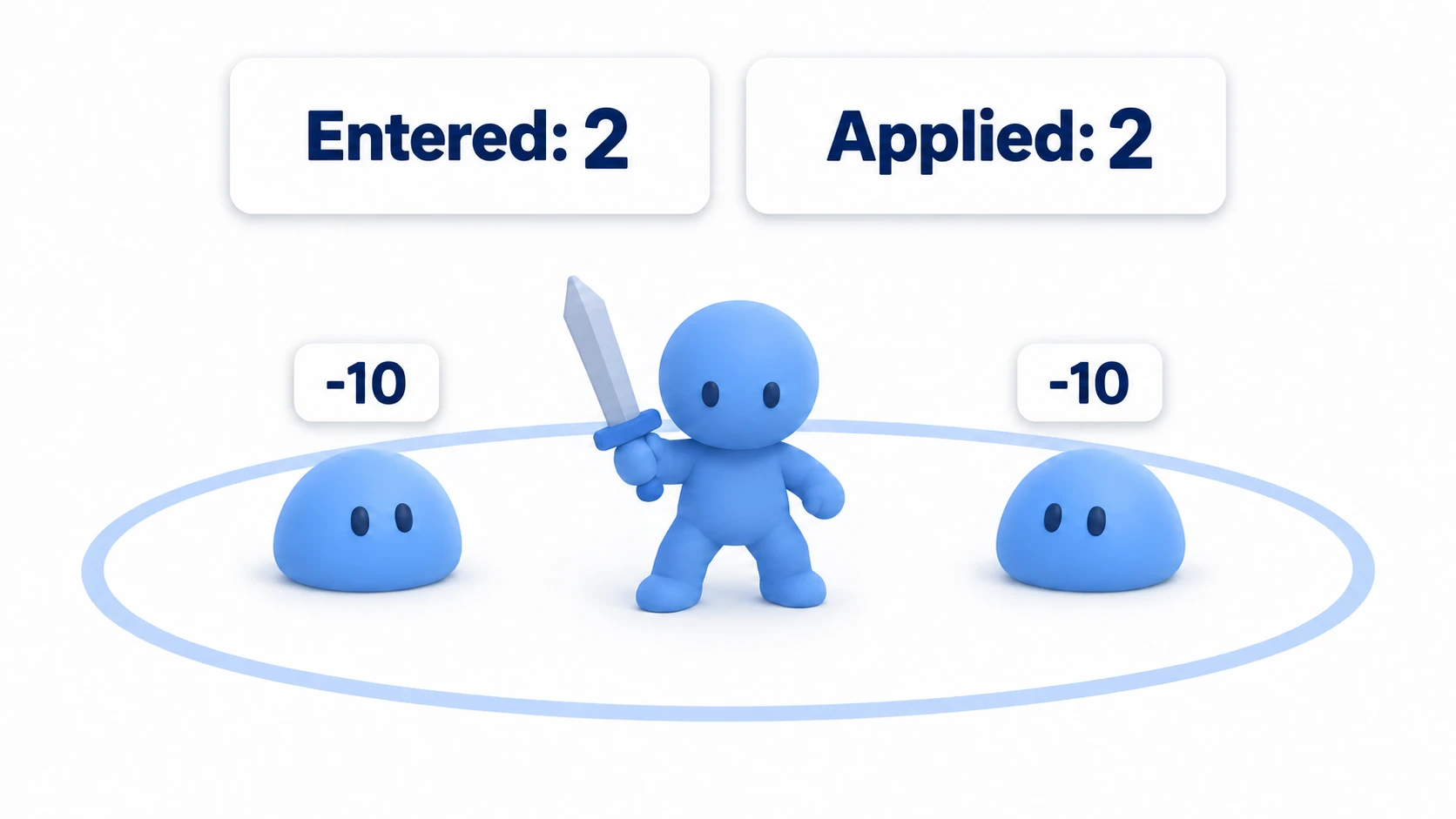
The player bumps into walls. Enemy attacks only hit the player. The player's attacks only hit enemies. Only the player can pick up coins.
Building a game means managing a lot of these "what reacts to what" rules. That's what Collision Layer and Collision Mask are for.
This article treats layers and masks not as a pile of checkboxes, but as a design tool for organizing collision detection across your whole game.
What You'll Learn
- The difference in role between layers and masks
- A practical way to split up players, enemies, walls, attacks, and items
- Setup examples for attack hitboxes and item pickups
- A step-by-step checklist for when a collision or detection doesn't fire
Tested with: Godot 4.7
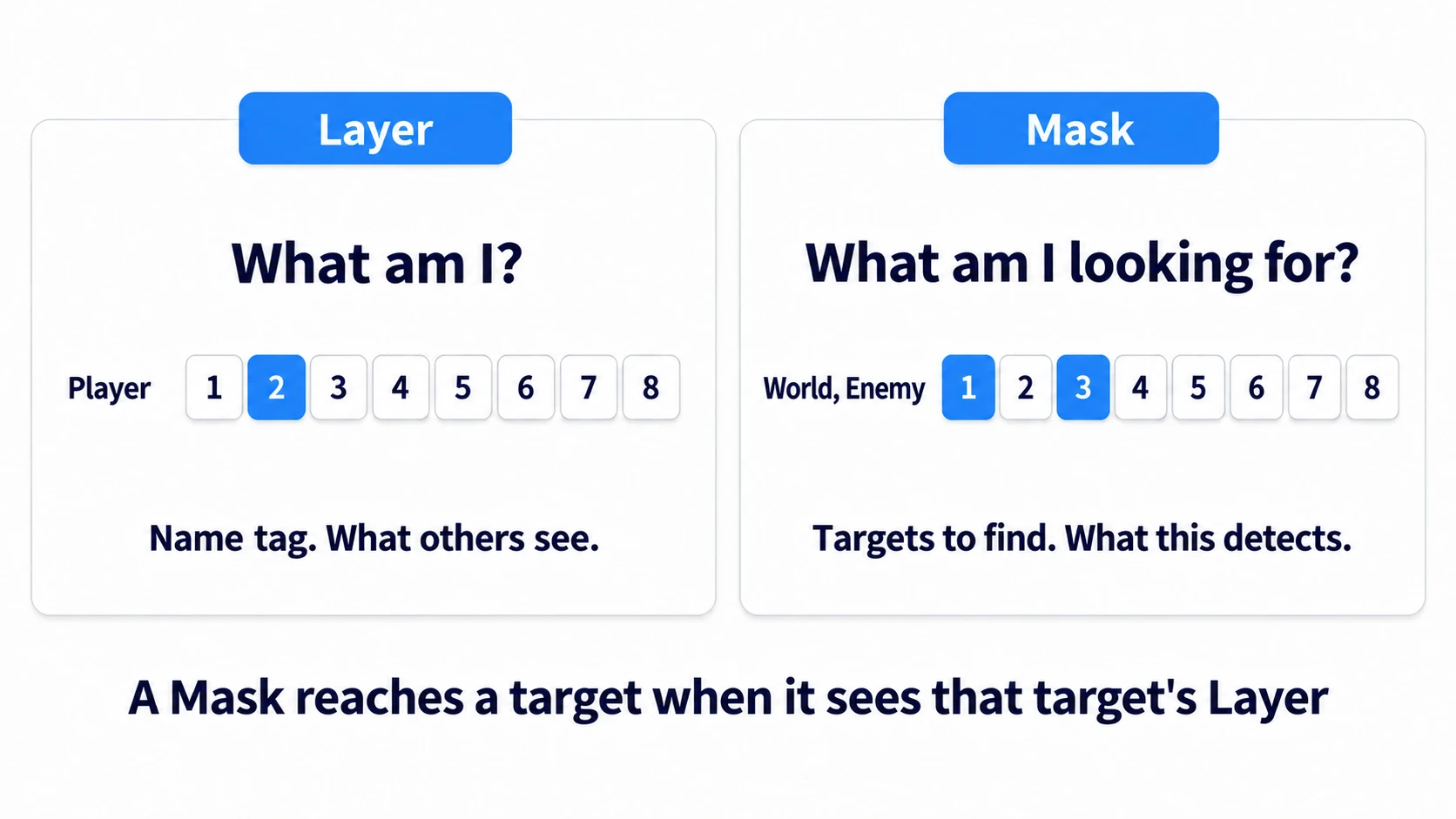
- Layer is what you are, mask is what you look for
- Name your layers first
- A layer design example for an action RPG
- Example 1: only the player can pick up an item
- Example 2: splitting combat into HitBox and HurtBox
- Example 3: ignoring enemy attacks during invincibility frames
- Setting layers and masks from code
- Checklist for when nothing responds
- Bonus: Good to know for later
- Summary
- Further Reading
Layer is what you are, mask is what you look for
The first confusing thing about layers and masks is that they look like the same set of checkboxes. Their roles are completely different, though.
| Item | Meaning | How to think about it |
|---|---|---|
| Collision Layer | The physics layer this object belongs to | "I am a Player." "I am an Enemy." |
| Collision Mask | The layers this object wants to detect | "I look for World and Enemy." |
The layer is a name tag. The player belongs to the Player layer, an enemy to Enemy, a wall to World.
The mask is what you go looking for. If the player should collide with walls, put World in the player's mask. If the player's attack should only hit enemies, put EnemyHurtBox in the attack's mask.
In the Inspector, the layer and the mask sit side by side in the same Collision section. The top one is what you belong to, the bottom one is what you look for.
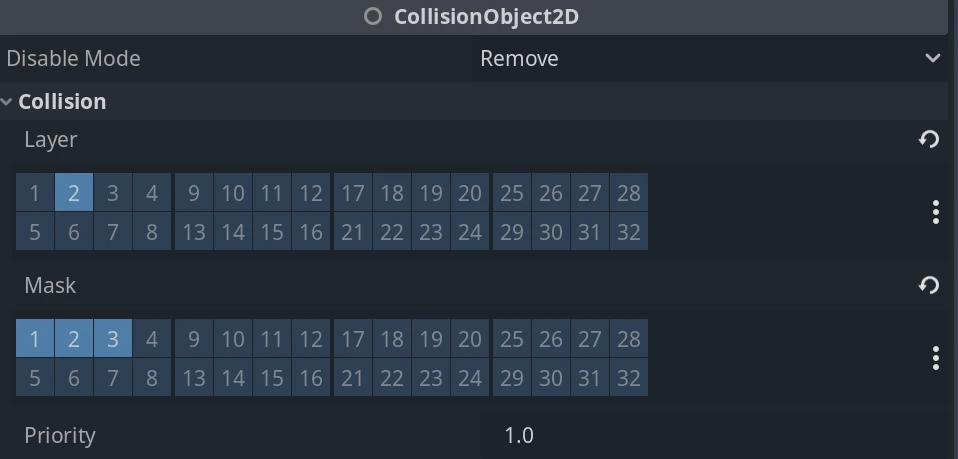
What matters is whether the mask on the detecting side sees the other side's layer.
PlayerAttack Mask -> EnemyHurtBox Layer
With that relationship in place, PlayerAttack can detect EnemyHurtBox. The reverse isn't required: if you handle everything from PlayerAttack's signal, EnemyHurtBox's mask doesn't need to see PlayerAttack at all.
You only need masks on both sides when both objects need to detect the other. For example, a design where the enemy detects the player and the player detects the enemy needs both. For an attack hitbox, where only one Area2D has to react, getting the detecting side's mask right comes first.
Name your layers first
Godot has layers 1 through 32. By default they're just numbers, so the further your project goes, the more often you'll wonder "was layer 3 the enemies or the items?"
Naming them in Project Settings up front makes the Inspector's layer/mask grid far easier to read.
- Open "Project Settings" from the "Project" menu
- Choose "2D Physics" under "Layer Names"
- Name the layers you use
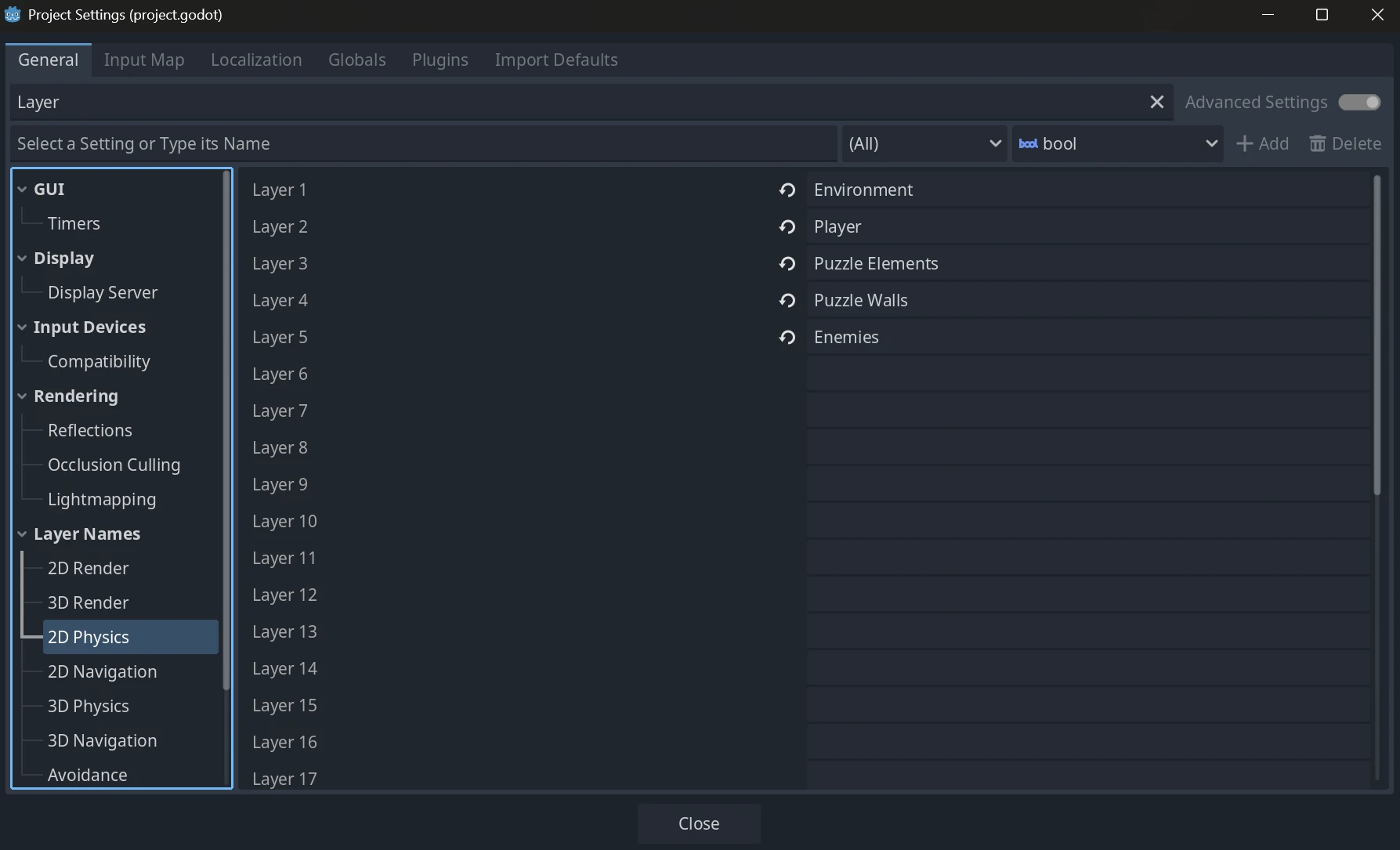
For a 2D action game, names like these are enough to start with.
| Number | Name | Purpose |
|---|---|---|
| 1 | World | Floors, walls, terrain |
| 2 | Player | The player body |
| 3 | Enemy | Enemy bodies |
| 4 | PlayerHitBox | The player's attack hitbox |
| 5 | EnemyHurtBox | The region where enemies take damage |
| 6 | EnemyHitBox | Enemy attack hitboxes |
| 7 | PlayerHurtBox | The region where the player takes damage |
| 8 | Item | Items, coins, potions |
You don't need to fill all 32 slots perfectly from day one. In fact, deciding on the main categories you'll actually use and adding more as they come up is far less likely to fall apart.
A layer design example for an action RPG
Layers and masks are less a per-node setting than a table of interactions within your game. Working out which object should look for which other object in advance cuts down on mistakes.
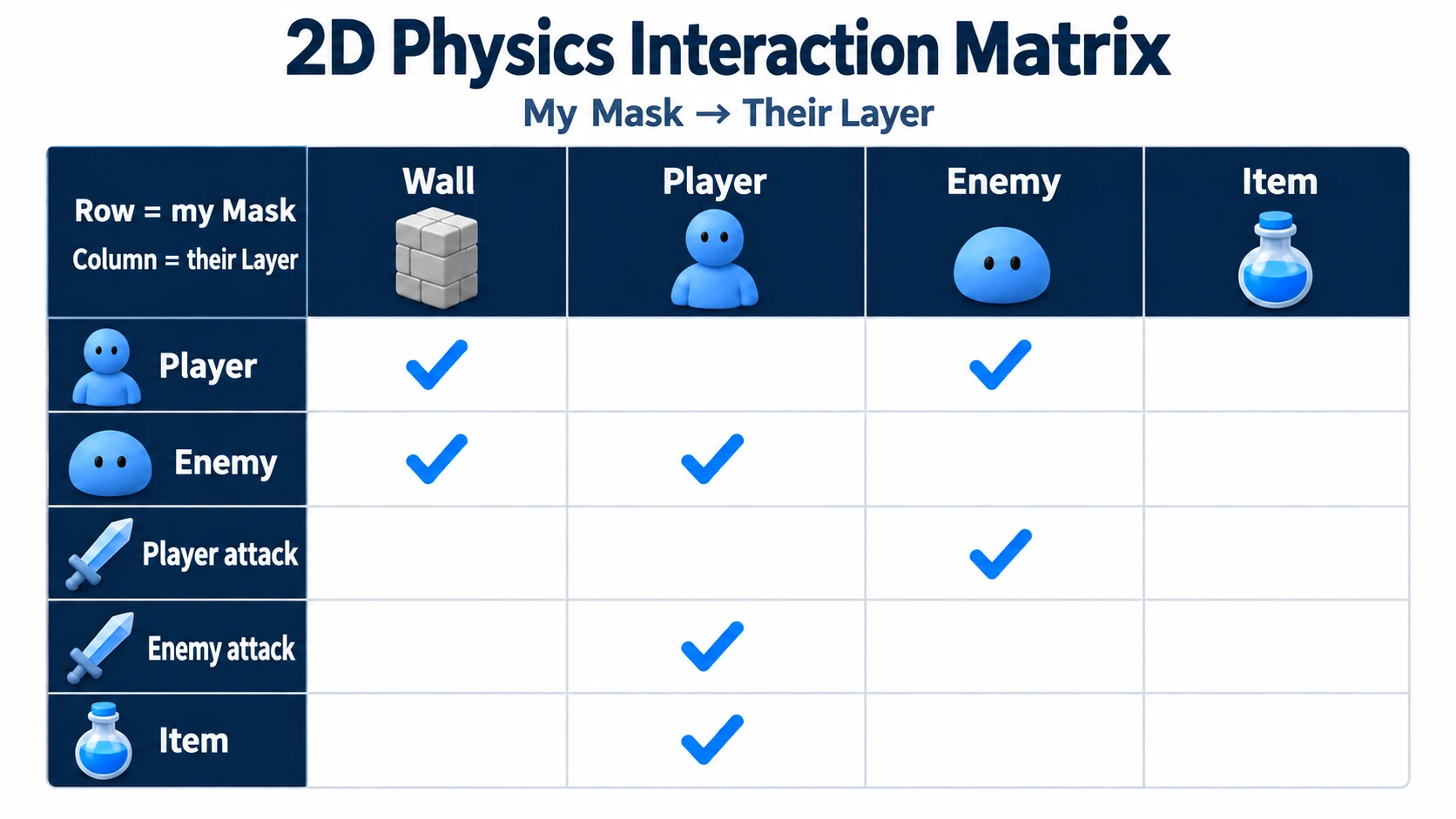
Here's one way to lay out an action RPG.
| Object | Layer | Mask | Purpose |
|---|---|---|---|
| Player body | Player | World, Enemy | Stopped by walls, touches enemy bodies |
| Enemy body | Enemy | World, Player | Stopped by walls, touches the player |
| Walls, floors, terrain | World | Can be empty | Usually the moving side looks for World |
| Player attack | PlayerHitBox | EnemyHurtBox | Detects only the enemy's damage region |
| Enemy attack | EnemyHitBox | PlayerHurtBox | Detects only the player's damage region |
| Items | Item | Player | Picked up only when the player enters |
The key detail in this table is that the enemy body and the region where the enemy takes damage are separate.
The enemy body handles movement and wall collisions. The enemy's HurtBox is "the sensor for receiving attacks." If you merge these into one, it becomes ambiguous whether the player's attack hit the enemy's movement body or its damage Area2D.
A small game works fine with just the body. But once you start adding knockback, shields, weak points, and temporarily disabled hitboxes, keeping the body separate from the attack and damage regions is dramatically easier to manage.
Example 1: only the player can pick up an item
Let's start simple. A potion or coin should ignore enemies and bullets, and only get picked up when the player walks in.
Set up the nodes like this.
PotionPickup (Area2D)
└─ CollisionShape2D
In the Inspector, configure it as follows.
| Item | Setting |
|---|---|
| Layer | Item |
| Mask | Player |
| Signal | body_entered (connected in _ready() in the code below) |
Area2D is not a node that pushes things back. It's a sensor that detects the player entering the region and calls the pickup logic.
extends Area2D

@export var heal_amount := 20

func _ready() -> void:
    # body_entered fires when a PhysicsBody2D such as CharacterBody2D enters.
    body_entered.connect(_on_body_entered)

func _on_body_entered(body: Node2D) -> void:
    # Even with the mask narrowed to Player, a final role check is safer.
    if not body.is_in_group("player"):
        return

    # Leave the actual healing to a method on the player.
    body.heal(heal_amount)
    queue_free()
This is where the roles of layers/masks and groups split apart.
Layers and masks tell Godot's physics engine "don't even consider anything other than Player." Groups are the safety net your script uses to confirm "is this node something the game should treat as the player?"
Example 2: splitting combat into HitBox and HurtBox
Action games commonly split the attacking region into a HitBox and the damage-receiving region into a HurtBox.
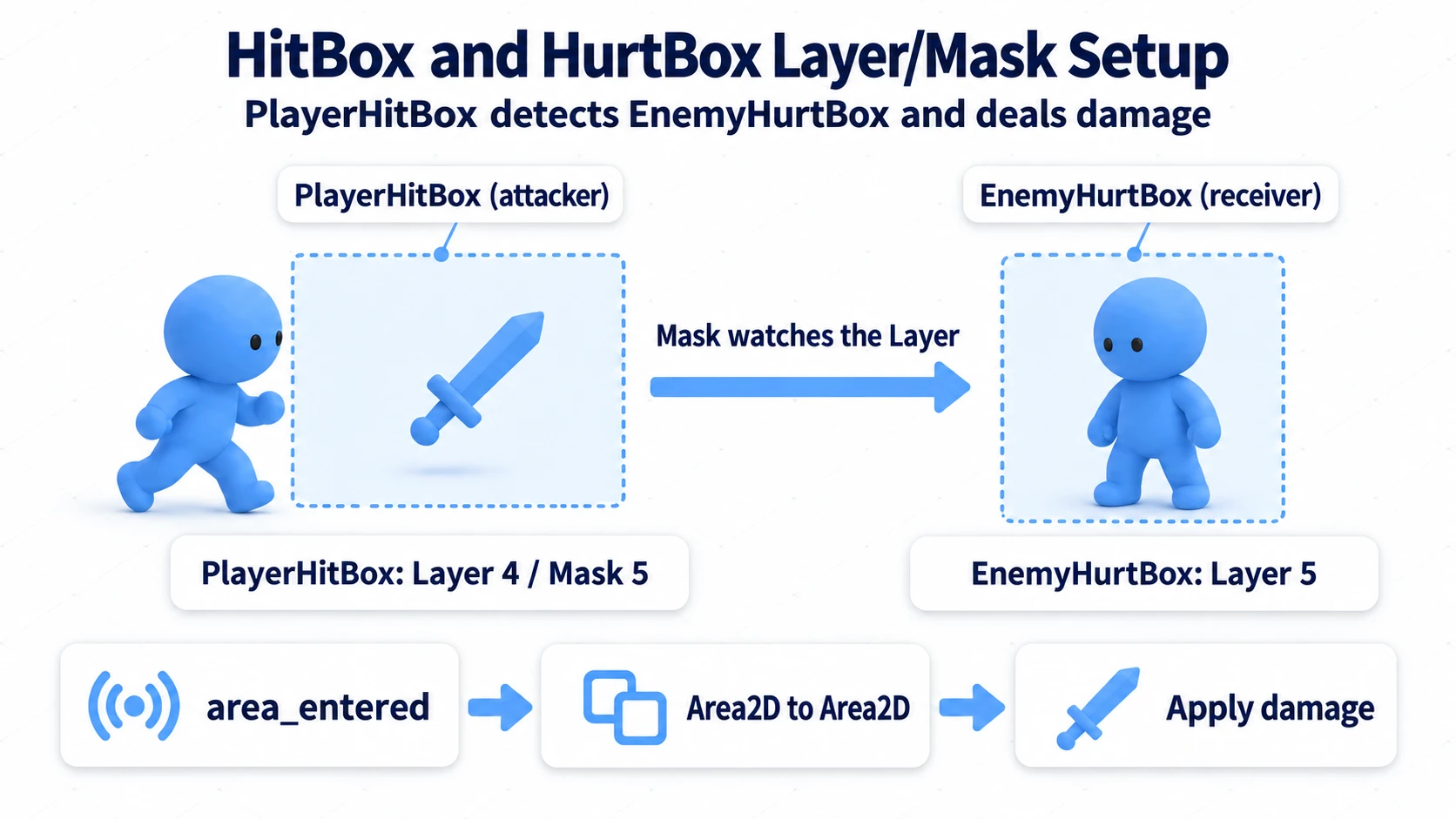
For the player's sword attack, structure it like this.
Player (CharacterBody2D)
├─ Sprite2D
├─ CollisionShape2D
└─ SwordHitBox (Area2D)
   └─ CollisionShape2D
On the enemy side, add an Area2D for receiving damage.
Enemy (CharacterBody2D)
├─ CollisionShape2D
└─ HurtBox (Area2D)
   └─ CollisionShape2D
Here's the setup.
| Node | Layer | Mask |
|---|---|---|
SwordHitBox | PlayerHitBox | EnemyHurtBox |
Enemy/HurtBox | EnemyHurtBox | Can be empty |
Since the side producing the attack looks for EnemyHurtBox, the enemy's mask can stay empty. Of course, if your design also needs the enemy to know "something entered my attack range," add PlayerHitBox to the enemy's mask too.
extends Area2D

@export var damage := 10

func _ready() -> void:
    # Attack hitboxes watch for Area2D overlaps, so use area_entered.
    area_entered.connect(_on_area_entered)
    # Check Disabled on the sword's CollisionShape2D in the editor (it's enabled only during a swing).

func enable_for_one_swing() -> void:
    # Disable the shape while not attacking so it doesn't keep connecting.
    $CollisionShape2D.disabled = false
    await get_tree().create_timer(0.12).timeout
    $CollisionShape2D.disabled = true

func _on_area_entered(area: Area2D) -> void:
    # After the layer/mask narrows the candidates, confirm the in-game role with a group.
    if not area.is_in_group("enemy_hurtbox"):
        return

    # Handing damage to the HurtBox keeps this working even if the enemy's structure changes.
    area.apply_damage(damage)
With this shape, the enemy's CharacterBody2D can focus on movement and wall collisions. The HurtBox owns the region that takes damage.
Say you want only a boss's head to be a weak point: put just the head's HurtBox in an enemy_weak_point group. To make a shield block only frontal attacks, put the shield's HurtBox on a separate layer, or vary the damage taken by group. Narrowing broadly with layers and masks, then expressing game rules with groups and methods, is a comfortable division of labor.
Example 3: ignoring enemy attacks during invincibility frames
Layers and masks can also be switched at runtime. A common case is the invincibility window right after taking damage.
The player's HurtBox normally detects EnemyHitBox, and stops detecting it while invincible.
extends Area2D

const LAYER_ENEMY_HITBOX := 6

var invincible := false

func start_invincible_time() -> void:
    if invincible:
        return

    invincible = true

    # While invincible, drop the enemy attack layer from the mask so attack areas aren't detected.
    set_collision_mask_value(LAYER_ENEMY_HITBOX, false)

    await get_tree().create_timer(1.0).timeout

    # Once invincibility ends, restore detection of enemy attacks.
    set_collision_mask_value(LAYER_ENEMY_HITBOX, true)
    invincible = false
Note what's being changed here: the mask on the player's HurtBox, not the player body's movement collision. That means you can leave movement behavior like "collide with walls" and "stand on the floor" untouched while temporarily ignoring damage detection only.
This assumes the player's HurtBox is the side that looks for enemy attacks and takes the damage. If, as in the design table above, the enemy's EnemyHitBox is the side that looks for PlayerHurtBox and deals the damage, removing the mask on the HurtBox won't stop the hits. In that case, remove PlayerHurtBox (layer 7) from the HurtBox's layer so it can't be found (set_collision_layer_value(7, false)).
Changing the body's collision mask wholesale can produce side effects: passing through walls while invincible, being unable to pick up items, and so on. Think about what exactly you want to ignore, and switch only the Area2D responsible for that detection.
Setting layers and masks from code
Setting these in the Inspector is generally more readable. Still, there are cases where you want to initialize from script, like spawned bullets and attack hitboxes.
Godot's set_collision_layer_value() and set_collision_mask_value() let you specify layer numbers 1 through 32 directly.
extends Area2D

const LAYER_WORLD := 1
const LAYER_PLAYER := 2
const LAYER_ENEMY := 3

func setup_as_player_bullet() -> void:
    # Clear the existing settings, then add only what the bullet needs.
    collision_layer = 0
    collision_mask = 0

    # This bullet counts as belonging to the player's side.
    set_collision_layer_value(LAYER_PLAYER, true)

    # The bullet only looks for enemies and walls. It ignores allies and items.
    set_collision_mask_value(LAYER_ENEMY, true)
    set_collision_mask_value(LAYER_WORLD, true)
Internally, collision_layer and collision_mask are bitmask integers. If you're comfortable with bit operations you can write things like 1 << 0, but while you're starting out, specifying by number as in set_collision_mask_value(3, true) is harder to misread.
That said, a wall of bare numbers becomes unreadable later. Either name them as in the example above with const LAYER_ENEMY := 3, or configure things primarily in the Inspector.
Checklist for when nothing responds
Layer and mask problems are hard to diagnose by eye. When "the signal never arrives," "the attack doesn't land," or "the item can't be picked up," go through these in order.
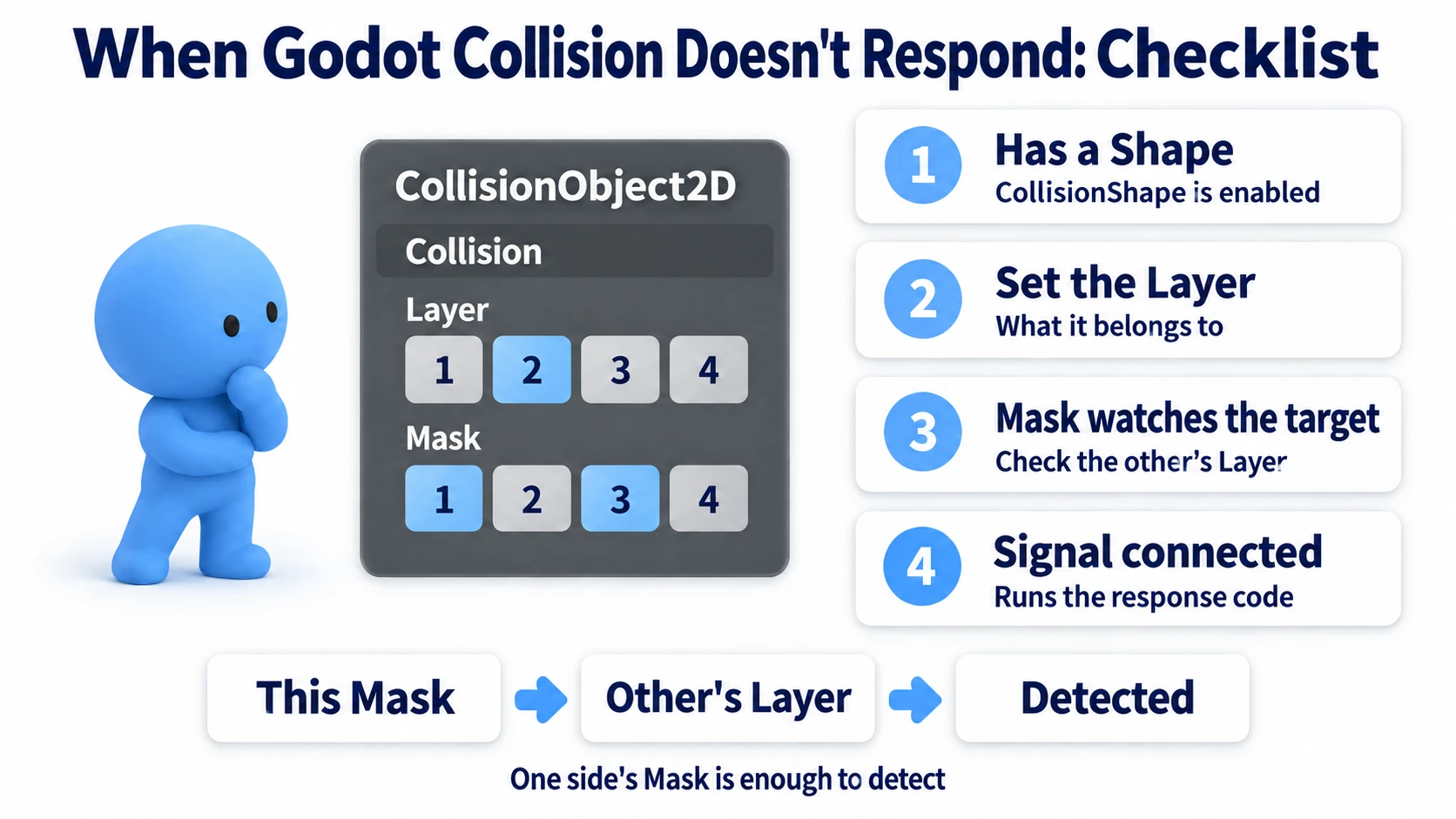
| Check | Where to look | Common cause |
|---|---|---|
| Is there a shape? | Child nodes | No CollisionShape2D, or disabled is on |
| Is the layer right? | The other object | The other object isn't on the layer you assumed |
| Does the mask see it? | The detecting side | The other object's layer isn't checked in the mask |
| Is the signal connected? | Signals dock / code | Mixing up body_entered and area_entered |
| Is the handler code right? | Script | A typo in the group name or the method name |
Mixing up body_entered and area_entered is especially common.
| What you want to detect | Signal to use |
|---|---|
CharacterBody2D, RigidBody2D, StaticBody2D | body_entered |
Area2D | area_entered |
If an item detects the player's body, that's body_entered. If an attack HitBox detects an enemy HurtBox, both are Area2D nodes, so it's area_entered.
Also, even with the layers and masks correct, a misspelled name in is_in_group("player") inside the signal handler will stop everything. Check the code that runs at the end, not just the physics settings.
Bonus: Good to know for later
Layers and masks are the physics gate, groups confirm game rules
Layers and masks are how you tell the physics engine "only test these combinations." Narrowing candidates here cuts out unnecessary tests and signals.
On the other hand, trying to express every in-game meaning purely through layers will exhaust them fast. You might have slimes, goblins, bosses, and summons; putting each on its own layer quickly becomes unmanageable.
In that case, group them all onto the same EnemyHurtBox layer physically, and check groups or properties like enemy, boss, or flying_enemy from script.
func _on_area_entered(area: Area2D) -> void:
    if not area.is_in_group("enemy_hurtbox"):
        return

    # Game rules like "only bosses take reduced damage" belong in code.
    var final_damage := float(damage)
    if area.is_in_group("boss"):
        final_damage *= 0.5

    area.apply_damage(final_damage)
Layers and masks decide "is this even a physics candidate." Groups decide "how does the game treat it." Split it that way and your layer design stays simple.
Don't split layers too finely
Early on, it's tempting to add a layer for every visible kind of thing: players, enemies, bullets, items, walls. But the more layers you have, the more complex the settings table gets.
The test is: "do I want to look for a physically different set of objects?"
If red slimes and blue slimes both take player attacks the same way, one EnemyHurtBox is enough. Handle color and elemental differences with groups or script properties.
Player attacks and enemy attacks, on the other hand, are worth separating. You don't want player attacks hitting the player or enemy attacks hitting enemies, so the detection targets genuinely differ.
When in doubt, write an interaction table
If your layer/mask setup gets confusing, write out a table first.
What reacts?       To what?
PlayerHitBox  ->   EnemyHurtBox
EnemyHitBox   ->   PlayerHurtBox
ItemArea      ->   Player
EnemySight    ->   Player
The left side of each arrow is mostly the side that holds a mask. The right side is what gets seen as a layer. Any setting you can't explain as one of these sentences is very likely to become a bug later.
Summary
Collision Layer is "what am I." Collision Mask is "what am I looking for."
With these two, you can organize the relationships between players, enemies, walls, attack hitboxes, and item pickups right in the Inspector. For combat in particular, separating the body, the HitBox, and the HurtBox keeps movement and damage handling from getting tangled.
When something doesn't respond, check the shape, the layer, the mask, the signal, and the group name, in that order. Layers and masks look like a fiddly setting, but once you build the interaction table before configuring anything, they become quite predictable.
Further Reading