"Where did I put that script again?" Scrolling the FileSystem dock from top to bottom hunting for a file is some of the most wasted time in game development. It's harmless while the project is small, but the cost of a messy layout grows with every scene and asset you add.
This article covers folder structures for keeping a Godot project tidy, Godot's own naming conventions, the difference between res:// and user://, and how to manage the project with git. Good organization doesn't just speed you up today, it helps your team and your future self.
What You'll Learn
- Folder structures: two approaches, by type and by feature
- Godot's naming conventions (
snake_casefor files,PascalCasefor nodes)- The difference between
res://anduser://(whether you can write to them)- Managing the project with git (excluding
.godot)
Tested with: Godot 4.7
Folder Structure: By Type vs By Feature
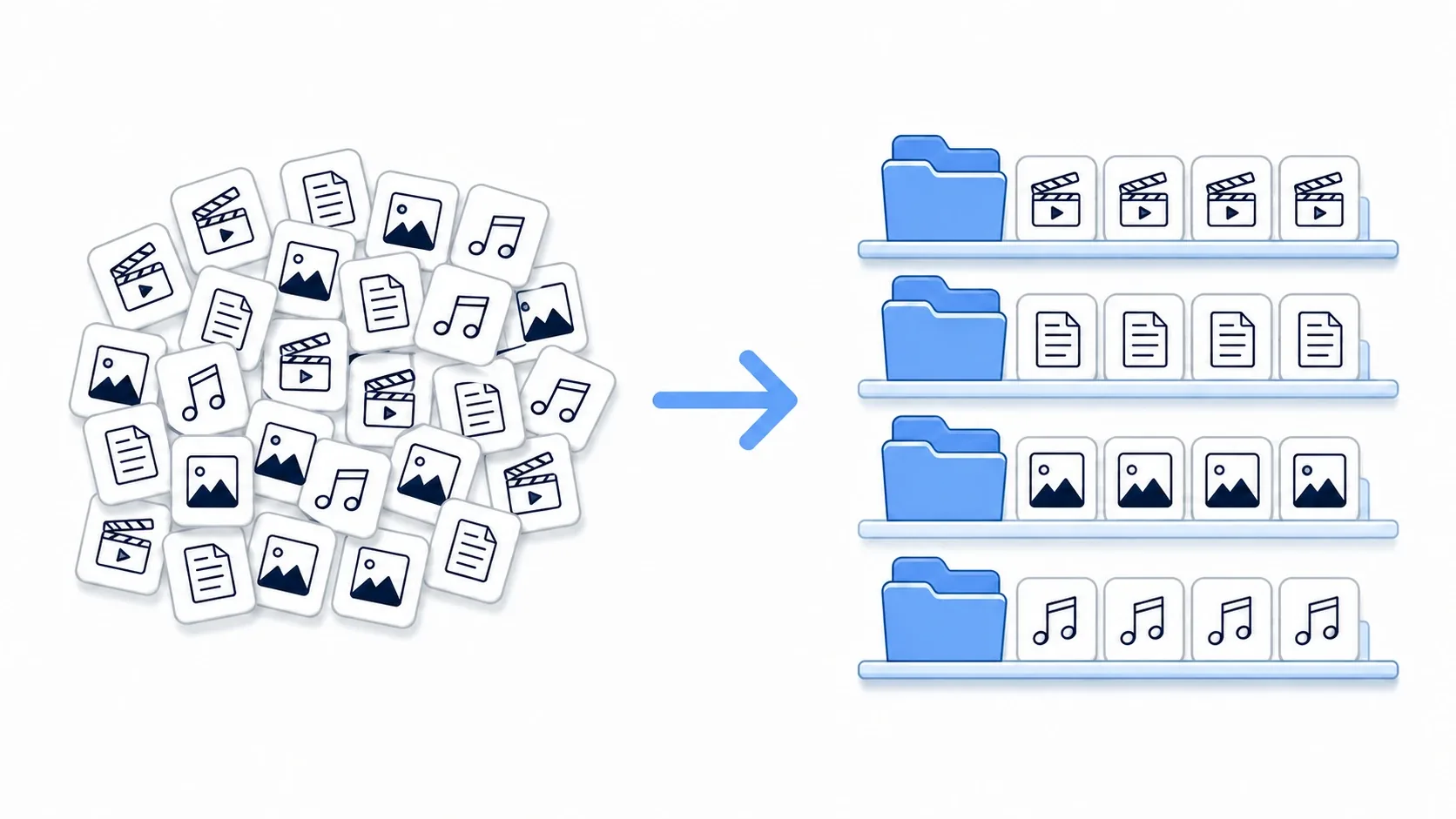
The worst thing you can do is dump every file directly into res://. Scenes, scripts, images, and audio all pile up together, and finding a single file becomes a chore.
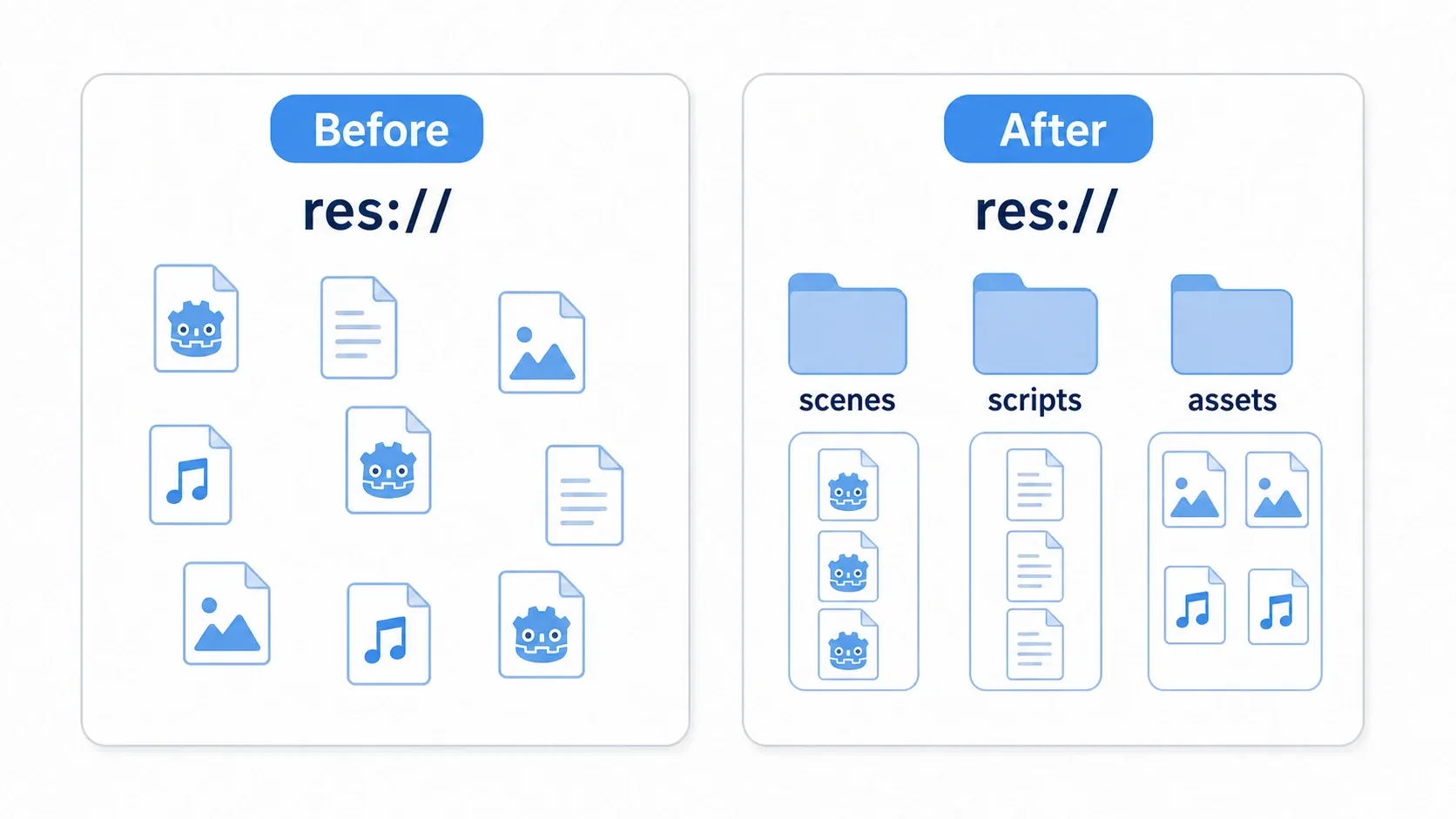
There are two broad approaches to organizing them.
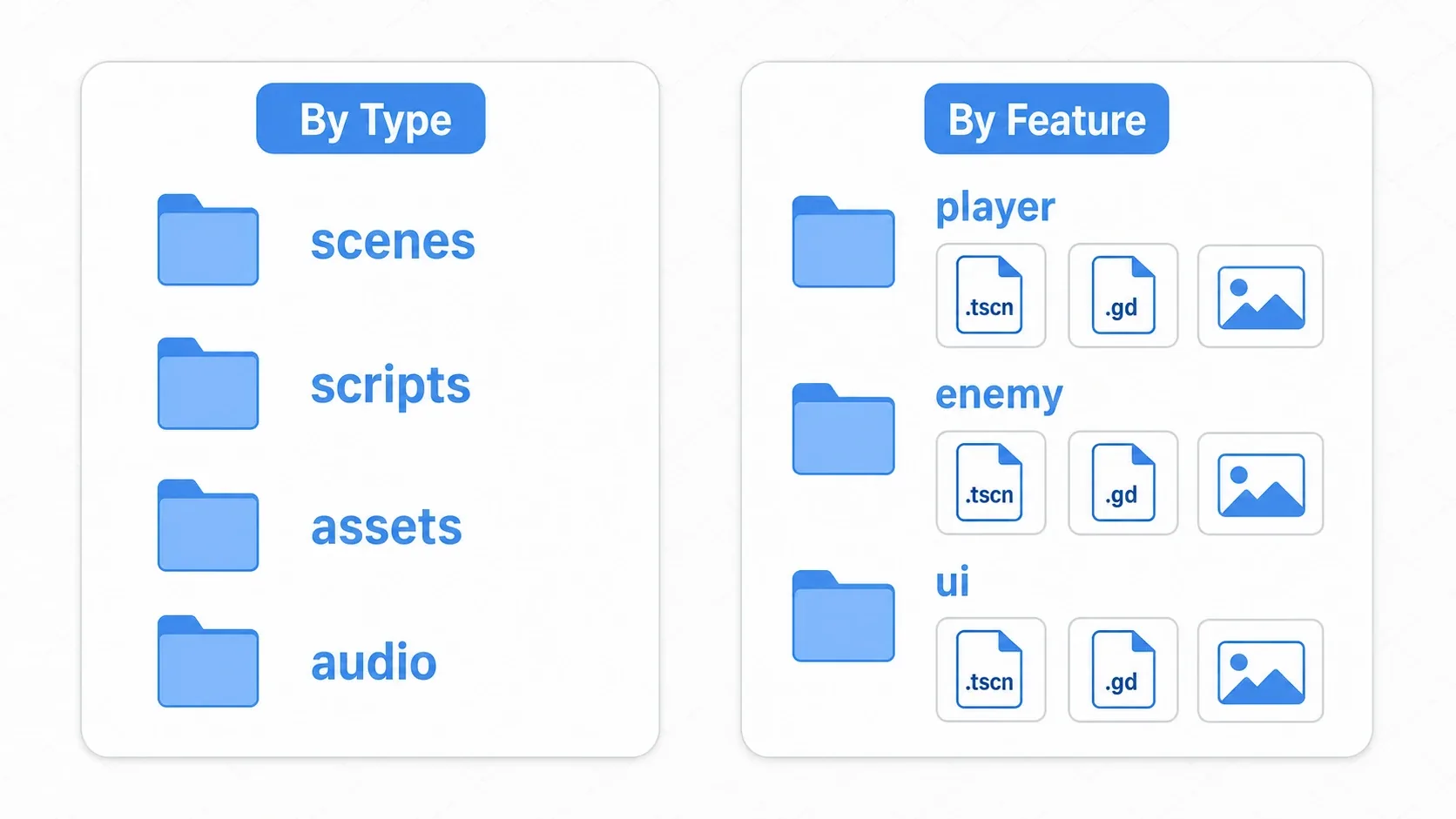
By type groups files by what kind of file they are. It's the go-to layout for small and medium projects, and it's easy to grasp.
res://
├── scenes/      # Scenes (.tscn)
├── scripts/     # Scripts (.gd)
├── assets/      # Images and sprites
│   ├── sprites/
│   └── audio/
└── autoload/    # Global singletons
By feature groups everything related to one feature in one place: "anything about the player lives here." This starts to pay off on medium and large projects.
res://
├── player/      # player.tscn / player.gd / player.png together
├── enemy/
├── ui/
└── levels/
Godot is easiest to work with when scenes (.tscn) and scripts (.gd) sit close together, so it pairs especially well with the feature-based layout. When you want to fix the player, opening player/ gives you the scene, the script, and the assets at once. Neither approach is objectively correct. The recommendation is to start with the type-based layout and shift toward feature-based folders as the project grows.
Hands-On: Organizing a Small Game by Feature
Shooters, action games, roguelikes: whatever the genre, a small game breaks down into roughly five features, namely the player, enemies, bullets, UI, and stages. Organized into feature folders, it looks like this.
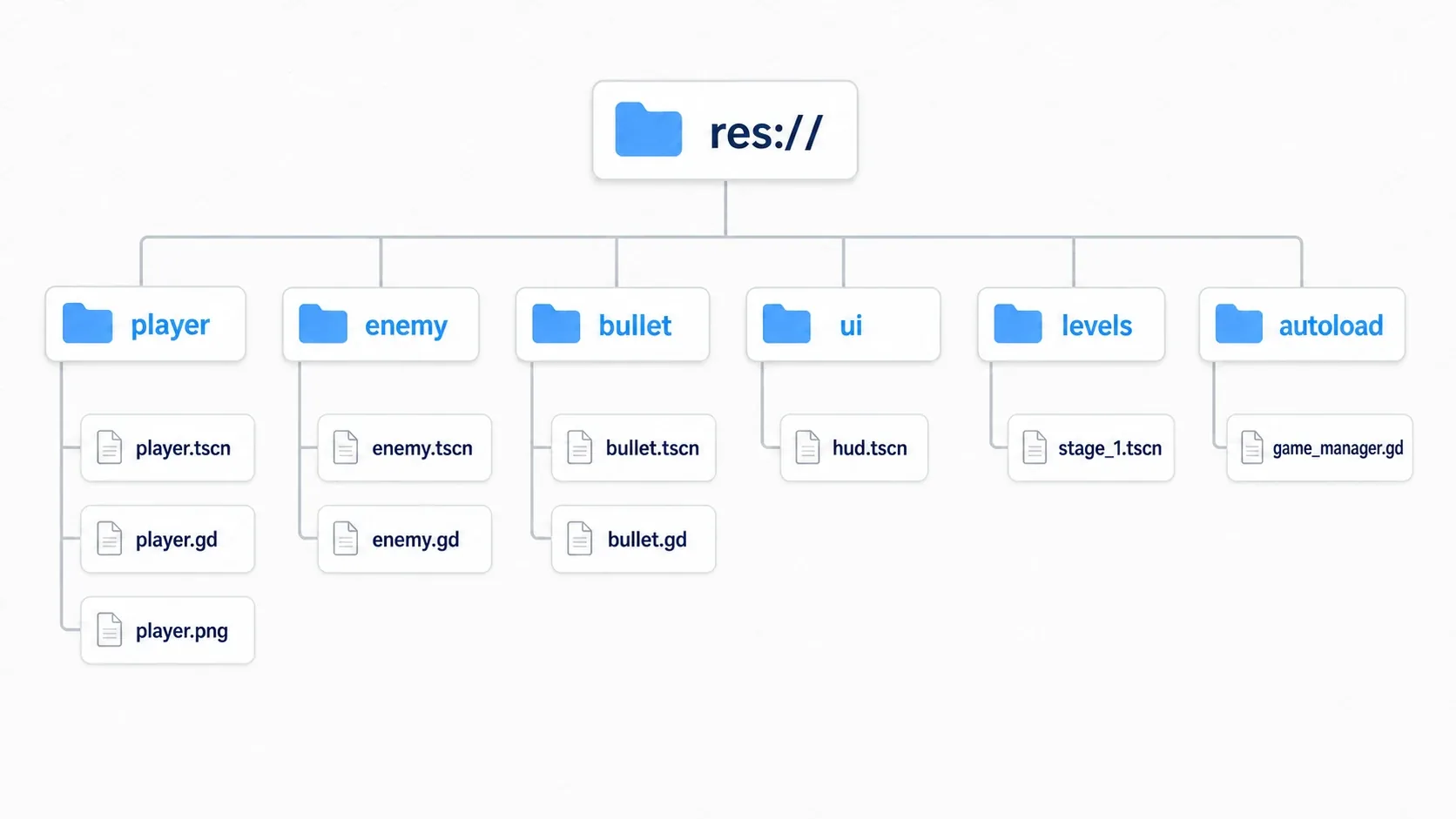
res://
├── player/
│   ├── player.tscn
│   ├── player.gd
│   └── player.png
├── enemy/
│   ├── enemy.tscn
│   └── enemy.gd
├── bullet/
│   ├── bullet.tscn
│   └── bullet.gd
├── ui/
│   └── hud.tscn
├── levels/
│   └── stage_1.tscn
└── autoload/
    └── game_manager.gd
There are two points worth noting.
- One feature per folder means you can carry it whole: copy the
player/folder into another project and the player comes along intact. When features are independent, reusing them and deleting them are both easy. - Isolate global things in
autoload/: putting Autoload scripts (GameManagerand friends) that every scene uses in their own folder makes it obvious where the project-wide pieces live.
Godot's Naming Conventions
Consistent naming makes both your code and your files much easier to read. Godot has an official style guide that prescribes a convention for each kind of name.
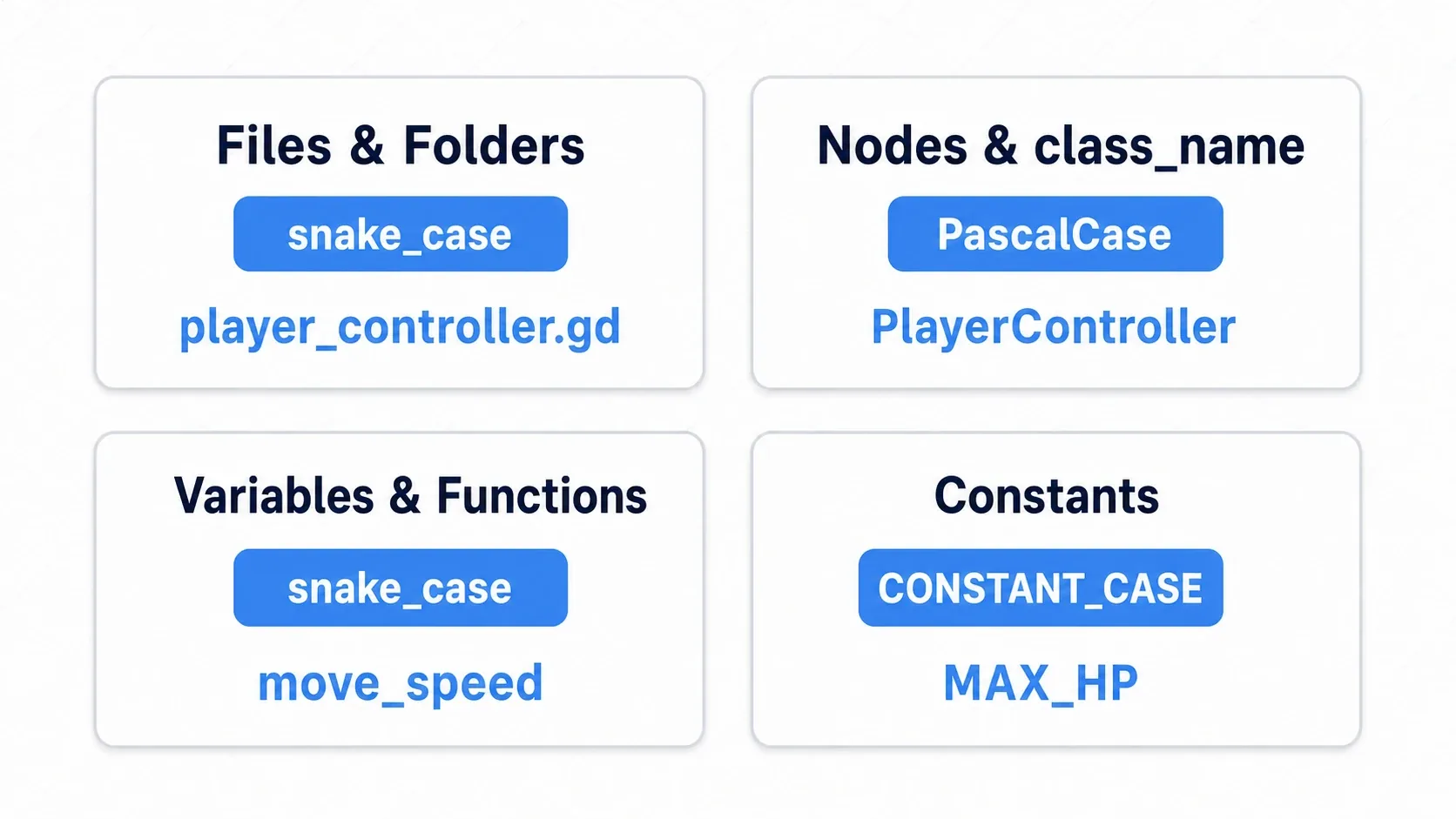
| Target | Convention | Example |
|---|---|---|
| Files and folders | snake_case | player_controller.gd, main_menu/ |
Node names and class_name | PascalCase | PlayerController, Enemy |
| Variables and functions | snake_case | move_speed, take_damage() |
| Constants | CONSTANT_CASE | MAX_HP, SPEED |
The most important one is keeping file names in snake_case, all lowercase. An exported game treats file name casing strictly, even on Windows. If your code says Player.png but the actual file is player.png, you get the classic accident where everything works in the editor but fails to load after export. Sticking to lowercase from the start keeps you safe.
res:// vs user://
Godot has two kinds of paths, and the difference matters for organization too.
res://: where your project files live. Scenes and assets go here. Note that it becomes read-only after export, so you cannot write to it.user://: a writable folder provided per OS. Save data and config files go here.
Remembering "assets go in res://, anything written during play goes in user://" is enough. Trying to write save data to res:// is a classic stumble: it works in the editor but fails to save in the shipped build. The save/load system article covers the details.
Managing the Project With git
If you version-control the project with Git, exclude the .godot/ folder. It holds auto-generated data like the import cache, so there's no reason to keep it in the repository (it regenerates when you open the project on another machine).
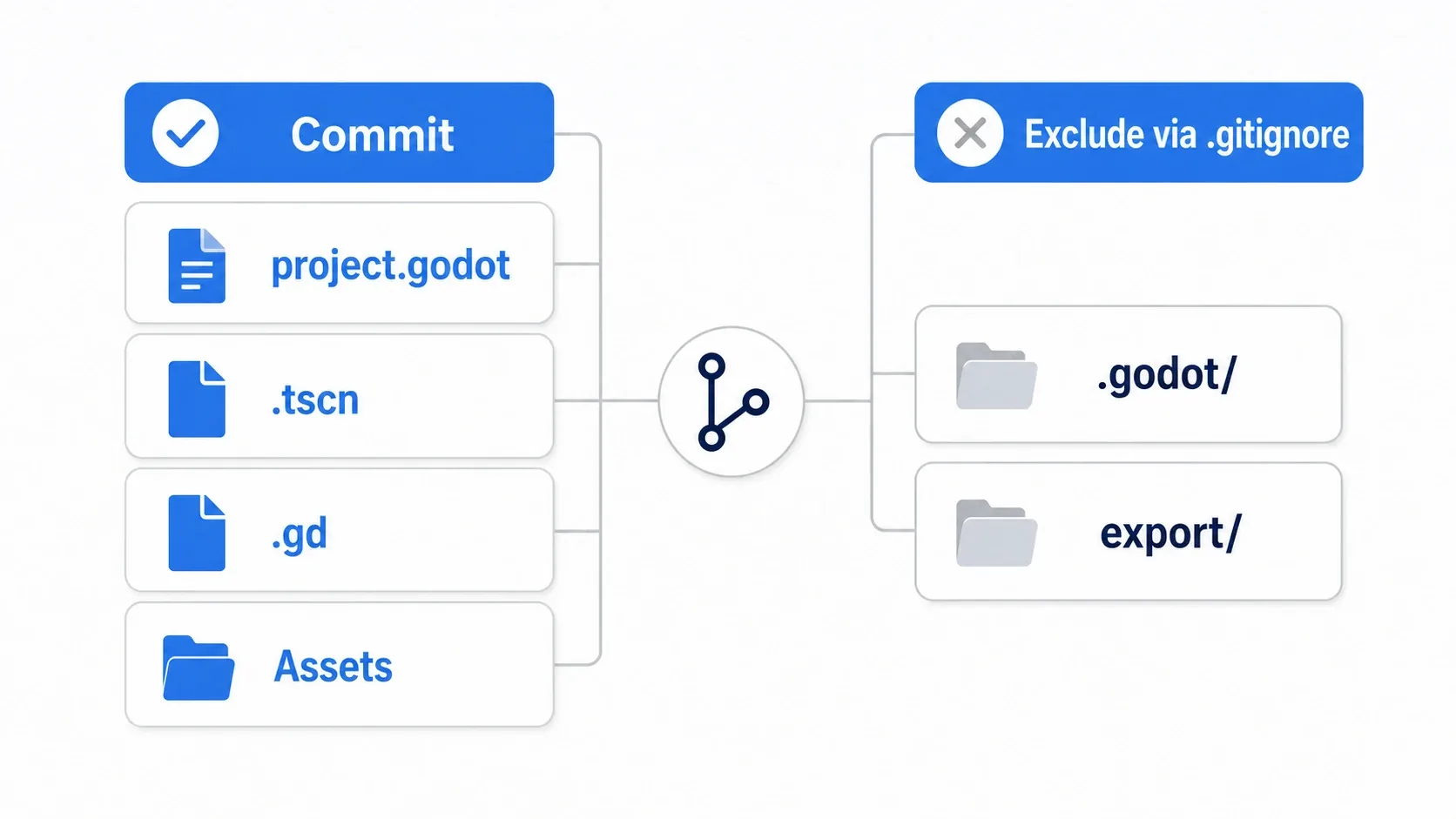
Put the following in the .gitignore at the project root.
# Cache generated by Godot
.godot/

# Export output
export/
*.exe
Conversely, always commit the files you made yourself, including project.godot (project settings), .tscn, and .gd. Since .tscn is a text format, Git can show you meaningful diffs. Also commit the .import files next to your assets (their import settings) and the .uid files next to your scripts (the IDs that identify them).
Bonus: Good to Know for Later
- Move folders from inside Godot: when you move a file, drag it in the FileSystem dock rather than in your OS file explorer. Godot then updates the reference paths inside your scenes automatically and you avoid broken links. Paths written as strings in scripts (such as
preload("res://...")) don't follow along, though, so fix those yourself. If you do move files in your OS file explorer, move the.importand.uidfiles next to them too. - Use
_to pin a folder to the top: prefixing a folder name with_, as in_experimental/, floats it to the top of the list. Handy for isolating prototypes and third-party assets. - Splitting scenes is a separate topic: this article is about organizing files. Designing the scenes themselves, meaning what deserves to be its own scene, belongs to Scenes and Nodes in Godot.
Summary
- Don't put everything directly under
res://. Split it by type or by feature (Godot pairs well with feature-based layouts) - Use
snake_casefor files and folders andPascalCasefor nodes andclass_name. Lowercase file names in particular prevent export accidents res://holds assets (read-only after shipping);user://holds saves and anything else you write- In Git, exclude
.godot/and commit the files you authored
A clean project surfaces bugs sooner and speeds up new features. Start the habit with your very first folder.
Further Reading
- Scenes and Nodes in Godot - A Complete Guide to the Basics: designing what belongs in a scene
- Managing Data Across Scenes With Autoload: where global things belong
- Implementing a Save/Load System: writing to
user:// - Building for Each Platform: case sensitivity and exporting
- Godot and Git Basics: reading changed values as diffs and experimenting on branches
- Godot Editor Basics: what the FileSystem dock and the other three docks do