When the player takes damage, you want to drop the HP bar, play a sound effect, shake the screen, and check for game over. If you've just started with Godot, it's tempting to reach for get_node() and call every one of those directly.
That works for a small prototype. But it breaks the moment you change your UI hierarchy, and it stops you from reusing the player in another scene. This article covers how to use Godot's signals to switch to a design that only announces "this event happened."
What You'll Learn
- The roles of
signal,connect(), andemit()- How to think about decoupling UI, sound, and game flow from the player
- When to connect in the editor and when to connect in code
- How to decide between a direct call and a signal
Tested with: Godot 4.7
Signals Are "Something Happened" Notifications
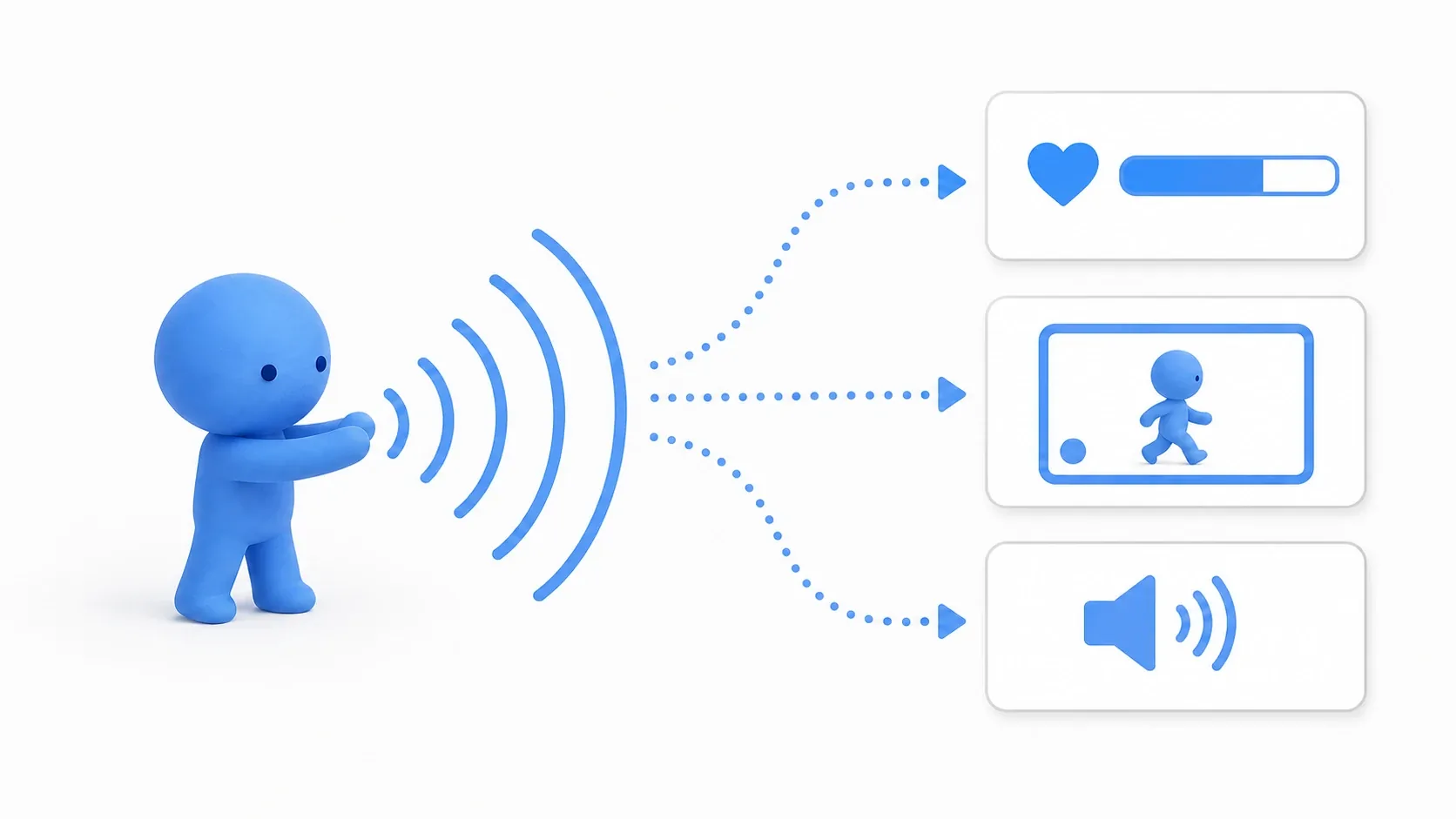
A signal is how a node announces to the outside world that something happened. The sender has no idea who's listening. Only the parties that want to hear it connect to the signal.
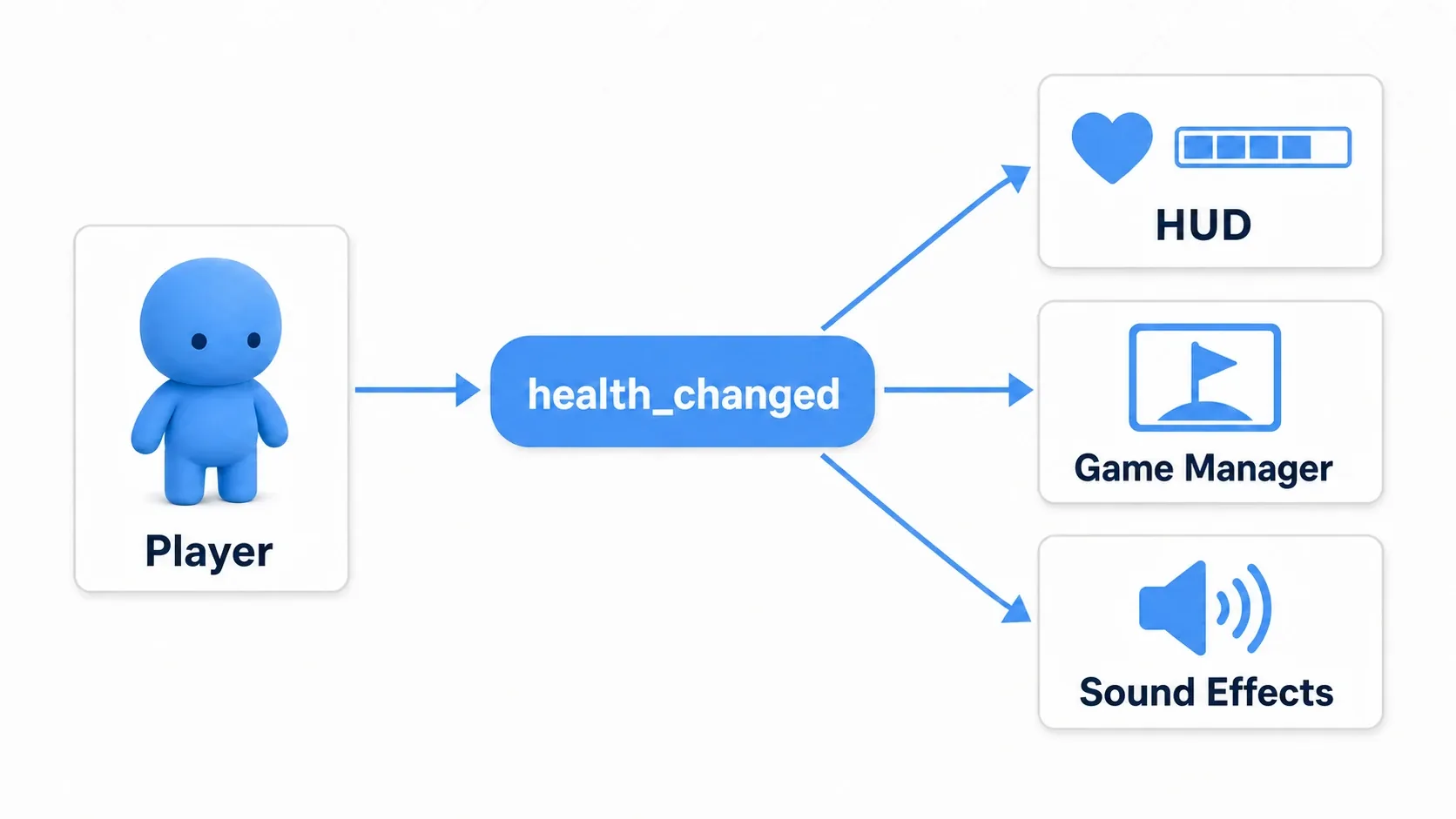
For example, Player only announces "health changed." HUD updates the health bar, Sound plays a damage sound, and GameManager checks for death. Player doesn't need to know any of those node names or where they sit in the scene tree.
Keeping the sender and the receivers separated like this is called loose coupling. In other words, changing one side doesn't ripple into the other.
The benefit is clearest when you start from the bad version.
# Player.gd
# Bad: Player knows where the UI, the sound, and the scene transition all live
func take_damage(amount: int) -> void:
    current_health = max(0, current_health - amount)

    get_node("/root/Main/HUD/HealthBar").value = current_health
    get_node("/root/Main/SoundManager").play_damage()

    if current_health <= 0:
        get_node("/root/Main/GameManager").show_game_over()
This code breaks the instant your node hierarchy shifts even slightly. And if you try to reuse Player in a boss fight, a tutorial, or a minigame, every one of those scenes now needs the same HUD and SoundManager.
Where Do You Use Them in Game Development?
Signals fit situations where "one event gets handled by several places, each with its own responsibility."
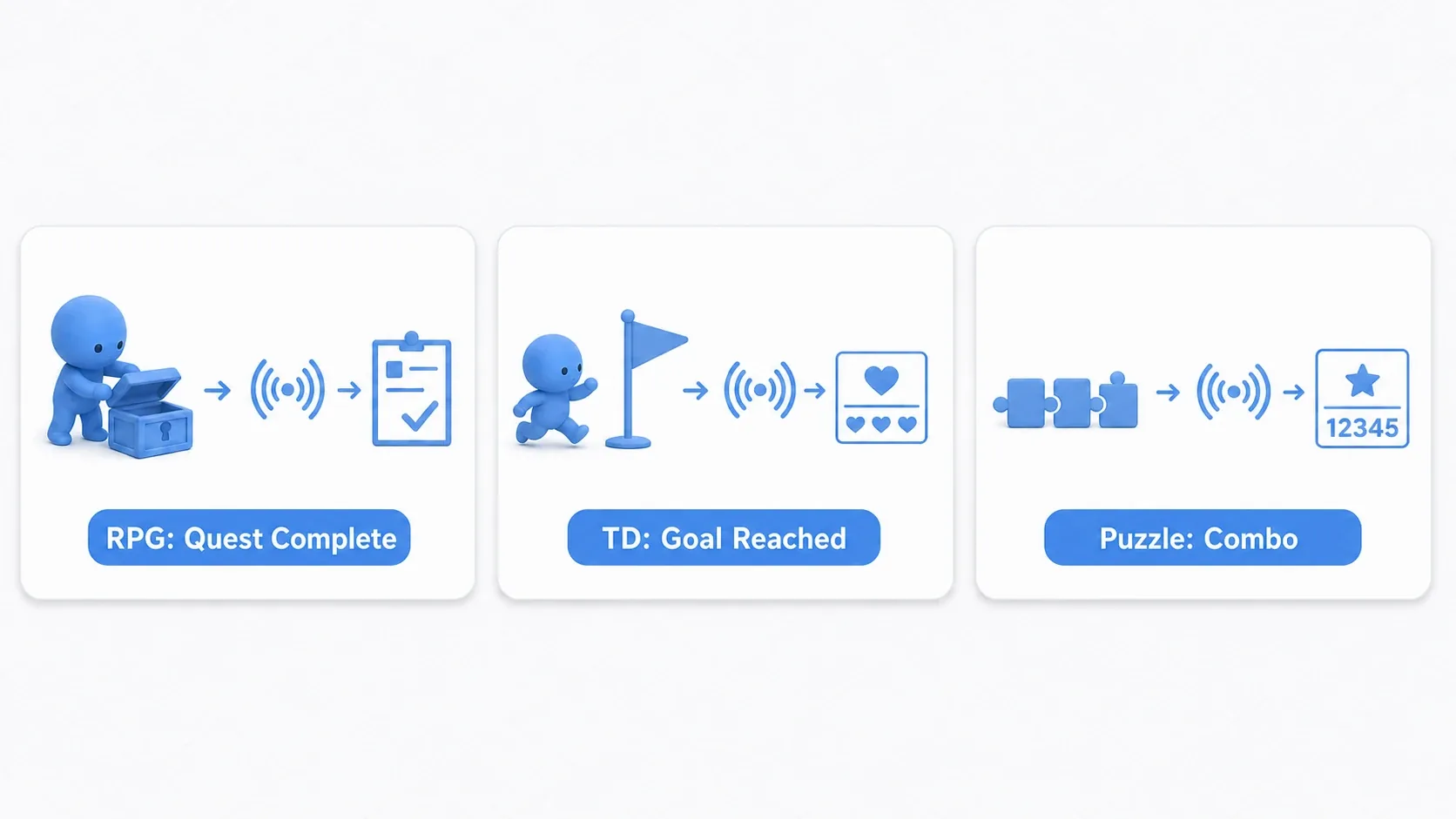
- RPG: opening a treasure chest emits
quest_done, and the quest log, reward UI, and achievement system all react. - Tower defense: an enemy reaching the goal emits
goal_reached, and the life display, sound effects, and wave manager all react. - Puzzle: completing a combo emits
combo, and the score, effects, and time bonus all react.
The point is that the chest, the enemy, and the puzzle board don't need to know about all their listeners. Add an achievement system later and you don't touch the sender's code; you just connect one more receiver.
The Basic Shape of a Signal
Signals are easiest to reason about as three pieces.
| Piece | Role | Example |
|---|---|---|
signal | Defines the name of the notification | signal health_changed(current, max) |
connect() | Registers a function to receive the notification | player.health_changed.connect(...) |
emit() | Sends the notification | health_changed.emit(current_health, max_health) |
Here's the minimal example.
# Player.gd
extends CharacterBody2D
class_name Player

signal health_changed(current_health: int, max_health: int)

@export var max_health: int = 100
var current_health: int

func _ready() -> void:
    # The max health set in the Inspector is already in place by _ready()
    current_health = max_health

func take_damage(amount: int) -> void:
    current_health = max(0, current_health - amount)

    # Announce only the fact that health changed
    health_changed.emit(current_health, max_health)
signal health_changed(...) declares "this node can emit health-change notifications." emit() actually sends one.
On the receiving side, match the connected function's parameters to the signal's.
# Hud.gd
extends CanvasLayer

@onready var health_bar: TextureProgressBar = $HealthBar

func _on_player_health_changed(current_health: int, max_health: int) -> void:
    health_bar.max_value = max_health
    health_bar.value = current_health
Hands-On: Turning Damage Notifications into Signals
Let's take the player from an action game as our subject. When damage lands, the health bar, sound effects, and game-over handling each react on their own.
First, the sender, Player, manages nothing but its own health.
# Player.gd
extends CharacterBody2D
class_name Player

signal health_changed(current_health: int, max_health: int)
signal died

@export var max_health: int = 100
var current_health: int

func _ready() -> void:
    current_health = max_health
    health_changed.emit(current_health, max_health)

func take_damage(amount: int) -> void:
    if current_health <= 0:
        return

    current_health = max(0, current_health - amount)

    # Knows nothing about UI or sound; only announces the health change
    health_changed.emit(current_health, max_health)

    if current_health == 0:
        # Leave the reaction to death up to the receivers
        died.emit()
Player never calls HUD, Sound, or GameManager directly. It only announces the facts: health changed, and the player died.
On the receiving side, HUD is responsible for nothing but displaying the health bar. For a gauge where lost HP catches up late, see HP Bar Basics.
# Hud.gd
extends CanvasLayer
class_name Hud

@onready var health_bar: TextureProgressBar = $HealthBar

func setup(player: Player) -> void:
    # The HUD receives health-change notifications and updates only its own display
    player.health_changed.connect(_on_player_health_changed)

func _on_player_health_changed(current_health: int, max_health: int) -> void:
    health_bar.max_value = max_health
    health_bar.value = current_health
GameManager, which handles game flow, is responsible only for the scene transition on death.
# GameManager.gd
extends Node

@export var player: Player
@export var hud: Hud

func _ready() -> void:
    hud.setup(player)

    # The game-flow side only listens for the death notification
    player.died.connect(_on_player_died)

func _on_player_died() -> void:
    get_tree().change_scene_to_file("res://scenes/game_over.tscn")
With this structure, adding a DamageFlash or an AchievementTracker later requires no changes to Player.gd. You add one more receiver and call player.died.connect(...).
Editor Connections vs. Code Connections
Godot lets you connect signals from the editor or from GDScript.
When editor connections work well
For UI that's fixed inside a scene, like Button.pressed, an editor connection is the clearest option.
- Select the
Buttonin the scene tree. - Pick
pressed()in the Signals dock, the tab next to the Inspector on the right. - Choose the target node and function name.
# TitleMenu.gd
func _on_start_button_pressed() -> void:
    get_tree().change_scene_to_file("res://scenes/stage_01.tscn")
For UI buttons, checkboxes, and menu items, where the relationship is fixed inside the scene, editor connections are plenty.
When code connections work well
Nodes created at runtime, such as enemies, bullets, items, and popup UI, are a better fit for code connections.
# WaveSpawner.gd
extends Node

const ENEMY_SCENE = preload("res://scenes/enemy.tscn")

signal wave_enemy_defeated(score: int)

func spawn_enemy() -> void:
    var enemy = ENEMY_SCENE.instantiate()
    add_child(enemy)

    # Enemies created at runtime get connected right when they're spawned
    enemy.defeated.connect(_on_enemy_defeated)

func _on_enemy_defeated(score: int) -> void:
    # Pass the defeat notification further up, outside WaveSpawner
    wave_enemy_defeated.emit(score)
When you don't know how many will exist or when, connecting at spawn time is the natural approach.
Signals vs. Direct Calls
Signals are useful, but turning everything into a signal makes code harder to read, not easier. The rule is simple.
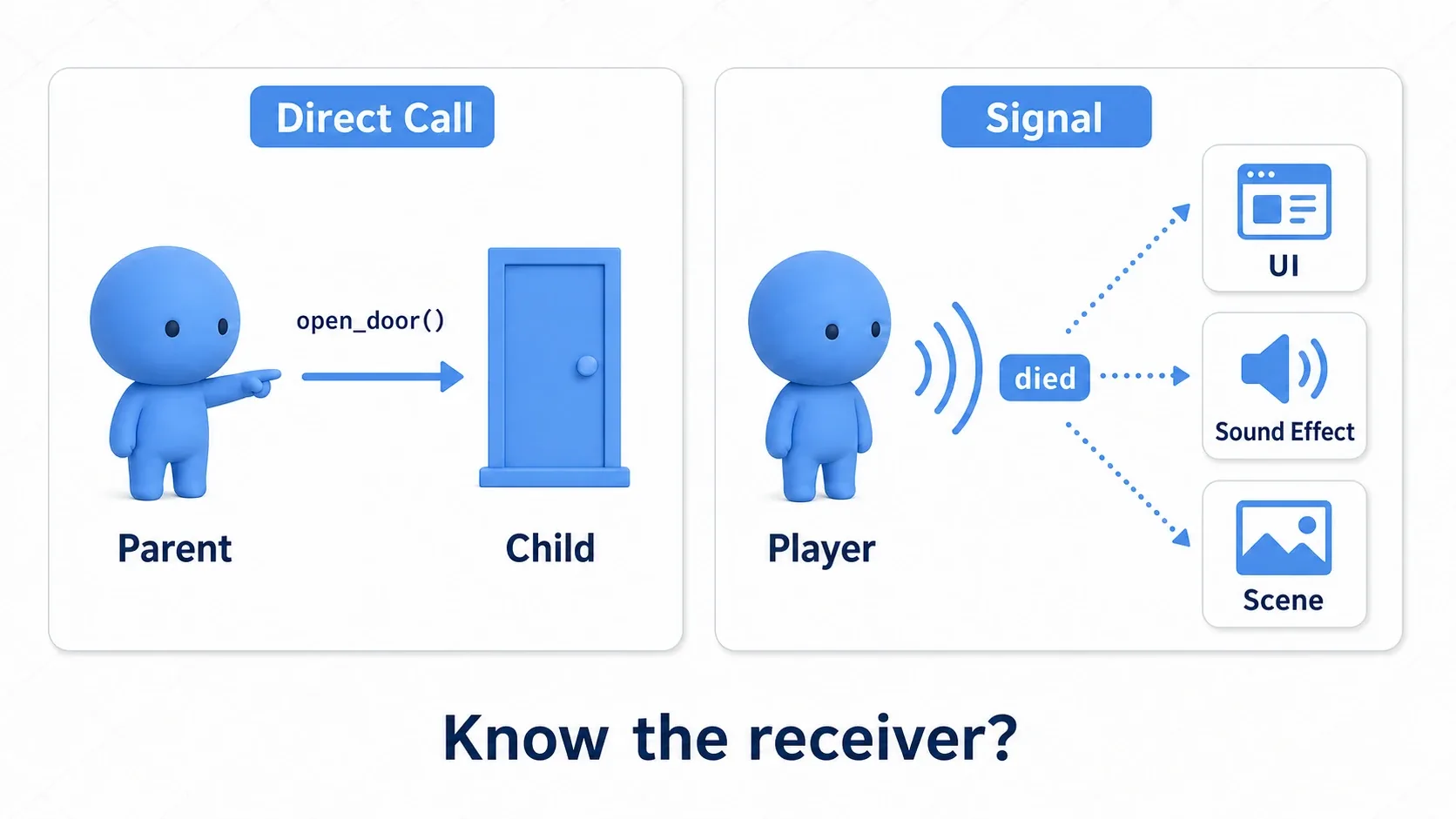
Ask yourself: "should this code know who it's talking to?"
- Call directly: a parent opening its child door, an inventory UI updating its own slots, a weapon spawning its own bullets.
- Use a signal: the player died, the score went up, an enemy reached the goal, a quest completed.
A direct call is an order. A signal is a notification.
If a DoorController opens a specific Door, door.open() reads better. On the other hand, when the player dies and starts having to know about the UI, sound, camera, scene transition, and achievements, that's your cue to switch to signals. If direct calls pile up until nodes reference each other in a loop, how to untangle that is in Managing Dependencies and Avoiding Cyclic References.
Common Pitfalls
It's connected but never called
First, check that emit() is actually running.
func take_damage(amount: int) -> void:
    current_health = max(0, current_health - amount)

    # Log first to confirm the emit is happening
    print_debug("emit health_changed: ", current_health)
    health_changed.emit(current_health, max_health)
If emit() fires but the receiver still isn't called, check the target node reference, the function name, and the number of parameters.
It's called twice
Connecting the same function twice doesn't add a second connection; the second connect() is an error (already connected). When a single emit() calls something twice, it's almost always two different functions connected separately, one in the editor and one in code. When connecting in code, check whether the connection already exists first, which also avoids that error.
func bind_player(player: Player) -> void:
    # Don't register the same function twice if it's already connected
    if not player.health_changed.is_connected(_on_player_health_changed):
        player.health_changed.connect(_on_player_health_changed)
Forgetting to disconnect from long-lived nodes
Connections contained entirely within a normal scene are usually fine, since they go away with the node. But when you connect to something that lives for the whole game, like an autoload, consider calling disconnect() when the short-lived UI side disappears.
# PauseMenu.gd
func _ready() -> void:
    GameEvents.pause_changed.connect(_on_pause_changed)

func _exit_tree() -> void:
    # Disconnect from long-lived autoloads when the UI goes away
    if GameEvents.pause_changed.is_connected(_on_pause_changed):
        GameEvents.pause_changed.disconnect(_on_pause_changed)
Bonus: When to Use a Signal Bus
Once you're comfortable with signals, you'll start wanting to fire events from anywhere. The candidate for that is a signal bus: an autoload that holds nothing but signals.
# GameEvents.gd (registered as an autoload)
extends Node

signal coins_changed(total: int)
signal achievement_unlocked(achievement_id: String)
signal pause_changed(is_paused: bool)
This is handy, but you don't need to route everything through a signal bus from day one. Regular signals are plenty for notifications between nearby nodes. Reserve the bus for notifications that cross scenes or that several independent systems listen to; that keeps it manageable.
The thinking behind autoloads themselves is covered in Managing Data Across Scenes with Autoload.
Summary
Signals are the fundamental way to connect nodes cleanly in Godot. They're especially strong when you want to tell several listeners about a state change.
- Define the notification name with
signal. - Register the receiving function with
connect(). - Announce that something happened with
emit(). - Call directly when you know who you're talking to and want to give an order.
- Use a signal when you want to notify without knowing who's listening.
When you're unsure, ask: "is this an order, or a notification?" Orders mean direct calls; notifications mean signals. Just internalizing that split makes your Godot scene structure far more resilient.
Good next reads are Scenes and Nodes: The Basics, which covers how to split scenes up, and await and Coroutine Basics, which covers how to write code that waits.