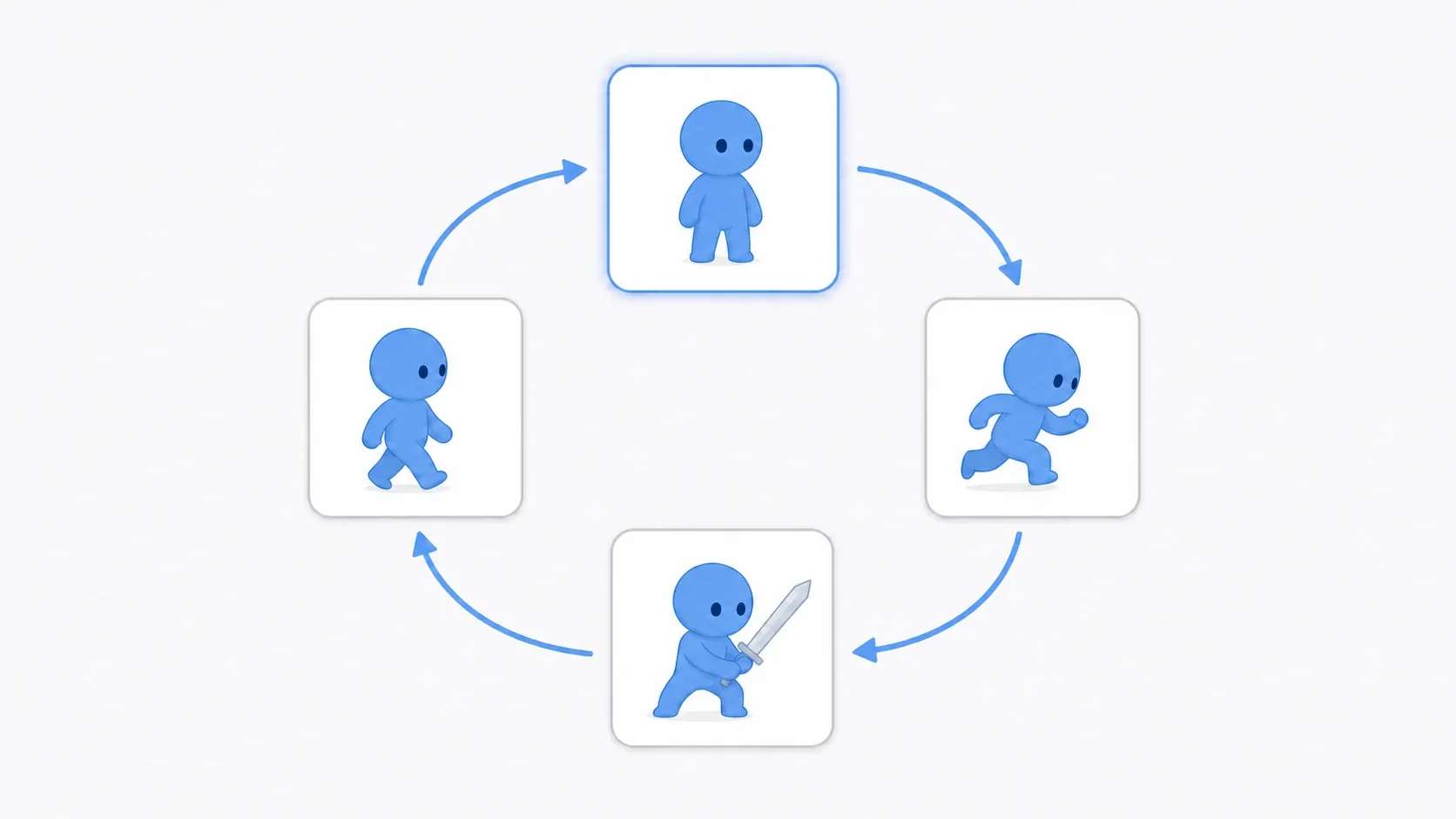
You clear a stage, move to the next scene, and your score is back to 0. You return to town and the chest you just opened is closed again. You want the same volume setting on the title screen and in gameplay.
Autoload is the tool for handling information you want to survive scene changes. It's convenient, but if you dump everything into it you end up with a giant pile of global variables. This article walks through where Autoload fits and where to stop, using real game implementation examples.
What You'll Learn
- Why Autoloads survive scene changes
- How to split responsibilities into
PlayerData,Audio,Save, and so on- How to keep UI updates loosely coupled with signals
- When to pick Autoload, scene-to-scene data passing, or Resources
Tested with: Godot 4.7
An Autoload Is a Node That Stays Alive All Game
An Autoload is a node or script that Godot loads automatically at startup and keeps alive even when scenes change. The name you register is accessible from any script, like PlayerData.score.
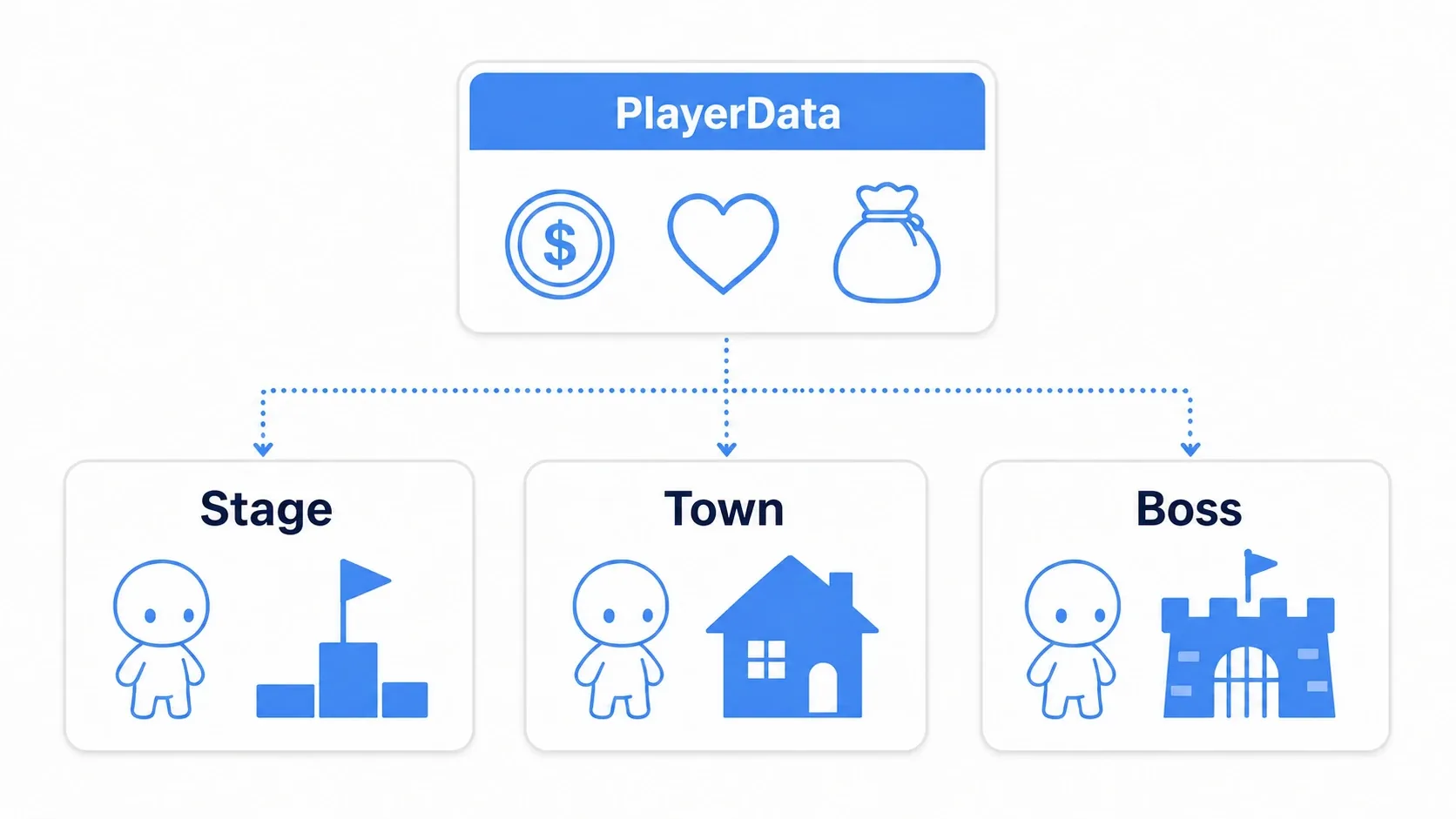
Ordinary nodes get destroyed along with the old scene when you switch scenes. An Autoload lives outside the scene, so it can hold on to information such as score, volume settings, and save management.
But being reachable from anywhere also means being breakable from anywhere. Think of Autoload not as a convenient storage shed, but as the place for responsibilities that should exist exactly once in the whole game.
What Do You Use It for in a Game?
Autoload suits runtime state that's needed across scenes, and features that are common to the entire game.
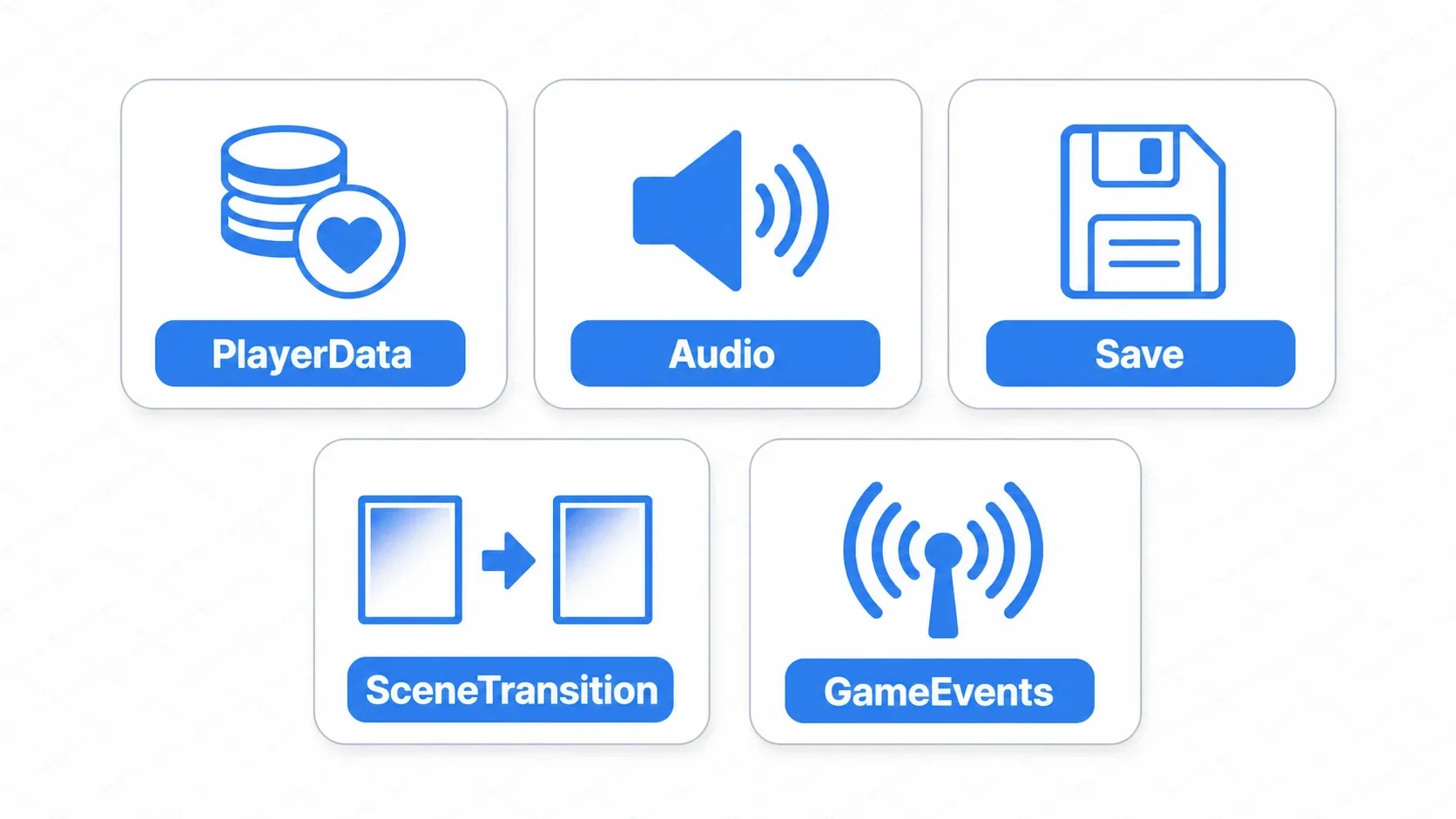
PlayerData: Score, money, current HP, opened chests, collected items.Audio: BGM playback, sound effects, volume settings.Save: Save/load, file paths, version management.SceneTransition: Scene changes with fades, loading screens.GameEvents: A signal bus for achievement unlocks, setting changes, pause notifications, and so on.
Conversely, don't put stage-specific enemies, bullets, platforms, or temporary UI in an Autoload. Keeping those self-contained inside their scene makes them easier to reuse and easier to debug.
Registering an Autoload
You register Autoloads from the project settings.
- Create a script, for example
res://autoload/player_data.gd. - Open Godot's "Project Settings" and go to "Autoload" on the "Globals" tab.
- Pick the script with "Select Script/Scene". It's added to the list right away, named
PlayerDataafter the file name (double-click the name to change it).

Once registered, you can access it from any script under the name PlayerData.
Hands-On: Building PlayerData
Here's an example that manages score, HP, and chest-opened state, the kind of thing RPGs and action games need all the time.
The important part is not to stop at putting score and current_health in as plain global variables. If you funnel value changes through functions like add_score() and take_damage(), you can also keep rules such as "notify when the score goes up" and "never let HP drop below 0" in that same place.
Here's the big picture first.
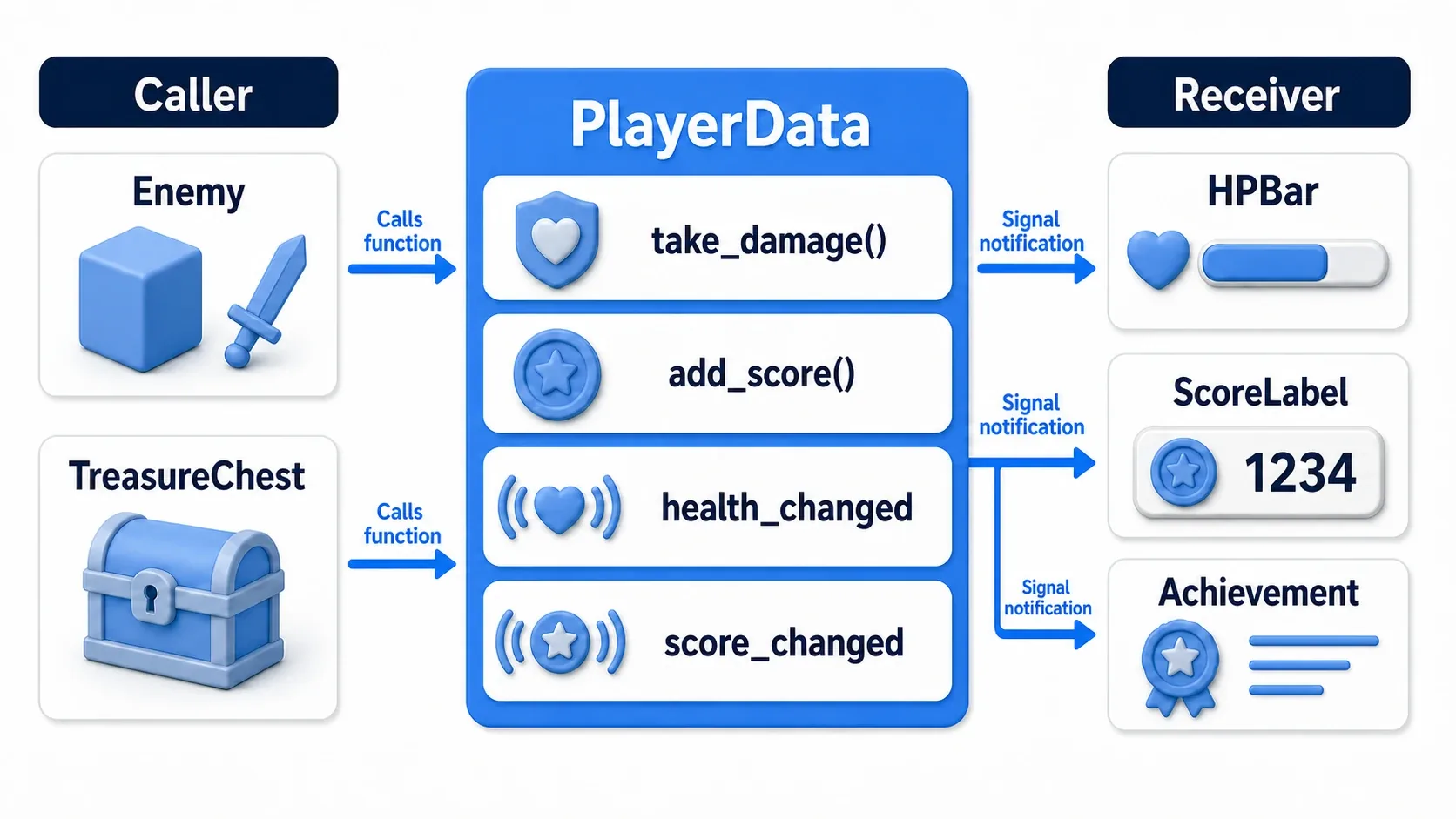
On the left, Enemy and TreasureChest just call functions on PlayerData. In the middle, PlayerData updates score and HP and announces that something changed via signals. On the right, HPBar, ScoreLabel, and Achievement receive those notifications and handle only their own display or logic.
With this flow, "where values change" and "where things get displayed" never blur together. When you read the code, PlayerData tells you the data update rules, and the UI side tells you how the display is built.
# res://autoload/player_data.gd
extends Node

signal score_changed(score: int)
signal health_changed(current_health: int, max_health: int)

var score: int = 0
var max_health: int = 100
var current_health: int = 100
var opened_chests: Dictionary = {}

func add_score(amount: int) -> void:
    score += amount

    # Notify the UI and achievement system that the score changed
    score_changed.emit(score)

func take_damage(amount: int) -> void:
    current_health = max(0, current_health - amount)

    # Pass the updated values so the HP display can refresh itself
    health_changed.emit(current_health, max_health)

func is_chest_opened(chest_id: String) -> bool:
    return opened_chests.get(chest_id, false)

func mark_chest_opened(chest_id: String) -> void:
    opened_chests[chest_id] = true
signal score_changed(score: int) declares "I will announce it when the score changes." PlayerData itself has no idea which UI is showing the value, whether an achievement system exists, or whether a sound should play. It only announces the fact that the score changed.
When an enemy dies, add to the score.
# Enemy.gd
func die() -> void:
    # The enemy doesn't know where the data lives; it just asks PlayerData to add score
    PlayerData.add_score(100)
    queue_free()
Notice the enemy calls add_score() instead of writing PlayerData.score += 100 directly. That way, when you later add rules such as "apply a combo multiplier", "cap the score", or "check achievements whenever the score changes", you don't have to hunt down and fix every enemy script.
Chests can check whether they were already opened, even after you re-enter the scene.
# TreasureChest.gd
@export var chest_id: String = "forest_01_gold_chest"
var is_opened := false

func _ready() -> void:
    # Read the opened state that survived in the Autoload, even on re-entry
    is_opened = PlayerData.is_chest_opened(chest_id)
    $Sprite2D.frame = 1 if is_opened else 0

func open() -> void:
    if is_opened:
        return

    is_opened = true

    # Record the opened state and reward in data that persists across scenes
    PlayerData.mark_chest_opened(chest_id)
    PlayerData.add_score(50)
    $Sprite2D.frame = 1
In the chest example, chest_id matters a lot. Giving each chest an ID like "forest_01_gold_chest" lets you check "has this chest been opened?" with the same key no matter how many times you leave and re-enter the scene. Duplicate IDs would mark unrelated chests as opened, so it's safest to include the map or area name in a readable ID.
State you want to keep after a scene is freed is a great fit for Autoload. Just be selective: only keep what genuinely represents player progress in PlayerData. Damage numbers that flash for a moment, an enemy's current position, or a switch that only matters inside one stage all belong to nodes in that scene.
Decoupling UI Updates with Signals
Once you have an Autoload, it's tempting to touch the UI directly.
For instance, "the score went up, so I want to rewrite the label on screen" is a natural thought. Looking up ScoreLabel from PlayerData and updating it does seem to work at first.
# Bad example: PlayerData knows where the UI lives
func add_score(amount: int) -> void:
    score += amount

    # NG: the Autoload now knows a concrete UI hierarchy
    get_node("/root/Main/HUD/ScoreLabel").text = str(score)
But this approach has traps.
- Rename
HUDandget_node("/root/Main/HUD/ScoreLabel")breaks. - On the title screen or results screen,
Main/HUD/ScoreLabelmay not exist at all. - Every time you rebuild the score display from
ScoreLabelintoScorePanel, you have to edit the Autoload too. - As more things want to react to score changes,
PlayerDatastarts knowing about UI, sound effects, achievements, and saving all at once.
In other words, PlayerData is no longer just "the thing that holds the score"; it also carries "which label on which screen to update." Push that further and the Autoload ends up depending on your game's fine-grained UI structure, breaking every time you redesign a screen.
So instead, have the Autoload announce state changes with signals and let the UI listen. Splitting the roles looks like this.
| Role | Responsible for | Doesn't need to know |
|---|---|---|
PlayerData | Storing the score, announcing score changes | Which UI displays it |
ScoreLabel | Updating its own text when notified | Which enemy the score came from |
Achievement | Listening to the same notification to check achievements, if needed | Where the UI lives |
# ScoreLabel.gd
extends Label

func _ready() -> void:
    # The UI side goes and listens to PlayerData's notification
    PlayerData.score_changed.connect(_on_score_changed)

    # Also apply the current value when the display starts
    _on_score_changed(PlayerData.score)

func _on_score_changed(score: int) -> void:
    text = "Score: %d" % score
With this shape, PlayerData doesn't know ScoreLabel exists. Put plainly, PlayerData just broadcasts "the score changed; the new value is 100." It doesn't care who's listening.
ScoreLabel, meanwhile, goes and subscribes to PlayerData.score_changed itself. When the notification arrives, it updates its own text. If the score display later changes from ScoreLabel to ScorePanel, the new UI just listens to the same signal, so PlayerData stays untouched.
Calling _on_score_changed(PlayerData.score) once inside _ready() matters too. Signals only tell you about changes that happen from now on, so if the score is already 100 when the UI appears, the initial display would never get updated. Reading the current value up front means the screen shows the correct score the moment it opens.
The same idea works beyond score.
- When HP changes, only the HP bar updates itself.
- When the volume setting changes, the settings slider and the audio manager each react on their own.
- When the pause state changes, the menu, the input handling, and the BGM each do what they need to.
Autoload's job ends at "hold state and announce changes." The UI's job ends at "listen and display." Keep that boundary and swapping screens or adding displays later won't break things.
Signals themselves are covered in detail in Node Communication with Signals.
Splitting Things Up Before They Get Bloated
A classic beginner mistake is putting everything into one Autoload called GameManager.
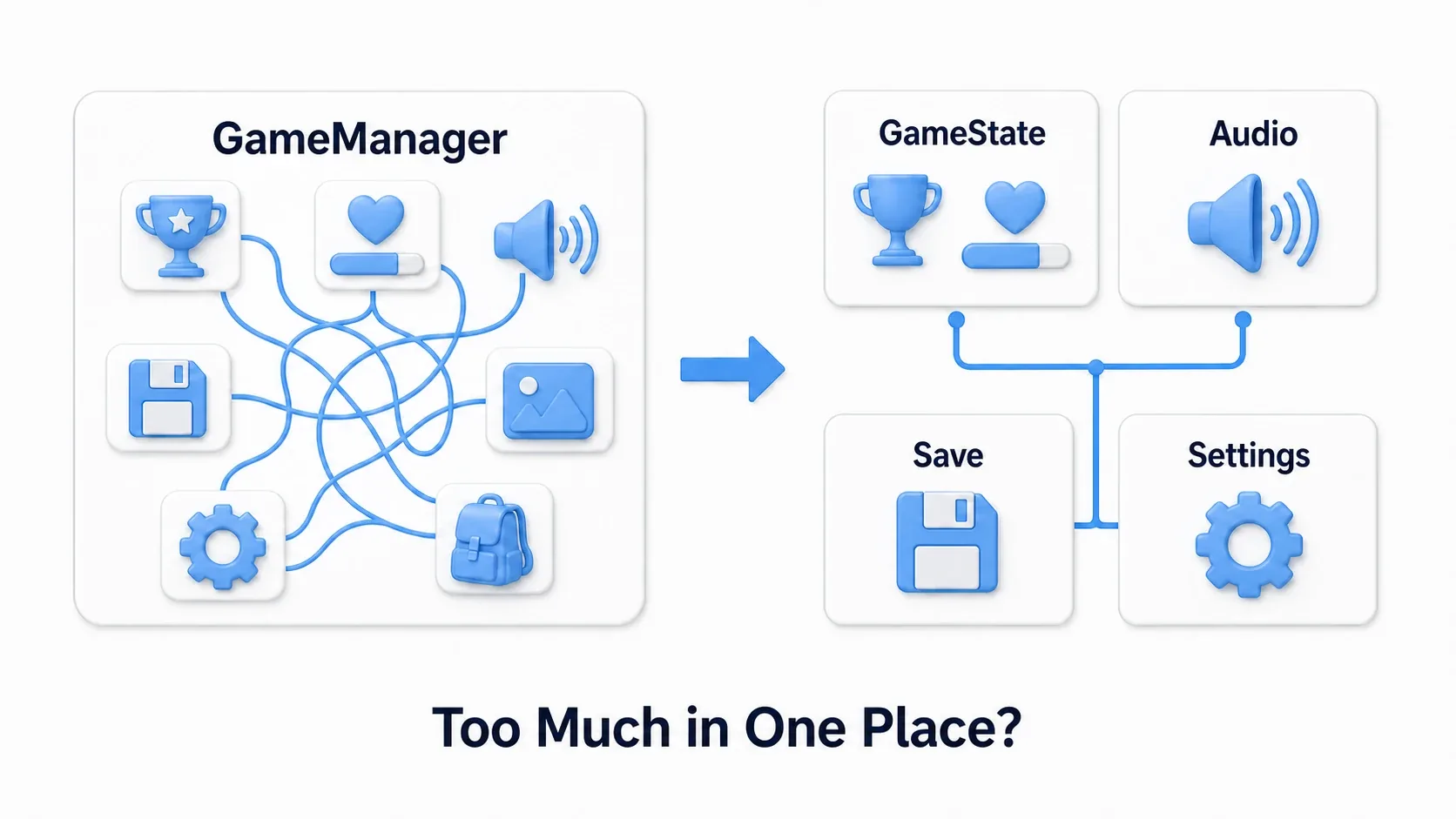
Starting with a single one is fine, but split it up as responsibilities pile on.
The reason to split isn't just tidiness. If GameManager.gd holds score, volume, saving, scene transitions, settings, and achievements, it becomes hard to see how far a change reaches. You get accidents like breaking save logic while adjusting a volume setting, or touching score updates while fixing scene transitions.
| Autoload | What goes in it |
|---|---|
GameState | Score, progress, pause state |
PlayerData | HP, money, equipment, opened chests |
Audio | BGM, SFX, volume settings |
Save | Save/load, file access |
Settings | Display settings, key bindings, language |
If building a volume slider only means touching Audio.gd and Settings.gd, your search area gets a lot narrower. Changing the save data format mostly means looking at Save.gd. This pays off both when you fix things yourself later and when you divide work in a team.
The test is: "Can I explain this file's responsibility in one sentence?" Once the answer becomes "score, audio, saving, and scene transitions, all of it," it's time to split.
Watch out for over-splitting too. Slicing things into CoinManager, GemManager, and KeyManager from the start just makes it unclear where to look. For a small game, PlayerData, Audio, and Save are plenty. Split later, once responsibilities grow.
When to Choose Something Other Than Autoload
Autoload isn't a universal answer. Here are three options to pick between.
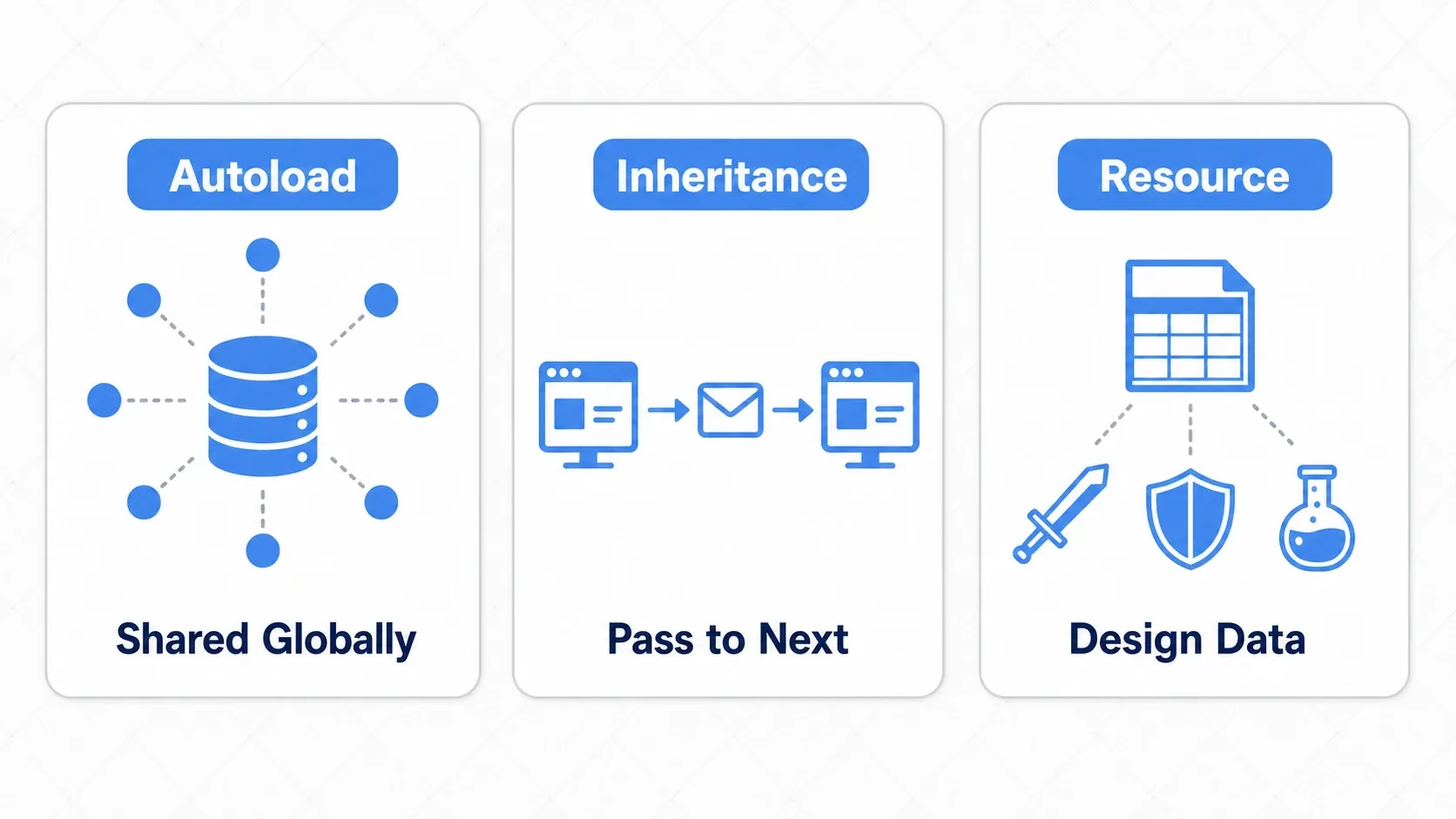
| Approach | Best for | Examples |
|---|---|---|
| Autoload | Runtime state shared across the whole game | Score, settings, volume, save management |
| Passing between scenes | Temporary info only the next scene needs | Battle results, the selected stage number |
| Resource | Design data, editable data tables | Weapon data, enemy stats, item definitions |
Design data like weapon attack power or an enemy's max HP is easier to manage as a Resource than hardcoded into Autoload variables. Values that change at runtime, like current money or opened chests, are what Autoload is for.
The confusing question here is "if the data is used the whole game, shouldn't it all be Autoload?" The key distinction is runtime state versus design data decided while building the game.
A potion's healing amount or a sword's attack power are values you, the developer, decide in advance. Making those Resources keeps them easy to edit in the editor and easy to expand item by item.
How many potions the player is carrying right now, which chests they've opened, how much money they have: those change during play. That's runtime state, so it belongs in Autoload or save data.
Working with Resources leads into Creating and Using Custom Resources.
Common Pitfalls
You Can't Tell Where a Value Changed
If PlayerData.score += 100 can be written from anywhere, tracking down why the score went up gets hard. Route value changes through functions.
This isn't an immediate problem in a small project. If only enemy kills add score, writing it directly works fine. But once chests, quest rewards, combo bonuses, ad-watch rewards, and debug commands all change the score, "why did I just get 100 points?" becomes hard to answer.
# Recommended: funnel all changes through one function
func add_score(amount: int) -> void:
    score += amount

    # Centralize the "always notify after a change" flow here
    score_changed.emit(score)
With a single function, there's exactly one place to drop in print_debug() when investigating. Adding a score-gain sound effect, achievement checks, or a cap also just means extending this function.
It Gets Harder to Test
Heavy direct dependence on Autoloads makes them hard to swap out in unit tests. Pulling pure calculations out of the Autoload, so they can be checked with arguments and return values, makes testing much easier.
You don't have to write tests as a beginner. Still, separating calculation from Autoload state changes helps in everyday work. For example, "reward calculation including a combo multiplier" can be extracted as a plain function before score is modified inside PlayerData.
func calculate_reward(base_score: int, combo: int) -> int:
    return base_score * max(1, combo)
You can verify this function without registering anything as an Autoload. calculate_reward(100, 3) gives 300, and a combo of 0 still yields at least 1x. You can reason about it without running the game. Just splitting state changes from value calculation makes it far easier to isolate the cause of a bug.
Testing with GUT is covered in Writing Unit Tests for Godot with GUT.
Autoloads Reference Each Other in a Cycle
Once GameState calls Audio and Audio calls back into GameState, the dependencies get murky. If it's just a notification, use a signal and keep the dependency one-directional.
Cyclic references are hard to spot at first. Say GameState tells Audio "we're paused, stop the BGM," and Audio calls back with "the BGM stopped, update GameState." Now it's unclear which one is in charge. Depending on execution order, one might touch the other before its initialization has finished.
In that case, pick one to be the lead. If GameState announces pause_changed via a signal and Audio listens and adjusts the BGM, the flow stays one-directional. GameState knows nothing about Audio's internals. Audio just receives the notification and does its own job.
Summary
Autoload is the mechanism for holding data you want to survive scene changes, and for features that exist exactly once in the whole game.
- Good for score, settings, saving, and volume management.
- Don't put scene-specific state in it.
- Don't touch UI directly from an Autoload; announce changes with signals.
- Split into
GameState,Audio,Save, and so on as responsibilities grow. - Consider Resources for design data, and scene-to-scene passing for temporary handoffs.
When in doubt, ask yourself: "Should there really be only one of this in the entire game?" If the answer is a clear yes, use Autoload. If not, managing it inside a scene or as a Resource usually fits better.