Localization (i18n) is unavoidable if you want your game to reach players worldwide. Still, the prospect of writing every UI string per language in code is daunting. In practice, Godot's TranslationServer lets you add a supported language by adding one line to a CSV, without changing any code.
The mechanism is simple, and there are only three things to do: write a translation table as CSV, register it with the project, and call it by key. This article walks through that practically, with diagrams, using Japanese, English, and Korean as the example set, from creating the translation file to switching languages at runtime and auto-detecting the OS language.
What You'll Learn
- How TranslationServer works (mapping translation keys to per-language text)
- How to write a CSV translation file and register it with your project
- Displaying text with
tr()and placeholders- Switching languages at runtime with
set_locale(), and auto-detecting the OS language
Tested with: Godot 4.7
How TranslationServer Works
Start with the big picture. TranslationServer is a system that maps translation keys to per-language text. Instead of writing "Start Game" directly in code, you use a shared key such as START_GAME and pull out the text for the current language at runtime.
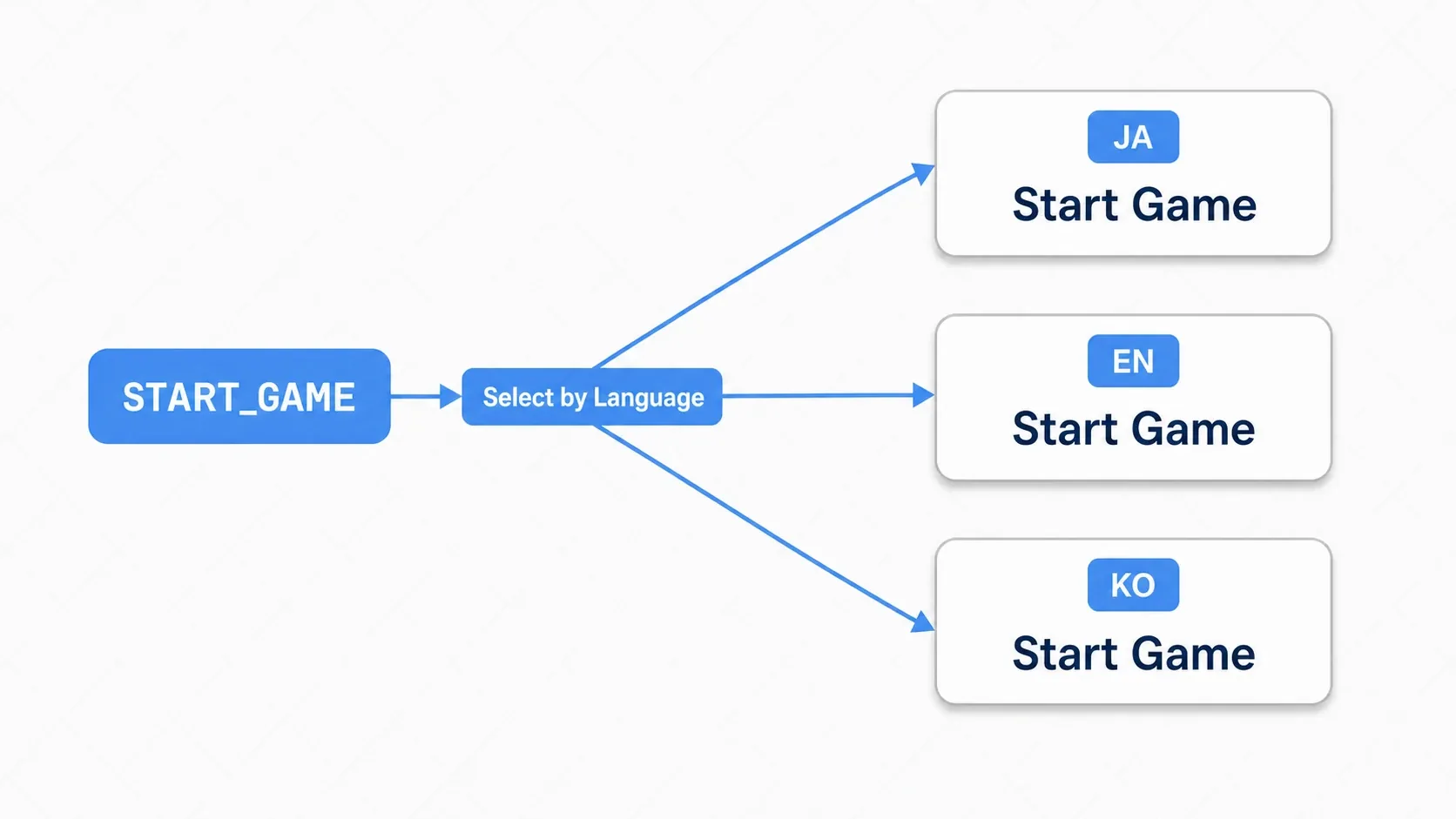
Why does this indirection matter? If you write literal strings in code, adding a language means rewriting code. At three or five languages the number of places to edit balloons and becomes a source of bugs. Going through a key lets you add languages without touching code at all.
# The calling code never changes. Only the returned text varies by language
tr("START_GAME")  # ja -> "ゲームスタート" / en -> "Start Game" / ko -> "게임 시작"
So localization boils down to preparing a key-to-translation table and calling it by key from code.
Creating and Registering a CSV Translation File
Let's write that table in CSV, the most approachable format. It can be edited in Excel or Google Sheets, which makes it easy to share with translators who aren't programmers.
Create a translations/ folder in your project and write game_text.csv with this structure:
keys,ja,en,ko
START_GAME,ゲームスタート,Start Game,게임 시작
SETTINGS,設定,Settings,설정
QUIT,終了,Quit,종료
HEALTH,体力,Health,체력
LEVEL_COMPLETE,ステージクリア!,Level Complete!,스테이지 클리어!
- The first row (the header) starts with
keys, followed by each language's locale code (ja,en,ko) as a column name - Each subsequent row is "key name, Japanese, English, Korean, …"
- Key names conventionally use uppercase with underscores (
START_GAME,LEVEL_COMPLETE) - To add a language, add one column to the header and fill in the translations
Put the CSV in res://translations/ and Godot imports it automatically, generating a .translation resource per language (game_text.ja.translation and so on). All that's left is registering them with the project.
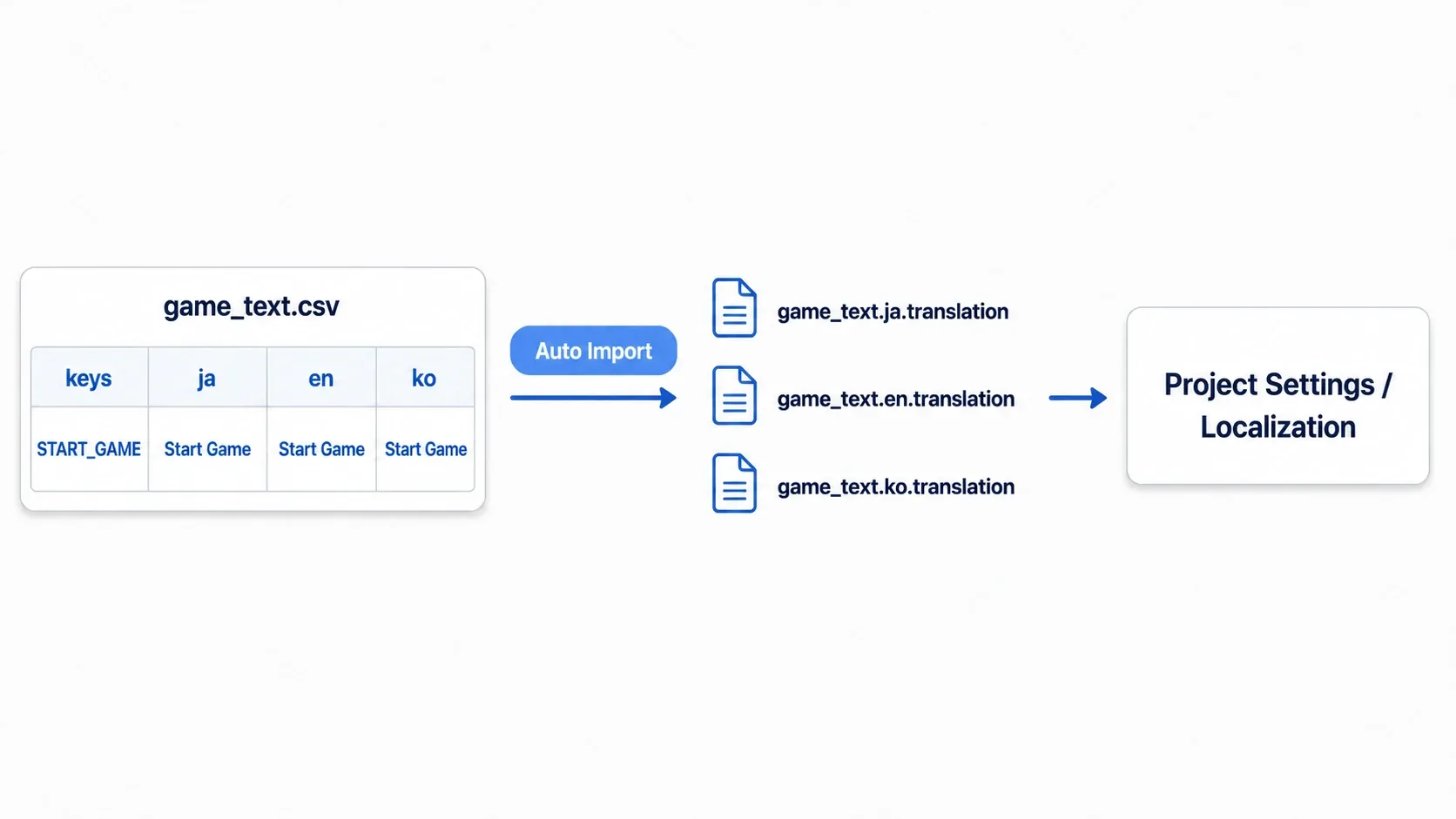
To register, go to Project → Project Settings → Localization tab → Translations, press "Add," and add all of the generated .translation files (the ja, en, and ko ones). You can now use tr() from code.
tips: Godot 4's CSV importer reads the column names to the right of the first (
keys) column as locale codes. Mixing in a column likecommentmakes it get misread as a language. To keep translator notes in the same sheet, start the column name with_, like_notes, and it's skipped.
Displaying Translated Text with tr()
Once registration is done, you just call by key.
extends Control

func _ready() -> void:
    $TitleLabel.text = tr("START_GAME")     # returns the translation for the current locale
    $SettingsButton.text = tr("SETTINGS")
    $QuitButton.text = tr("QUIT")
What you pass to tr() is the key name from the CSV's keys column. If the key isn't found, the key name itself is returned (which you can use as a fallback, as described below).
tips: Godot 4's UI nodes (Label, Button, and so on) translate automatically as long as
auto_translate_modestays at its default,Inherit. Putting a translation key straight into the text field is enough for automatic translation, so static UI is translated without anytr()calls. You usetr()when you assemble strings in script, such as a score readout.
Note that text you assigned from tr() doesn't change by itself when you switch languages later. What got assigned is the translated string, and the original key isn't kept. Keeping it in sync is covered in the hands-on section.
Embedding Dynamic Values with Placeholders
You frequently need to drop numbers into a translated string, as in "Score: 1500." Write a {name} placeholder in the CSV and pour values in with GDScript's format().
keys,ja,en,ko
PLAYER_SCORE,スコア: {score},Score: {score},점수: {score}
HEALTH_STATUS,体力: {current}/{max},Health: {current}/{max},체력: {current}/{max}
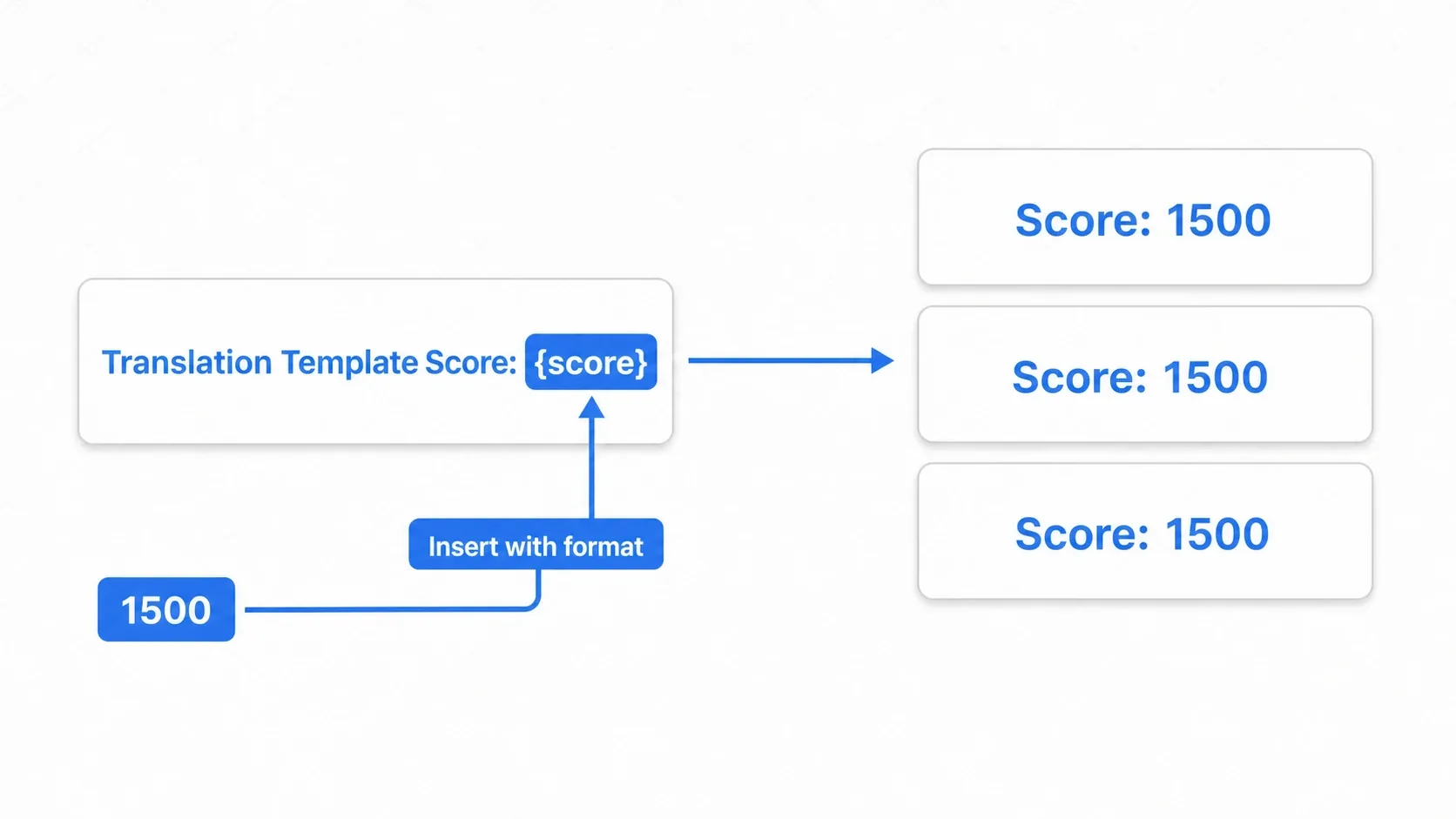
func update_score_label(score: int) -> void:
    # tr() fetches the translation, format() inserts the value into {score}
    $ScoreLabel.text = tr("PLAYER_SCORE").format({"score": score})
    # ja: "スコア: 1500" / en: "Score: 1500" / ko: "점수: 1500"
Placeholder names (such as {score}) are the same across every language. Translators leave {score} untouched and only translate the text around it. Even when the number lands in a different position in another language, format() puts it in the right place.
Hands-On: Building an Options Screen with a Language Switcher
RPG title screens, options in a competitive game, a settings tab on mobile: whatever the genre, a localized game needs UI for choosing a language. Using the pieces so far, let's build an options screen where picking a language from a dropdown switches the whole screen.
Two mechanisms carry it: TranslationServer.set_locale() switches the language, and the NOTIFICATION_TRANSLATION_CHANGED notification tells each UI node to redraw itself.
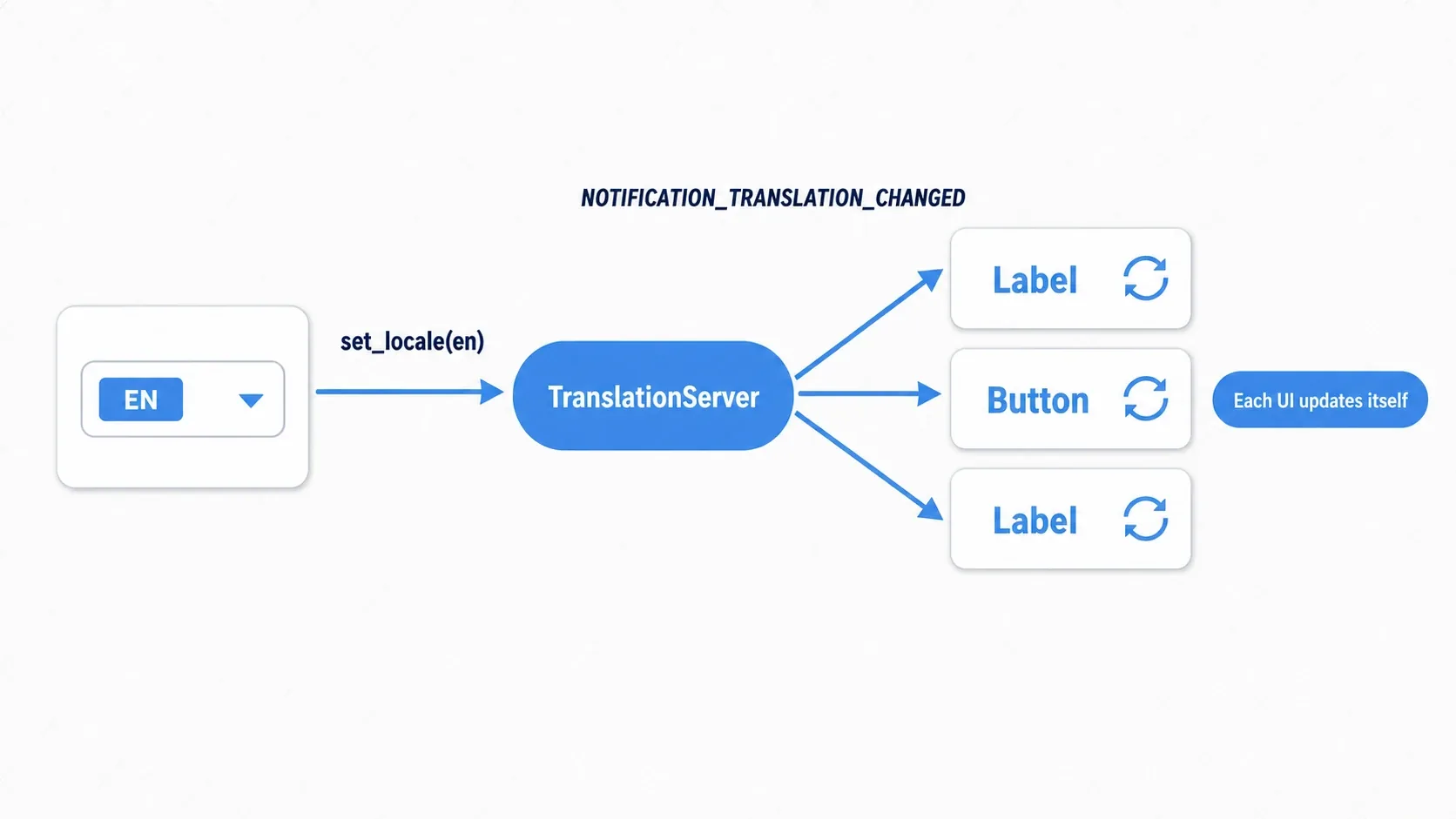
First, the side that switches the language (the options screen). The work is a single line calling set_locale().
extends Control

func _on_language_option_selected(index: int) -> void:
    # Switch the locale based on the dropdown selection
    match index:
        0: TranslationServer.set_locale("ja")
        1: TranslationServer.set_locale("en")
        2: TranslationServer.set_locale("ko")
    # ^ that alone broadcasts the translation-changed notification to every node
Next, the nodes that hold translated text. When _notification() receives NOTIFICATION_TRANSLATION_CHANGED, they update their own text.
extends Label

var score := 0   # The score to display

func _notification(what: int) -> void:
    # Every node receives this notification when the language changes
    if what == NOTIFICATION_TRANSLATION_CHANGED:
        _refresh_text()

func _refresh_text() -> void:
    # Rebuild script-assembled text, such as strings with placeholders, here
    text = tr("PLAYER_SCORE").format({"score": score})
There are two points to take away.
- Only one place knows about the language change: Only the options screen calling
set_locale()knows a switch happened; everything else rides on the notification. With 100 UI nodes, the switching code doesn't grow. Each node can focus on refreshing its own display, which keeps the design clear and hard to break. - Static UI doesn't even need the notification: If a Label or Button with
auto_translate_modehas a key set, Godot re-translates it automatically when the language changes. Manual_notification()is only needed for nodes that assemble strings in script, like a score readout.
Matching the OS Language on First Launch
It's a nice touch to match the player's OS language on the very first launch. Get the OS language code with OS.get_locale_language(), use it if it's supported, and fall back to something like English otherwise.
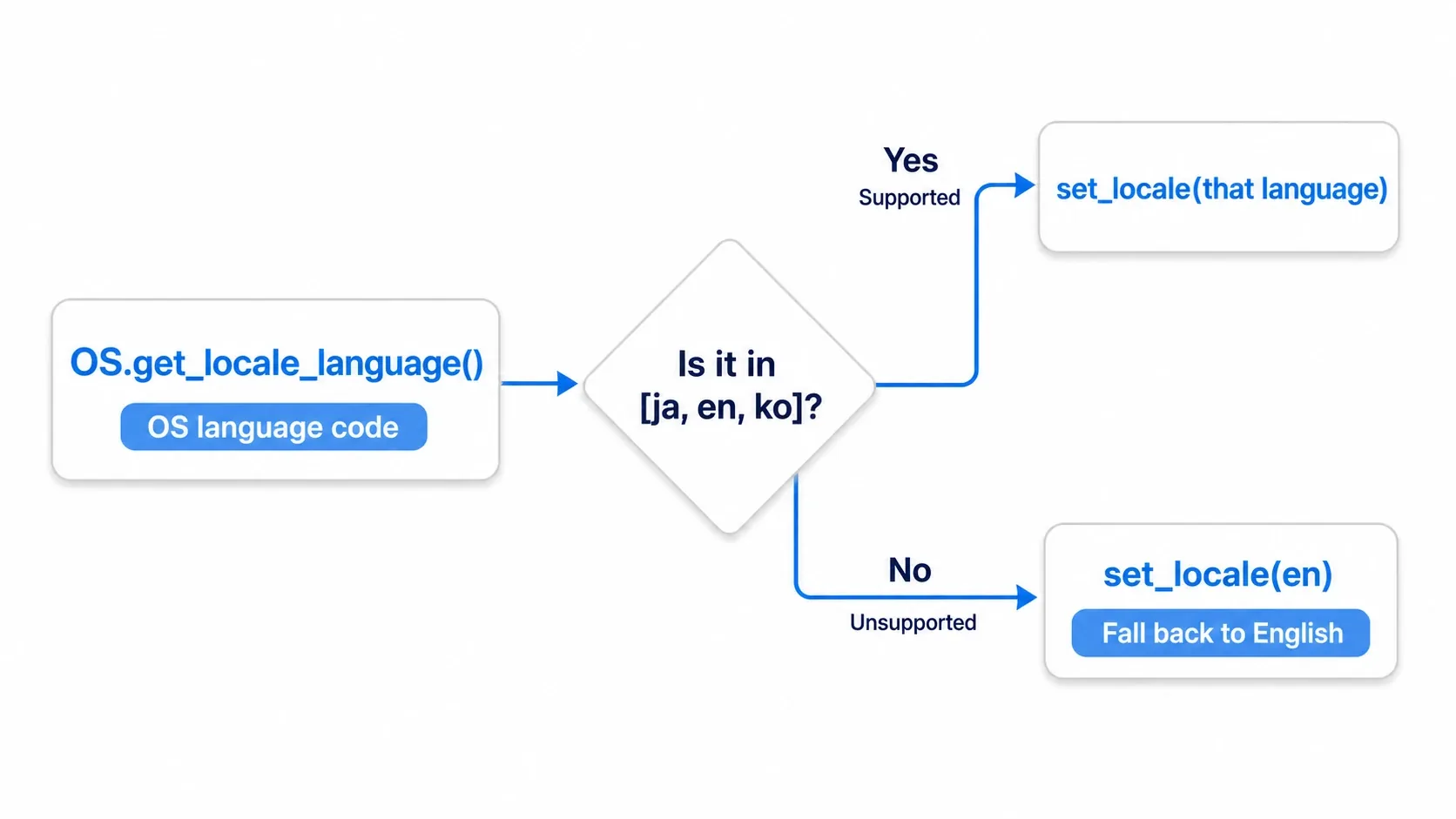
func _ready() -> void:
    var os_lang := OS.get_locale_language()   # language code only, such as "ja" / "en" / "fr"
    var supported := ["ja", "en", "ko"]
    if os_lang in supported:
        TranslationServer.set_locale(os_lang)
    else:
        TranslationServer.set_locale("en")    # open in English for unsupported languages
OS.get_locale()returns a region-qualified value like"ja_JP", whileOS.get_locale_language()returns just the language code,"ja". The language code is enough for setting a locale, so the latter keeps things simple.
Combine "initialize from the OS language" with "manual switching in the options" and the language side of a localized game is essentially done. When you want the chosen language remembered next time, hold the setting in an Autoload and save and load it.
Common Pitfalls and Best Practices
| Recommendation | Explanation |
|---|---|
| Use uppercase with underscores for keys | Keep it consistent, like START_GAME and LEVEL_COMPLETE |
| Use placeholders | Don't write dynamic values into the sentence; embed them as {name} |
| Prepare a CJK font | Japanese, Korean, and Chinese render as tofu (□) unless your Theme uses a font containing those glyphs |
| Decide on a fallback language | Untranslated keys display the key name itself. Make something like English the final safety net |
| Only locale codes as column names | Start note columns with _, like _notes (they're skipped) |
You can build a fallback on top of Godot's behavior of returning the key name for untranslated keys. Write the key names as English sentences, for example, and any language without a translation displays the English.
# Strategy: use English as the key name (untranslated languages show English)
# CSV: keys,ja,ko
#      Start Game,ゲームスタート,게임 시작
$TitleLabel.text = tr("Start Game")   # languages without a translation show "Start Game"
For CJK font setup, Building Consistent UI with the Theme System covers assigning fonts to a Theme. When characters turn into □, suspect the font first.
Bonus: Good to Know for Later
Once the basics are in place, these are the next topics that come into view. You don't need them yet, but knowing the names keeps you from getting lost.
- Plurals use
tr_n(): For languages where wording changes with quantity, such as English's "1 item / 5 items," usetr_n(singular_key, plural_key, count). In Godot 4.7 you can write plurals in CSV by adding a?pluralcolumn (earlier versions needed a PO (Gettext) file). Japanese and Korean don't distinguish singular from plural, so this mostly matters for Western languages. - The same word in different contexts: When a word translates differently depending on context, like English "Home" (a house vs. a home screen), pass a context as
tr()'s second argument to distinguish them (in CSV, write it in a?contextcolumn). - Right-to-left (RTL) languages: Arabic and Hebrew flow right to left. Supporting them also means considering mirrored layouts. Getting the foundation solid with LTR languages first is the recommended path.
Summary
- TranslationServer maps translation keys to per-language text. Code just calls by key
- Build the table in CSV (
keys,ja,en,ko) and register the auto-generated.translationfiles with the project tr()fetches the translation for a key. Embed dynamic values with{name}placeholders plusformat()set_locale()switches at runtime, andNOTIFICATION_TRANSLATION_CHANGEDmakes each UI node redraw itselfOS.get_locale_language()detects the OS language, with a fallback for unsupported ones
Start with a single START_GAME key in two languages and watch the moment set_locale() flips it. Once you feel what it's like to add a language without touching code, i18n stops being intimidating.
Further Reading
- Building Consistent UI with the Theme System — setting a CJK font in your Theme
- Managing Data Across Scenes with Autoload — holding the chosen language globally
- Implementing a Save/Load System — carrying the language setting over to the next launch
- Godot Docs: Internationalizing games — the primary source on localization