Overview
Godot's built-in editor is plenty capable, but connecting an external editor like VSCode or Cursor can push your workflow further. This article walks through the setup steps and the practical best practices that follow.
Why Use an External Editor?
External editor integration brings a few concrete benefits.
-
Intelligent coding assistance: installing the Godot extension (which uses the Language Server Protocol) in VSCode gives you rich code completion, go-to-definition, and error checking. Combine it with Cursor or GitHub Copilot and you get AI-driven code generation as well.
-
A large extension ecosystem: Git integration (GitLens), database tooling, API clients, and countless other extensions become available for your development work.
-
Customization and advanced editing: multiple cursors, powerful search and replace, snippets, Vim/Emacs keybindings. You can bring the editing environment your hands already know into Godot development.
What You'll Learn
- How to configure VSCode / Cursor as Godot's external editor
- Getting code completion, go-to-definition, and AI completion through LSP integration
- Setting up debugging and automatic reloading with an external editor
- When to use the built-in editor versus an external one
Tested with: Godot 4.7, Godot Tools 2.7
Setup Steps
Step 1: Configure Godot
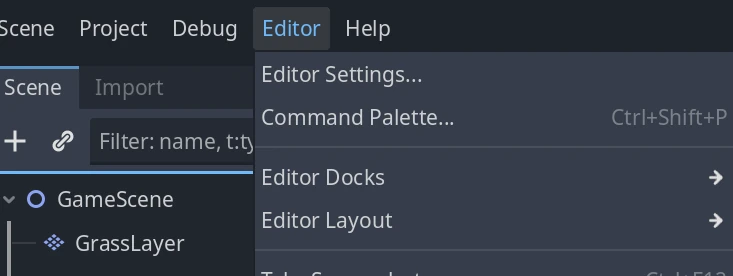
- From Godot's menu bar, open
Editor>Editor Settings. - In the left panel, select
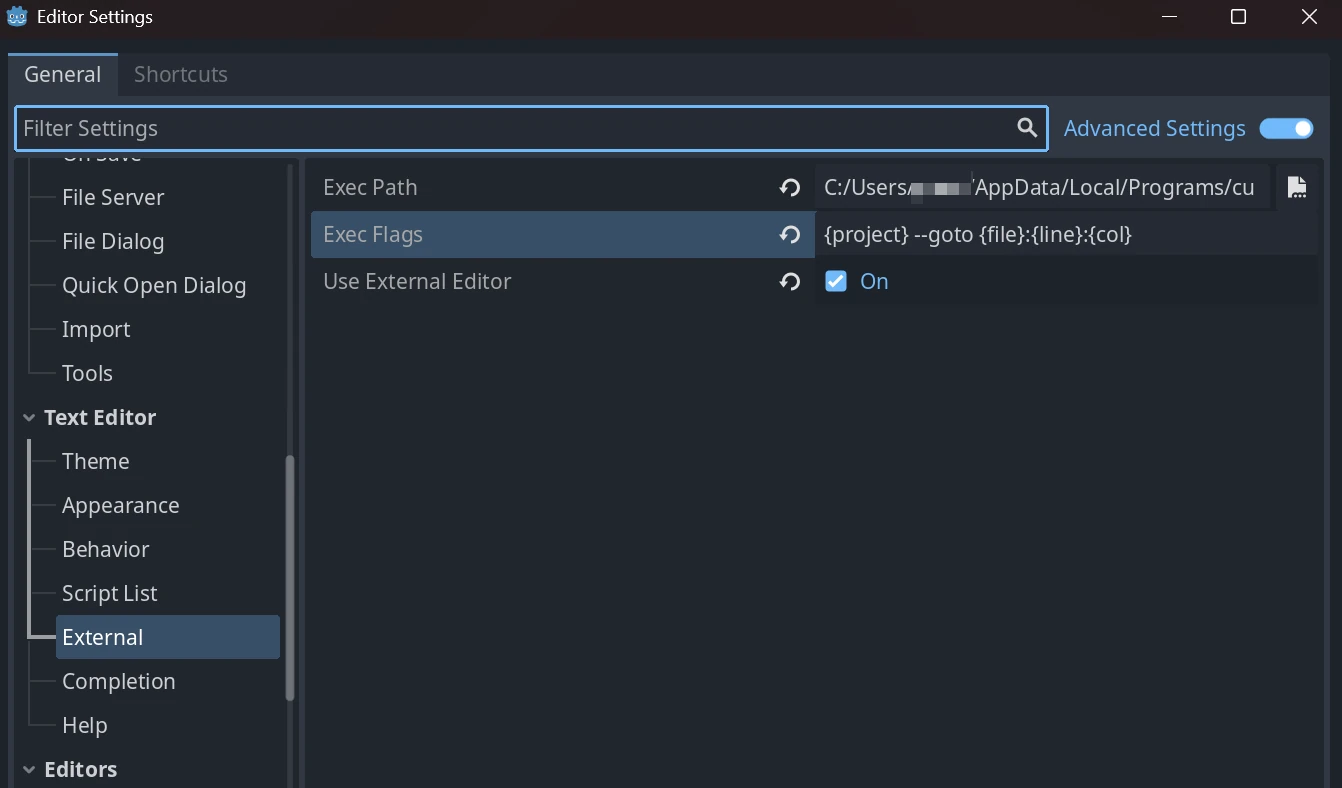
Text Editor>External. - Check
Use External Editor.
-
In
Exec Path, enter the absolute path to your editor's executable.- VSCode (Windows):
C:\Users\<username>\AppData\Local\Programs\Microsoft VS Code\bin\code.cmd - VSCode (macOS):
/Applications/Visual Studio Code.app/Contents/Resources/app/bin/code - Cursor (Windows):
C:\Users\<username>\AppData\Local\Programs\cursor\resources\app\bin\cursor.cmd - Cursor (macOS):
/Applications/Cursor.app/Contents/MacOS/Cursor
- VSCode (Windows):
-
Set
Exec Flagsto the following string (in Godot 4.5 and later, it fills in automatically when you pick VS Code'scode; for Cursor, type it yourself).{project} --goto {file}:{line}:{col}
Step 2: Install the Godot Extension in VSCode
- Open VSCode and go to the Extensions view (
Ctrl+Shift+X). - Search for
Godot Toolsand install the extension published officially by the Godot Engine team. - Once installed, keep the project open in the Godot editor and open the same project folder in VSCode. When
Connectedappears in the status bar at the bottom right, the integration is ready (Wrong Projectmeans Godot has a different project open).
Step 3: Configure Debugging and Auto-Reload
Debugger integration:
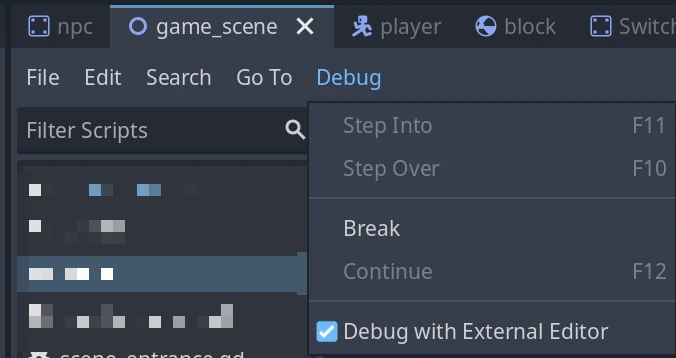
At the top of the script editor, check Debug > Debug with External Editor. When the debugger stops, the script at the stopped position opens in your external editor.
Auto-reload:
Enable Editor Settings > Text Editor > Behavior > Auto Reload Scripts on External Change. Saving in your external editor is then reflected in Godot immediately.
Common Mistakes and Best Practices
| Common Mistake | Best Practice | |
|---|---|---|
| Setup | Pointing Exec Path at a shortcut | Always give the full path to the actual executable (the .exe or binary) |
| Workflow | Manually switching between Godot and VSCode after every change | Enable Auto Reload so saves in VSCode reach Godot automatically |
| Debugging | Relying entirely on print() debugging | Use Godot Tools' debugger. Set breakpoints and step through while inspecting variable values |
| Code management | Not putting the project folder under Git | Version-control with Git from day one so you can take advantage of VSCode's strong Git integration (GitLens and friends) |
Troubleshooting
| Symptom | What to Check |
|---|---|
| Files don't open | Check the Exec Path and the flags string |
| Changes aren't reflected | Enable Auto Reload Scripts on External Change |
| The internal editor opens when debugging | Enable Debug with External Editor |
| Breakpoints set in VSCode don't stop the game | VSCode's breakpoints only apply to a game launched from VSCode. In the Run and Debug view, create launch.json with create a launch.json file, then launch with VSCode's F5 |
Built-in Editor vs External Editor
| Built-in Editor | External Editor (VSCode) | |
|---|---|---|
| Strengths | Fast to open and lightweight, great for shader editing | Advanced code completion, a huge extension ecosystem, powerful debugging and Git integration |
| Weaknesses | Limited completion, few refactoring tools | Requires initial setup, plus launching and managing a separate app |
| Best for | Small prototypes, tweaking shaders | Medium-sized projects and up, team development |
Summary
External editor integration is a powerful addition to Godot development. Put the capabilities of VSCode or Cursor to work and build yourself a comfortable development environment.