Overview
A pause feature is essential in game development, whether players need a breather or want to change settings. Godot gives you get_tree().paused = true, a one-liner that halts most of the game. But you'll often run into problems like "I paused, but now the UI won't respond" or "some characters keep moving anyway."
The cause is usually a misunderstanding of Process Mode. This article covers Godot's pause system from the basics, the Process Mode concept that lets you control it precisely, and some advanced implementation techniques.

What You'll Learn
- What
get_tree().pausedactually stops, and what it doesn't- How to choose among the five Process Modes (Inherit / Pausable / WhenPaused / Always / Disabled)
- The right way to build a pause menu: the game stops, the menu stays alive
- Advanced techniques for keeping just part of the scene running, such as cutscenes
Tested with: Godot 4.7
Pause Basics in Godot
To stop most of the game loop in Godot, you set the scene tree's paused property.
# Get the scene tree and toggle its pause state
func toggle_pause():
    get_tree().paused = !get_tree().paused

    if get_tree().paused:
        print("Game paused.")
    else:
        print("Game resumed.")
When you run get_tree().paused = true, Godot stops the following:
- Calls to
_process(delta)and_physics_process(delta) - Physics simulation (collisions, gravity, and so on)
InputEventhandling (with some exceptions)
But this doesn't stop every node. Deciding which nodes are affected by the pause is exactly what Process Mode is for.
Process Mode: Five Modes That Control Pausing
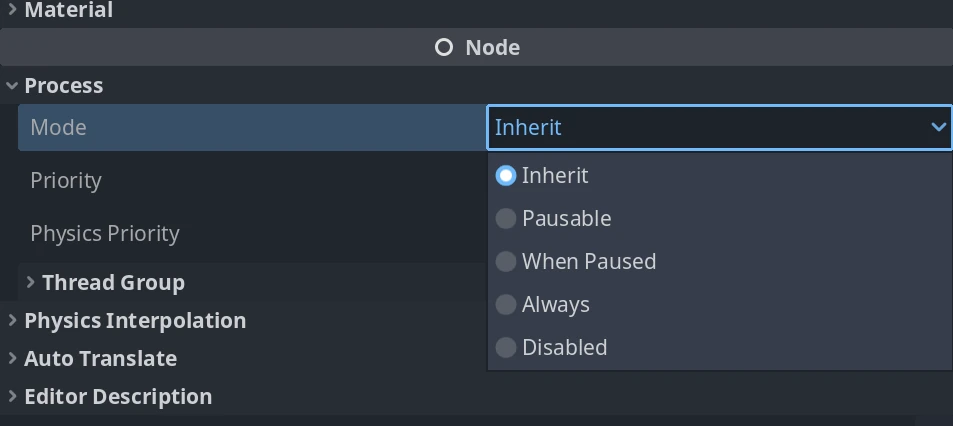
Process Mode determines how each node reacts to the scene tree's pause state (get_tree().paused). You can set it in the Inspector under Node > Process.
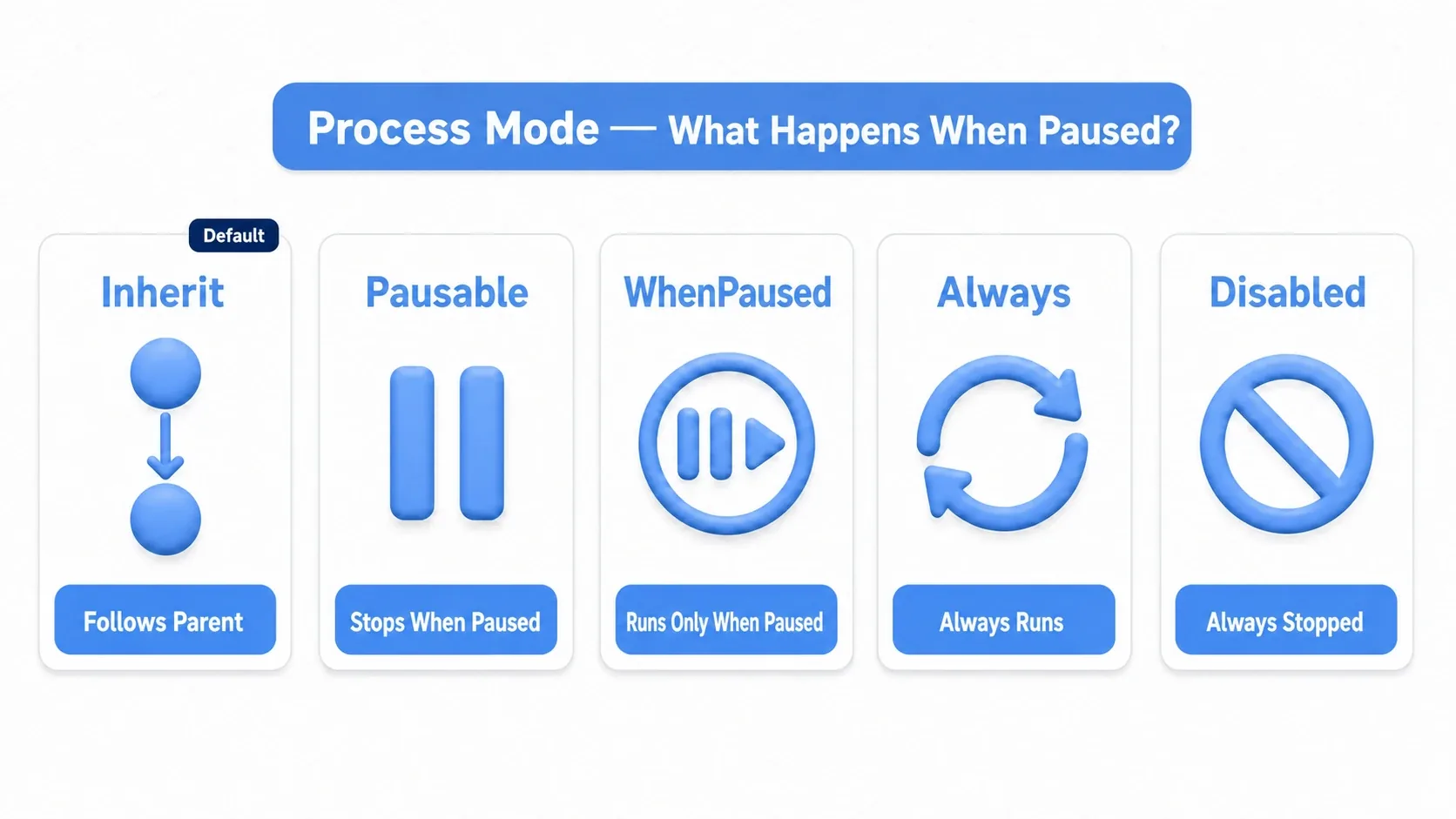
| Mode | Behavior | Typical Use |
|---|---|---|
| Inherit | Takes the parent node's setting as-is. This is the default. | Most nodes in a scene, where no special control is needed. |
| Pausable | Stops processing when get_tree().paused = true. | Players, enemies, moving backgrounds, and other core gameplay elements. |
| WhenPaused | Processes only while get_tree().paused = true. | Pause menus, settings screens, dialogs, and other UI you want to use while paused. |
| Always | Keeps processing regardless of get_tree().paused. | Singletons (autoloads), BGM management, online communication. |
| Disabled | Never runs any processing (_process, _physics_process, _input). | Objects you want temporarily disabled, or debug-only nodes. |
Key point: because Inherit is the default, changing the Process Mode of a root node affects all of its children.
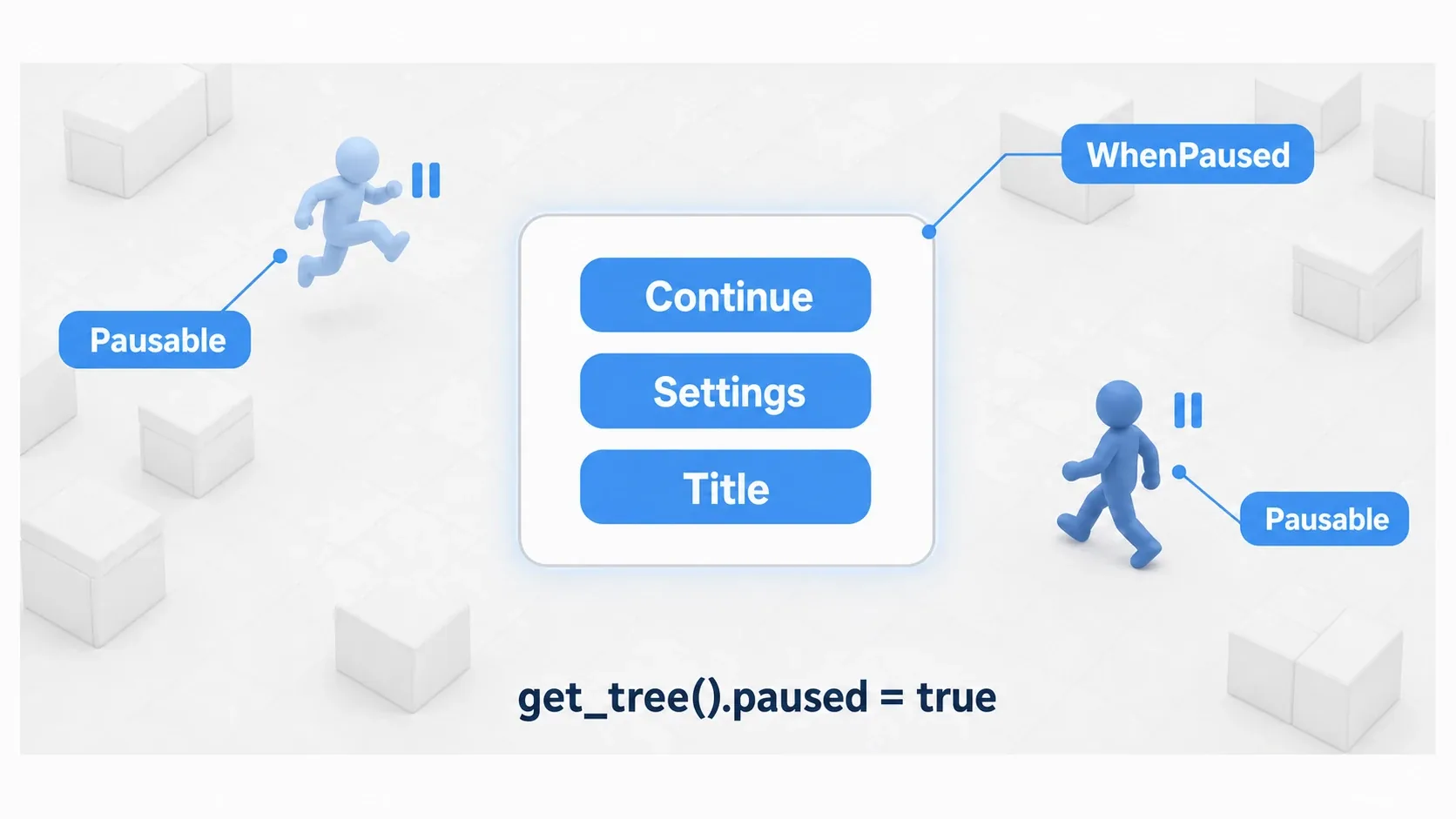
Here's what a paused game screen looks like as a diagram. The game world (Pausable) freezes, and only the pause menu (WhenPaused) stays alive. This split is the basic shape of every pause implementation.
Practical Use Cases and Code
Use Case 1: A Robust Pause Menu
You need the game to stop while the menu UI stays interactive.
Step 1: Create a pause manager singleton (PauseManager.gd)
# PauseManager.gd
extends Node

const PAUSE_MENU_SCENE = preload("res://ui/pause_menu.tscn")

var is_paused: bool = false
var pause_menu_instance: Control = null

func _ready() -> void:
    # Autoloads pause too, so without this the second pause press never arrives
    process_mode = Node.PROCESS_MODE_ALWAYS

func _unhandled_input(event: InputEvent) -> void:
    if event.is_action_pressed("pause"):
        is_paused = !is_paused
        get_tree().paused = is_paused

        if is_paused and pause_menu_instance == null:
            pause_menu_instance = PAUSE_MENU_SCENE.instantiate()
            get_tree().root.add_child(pause_menu_instance)
        elif not is_paused and pause_menu_instance != null:
            pause_menu_instance.queue_free()
            pause_menu_instance = null
Register this script as a singleton under Project Settings > Autoload. Autoloads are part of the scene tree too, so with the default Inherit they stop during pause and can't receive the second key press. That's why _ready() sets them to Always.
Step 2: Set up the pause menu scene (pause_menu.tscn)
- Create a scene with a
Controlnode as its root. - In the root node's Inspector, change
Node > Process > ModetoWhenPaused. - Add
Buttonnodes to the scene, such as "Resume" and "Return to Title." When "Return to Title" changes scenes, setget_tree().paused = falsebefore switching (changing scenes doesn't lift the pause).
Use Case 2: Cutscenes
During a cutscene, you want to disable player input while specific characters and cameras keep playing their animations.
# CutsceneTrigger.gd (attach to an Area3D or similar)

@export var animated_characters: Array[Node]
@export var animated_camera: Camera3D

func _on_body_entered(body: Node) -> void:
    if body.is_in_group("player"):
        start_cutscene()

func start_cutscene() -> void:
    get_tree().paused = true

    # Temporarily change Process Mode for the nodes that should keep moving
    for character in animated_characters:
        character.process_mode = Node.PROCESS_MODE_ALWAYS
    if animated_camera:
        animated_camera.process_mode = Node.PROCESS_MODE_ALWAYS

    $AnimationPlayer.process_mode = Node.PROCESS_MODE_ALWAYS  # Keep the trigger's AnimationPlayer running too
    $AnimationPlayer.play("cutscene_animation")

func _on_animation_player_animation_finished(anim_name: StringName) -> void:
    if anim_name == "cutscene_animation":
        end_cutscene()

func end_cutscene() -> void:
    get_tree().paused = false

    # Restore the original Inherit Process Mode (important!)
    for character in animated_characters:
        character.process_mode = Node.PROCESS_MODE_INHERIT
    if animated_camera:
        animated_camera.process_mode = Node.PROCESS_MODE_INHERIT
    $AnimationPlayer.process_mode = Node.PROCESS_MODE_INHERIT
Common Mistakes and Best Practices
| Common Mistake | Best Practice |
|---|---|
Calling get_tree().paused from everywhere | Keep pause state management in a single singleton (autoload) and avoid touching it directly from other scripts. |
| UI freezes while paused | Check that the root node of the UI you want to use while paused has its Process Mode set to WhenPaused. |
Overusing Always | Limit Always to nodes that truly need it (BGM, singletons). Overusing it degrades performance while paused. |
AnimationPlayer won't stop | Check whether that node or one of its parents has Process Mode set to Always. Left at the default Inherit, it stops along with the game. |
Performance and Alternative Patterns
Performance Notes
Alwaysis a last resort: it can hurt performance while the game is paused.- Save cycles with
Disabled: settingProcess ModetoDisabledon temporarily unneeded nodes lowers CPU load.
Alternative: Pause Management Without get_tree().paused
Since get_tree().paused affects the entire scene, you can also keep your own pause flag in a singleton when you need more localized control.
# Player.gd
extends CharacterBody3D

func _process(delta: float) -> void:
    if GameStateManager.is_gameplay_paused:
        return
    # ...normal processing...
Godot's built-in get_tree().paused plus Process Mode handles almost every case, so consider this alternative only when you have specific advanced requirements.
Summary
get_tree().paused and Process Mode are powerful features in Godot. Understand the two and use them together, and you can elegantly implement pause menus, cutscenes, dialogue displays, and every other situation a game needs.
- Pause basics:
get_tree().paused = truehalts most of the game. - The key to control:
Process Modelets you fine-tune behavior per node. - Best practice: centralize pause management in a singleton, and set UI to
WhenPaused. - Performance: avoid overusing
Always, and useDisabledwisely.