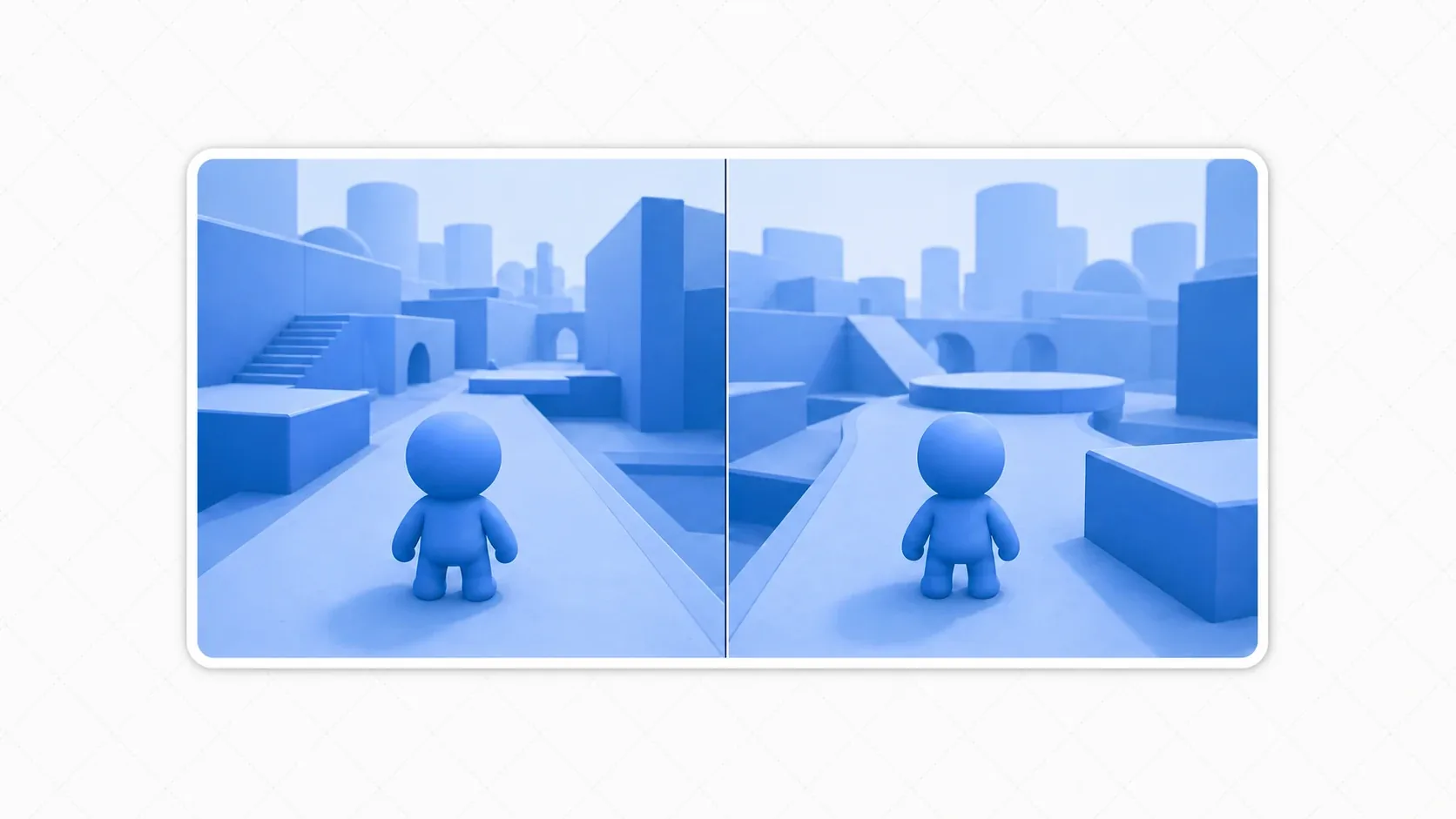
Local co-op on a single screen with a friend, with both viewpoints side by side. A split screen is the standard way to present it. Figuring out how to show one game world through two separate cameras isn't obvious at first, though.
SubViewport is the tool for the job. This article covers the layout that divides the screen with two SubViewports, how world_2d/world_3d share one world, routing input per player, and the performance considerations.
What You'll Learn
- The split screen layout (two SubViewports side by side)
- Sharing one world through
world_2d/world_3d- Routing input per player
- Performance considerations for split screen
Tested with: Godot 4.7
The Split Screen Layout: Two SubViewports Side by Side
The basis of a split screen is dividing the screen in two and placing one SubViewport in each half. For a left/right split, the left and right halves each show independent footage.
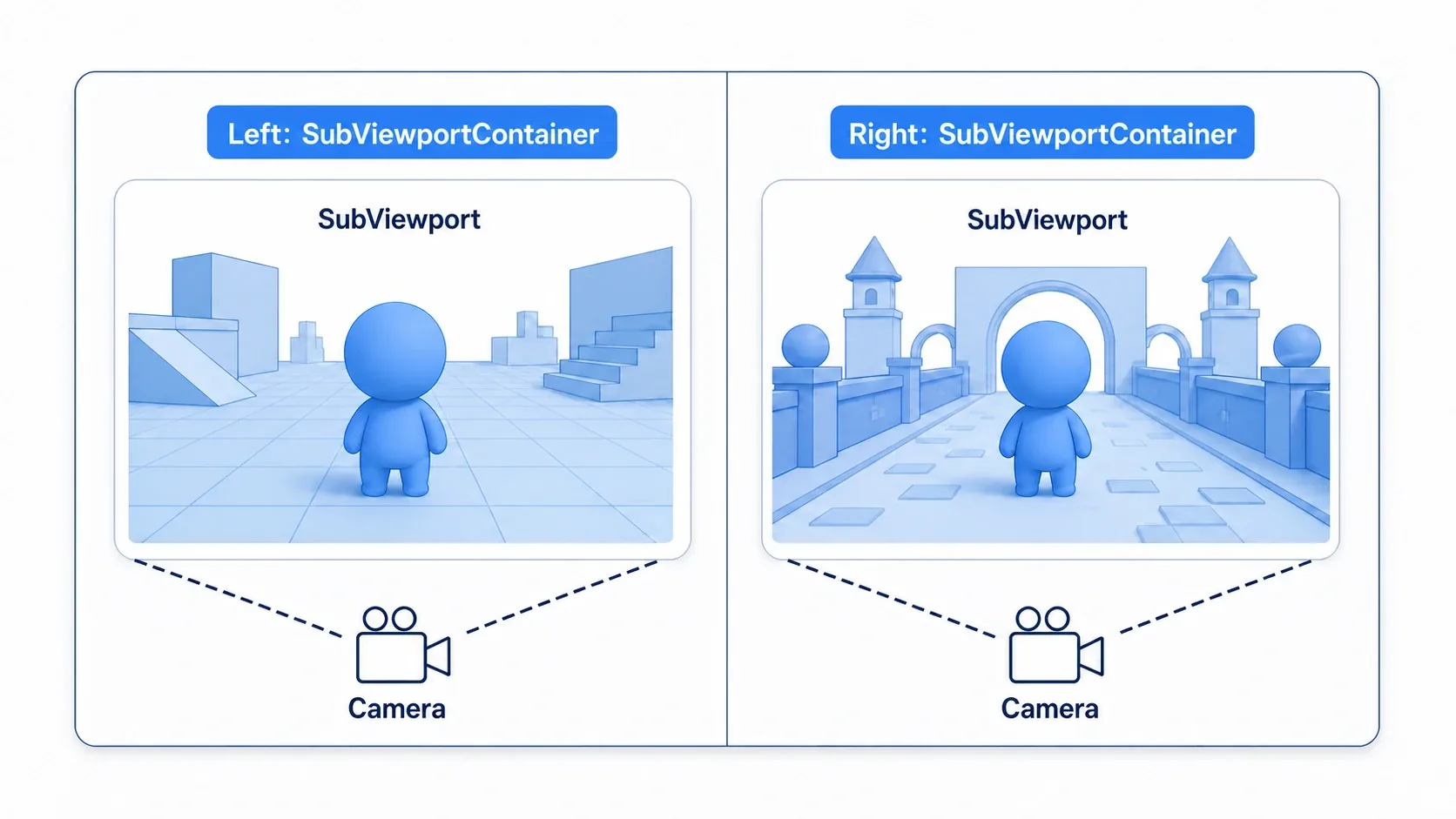
Here's the node structure. An HBoxContainer lays them out left and right, and each SubViewportContainer holds a SubViewport.
Root
└── HBoxContainer            # Lays them out left and right
    ├── LeftContainer (SubViewportContainer)   # Left half
    │   └── SubViewport
    │       ├── Camera2D      # Follows player 1
    │       └── World (Node2D) # Players, enemies, and terrain go here, one set only
    └── RightContainer (SubViewportContainer)  # Right half
        └── SubViewport
            └── Camera2D      # Follows player 2
SubViewportContainer: the frame that displays a SubViewport on screen. Its size determines the size of one half of the splitSubViewport: where the footage is actually rendered. The camera goes insideCamera2D/Camera3D: one per SubViewport, each following its own player (see Camera2D techniques)
That gives you two screen frames. As it stands, though, the two SubViewports are showing two separate empty worlds. Next you need to make both display the same game world.
Sharing One World: world_2d / world_3d
The crux of a split screen is making the two SubViewports share the same game world. Rather than building two worlds, you view one world through two cameras.
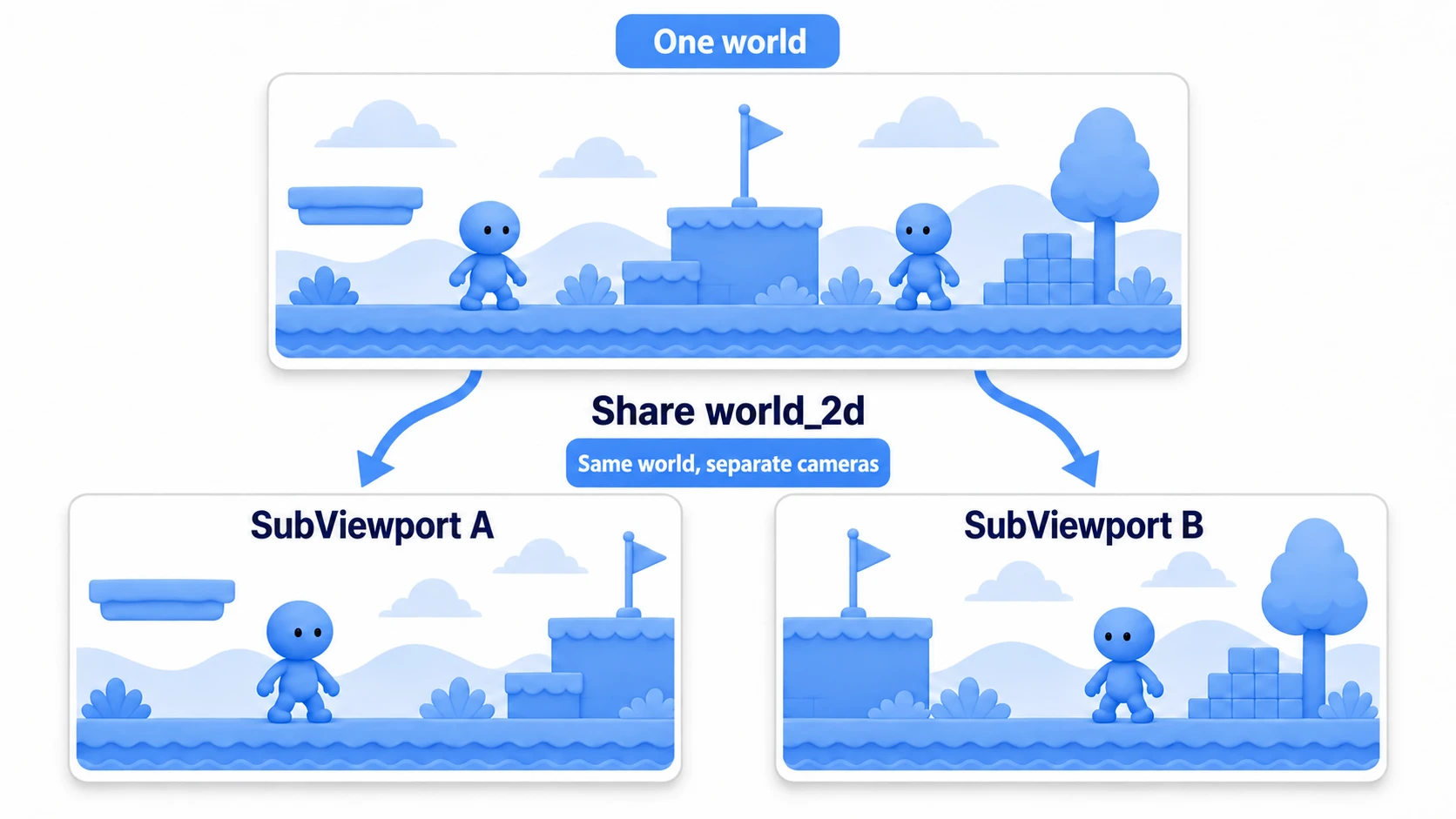
You do this by sharing world_2d (2D) or world_3d (3D). Assign one SubViewport's world to the other.
@onready var viewport_a: SubViewport = $HBoxContainer/LeftContainer/SubViewport
@onready var viewport_b: SubViewport = $HBoxContainer/RightContainer/SubViewport

func _ready() -> void:
    # Give the right view (B) the same 2D world as the left view (A)
    viewport_b.world_2d = viewport_a.world_2d
Now the players, enemies, and terrain you placed in viewport_a appear in viewport_b as the same objects. Have each SubViewport's camera follow its own player and you have a split screen showing the same world from two different viewpoints. In 3D, a SubViewport already looks at the same 3D space as its parent by default (Own World 3D is off by default), so the same world shows up without any assignment.
Routing Input
On a split screen, two people share one keyboard (or set of pads), so you route input per player.
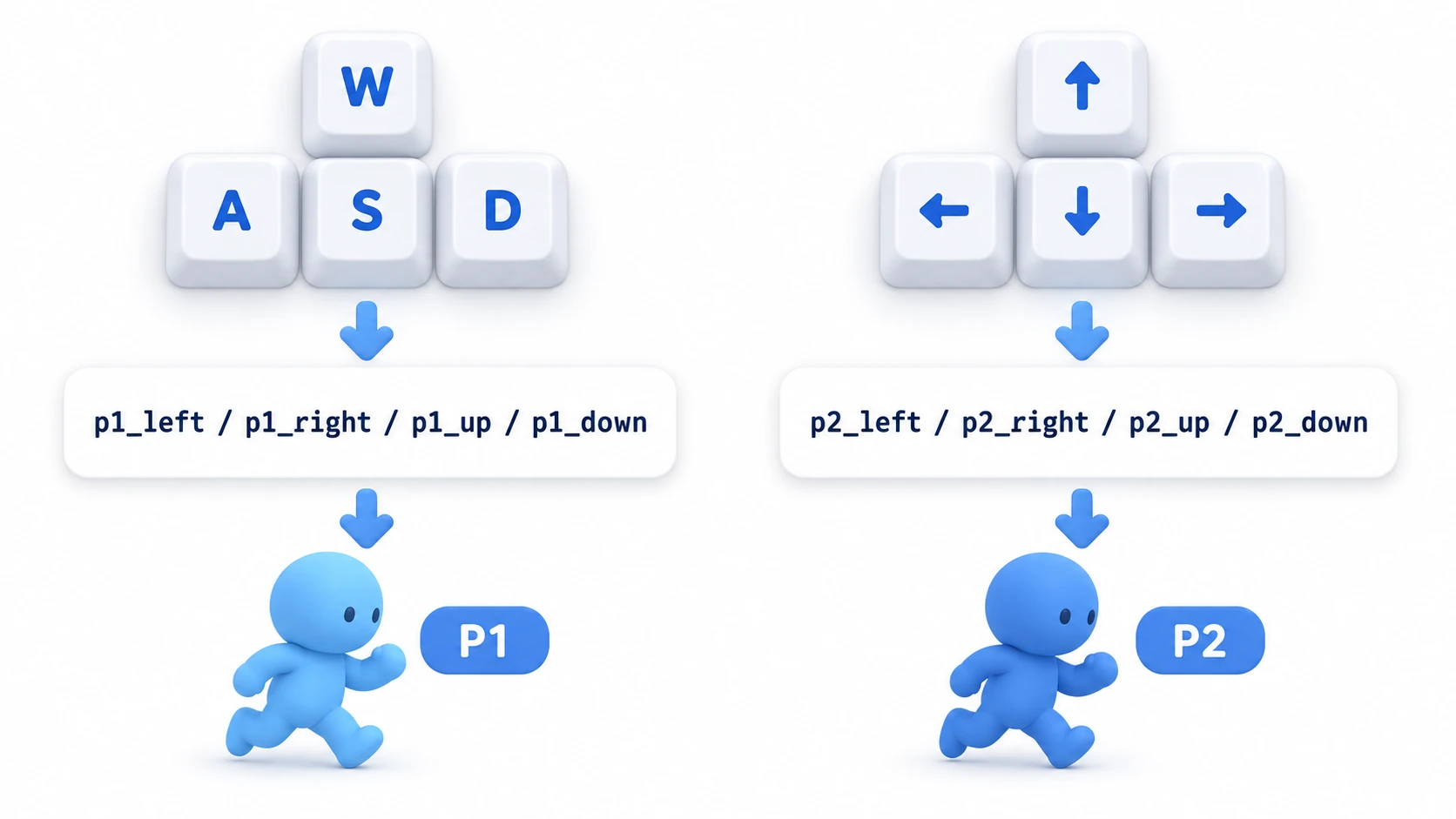
The approach is preparing separate input actions for each player. Define P1 and P2 actions in the InputMap.
# player.gd (each player carries its own action prefix)
@export var action_prefix := "p1"   # Set "p1" for P1 and "p2" for P2 in the Inspector

func _physics_process(_delta: float) -> void:
    var input := Input.get_vector(
        action_prefix + "_left", action_prefix + "_right",
        action_prefix + "_up", action_prefix + "_down")
    velocity = input * SPEED
    move_and_slide()
- Splitting the keyboard: assign P1 to
p1_left/p1_rightand so on (WASD), and P2 top2_left/p2_rightand so on (arrow keys) - Splitting by gamepad: in the InputMap, set the pad events on the
p1_actions toDevice 0and on thep2_actions toDevice 1, and two controllers can play with the sameInput.get_vector()
Making action_prefix an @export lets you reuse the same player.gd and just set "this player is P1" and "this one is P2" in the Inspector.
Hands-On: Building a Two-Player Co-op Split Screen
Two-player co-op action, head-to-head racing, party game minigames. Local multiplayer of every kind is built on this split screen. Putting the pieces together looks like this.
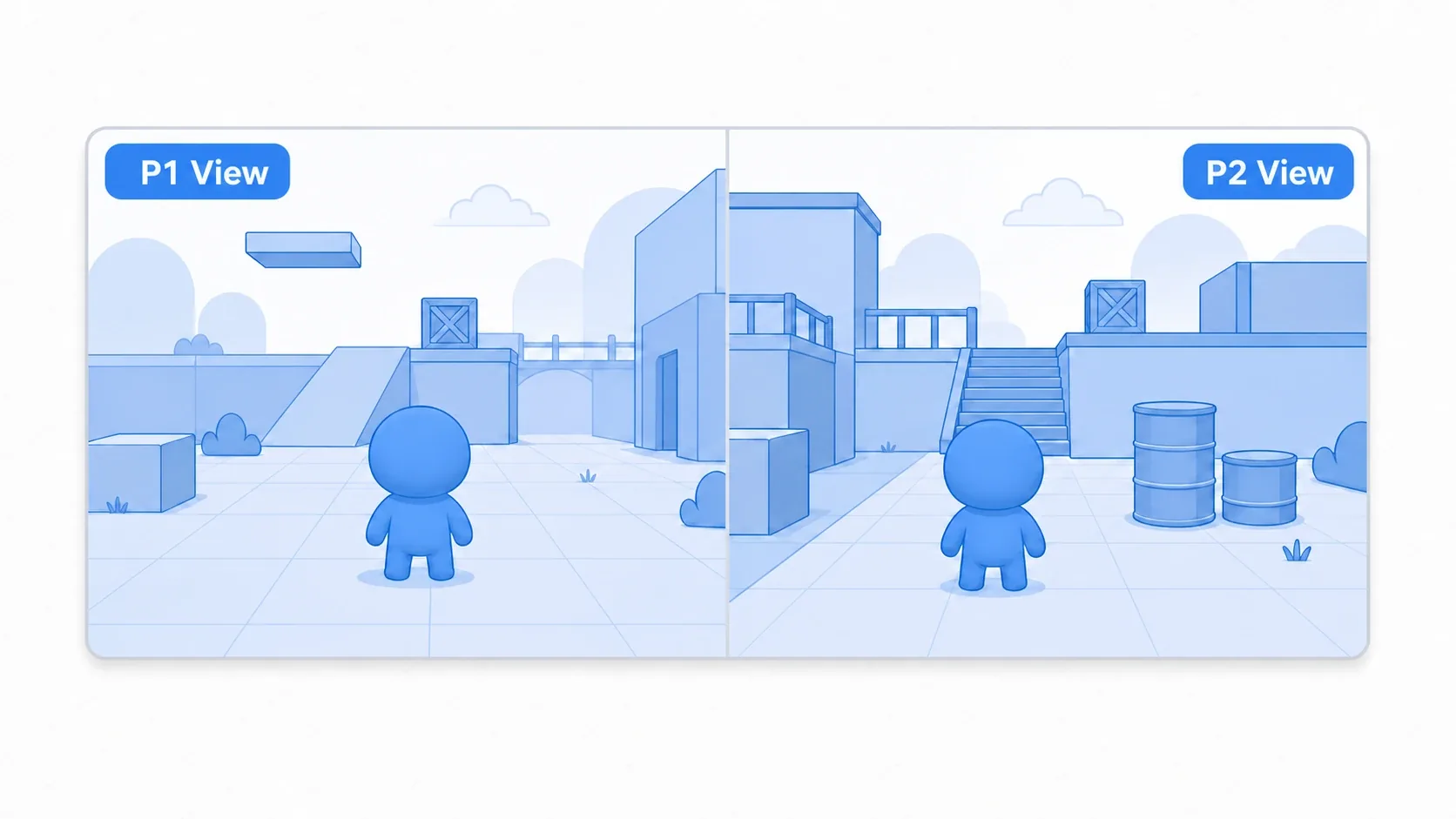
Assembly takes three steps.
- Divide the screen: put two
SubViewportContainers in anHBoxContainerand place a camera in eachSubViewport - Share the world: show the same world with
viewport_b.world_2d = viewport_a.world_2d - Split the input: assign separate actions to P1 and P2, and have each camera follow its own player
There are two points to take away.
- One world, two views: build the game world (players, enemies, terrain) as a single set and share it between both SubViewports. Building the world twice lets state drift apart, which is a breeding ground for bugs.
- Cameras go inside each SubViewport: place the camera as a child of its SubViewport and have it follow the player it's responsible for. That's what gives you one world seen from two viewpoints.
Performance Considerations
Split screen carries an unavoidable cost: the same world is drawn twice. Each view is half the size, so the number of pixels filled is the same as one screen, but everything on screen and every effect is processed twice, which makes it heavier.
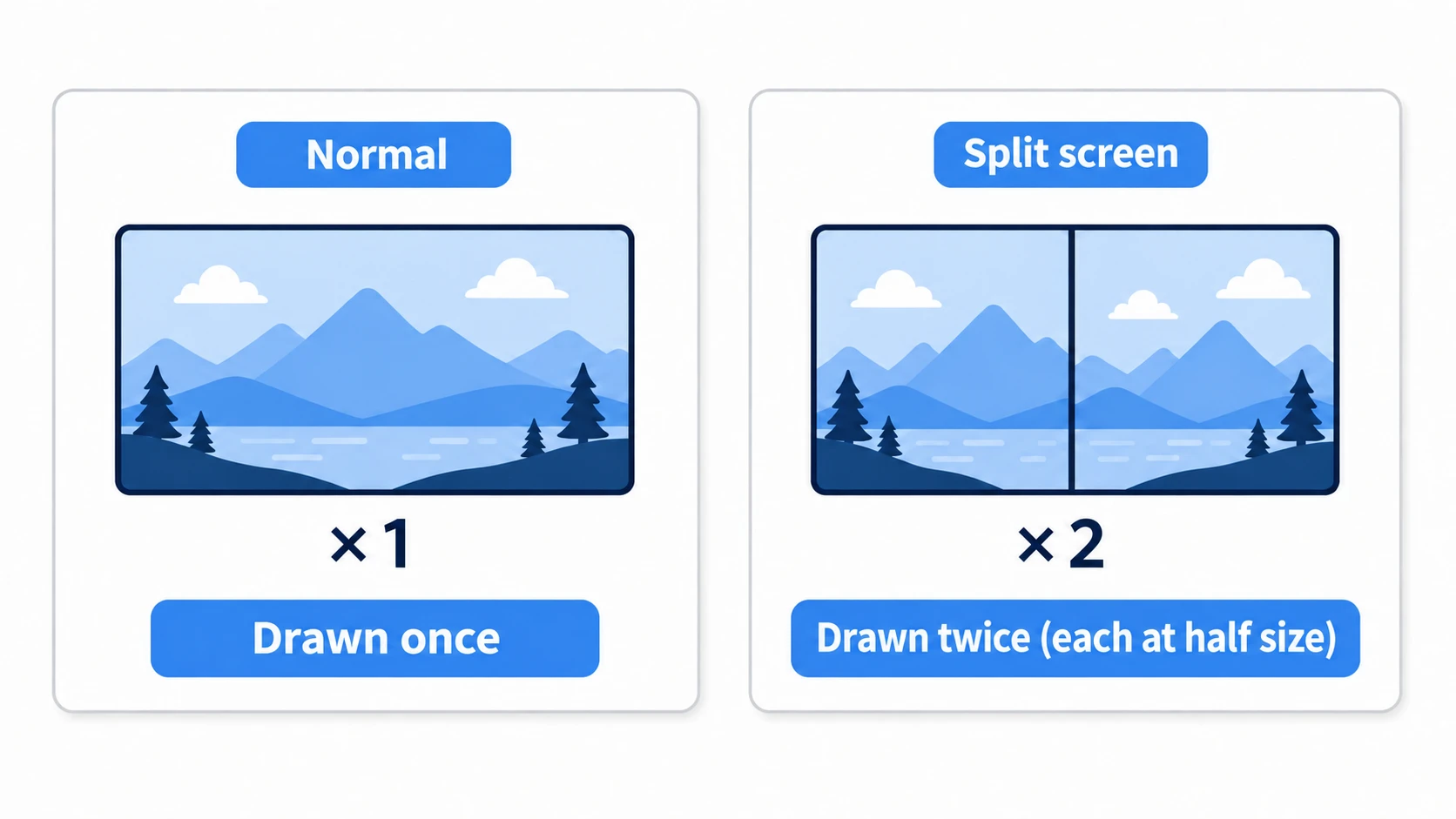
Since the same world is drawn twice, heavy 3D scenes and lots of effects will affect your frame rate. To counter it:
- Keep each SubViewport's resolution modest (each half is smaller anyway, so high resolution isn't needed)
- Reduce expensive rendering such as shadows and post-processing
- If you're targeting low-end devices, measure your draw counts before tuning (see frame rate management)
Keeping "split screen means drawing twice" in mind saves you from surprises when planning performance.
Bonus: Good to Know for Later
- It scales to three or four players: line up four
SubViewportContainers and you get a four-way split. AGridContainerarranges them 2x2. - UI goes per view: put each player's HP and score inside their own SubViewport (or on top of their SubViewportContainer) so it displays per view.
- If sound effects are silent: an
AudioStreamPlayer2Dinside aSubViewportisn't heard unless thatSubViewport'sAudio Listener>Enable 2Dis on (off by default). Turn it on in one of the views. - Online play is a different system: what we covered here is local multiplayer on one machine. Playing over a network uses separate systems such as
MultiplayerAPI.
Summary
- A split screen divides the screen, places two
SubViewports, and puts a camera following each player in one of them - Sharing
world_2d/world_3dlets two cameras view one world (never build the world twice) - Route input by defining separate actions per player (WASD/arrows, or pads)
- Cameras go inside each SubViewport and follow the player they're responsible for
- Split screen draws the world twice. Tune resolution and expensive rendering
Start by sharing a world between two SubViewports and moving one camera, just to see the same world appear in both views. Add two players and input routing on top and you have the foundation for local co-op.
Further Reading
- Making Use of SubViewport: the basics of SubViewport and ViewportTexture
- Godot Camera2D Techniques: how to build cameras that follow each player
- Key Binding Management with InputMap: per-player input actions
- Godot LAN Multiplayer Basics: joining the same game from separate PCs
- Godot Official Docs: Using Viewports: primary reference for Viewport