An enemy's footsteps closing in from behind. A distant explosion heard faintly from the left. Reverb kicking in the moment you enter a cave. Immersion in 3D games depends heavily on conveying where a sound comes from and how far away it is .
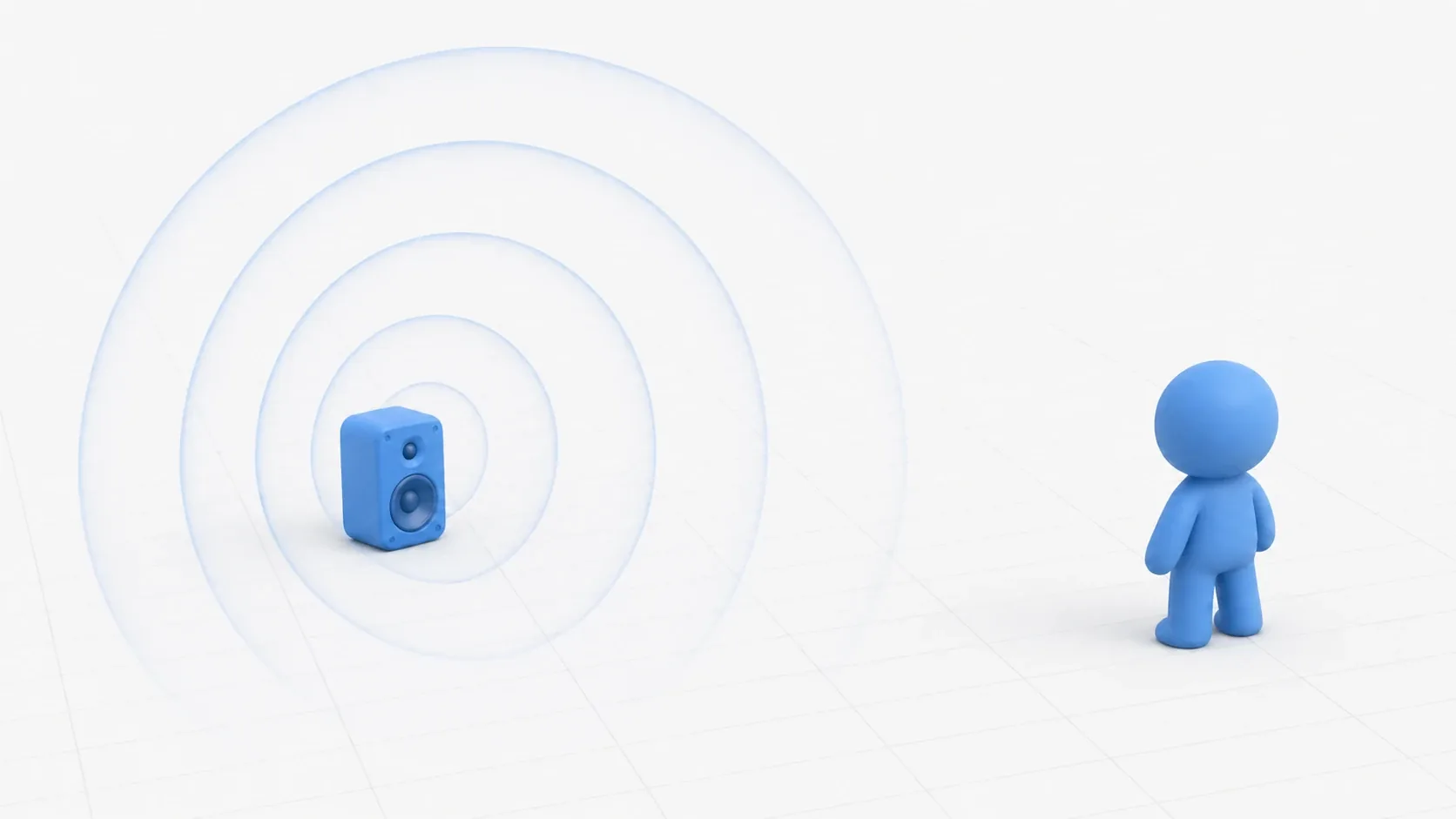
In Godot, AudioStreamPlayer3D handles this for you. Give a sound source a position and volume plus stereo panning change automatically based on distance and direction from the listener (usually the camera). This article builds from basic setup through choosing attenuation models, separating the listener, the Doppler effect, and per-area reverberation.
What You'll Learn
AudioStreamPlayer3Dbasics: volume changes with distance, panning with direction, automatically- Choosing an attenuation model by scene scale (Inverse / Square / Log / Disabled)
- Separating listener from camera with
AudioListener3D(third-person, cutscenes)- The Doppler effect and Area3D reverb zones
- Muffling filters based on distance, and performance optimization for many sources
Tested with: Godot 4.7
AudioStreamPlayer3D Basics
AudioStreamPlayer3D is an audio playback node that has a position in 3D space . Volume changes automatically with distance from the listener (normally the Camera3D with current = true), and stereo panning changes with direction . Positioning like "an enemy's voice from the back right" or "an explosion directly behind you" comes just from placing the node.
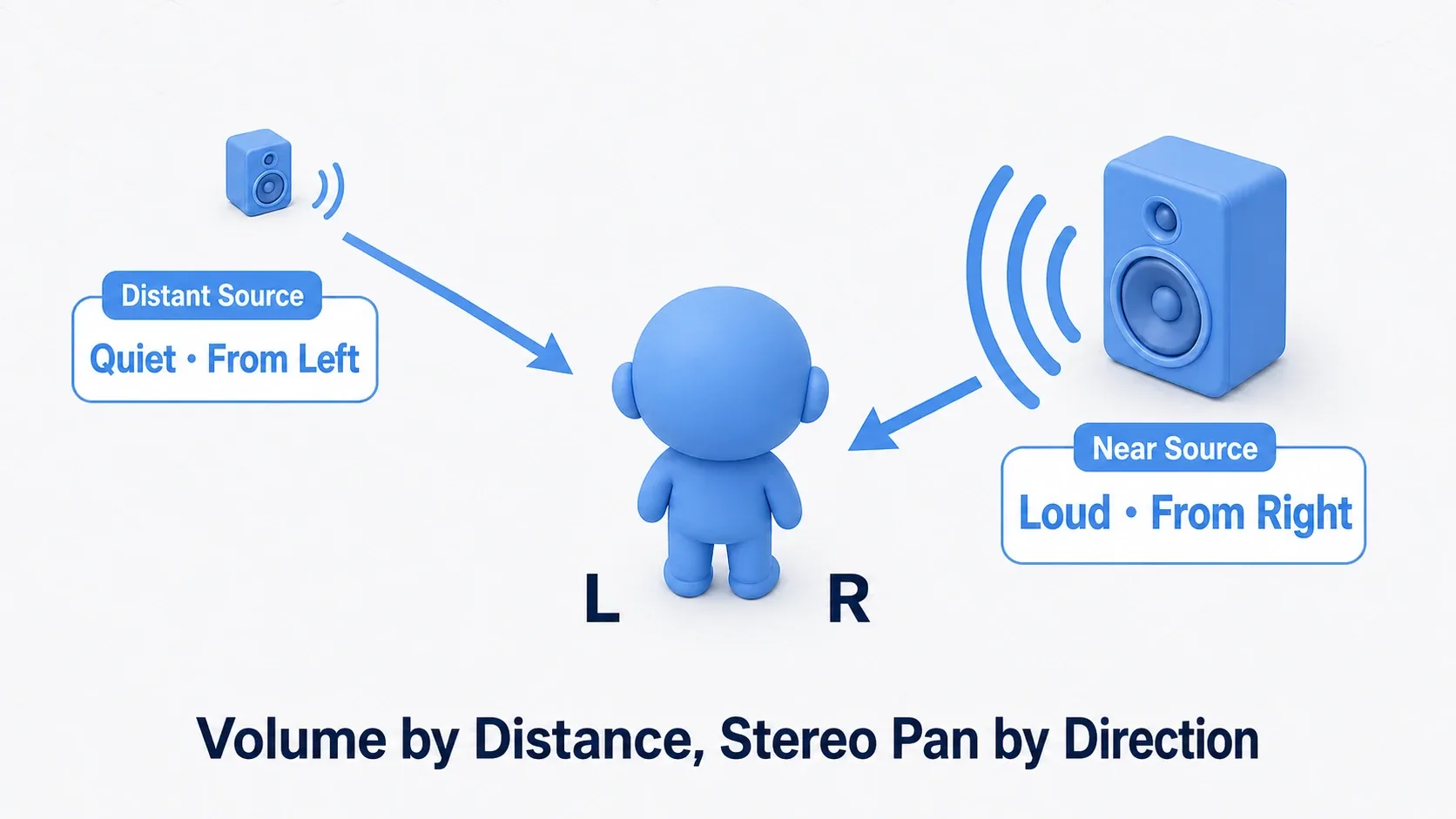
These are the main properties controlling how sound reaches the listener.
| Property | Description | Default |
|---|---|---|
unit_size | The reference distance: the sound plays at its original volume (0 dB) here and gets quieter beyond it. Effectively sets the audible range | 10.0 |
max_distance | Distance beyond which the sound is fully silent (0 = unlimited). When set, the volume also eases down on the way, reaching 0 here | 0 |
attenuation_model | How distance attenuation is calculated (covered below) | Inverse Distance |
panning_strength | Strength of stereo panning | 1.0 |
emission_angle_enabled | Directionality (projecting strongly in one direction) | false |
Here is the basic setup for enemy footsteps.
# Enemy (CharacterBody3D)
#   └── FootstepSound (AudioStreamPlayer3D)
@onready var footstep: AudioStreamPlayer3D = $FootstepSound

func _ready() -> void:
    footstep.stream = preload("res://audio/sfx/footstep.ogg")
    footstep.unit_size = 5.0       # Original volume at 5m, quieter the farther you go
    footstep.max_distance = 30.0   # Silent beyond 30m (cuts wasted calculation)
    footstep.bus = "SFX"           # Route through the SFX bus

func play_footstep() -> void:
    if not footstep.playing:       # Avoid overlapping playback
        footstep.play()
unit_size is the knob that sets the felt "audible range." When you want to project in one direction only, like a security camera alarm or a PA speaker , set emission_angle_enabled = true and narrow the angle with emission_angle_degrees.
Choosing an Attenuation Model
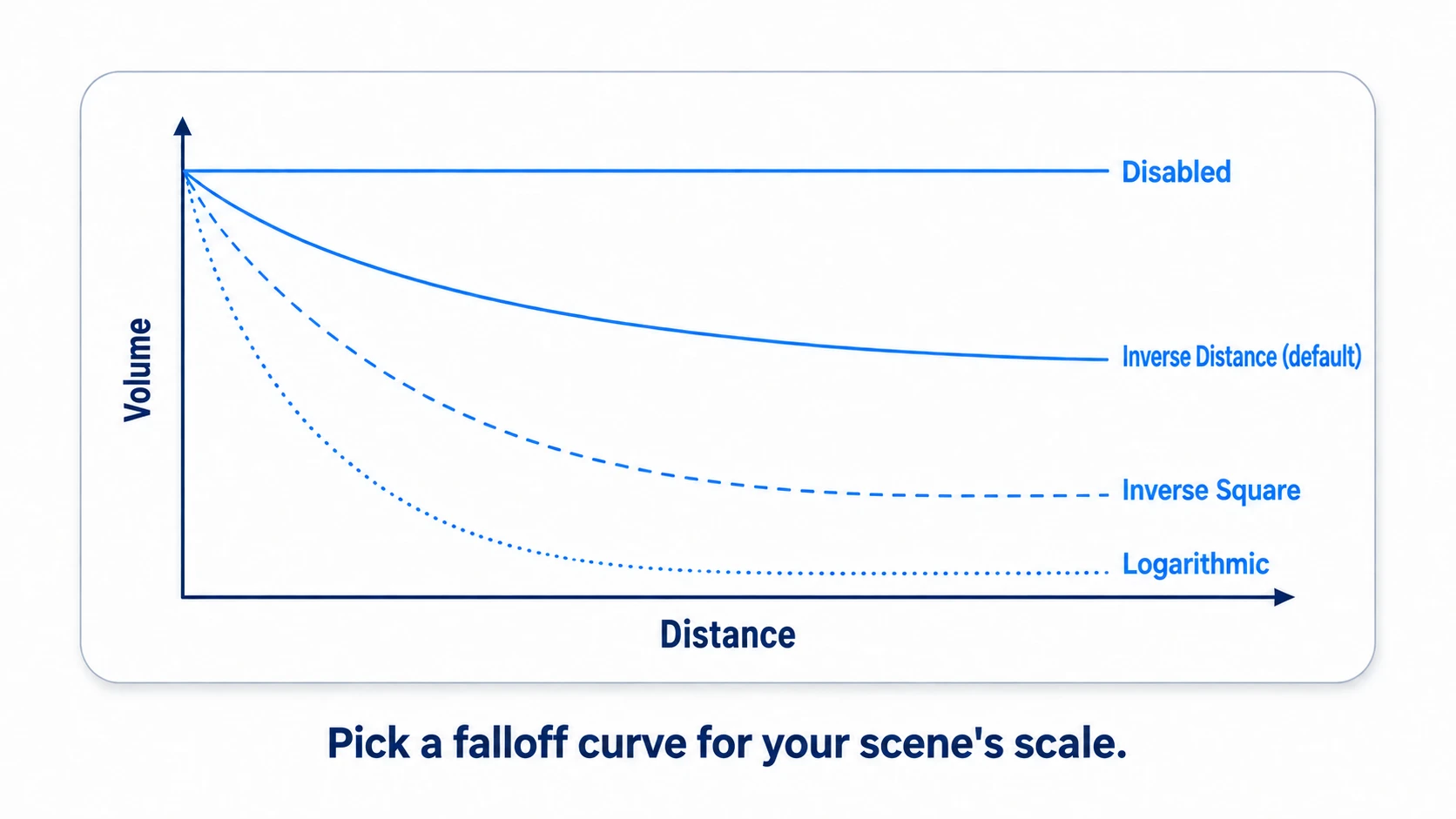
attenuation_model determines what curve volume follows as distance increases . You choose based on whether you want realism or in-game audibility.
| Model | Attenuation | Best-suited scenes |
|---|---|---|
| Inverse Distance | Inversely proportional to distance (gentle, about -6 dB per doubling of distance, close to how real sound fades; the default) | Wide outdoor fields |
| Inverse Square | Inversely proportional to distance squared (steep, about -12 dB per doubling) | Sounds you want heard only up close |
| Logarithmic | Logarithmic (steepest, about -14 dB per doubling) | Indoors, close-range exchanges |
| Disabled | No attenuation (constant) | Music-like ambience |
# To keep footsteps audible only up close, use the steeper Inverse Square
footstep.attenuation_model = AudioStreamPlayer3D.ATTENUATION_INVERSE_SQUARE_DISTANCE

# Guideline values for unit_size and max_distance (by scene scale)
# Small room     : unit_size=2.0,  max_distance=10.0
# Mid-size indoor: unit_size=5.0,  max_distance=25.0
# Outdoor field  : unit_size=10.0, max_distance=50.0
When in doubt, a solid approach is to start from the default Inverse Distance (close to how real sound fades) and raise unit_size if things are hard to hear.
Separating the Listener with AudioListener3D
By default, you hear sound from wherever the camera is. But when a third-person camera pulls far back , the camera and player positions diverge and sounds right next to you feel distant, which is jarring.
Placing an AudioListener3D as a child of the player and activating it makes sound heard relative to the player's position no matter where the camera is.
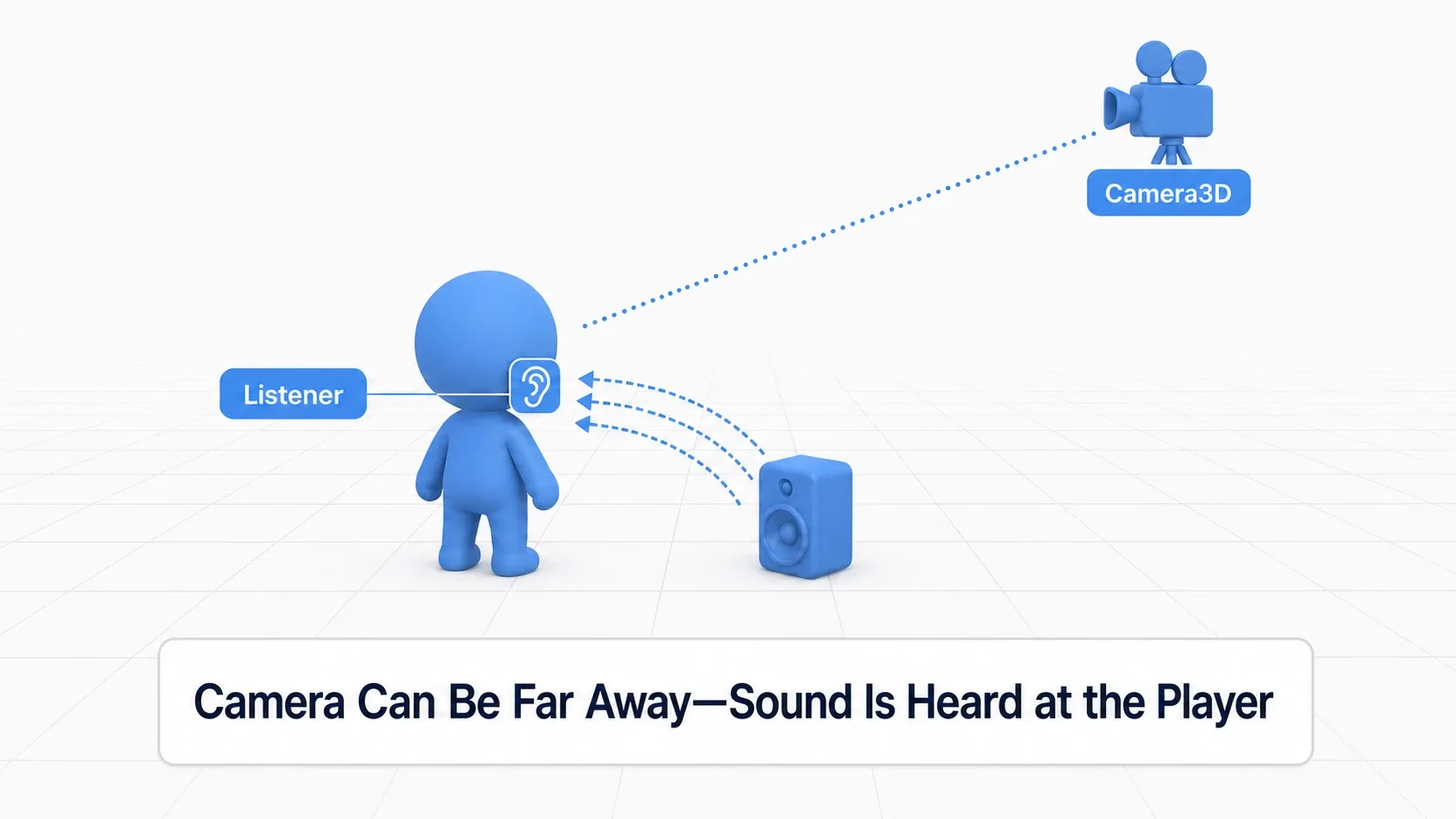
| Pattern | Listener | Use |
|---|---|---|
| Typical games | Camera3D (default) | Camera position as listening position is fine |
| Third-person | AudioListener3D | Hear sounds near the player even with a pulled-back camera |
| Cutscenes | AudioListener3D | Keep the mix player-relative while the camera moves |
# Player (CharacterBody3D)
#   └── AudioListener3D
@onready var listener: AudioListener3D = $AudioListener3D

func _ready() -> void:
    listener.make_current()  # Activate this listener (takes priority over the camera)
From the moment you call make_current(), the listening point moves here. If you want to hand it back to the camera temporarily for a cutscene, clear_current() releases it.
The Doppler Effect
A car passing by, an ambulance going past. A moving source rises in pitch as it approaches and drops as it recedes. This Doppler effect is enabled with a single property.
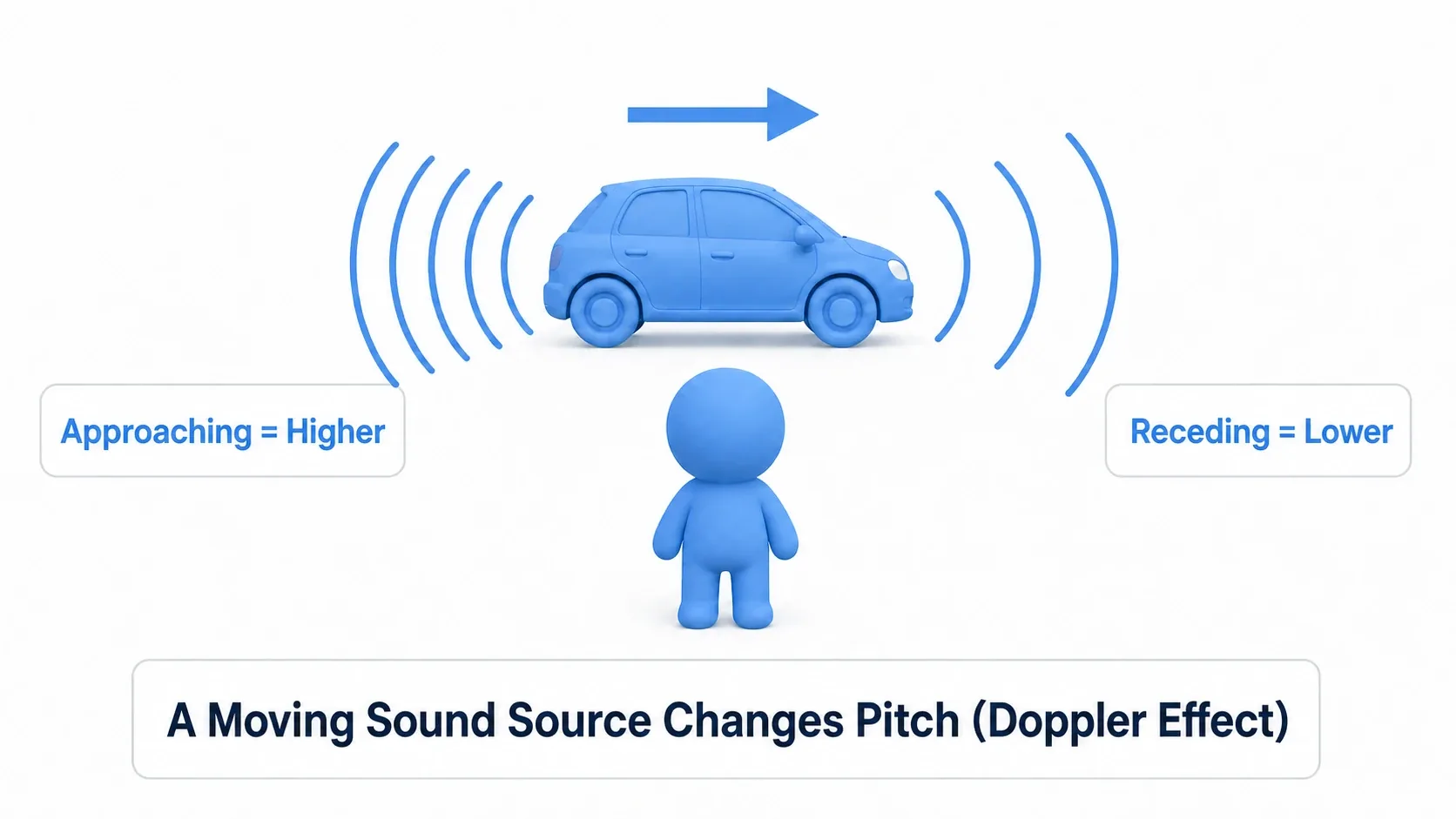
# Enable Doppler tracking on both the source and the listening Camera3D
$AudioStreamPlayer3D.doppler_tracking = AudioStreamPlayer3D.DOPPLER_TRACKING_PHYSICS_STEP
get_viewport().get_camera_3d().doppler_tracking = Camera3D.DOPPLER_TRACKING_PHYSICS_STEP  # The listening side too (set it on the AudioListener3D if that's your ear)

# Tracking modes
# DOPPLER_TRACKING_DISABLED     ... off (default)
# DOPPLER_TRACKING_IDLE_STEP    ... synced to _process()
# DOPPLER_TRACKING_PHYSICS_STEP ... synced to _physics_process() (stable even at high speed)
Doppler is calculated from the source's velocity , so for fast-moving objects, PHYSICS_STEP syncing with physics is more stable (see also _process vs _physics_process). It's best reserved for racing games, projectiles, and vehicles. Leaving it on everywhere adds calculation.
Area3D Reverb Zones
"Sound echoes the instant you enter a cave." Per-space reverberation can be automated with Area3D's reverb zone feature. In the AudioBus effects article we added and removed reverb manually; this instead also sends sound to a dedicated bus automatically inside the area .
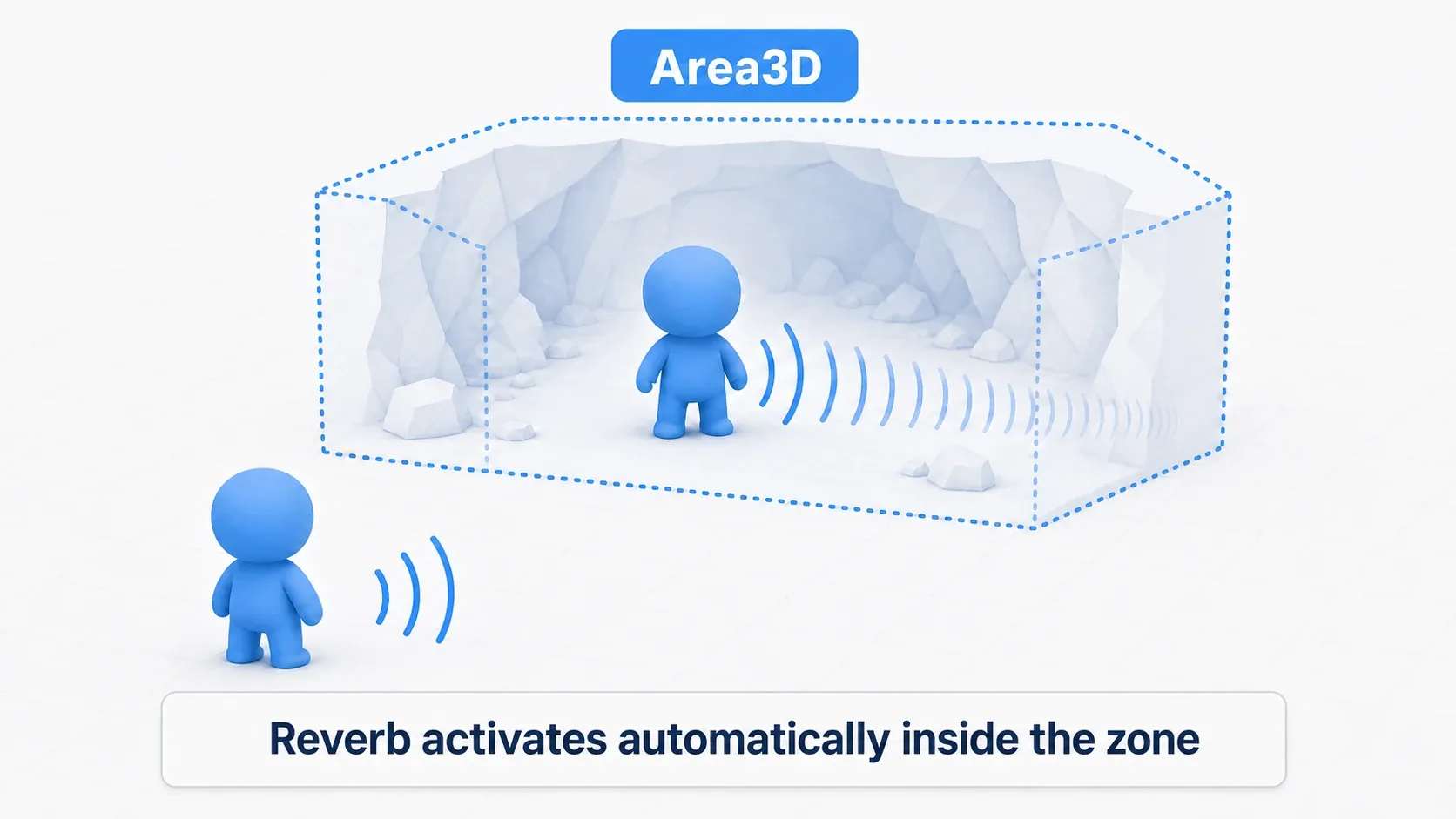
Define the volume on an Area3D with a CollisionShape3D and specify a reverb bus.
func setup_reverb_zone() -> void:
    var area := $ReverbZone as Area3D
    area.reverb_bus_enabled = true          # Enable reverb for this area
    area.reverb_bus_name = &"CaveReverb"    # Destination reverb bus
    area.reverb_bus_amount = 0.6            # How much is sent to the reverb bus
    area.reverb_bus_uniformity = 0.8        # How uniformly it applies within the area
Add an AudioEffectReverb (for example room_size: 0.85 / wet: 0.4) to the destination CaveReverb bus ahead of time. Sound from AudioStreamPlayer3D nodes inside the volume is automatically sent to that bus as well and picks up reverberation. What's checked is the source's position, so footsteps attached to the player echo once the player walks in and go back to normal on the way out. You write no entry/exit code at all.
Distance Muffling and Performance
For extra realism, cutting the highs off distant sounds to muffle them heightens the sense of distance. Near sounds stay clear while far ones go murky, which you build with the low-pass filter property. In fact, even by default, highs above attenuation_filter_cutoff_hz (default 5000 Hz) get weaker automatically as the sound gets farther away (by up to attenuation_filter_db, default -24 dB). For a stronger muffle, lower the cutoff with distance like this.
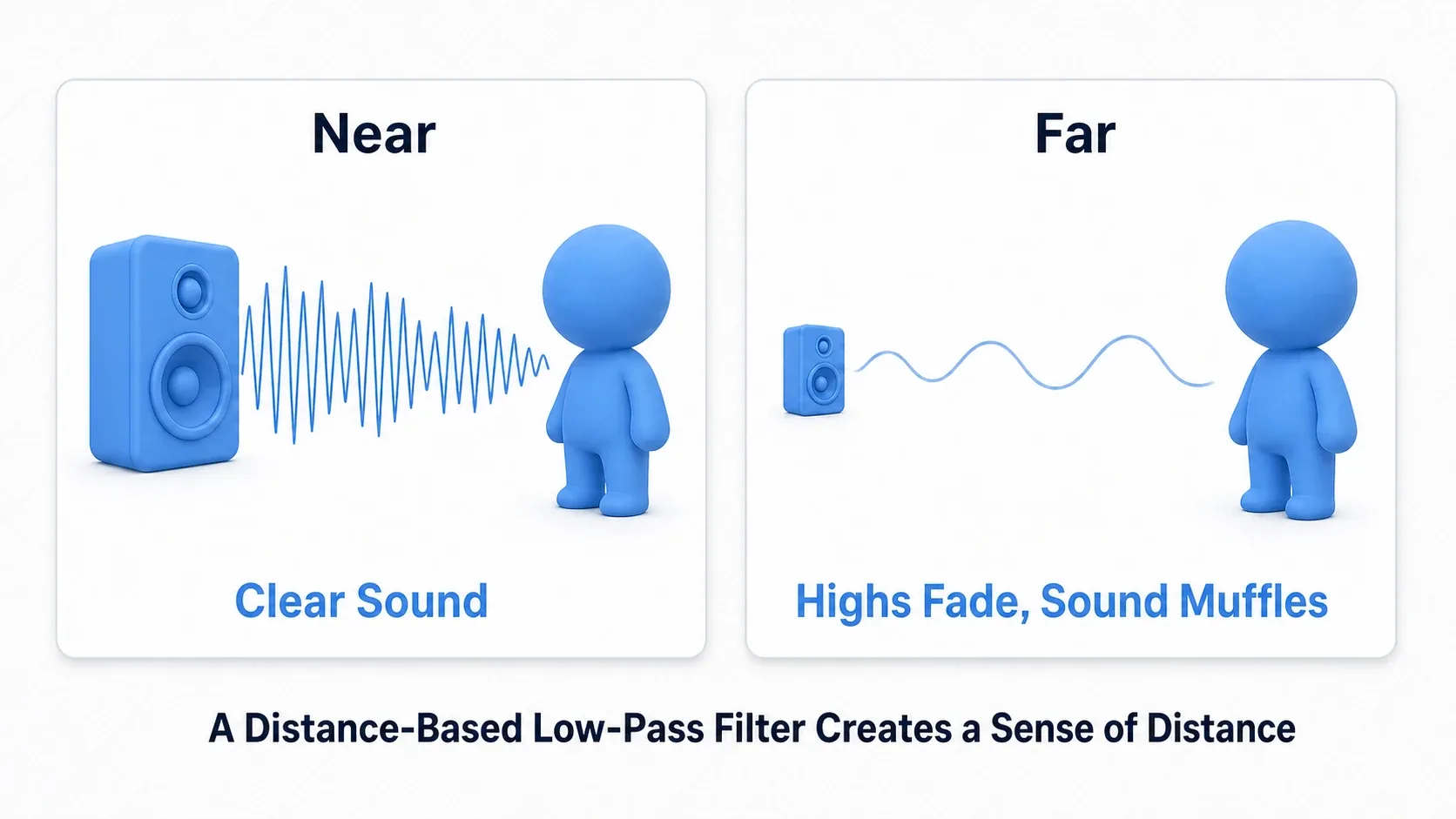
extends AudioStreamPlayer3D

@export var listener_node: Node3D
@export var far_distance: float = 30.0

func _process(_delta: float) -> void:
    if not listener_node:
        return
    var dist := global_position.distance_to(listener_node.global_position)
    var ratio := clampf(dist / far_distance, 0.0, 1.0)
    # The farther away, the lower the high-frequency ceiling (20500Hz to 2000Hz) = muffled
    attenuation_filter_cutoff_hz = lerpf(20500.0, 2000.0, ratio)
Performance Optimization
In something like an open world with a huge number of sound sources, CPU cost becomes a problem. These three measures do the most work.
| Measure | Description |
|---|---|
Always set max_distance | Avoid 0 (unlimited) and only calculate the range you need |
| Limit simultaneous playback | Keep max_polyphony at 1 to 4, and simultaneously playing nodes at roughly 20 to 30 or fewer |
| Stop distant sources | Once far enough from the listener, stop with playing = false (LOD-style culling) |
# Stop sources far from the listener to save CPU
func _process(_delta: float) -> void:
    var camera := get_viewport().get_camera_3d()
    if not camera:
        return
    var dist := global_position.distance_to(camera.global_position)
    # For looping ambience (set max_distance first; on a one-shot sound this replays it every time it ends)
    if dist > max_distance * 1.2 and playing:
        stop()
    elif dist <= max_distance and not playing:
        play()
Managing large numbers of sources in an object pooling style is also worth considering once load grows.
Bonus: Good to Know for Later
- Adjust
unit_sizefirst : when something is quieter or louder than expected, raising or loweringunit_sizeis the quickest fix, before touching the attenuation model. - For 2D games, use AudioStreamPlayer2D : top-down 2D can convey distance and left-right position too. The 3D thinking transfers almost directly.
- Give each location its own ambience : for waterfalls, campfires, and crowds, place a source with
Disabledattenuation and a shortmax_distanceto get ambience that fades in as you approach. - Track switching belongs to adaptive music : changing music by area or combat situation is adaptive music territory.
Summary
AudioStreamPlayer3Dchanges volume with distance and panning with direction automatically.unit_sizesets the felt audible range- Attenuation models are chosen by scene scale (the default Inverse Distance when in doubt). Always set
max_distanceto cut wasted calculation AudioListener3Dseparates the listening point from the camera (useful in third-person and cutscenes)- Doppler means setting
doppler_trackingtoPHYSICS_STEP, and Area3D automates per-space reverberation with reverb zones - Optimization rests on three pillars:
max_distance, simultaneous playback limits, and stopping distant sources
Start by adding footsteps to an enemy with AudioStreamPlayer3D, then play with unit_size and max_distance to feel the "audible as you approach" effect. Add listener separation and area reverb on top and your world starts sounding genuinely three-dimensional.
Further Reading
- Audio management basics (AudioStreamPlayer and Audio Bus) : the shared 2D/3D foundation and bus setup
- Sound design with AudioBus effects : building out effects like a reverb bus
- Adaptive music : changing music dynamically with the situation
- _process vs _physics_process : the foundation for understanding Doppler's
PHYSICS_STEP - Third-Person Camera Basics : a third-person camera behind the character that avoids walls
- Godot official docs: AudioStreamPlayer3D : primary source on the properties